
Show specific products/collections only to tagged customers
Show specific products/collections only to tagged customers (Silver vs Gold example).
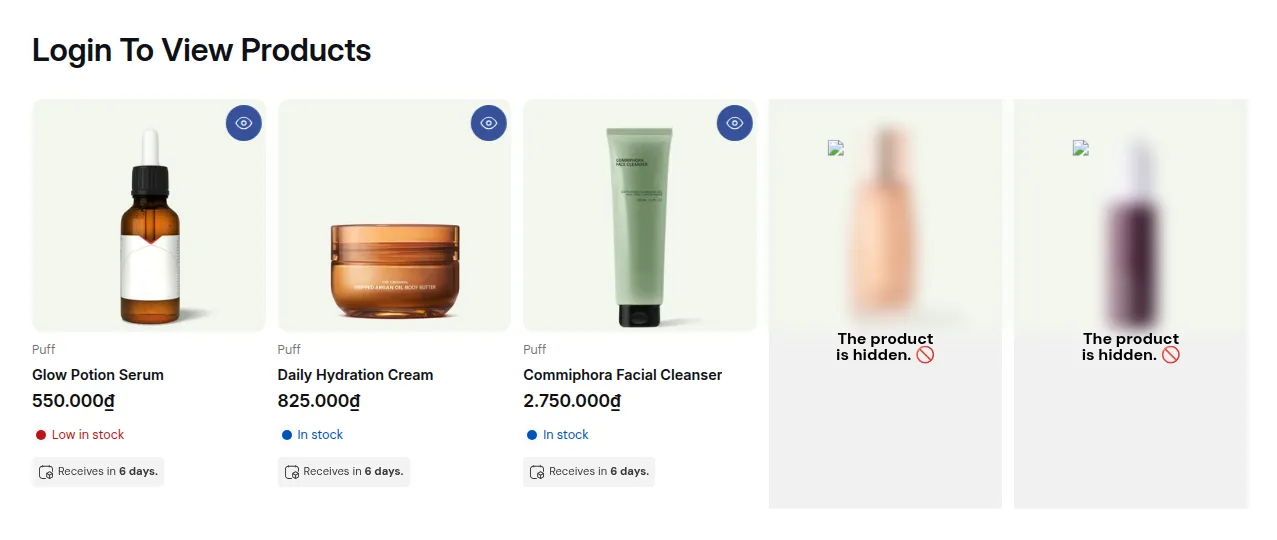
What your customers see on the storefront.
(“Allow customers with tags to view products/collections” – Silver vs Gold example)
Goal
Use customer tags to restrict and show different catalogs to different groups (e.g., Silver vs Gold customers).
When to use this recipe
- Tiered customer structures:
silver,gold,vip, etc. - Member-only catalogs where items should be completely hidden or access-restricted for unauthorized visitors.
- Exclusive wholesale or early-access product lines.
Step 0 – Before you start
Section titled “Step 0 – Before you start”Plan your customer segmentation:
- Decide on your customer tags (e.g.,
silver,gold). - Ensure relevant customer accounts have been assigned these tags in Shopify Admin.
- Identify which products or collections belong to each tier.
Example A – Silver customers see only Silver products
Section titled “Example A – Silver customers see only Silver products”Step 1 – Lock Target
- Go to Locks → Add lock rule, choose Create my own lock in the Start with a preset modal, then click Continue.
- Lock name: Enter a descriptive name such as
Show Silver products only to Silver customers. - In What do you want to lock?, select Products (or Collections if grouping whole catalogs).
- Configure Restricted products:
- Select Specific products (or By tags / By collections) and pick the Silver-exclusive items.
- In Product Visibility Control, select how restricted products appear to unauthorized visitors:
- Fully Hide Product: Completely removes the item from the storefront (no trace in collections, search, or direct product page links). Recommended if you want exclusive catalog segmentation.
- Only lock product page: The product remains visible across the store, but accessing the product page displays an “Access Denied” lock message.
- (Optional) Under Search visibility, tick Hide price on Google search, and, if you chose Only lock product page, keep Hide from navigation menu ticked to remove menu links to these products. With Fully Hide Product this option is hidden because the product is already fully hidden.
- Click Next.
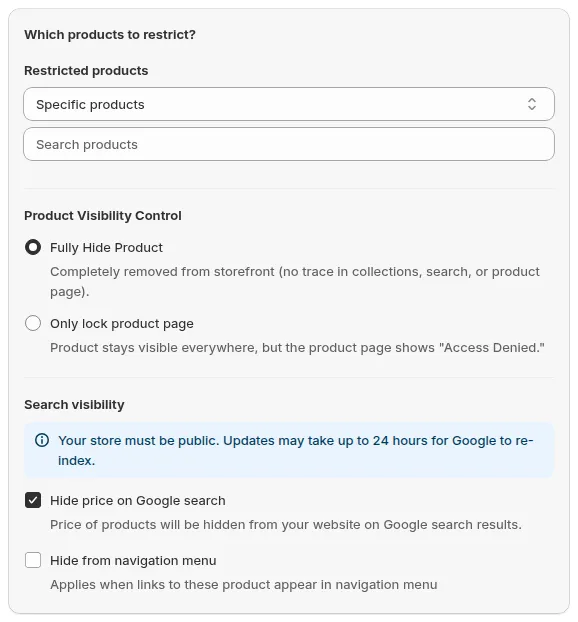
Step 1 - Lock Target. Select the Silver-only products
Step 2 – Access & Message
- Under Access rules, configure Rule 1:
- Click the User type chip.
- Select Tagged customers – Must have specific tags and enter the tag
silver.
- (Optional) Click + Add rule to create an alternative access path joined by OR (e.g., Rule 2 for internal staff or admin tags). Any customer meeting either rule will be granted access.
- Customize lock notification:
- In the Preview panel, click Customize message to edit the restriction message shown to untagged visitors or guests (e.g., “This collection is reserved for Silver tier members. Please sign in or contact support to upgrade.”).
- Click Next.
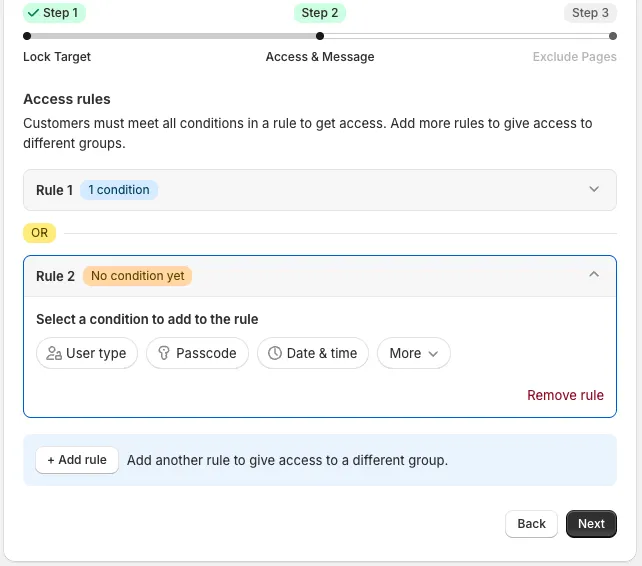
Step 2 - Access & Message. Separate rules are joined with OR
Step 3 – Exclude Pages
- Under Exclude Pages, select any specific URLs or pages that should bypass this lock and remain public to everyone.
- Review your setup in the Summary card on the right.
- Click Save.
Example B – Gold customers see Gold (plus Silver) products
Section titled “Example B – Gold customers see Gold (plus Silver) products”To configure tiered access where Gold customers can view both Gold and Silver items:
Part 1: Restrict Gold-only products
- Create a second lock rule:
Show Gold products only to Gold customers. - In Step 1 – Lock Target, select your Gold products and choose Fully Hide Product.
- In Step 2 – Access & Message, add User type → Tagged customers with the tag
gold. - Click Next, review Step 3 – Exclude Pages, and click Save.
Part 2: Grant Gold customers access to Silver products
- Reopen your Silver lock rule (
Show Silver products only to Silver customers). - Navigate to Step 2 – Access & Message.
- Click + Add rule to introduce Rule 2.
- Set Rule 2 condition to User type → Tagged customers with tag
gold. - Click Next and Save changes.
Summary of Storefront Behavior
Section titled “Summary of Storefront Behavior”With both configurations active:
- Guests & Untagged Customers: Cannot view or search Silver- or Gold-exclusive items (or will see lock messages depending on visibility settings).
- Silver-tagged Customers: Can view and purchase Silver catalog items, but Gold-tier items remain hidden.
- Gold-tagged Customers: Can access both Gold and Silver catalogs seamlessly.
Check your storefront
Section titled “Check your storefront”- Test as a Guest / Untagged User:
- Confirm that restricted products are either hidden from catalog navigation or prompt an access denied message.
- Log in as a Silver Customer:
- Verify that Silver products appear and are accessible.
- Verify that Gold products remain inaccessible.
- Log in as a Gold Customer:
- Verify access to both Gold and Silver products.
Still Need Help?
Section titled “Still Need Help?”If you have questions or need assistance configuring BSS B2B Lock, our dedicated support team is here to help.
- In-App Assistance: Click Need help? or use the in-app chat button within BSS B2B Lock.
- Email Support: Contact us at [email protected] with your store URL and specific rule details.