
Public API v2: Authentication & keys
Create a key
Section titled “Create a key”-
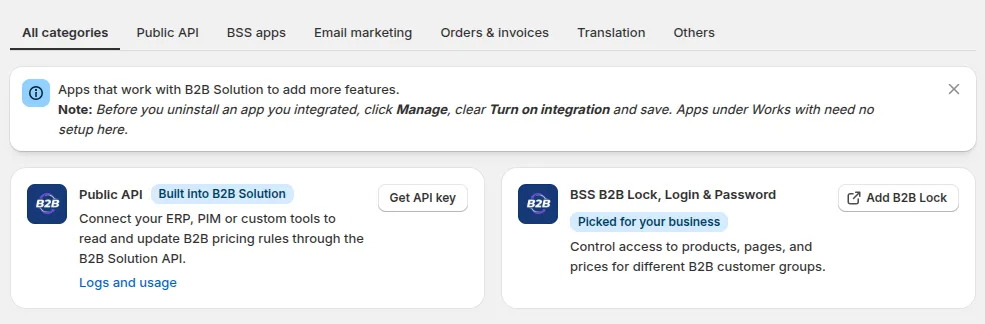
In the app menu, click Integrations, then click Get API key on the Public API card.
-
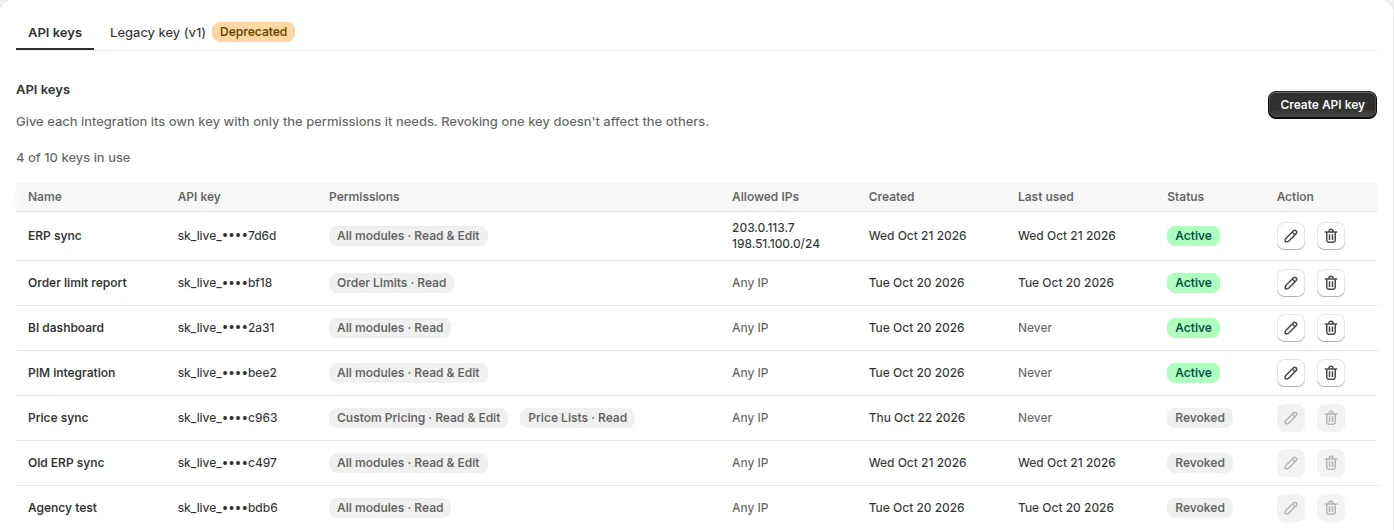
The page opens on the API keys tab, which lists your keys with their last 4 characters, permissions, allowed IPs and status; the Legacy key (v1) tab holds the v1 key.
-
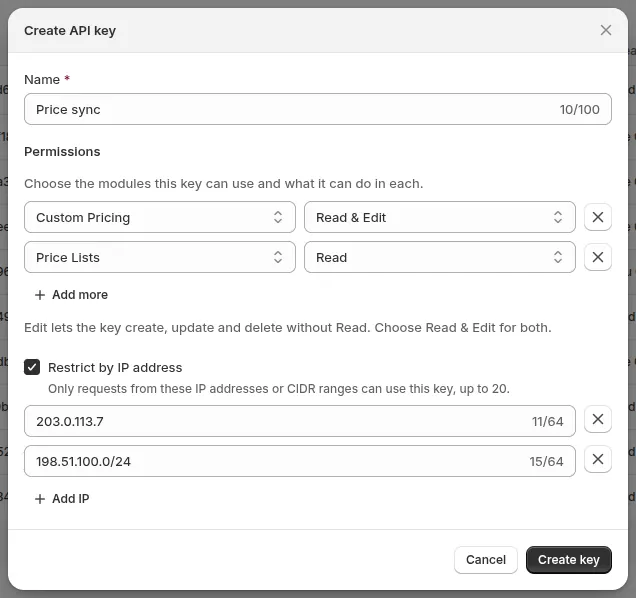
Click Create API key, name it after the integration, and add one row per module: Read, Edit or Read & Edit. Click Add more for another module. All modules covers every module, including modules added later. To let the key work only from your servers, select Restrict by IP address (see below).
-
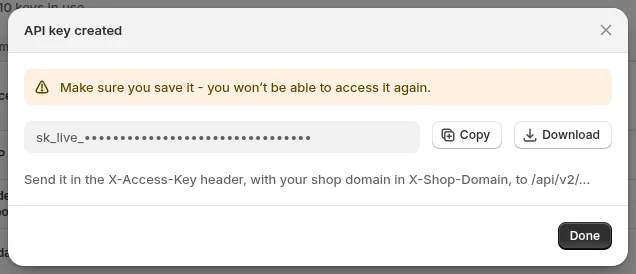
Click Create key, then Copy or Download the key. It shows once; after you click Done, the list keeps only its last 4 characters.
Revoke a key
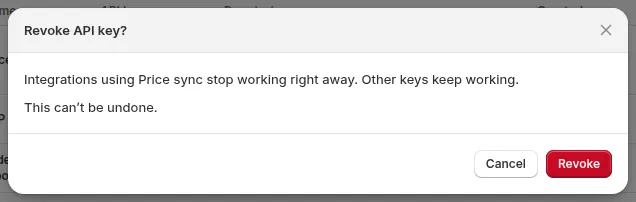
Section titled “Revoke a key”Click the trash icon on the key’s row, then Revoke. The key stops working at once; the other keys keep working. Revoked keys stay on the list for 90 days.
Edit a key
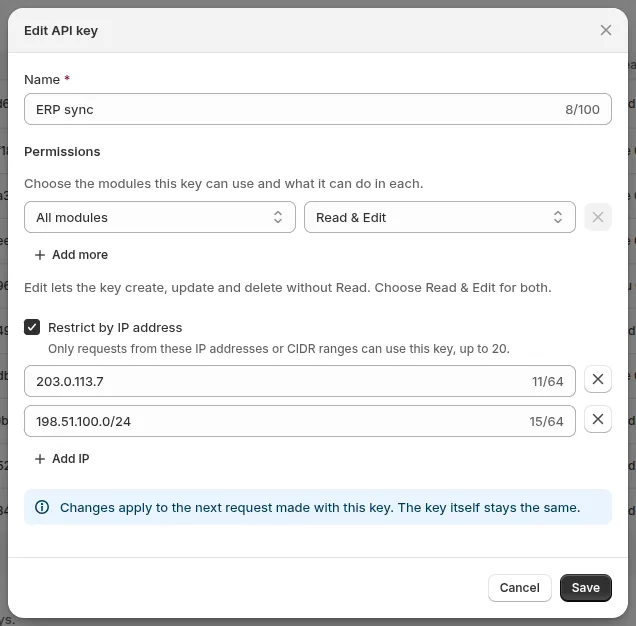
Section titled “Edit a key”Click the pencil icon on the key’s row to change its name, its permissions or its allowed IPs, then click Save. The key itself stays the same, so your integration keeps sending it; the change applies to its next request. Revoked keys cannot be edited.
Limit a key to your IP addresses
Section titled “Limit a key to your IP addresses”When you create a key, or later with the pencil icon on its row, select Restrict by IP address, then enter the IP addresses your integration calls from, one per field: a single address (203.0.113.7) or a CIDR range (198.51.100.0/24), IPv4 or IPv6. Click Add IP for another one, up to 20. The key then works only from those addresses; a request from anywhere else gets 403 AUTHORIZATION_DENIED with the caller’s IP in details. A range that allows every address, such as 0.0.0.0/0, is refused: clear the checkbox instead. Clear the checkbox to allow any IP again. A change applies to the next request, and a request refused for its IP costs no points.
Key rules
Section titled “Key rules”- Up to 10 active keys per store.
- Edit can write but not read. A key that must read too needs Read & Edit.
- Name, permissions and allowed IPs can be changed at any time; the key itself does not change.
- The key of the Legacy key (v1) tab does not work with v2.
Send the key
Section titled “Send the key”| Header | Value |
|---|---|
X-API-Key |
The key, sk_live_… |
X-Shop-Domain |
The store it acts on, e.g. your-store.myshopify.com |
Content-Type |
application/json, on requests with a body |
curl -X GET "https://solution-public-api.bss-b2b.solutions/api/v2/bogo/rules?limit=1" \ -H "X-API-Key: $B2B_API_KEY" \ -H "X-Shop-Domain: your-store.myshopify.com"Keep keys safe
Section titled “Keep keys safe”- Call the API from your server only. Never put a key in a theme, a browser or a mobile app.
- Give each integration its own key with only the modules it needs, so you can revoke one without stopping the others.
- Store keys in a secret manager or environment variables, not in code or logs.
- To rotate a key, create the new one, switch your integration over, then revoke the old one.
- Use HTTPS only.
When a key is refused
Section titled “When a key is refused”| HTTP | Code | Why |
|---|---|---|
| 400 | DOMAIN_MISSING |
No X-Shop-Domain. |
| 401 | ACCESS_KEY_MISSING |
No X-API-Key. |
| 401 | ACCESS_KEY_INVALID |
Unknown key, a key of another store, a v1 key, or an unknown domain. |
| 401 | ACCESS_KEY_REVOKED |
The key was revoked, or the store moved to a plan without Public API. |
| 403 | AUTHORIZATION_DENIED |
The key lacks a scope (details names it), the request comes from an IP outside the key’s allowed IPs (details names the IP), or the plan does not include the module. |
A key without the module's scope 403
{ "success": false, "status": "error", "errors": { "code": "AUTHORIZATION_DENIED", "message": "Insufficient permissions", "details": [ { "field": "scope", "message": "Missing scope custom-pricing:read" } ] }, "meta": { "timestamp": "2026-10-21T09:34:50.589Z", "version": "v2", "request_id": "a8ffdb89-dbbb-47dd-8231-0d19736f5882" }}