
Restrict access so pages can only be viewed via secret links
Make certain pages or collections accessible only when someone uses a special secret link (URL with a token).

What your customers see on the storefront.
Goal
Make certain pages or collections accessible only when someone uses a special secret link (URL with a token).
When to use this recipe
- VIP early access pages.
- Hidden campaigns where you don’t want content in navigation or search.
- A soft “invite-only” experience without user accounts or tags.
Step 0 – Before you start
Section titled “Step 0 – Before you start”- Decide which page or collection you want to hide behind a secret link.
- Plan how you’ll distribute the secret URL (email campaign, manual share, etc.).
Step 1 – Lock Target
Section titled “Step 1 – Lock Target”- Go to Locks → Add lock rule, select Create my own lock in the Start with a preset modal, then click Continue.
- In Step 1 – Lock Target:
- Lock name:
Secret link for VIP sale. - In What do you want to lock?, select the content type:
- For a collection → Collections, then under Which collections to restrict? select Specific and pick the collection in the Select collections picker.
- For a page → Pages, blogs and URLs, then under Select content type to lock choose Page and select the page under Specific pages, or choose URL, enter its URL and click Add.
- Lock name:
- Click Next.
Step 2 – Access & Message
Section titled “Step 2 – Access & Message”- In Rule 1, click More → Other condition, then choose Secret link – Must access via a special link in Select access rule.
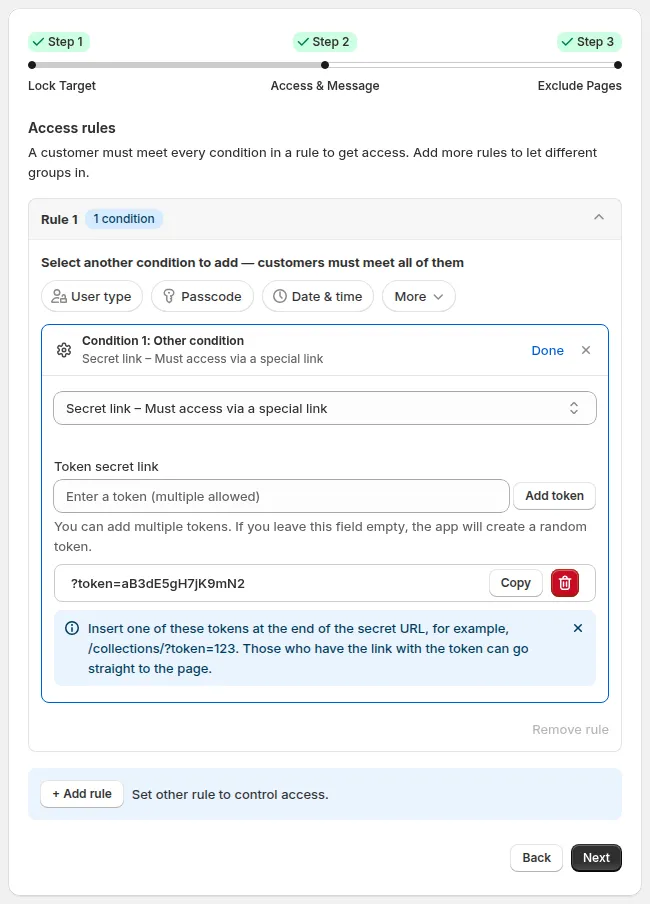
More → Other condition → Secret link.
- Under Token secret link, enter a token and click Add token. The app notes: “You can add multiple tokens. If you leave this field empty, the app will create a random token.”
- Build the secret URL as the app describes: “Insert one of these tokens at the end of the secret URL, for example, /collections/?token=123. Those who have the link with the token can go straight to the page.” Only visitors arriving via that URL will pass the condition.
- Set the message for people who land without the secret token. In the Preview card (message Secret Link), click Customize message and enter, for example:
- “This page is not publicly available. If you received a special invitation, please use the link provided in your email.”
Click Next.
Step 3 – Exclude Pages
Section titled “Step 3 – Exclude Pages”Optionally check pages in Exclude from lock rules that should stay open to everyone.
Click Save (the button next to Back, or Save in the Unsaved changes bar at the top of the page).
Check your page
Section titled “Check your page”- Visit the normal URL (without token) → should show your lock message or redirect.
- Visit the secret link (with token) → content should display normally.
Now you can send that secret link to your VIP audience.
Still Need Help?
Section titled “Still Need Help?”If you have questions or need assistance configuring BSS B2B Lock, our dedicated support team is here to help.
- In-App Assistance: Click Need help? or use the in-app chat button within BSS B2B Lock.
- Email Support: Contact us at [email protected] with your store URL and specific rule details.