
About this guide
This guide describes the current BSS B2B Lock app. Every lock is set up in one Rule Builder with the same 3-step flow, so what you learn for one lock applies to all of them.
1. What the Rule Builder lets you do
Section titled “1. What the Rule Builder lets you do”- Set up everything in one place with a consistent 3-step flow:
Step 1 – Lock Target → Step 2 – Access & Message → Step 3 – Exclude Pages. - Choose what to lock (prices and add to cart, products, collections, variants, pages/blogs/URLs, sections, or the entire store) and who can access it in a single rule.
- Combine multiple conditions, such as login, tags, passcodes, email, location, schedule, secret links, age verification and custom Liquid:
- Conditions inside the same Rule are joined by AND: a customer must meet every condition in that rule.
- Separate Rules are joined by OR: a customer who meets any one rule gets access.
- Use granular controls such as hiding prices from Google search, excluding specific pages or products from a lock, and custom Liquid for advanced rules.
For example, you can set up a secret sale for US wholesale partners only, with prices hidden from Google and unlocked only for tagged US wholesale customers.
2. The lock editor at a glance
Section titled “2. The lock editor at a glance”- Start with a preset: On the Lock list, click Add lock rule to open the Start with a preset modal. Pick a ready-made setup (for example Require login to view prices) or Create my own lock, then click Continue.
- Stepper: The editor shows 3 steps at the top: Lock Target, Access & Message and Exclude Pages. The current step is a green pill, and a completed step shows a ✓. Click the name of a completed step to go back to it; the data you entered is kept. To move forward, finish the current step and click Next.
- Summary and Preview cards: The right column holds a sticky Summary card (status badge plus what each step is set to, or “Not setup yet”) and a Preview card with a live storefront mock.
- Rules and conditions: In Access & Message, add conditions to Rule 1: User type, Passcode, Date & time, and Email, Location or Other condition under More. Conditions in one rule are joined by AND; click + Add rule to add another rule joined by OR. A rule can’t be empty – you must add at least one condition before you click Next.
- Lock message: Click Customize message on the Preview card to open Preview & customize message, where you edit the text and Custom CSS.
- Save: Click Save in the Shopify Contextual Save Bar at any step, or click Save at the bottom of Exclude Pages.
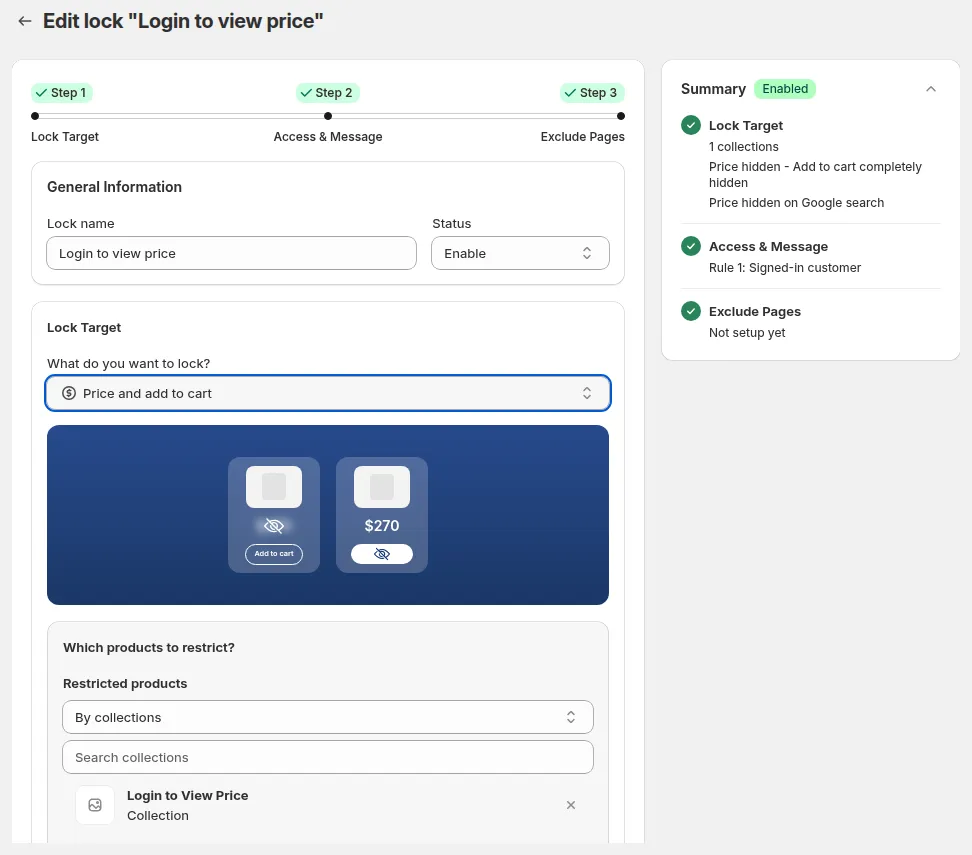
The lock editor: 3-step stepper on top, Summary card on the right.
3. How to use this guide
Section titled “3. How to use this guide”- New to BSS B2B Lock? Start with:
- What is BSS B2B Lock?
- Who is this app for?
- How BSS B2B Lock works (3-step model)
- Then go to “Create Your First Lock” and the Goal-based Guides.
- Already using BSS B2B Lock? Open the section below to see what’s different from earlier versions and how older labels map to the current ones.
Used an earlier version of BSS B2B Lock? What's different
Your existing rules keep working. Only the way you set them up is different.
Setup
- Features such as Hide Prices, Hide Products and Hide Price on Google used to be separate modules, each with its own settings and conditions. They are now all targets in the single Rule Builder, so one rule covers one business scenario.
- Earlier versions usually allowed only one condition type per rule (for example either tag or passcode). You can now combine several conditions in a rule (AND) and add several rules (OR).
Lock editor
- Creating a lock starts from the Start with a preset modal.
- The Company and B2B conditions are options of the User type condition: Customer must be in this company name, Customer must be in this company location and B2B customer – Shopify B2B only.
- The lock message is edited from the Preview card → Customize message, not inside a step.
- The Summary and Preview cards stay visible in the right column while you scroll.
Old names → current names
| Name you may see in older docs or release notes | Current label in the app |
|---|---|
| Step 1 – Lock content | Lock Target |
| Step 2 – Control access / Access Rules | Access & Message |
| Step 3 – Advanced settings / Lock Settings | Exclude Pages |
| Lock Rules List | Lock list |
| Create lock / Add lock | Add lock rule |
| Rule Preset Modal | Start with a preset |
| Lock message in Step 2 or Step 3 | Preview card → Customize message |
Tip: Rebuild your important rules in the Rule Builder to reduce duplication and combine conditions.
Still Need Help?
Section titled “Still Need Help?”If you have questions or need assistance configuring BSS B2B Lock, our dedicated support team is here to help.
- In-App Assistance: Click Need help? or use the in-app chat button within BSS B2B Lock.
- Email Support: Contact us at [email protected] with your store URL and specific rule details.