
Hide Payment Methods
Hide Payment Methods removes payment options at checkout, and accelerated checkout buttons (Buy it now, Shop Pay, Apple Pay and so on) on product and cart pages, based on customer tags, cart total or the products in the cart.
You stay in control of the checkout experience without touching your Shopify payment settings.
This feature needs a paid plan (or an active trial). Two Shopify limits apply: credit card options cannot be hidden for stores based in the US or Canada, and a store can have at most 25 active payment customizations.
On This Page
Section titled “On This Page”- Eligibility Requirements
- Understanding Hide Payment Methods
- Availability & Limitations
- Adding & Configuring Hide Payment Methods
- Real-World Examples
- Managing Existing Rules
- Common Issues & Fixes
- Still Need Help?
Eligibility Requirements
Section titled “Eligibility Requirements”Before you set up your first rule, confirm all of the following:
• BSS B2B Lock is installed on your Shopify store.
• Your store uses Shopify’s standard checkout (not a headless or fully custom checkout).
• You are on a paid plan or in your trial.
• You have Admin-level access to your Shopify store.
• Your store is B2B-only or a hybrid B2B/C setup.
Understanding Hide Payment Methods
Section titled “Understanding Hide Payment Methods”What It Is
Section titled “What It Is”This feature creates rules that hide one or more payment options or accelerated checkout buttons, only when specific conditions are met. If conditions are not met, all payment methods remain visible. Nothing in your Shopify payment gateway settings is changed.
What You Can Do
Section titled “What You Can Do”• Hide Standard Payment Methods at Checkout: Remove Cash on Delivery (COD), Bank Deposit, or Wire Transfer for high-value orders, specific customer tags, or guest shoppers.
• Hide Accelerated Checkout Buttons across 3 Storefront Scopes: Remove express/dynamic checkout buttons (Buy It Now, Shop Pay, Apple Pay, Google Pay, PayPal Express) on Product Pages (PDP), Cart Pages / Drawers, and at Checkout.
• Prevent B2B Rule Bypassing: Stop wholesale or trade customers from using 1-click accelerated checkout buttons that bypass custom quote steps, minimum order quantities (MOQ), or tax-exempt checkout workflows.
• Hide All Methods for Guests: Block guest buyers from seeing any payment methods, requiring them to sign in or register first.
Where It Applies (Supported Scopes)
Section titled “Where It Applies (Supported Scopes)”Hide Payment rules support three distinct application scopes:
| Scope | Supported Methods | How It Works | Where It Runs |
|---|---|---|---|
| Checkout | Standard gateways (COD, Bank Deposit, Wire) + Express buttons | Shopify Payment Customization | Final Shopify Checkout step |
| Product Page | Accelerated checkout buttons (Buy It Now, Shop Pay, Apple Pay, etc.) | Storefront Theme Script | Product Details Page (PDP) below Add to Cart |
| Cart Page & Drawer | Accelerated / Dynamic checkout buttons | Storefront Theme Script (Cart Drawer support) | Cart page and slide-out Cart Drawer |
Availability & Limitations
Section titled “Availability & Limitations”| Scope | Detail | Status |
|---|---|---|
| Plans | Paid plan or trial; after the trial, existing rules become read-only | ⚠️ Paid |
| Shopify limit | At most 25 active payment customizations per store | ⚠️ “Limit reached” when exceeded |
| Storefront scopes | Product page and cart scopes need the B2B Login By BSS app embed | ⚠️ Turn on the embed |
| Application Scopes | Checkout, Cart Page / Drawer, Product Page | ✅ Supported |
| Credit cards, US/Canada stores | Cannot be hidden at checkout, Shopify platform restriction | ❌ Not supported |
| Express checkout methods | Shop Pay, Apple Pay, Google Pay, Amazon Pay, Meta Pay, PayPal Express | ✅ Supported |
| Standard checkout methods | Loaded from your Shopify checkout config (e.g. COD, Bank Deposit) | ✅ Supported (Checkout scope only) |
| Manual methods | Add any method not auto-detected by entering its exact display name | ✅ Supported |
| Headless / custom checkouts | Standard Shopify checkout and Liquid theme storefronts only | ❌ Not supported |
| ⚠️ Important: Credit card options cannot be hidden for stores based in the US or Canada. This is a Shopify platform limitation and cannot be overridden by the app. |
|---|
Adding & Configuring Hide Payment Methods
Section titled “Adding & Configuring Hide Payment Methods”1. Select the Rule Type
Section titled “1. Select the Rule Type”-
Go to your Shopify Admin → Apps → BSS B2B Lock
-
Click Checkout locks in the left navigation.
-
Click Add rule in the top-right corner.
-
In the ‘Select rule type’ modal, select Hide Payment & Express Checkout Options.
-
Click Select to continue.
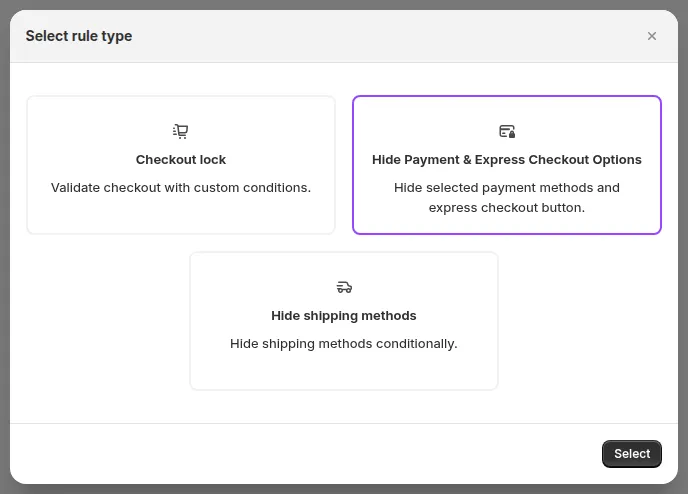
Figure 1: Select rule type modal: select Hide Payment & Express Checkout Options and click Select.
2. Name the Rule & Set the Toggle
Section titled “2. Name the Rule & Set the Toggle”You are now on the New Payment Customization page. The Rule Summary panel on the right shows your rule logic in real time.
- Set the Rule name: use something descriptive, e.g. ‘Hide COD over $500’ or ‘Hide Express Pay for Wholesale’.
- Set the On/Off toggle to On to activate immediately, or leave it Off to save as a draft.
- Choose the Rule scope:
- Checkout - Hide Payment Methods: hides payment methods (standard and express) in Shopify checkout.
- Storefront - Hide Accelerated Checkout Buttons on Product Page: hides the dynamic checkout buttons below Add to cart.
- Storefront - Hide Accelerated Checkout Buttons on Cart: hides them on the cart page and in the cart drawer.
For the two storefront scopes, the App Embed Status card must show On: click Open Theme Editor and turn on the B2B Login By BSS app embed, otherwise the rule does nothing on your storefront.
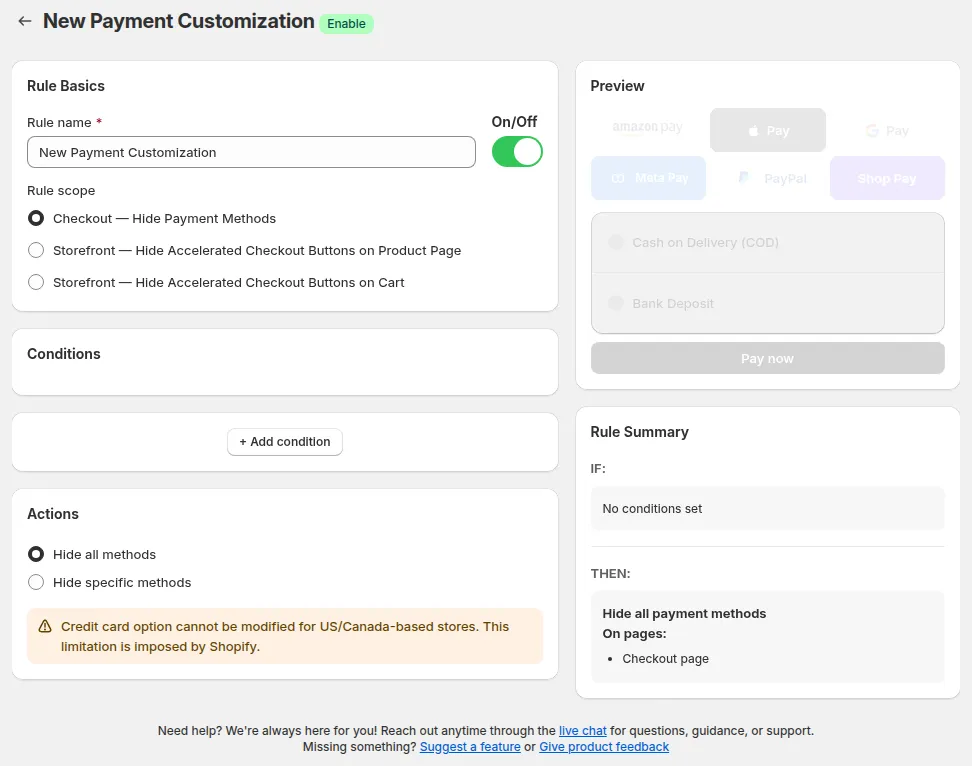
Figure 2: New Payment Customization page: Rule Basics on the left, Rule Summary (IF/THEN) on the right, and the Need help? panel below.
| ⚠️ Caution: The US/Canada credit card warning banner appears automatically on this page. It is informational; it does not block you from saving other rules. |
|---|
-
Add Conditions (Optional)
Section titled “Add Conditions (Optional)”
Conditions decide which buyers and cart states trigger payment method hiding:
| Tab | Condition | What it checks | Example |
|---|---|---|---|
| Popular | Always | Every checkout | Hide COD for everyone |
| Customer | Customer tag | The buyer’s customer tags | Hide Bank Deposit for retail |
| Cart | Cart total | The cart total, converted to the buyer’s currency | Hide COD for carts over $500 |
| Cart | Specific product | Whether specific products are in the cart | Hide COD for custom-made products |
| Cart | Product tag in cart | Whether products with a tag are in the cart | Hide express pay when the cart has oversized items |
| Product | Product tag | Tags of the product being viewed (product page scope) | Hide Buy it now on made-to-order products |
Operators include Contain, Does NOT contain, Equals, Does NOT equal, and for amounts Less Than, Greater Than and their “or Equal To” versions.
- Click + Add condition.
- Select your desired condition category (Popular / Customer / Cart / Product).
- Specify the comparison operator and threshold/value.
- Add more conditions and choose All (all conditions must be met) or Any (one is enough).
Live Preview Sidebar
Section titled “Live Preview Sidebar”The right sidebar features an interactive Live Preview showing:
- Accelerated Checkout buttons (Shop Pay, Apple Pay, Google Pay, PayPal Express).
- Standard payment gateways (Cash on Delivery, Wire Transfer, Credit Card).
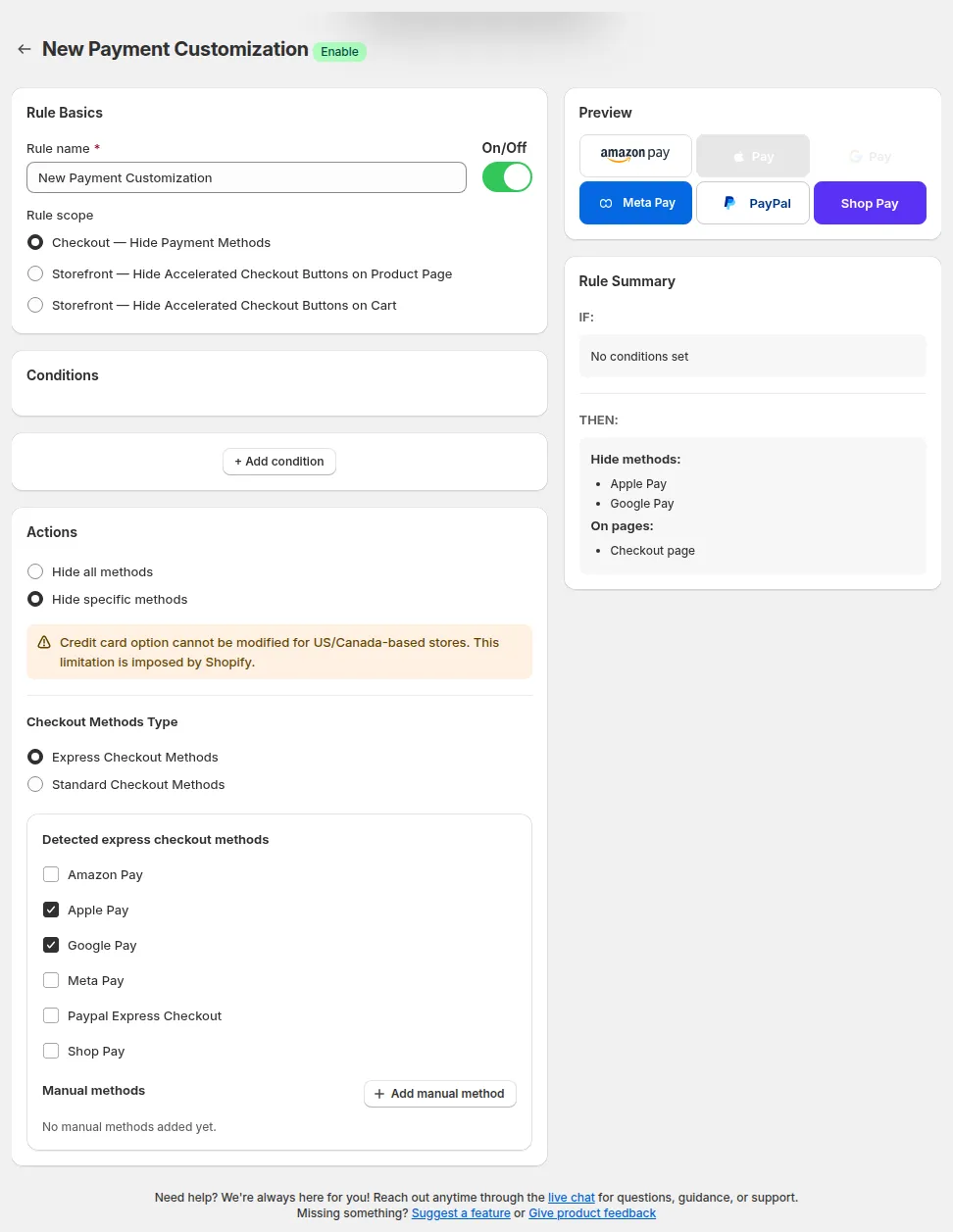
As you configure which methods to hide, the preview updates in real time so you can inspect the checkout layout without completing test orders on your live store.
Expired Trial Policy
Section titled “Expired Trial Policy”4. Configure Actions & Scopes
Section titled “4. Configure Actions & Scopes”The Actions section decides what gets hidden and where the rule takes effect:
• Hide all methods: Removes every payment option at checkout. Buyers see ‘This store can’t accept payments right now.’
• Hide specific methods: Lets you choose exactly which methods or express buttons to hide across target scopes.
When configuring specific methods, define:
- Scope reminder: the scope you chose in Rule Basics decides where the rule runs. Hide all methods and standard methods apply to the Checkout scope; on the product page and cart scopes the rule hides the dynamic checkout buttons.
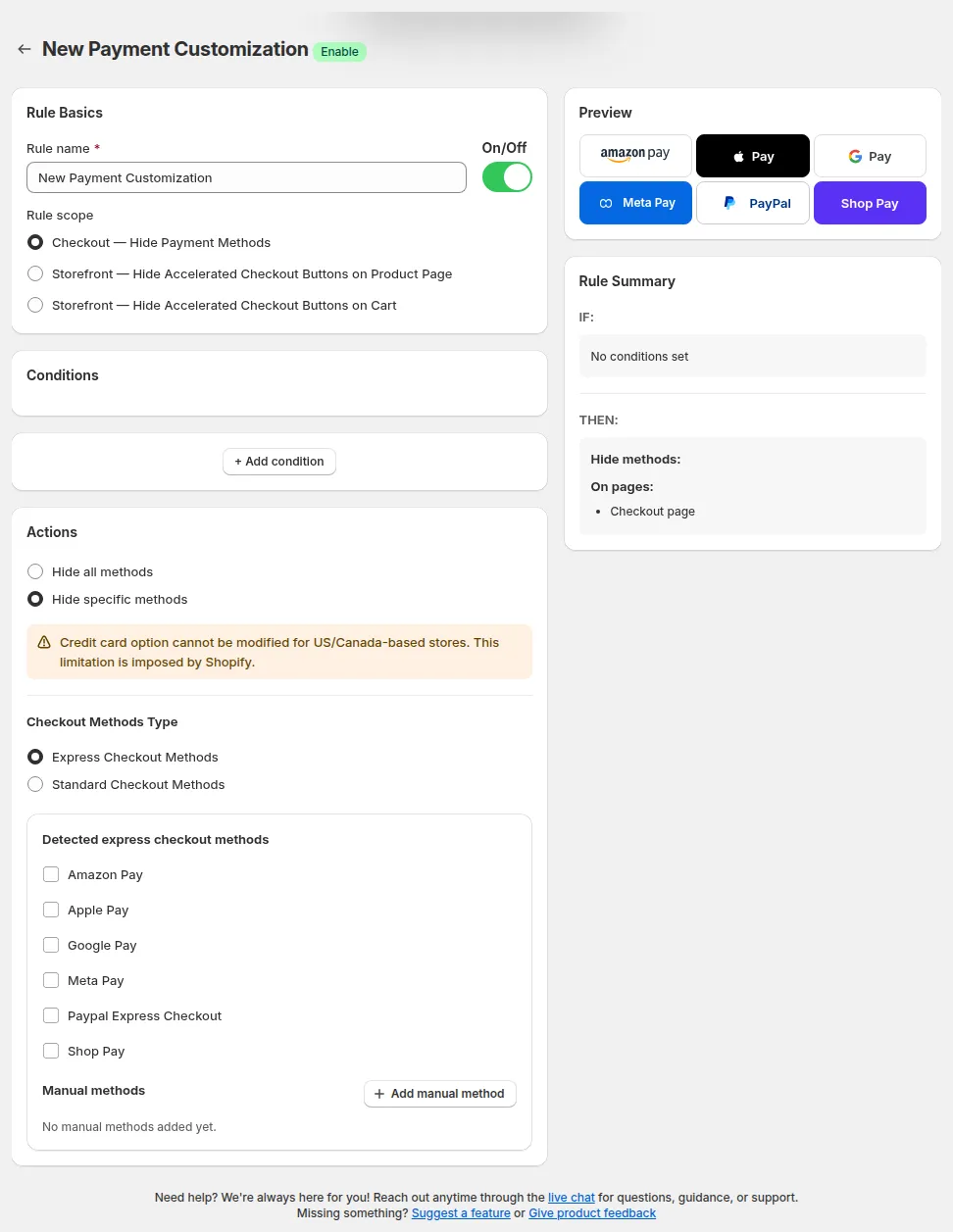
- Select Methods Type:
| Methods Type | Applicable Scopes | What It Includes | Examples |
|---|---|---|---|
| Express / Dynamic Checkout Methods | Checkout, Product Page, Cart Page/Drawer | One-click accelerated payment buttons | Buy It Now, Shop Pay, Apple Pay, Google Pay, PayPal Express |
| Standard Checkout Methods | Checkout only | Payment gateways configured in Shopify Payment settings | Bank Deposit, Cash on Delivery (COD), Wire Transfer |
- Select Express Checkout Methods or Standard Checkout Methods.
- Check the box next to each method you want to hide.
Add Manual Methods (If Needed)
Section titled “Add Manual Methods (If Needed)”If a payment method you want to hide does not appear in the detected list, you can add it manually.
- Click + Add manual method in the Manual Methods section.
- Enter the exact display name of the payment method as it appears in your Shopify checkout (e.g. ‘Wire Transfer’, ‘Bank Account’).
- Click Add.
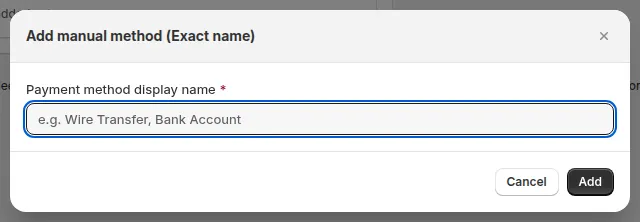
| ⚠️ Caution: The name must match exactly, including capitalization and spacing. If it does not match, the method will not be hidden. |
|---|
5. Save & Verify
Section titled “5. Save & Verify”- Click Save in the top bar.
- Confirm the rule appears in your Checkout locks list.
- Set the On/Off toggle to On if not already active.
- Open your storefront in a private/incognito browser window.
- Sign in (or stay as a guest) with an account that matches your condition.
- Test both the Product Page, Cart Drawer, and Checkout page to verify target payment buttons are hidden.
Real-World Examples
Section titled “Real-World Examples”Managing Existing Rules
Section titled “Managing Existing Rules”From the Checkout locks list in the app:
• Edit a rule: Click the pencil icon in the Actions column.
• Delete a rule: Click the trash icon. This cannot be undone.
• Enable or disable: Open the rule and use the On/Off toggle at the top.
• Update logic: Re-open the rule, change conditions or actions, and click Save.
Common Issues & Fixes
Section titled “Common Issues & Fixes”| What You See | Why It Happens | What to Do |
|---|---|---|
| Payment method is still visible after saving. | The On/Off toggle is set to Off, or the buyer doesn’t match the condition. | Check the toggle is On; test with a buyer account that matches your condition exactly. |
| Express buttons still show on product or cart pages. | The B2B Login By BSS app embed is off. | Turn on the app embed in the Theme Editor and save. |
| “Limit reached” when saving. | The store already has 25 active payment customizations, the Shopify maximum. | Turn off or delete a rule you no longer need, then save again. |
| Credit card cannot be hidden. | US/Canada Shopify restriction, platform enforced. | This cannot be overridden. Remove credit card from the rule and hide other methods instead. |
| A method doesn’t appear in the detected list. | It may not be auto-detected by the app. | Use + Add manual method and enter the exact name as shown in your Shopify checkout. |
| All buyers see ‘no payment methods’. | No condition was set, or ‘Hide all methods’ is selected without a condition. | Edit the rule, add a specific condition to target only the intended buyer group. |
| Manual method not being hidden. | The name entered doesn’t match exactly. | Check the exact display name in your Shopify checkout, including capitalization. |
| Rule summary shows unexpected logic. | Conditions or actions were misconfigured. | Review the IF/THEN panel. Edit the rule and correct the conditions or action before re-saving. |
Still Need Help?
Section titled “Still Need Help?”The fastest way to get help is through the in-app support panel. Our team can configure the rule for you.
• Click Get assistance in the Need help? panel on the rule configuration page.
• Or email [email protected] with the details below.
When contacting support, include:
• Your shop URL (e.g. yourstore.myshopify.com)
• The name of the rule that is not working
• What you expected vs. what actually happened
• A screenshot or screen recording if possible