
Lock your entire website & only allow B2B/wholesale customers
Make your store fully private so only approved B2B/wholesale customers can see any content.
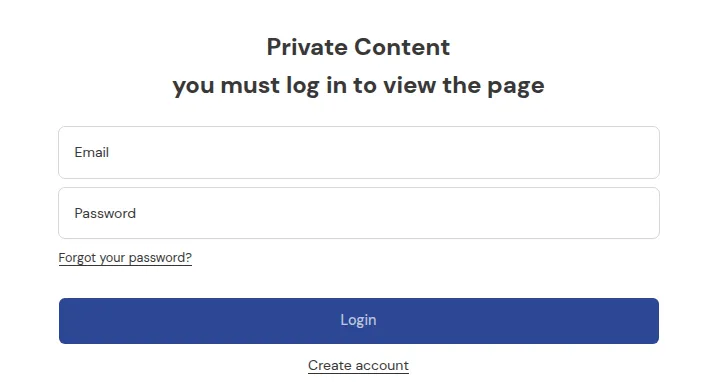
What your customers see on the storefront.
Goal
Make your store fully private so only approved B2B/wholesale customers can see any content.
When to use this recipe
- You run a wholesale-only business.
- You don’t want the public to browse your catalog or prices.
- You only sell to approved customers (e.g., tagged with
wholesale).
Step 0 – Before you start
Section titled “Step 0 – Before you start”- Decide which customers are “approved” (usually via tags like
wholesale,b2b-approved,partner). - Make sure your B2B approval flow (e.g., registration form from BSS B2B Solution) is set up to assign those tags.
Step 1 – Lock Target
Section titled “Step 1 – Lock Target”- Go to Apps → BSS B2B Lock → Locks → Add lock rule.
- In the Start with a preset modal, select Create my own lock, then click Continue.
- In Step 1 – Lock Target:
- Lock name:
Lock entire site for wholesale only. - In What do you want to lock?, select Entire store.
- Lock name:
- Click Next.
This tells BSS B2B Lock to treat the whole store as gated content.
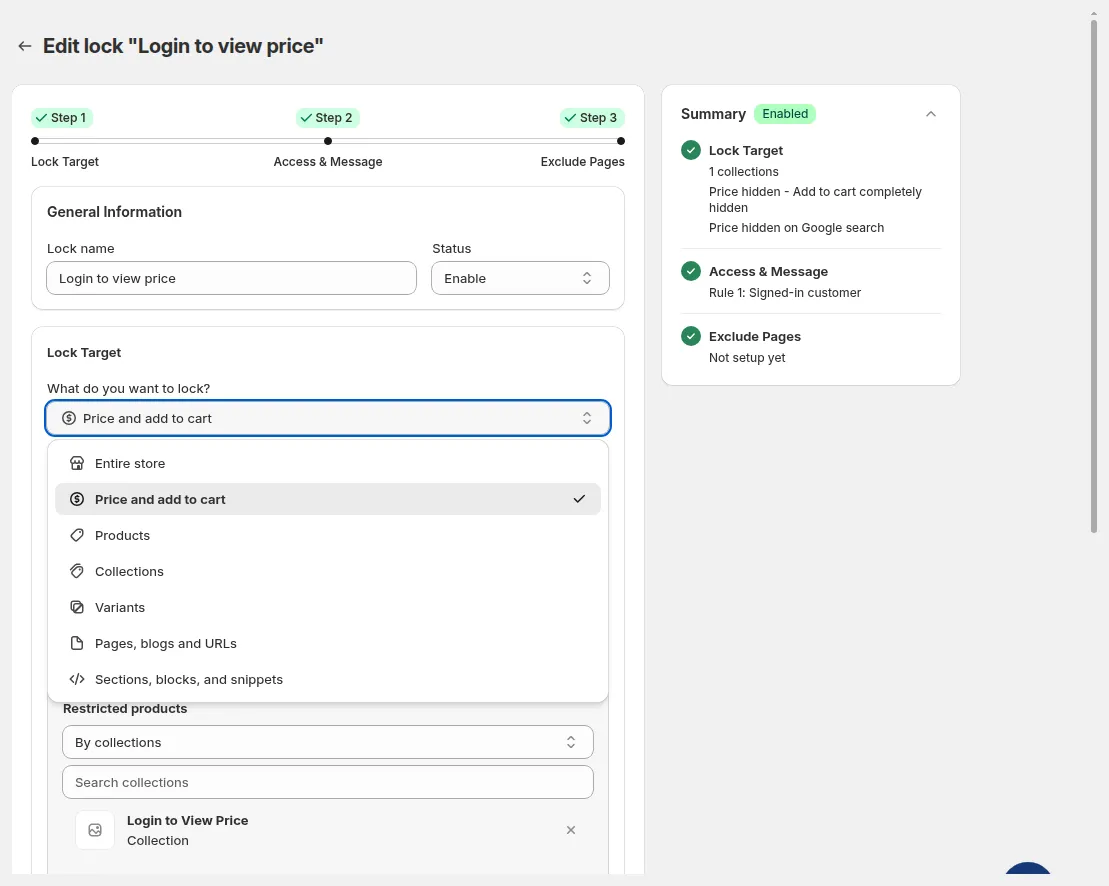
Step 1 - Lock Target. Select Entire store
Step 2 – Access & Message
Section titled “Step 2 – Access & Message”Let’s allow only tagged wholesale customers:
- In Rule 1, click the User type condition chip and choose Tagged customers – Must have specific tags, then enter
wholesale(or your chosen tag) in the Customer tag field. - Optional:
- Click + Add rule to add separate rules for internal tags (e.g.,
staff,test) if needed. A visitor who matches any rule gets access.
- Click + Add rule to add separate rules for internal tags (e.g.,
Everyone else (guests + non-wholesale customers) will see the lock message.
Make the message clear and helpful. In the Preview card, click Customize message and set:
- Headline: “Wholesale access only”.
- Body: “This store is available only for approved B2B customers. Please log in with your wholesale account or request access.”
- Add buttons/links:
- Login
- Request wholesale account (link to your B2B registration page)
Click Next.
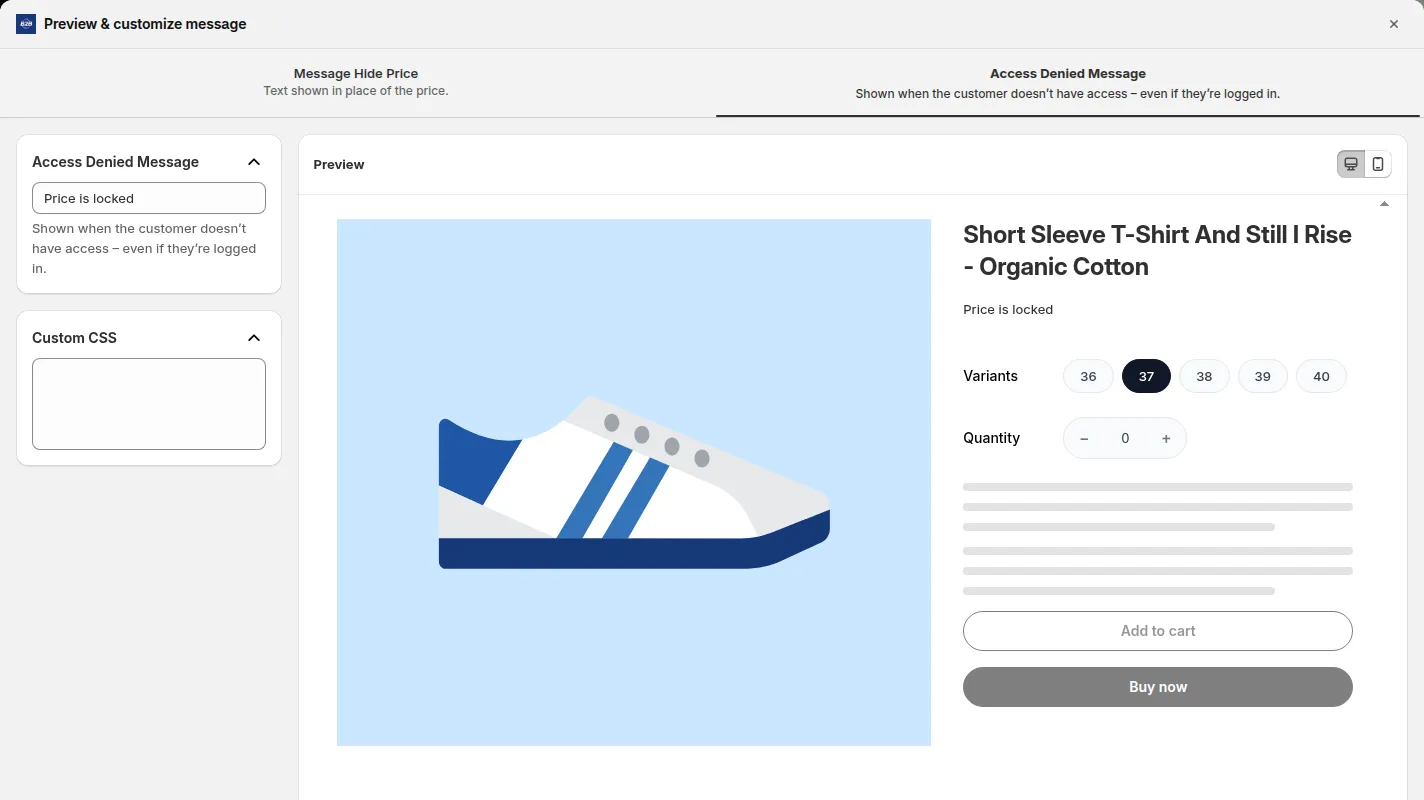
Preview & customize message: edit the lock message and preview it on desktop or mobile
Step 3 – Exclude Pages
Section titled “Step 3 – Exclude Pages”- In Exclude from lock rules, check public pages you still want visible: e.g. Home page, Customer areas (login, register and account pages), Policy pages, or Specific pages such as
ContactorAbout. - Under SEO and Meta Tag Options, check Add the “noindex” meta tag to any pages protected by this lock to keep locked pages out of search engines.
- Under Hide content on locked page, choose whether to Hide store’s header and footer and Hide store’s navigation bar on the lock screen.
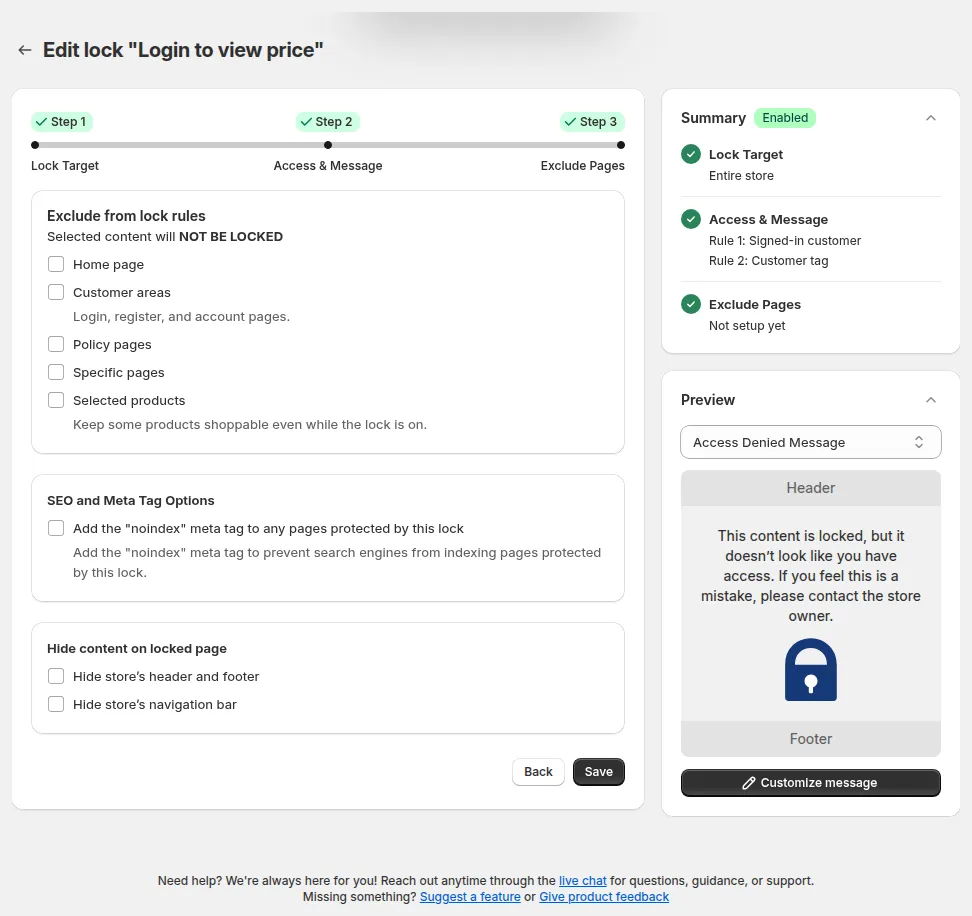
Step 3 - Exclude Pages. Exclusions, noindex and Hide content on locked page for an Entire store lock
Click Save (the button next to Back, or Save in the Unsaved changes bar at the top of the page).
Check your storefront
Section titled “Check your storefront”- As a guest or non-tagged customer → you should see the lock screen when visiting the homepage.
- As an approved, tagged wholesale customer → you should see and use the site normally after logging in.
Still Need Help?
Section titled “Still Need Help?”If you have questions or need assistance configuring BSS B2B Lock, our dedicated support team is here to help.
- In-App Assistance: Click Need help? or use the in-app chat button within BSS B2B Lock.
- Email Support: Contact us at [email protected] with your store URL and specific rule details.