
Hide Price on Google – SEO & Catalog Considerations
The Hide price on Google option in BSS B2B Lock lets your products stay discoverable in search, while keeping your B2B or wholesale pricing out of Google’s rich snippets. It is a privacy layer for search
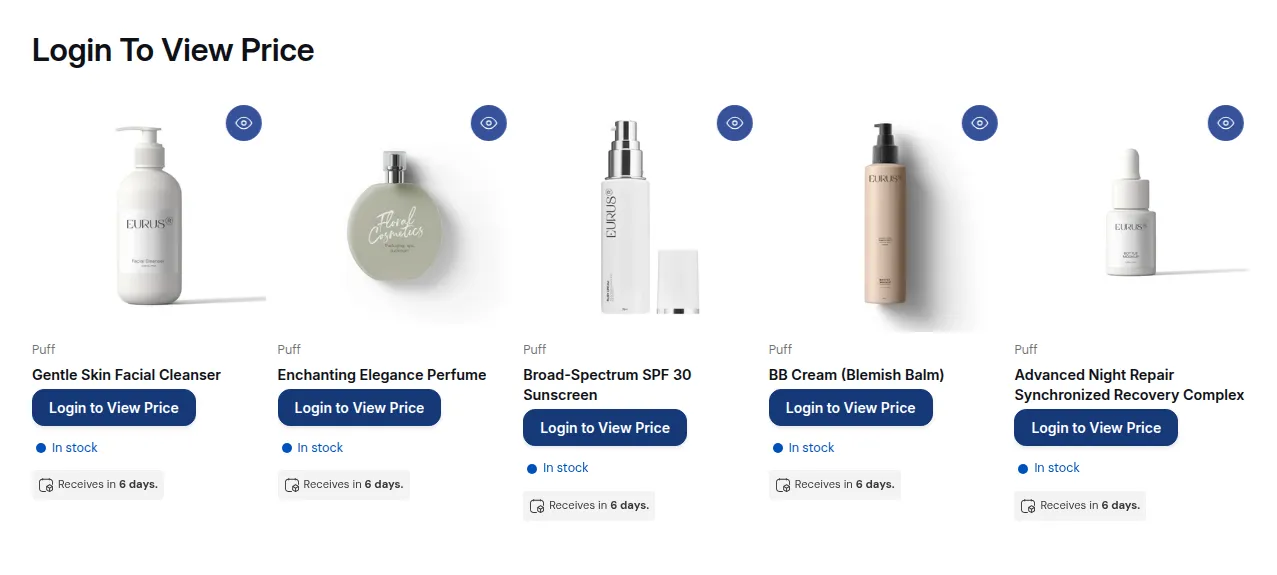
What your customers see on the storefront.
On This Page
Section titled “On This Page”- Eligibility Requirements
- What Hide Price on Google Does, and Does Not Do
- When to Use It
- How to Enable It (Step-by-Step)
- SEO Best Practices
- Monitoring & Expectations
- Common Issues & Troubleshooting
Eligibility Requirements
Section titled “Eligibility Requirements”• Active Shopify store on any paid plan.
• BSS B2B Lock installed from the Shopify App Store.
• Store must be public (not password-protected) for Google to crawl and re-index it.
• Products or Price and add to cart must be selected as the Lock Target in Step 1.
What Hide Price on Google Does, and Does Not Do
Section titled “What Hide Price on Google Does, and Does Not Do”| It DOES | It does NOT |
|---|---|
| Adjust how price data is exposed in your theme templates and structured data | Delete your product pages from Google |
| Reduce the chance Google shows prices in rich snippets for targeted products | Instantly remove old price data (Google must re-crawl first: up to 24 hours) |
| Work alongside your lock rules for a layered B2B privacy setup | Replace your access rules: real visitors still need login/tags/locks |
| Apply at the product or catalog level depending on your rule scope | Affect Google Shopping feeds: those require separate configuration |
When to Use It
Section titled “When to Use It”Good use cases
Section titled “Good use cases”• Wholesale or B2B pricing that should not be publicly listed in search results.
• Contract or per-customer pricing that varies by account.
• Markets where showing a public price causes channel conflict: e.g., with distributors or resellers.
Common store patterns
Section titled “Common store patterns”| Store type | Recommended setup |
|---|---|
| Hybrid B2B + B2C | Apply Hide prices rule to B2B-only SKUs or collections → enable Hide price on Google for those items only |
| Pure wholesale store | Apply Hide prices to the full catalog → enable Hide price on Google globally |
| Negotiated pricing | Hide prices for all visitors → enable Hide price on Google → direct customers to log in or contact for a quote |
How to Enable It (Step-by-Step)
Section titled “How to Enable It (Step-by-Step)”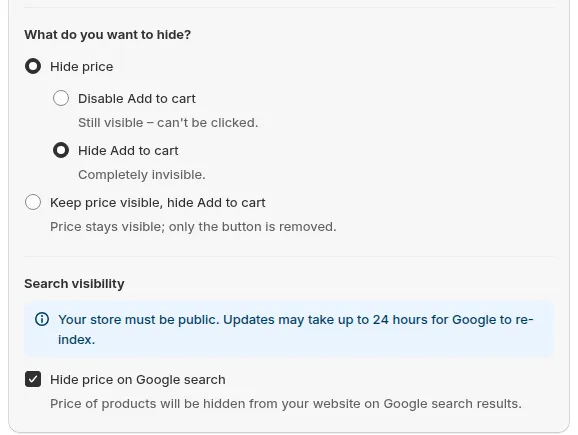
Step 1 - Lock Target: under Search visibility, check Hide price on Google search to enable the setting.
1. Go to Shopify Admin → Apps → BSS B2B Lock → Locks.
2. Open an existing rule, or click Add lock rule, select Create my own lock and click Continue to create a new one.
3. In Step 1 - Lock Target, open What do you want to lock? and select Products or Price and add to cart.
4. Scroll down to the Search visibility section (see screenshot above).
5. Check the box next to Hide price on Google search.
6. Click Next to continue to Step 2 - Access & Message and add at least one condition to Rule 1 (for example User type → Signed-in customers). Then click Save in the Contextual Save Bar, or go to Step 3 - Exclude Pages and click Save.
SEO Best Practices
Section titled “SEO Best Practices”Keep product pages indexable
Section titled “Keep product pages indexable”Do not noindex or hide product pages if you want organic traffic. Let Google index product titles, descriptions, images, and structured data: just without the price.
• Customers can still discover your catalog via search.
• Your lock rules handle who sees the price once they land on the page.
Write product descriptions that work without visible pricing
Section titled “Write product descriptions that work without visible pricing”If prices are hidden for most visitors, product copy should do more of the selling:
• Focus on value, features, and use cases, not just the price point.
• Include a clear call to action, e.g.: “Log in or apply for a wholesale account to see your personalized pricing.”
Align with your Google Shopping feeds
Section titled “Align with your Google Shopping feeds”Google Shopping and Merchant Center feeds are separate from BSS B2B Lock. If you run Shopping ads:
• Some channels require a price: check your feed requirements before hiding prices site-wide.
• Consider using separate feeds or product groups for B2C vs B2B SKUs.
• Avoid sending purely B2B or locked products to Shopping ads while still letting organic search index their pages.
Monitoring & Expectations
Section titled “Monitoring & Expectations”| What to expect | Details |
|---|---|
| Time to take effect | Google re-crawls on its own schedule: allow up to 24 hours |
| What to monitor | Check rich snippets in Google Search Console to see if price data disappears for targeted products |
| If products disappear entirely | Review your theme, SEO apps, and confirm you have not accidentally noindexed product pages |
| If price still shows after 24h | Confirm the rule is Enabled, the store is public, and the checkbox is saved correctly |
Common Issues & Troubleshooting
Section titled “Common Issues & Troubleshooting”| Issue | What to check |
|---|---|
| Price still shows on Google after enabling | Wait up to 24h → confirm store is public → confirm rule is Enabled and saved |
| Product pages disappeared from Google entirely | Check for accidental noindex tags or redirects in your theme or SEO apps |
| Checkbox is greyed out or missing | Confirm you selected Products or Price and add to cart as the Lock Target in Step 1 |
| Shopping ads still show price | BSS B2B Lock does not control Google Shopping feeds: update your Merchant Center feed separately |
| Price visible to real visitors despite setting | This setting only affects Google: use lock rules (login/tags) to hide prices from real visitors |