
Install & Open BSS B2B Lock
This page walks you through how to install BSS B2B Lock on your Shopify store and open it from your Shopify admin, plus one important step to make sure it actually runs on your theme.
The Auto Installation feature adds the app’s code to your Shopify theme in a few clicks: no manual editing required. It works on both free and paid themes, though results may vary depending on your theme and plan setup.
Availability may vary by plan and theme type. If auto installation does not work on your theme, use the Manual Installation method or contact support.
1. Eligibility Requirements
Section titled “1. Eligibility Requirements”Make sure you meet all of the following before running Auto Installation:
- The BSS B2B Lock app is installed in your Shopify store
- You have at least one published (Live) theme or draft theme in your store
- You have created at least one lock rule in the app before testing
- You have Admin access to your Shopify store
2. Understanding Auto Installation
Section titled “2. Understanding Auto Installation”Auto Installation injects the app’s code snippets into your selected Shopify theme. Without this step, your lock and login rules will not appear or function on your storefront: even if they are enabled in the app.
What it does
- Adds the necessary code to display lock messages, login prompts, and access rules to buyers
- Connects your configured rules (e.g., “lock product if customer is not signed in”) to the live storefront
- Keeps your other theme files and customizations intact
What you can do
- Install to LIVE: Install to a LIVE (Published) theme: your real storefront customers will see the rules immediately
- Install to TEST: Install to a TEST (Draft) theme: verify everything works before affecting customers
- Reinstall: Reinstall at any time if the code is removed or a theme update overwrites it
Where it applies
- All pages and products covered by your lock rules (e.g., collections, individual products, entire store)
- Works on Shopify Online Store 2.0 themes and most legacy themes
3. Availability & Limitations
Section titled “3. Availability & Limitations”| Scenario | Auto Installation | Recommended action |
|---|---|---|
| Free Shopify themes (e.g., Dawn) | Supported | Use Auto Installation normally |
| Paid third-party themes (e.g., Empire, Stiletto) | May vary | Try Auto Installation; use Manual if it fails |
| Headless or custom-built storefronts | Not supported | Contact support for guidance |
| Store already has working code installed | Caution | Skip Auto Install: re-installing may break existing setup |
| Multiple draft themes | Supported | Select the correct theme from the dropdown before installing |
4. How to Run Auto Installation
Section titled “4. How to Run Auto Installation”Step 1 - Go to Installation settings
- Open the app: Open the BSS B2B Lock app. Go to your Shopify Admin → Apps → BSS B2B Lock.
- Click Installation: Click the “Installation” tab at the top of the app, next to Translation and Template email.
- Select Auto Installation: Confirm “Auto Installation” is selected. If Manual Installation is highlighted, click Auto Installation instead.
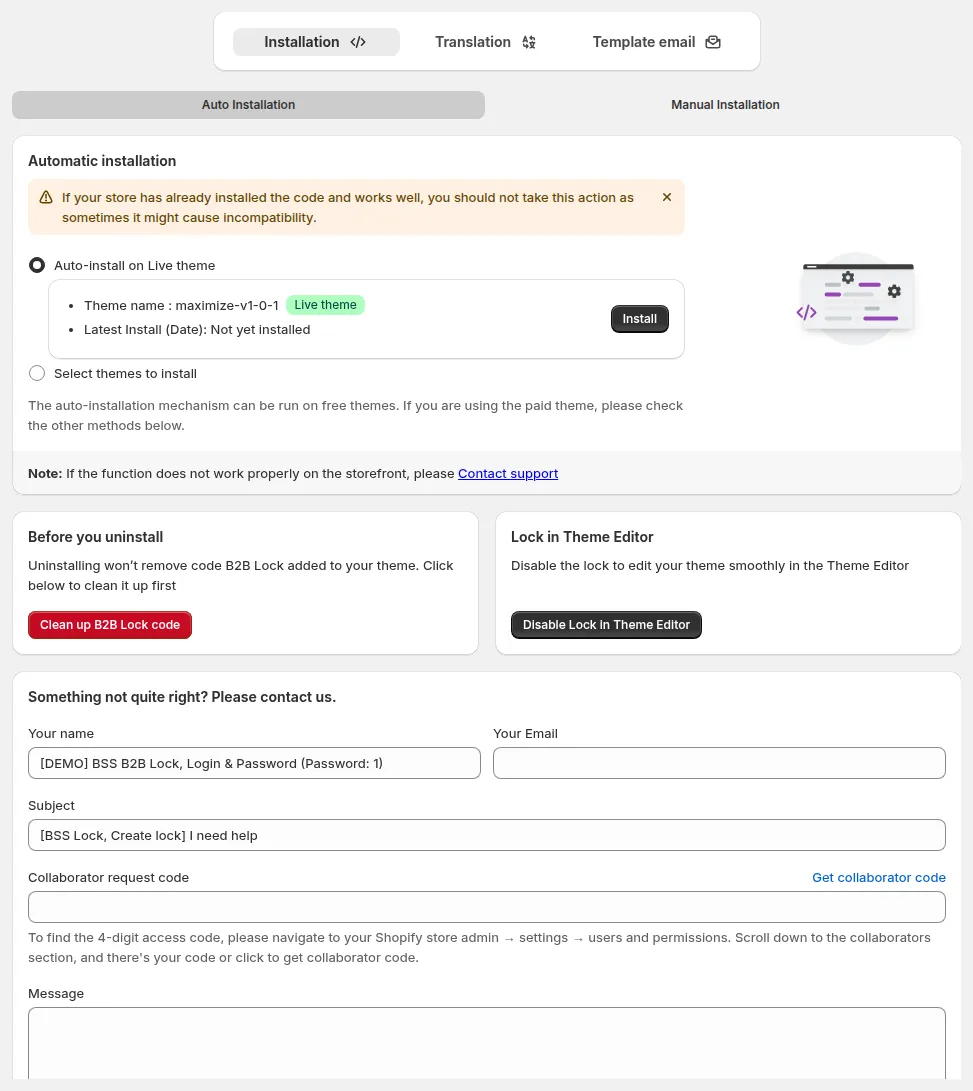
Auto Installation tab: select Install to TEST (Draft) and click Install
Step 2 - Choose your theme and install
- Select TEST (Draft): Click the radio button next to Install to TEST (Draft): Recommended for testing.
- Select your theme: Click the dropdown (e.g., “Theme Dawn (Current Target)”) to see all your available themes. Select the one you want to install to.
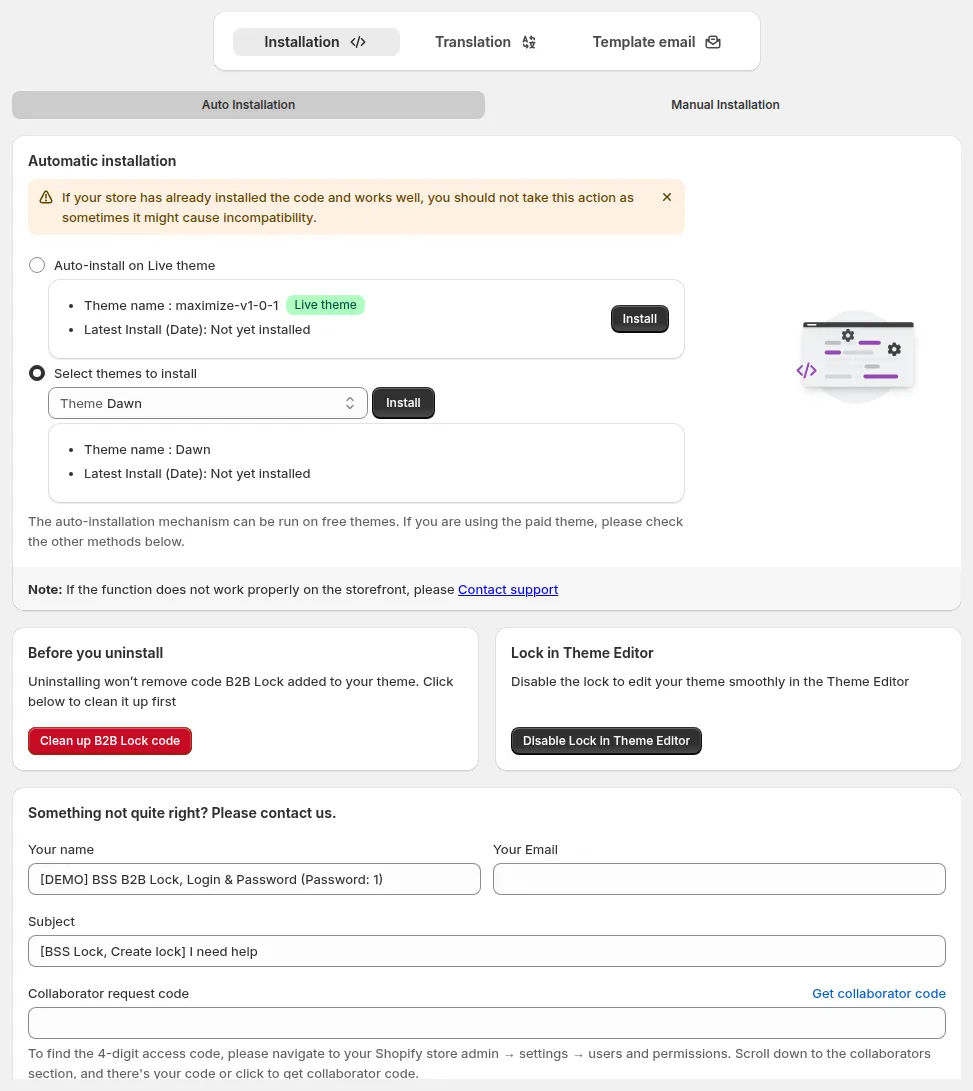
Theme dropdown: select your target theme from the list
- Click Install: Click the Install button. The app will inject the required code into your selected theme. This takes a few seconds.
5. Verifying the Installation Works
Section titled “5. Verifying the Installation Works”Check the install target
- Check the badge: Go to BSS B2B Lock → Locks to open the Lock list. The badge next to the Lock list title shows the theme your rules are applied to (e.g., “Live theme: Dawn”).
- Confirm the target: Confirm the theme matches the theme you just installed to. If it does not match, click Change theme next to the badge to update it.
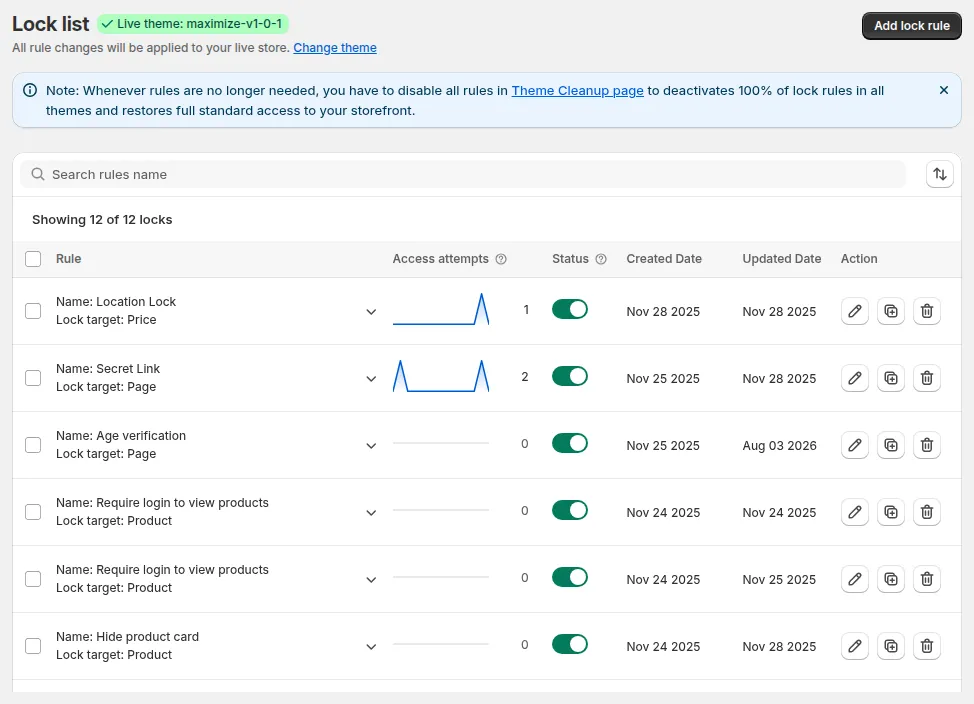
Lock list: the “Live theme” badge shows which theme your rules are applied to. Click Change theme to switch.
Preview the storefront
- Go to Themes: Go to Shopify Admin → Online Store → Themes. Find your draft theme and click Preview.
- Navigate to locked content: Navigate to a locked collection or product. Confirm the lock message or login prompt appears as expected.
- Test with a customer account: Log in as a tagged customer that meets your rule condition and confirm they can access the content.
6. Resolving Common Issues
Section titled “6. Resolving Common Issues”Lock rules are not showing on the storefront
- Check that the app’s install target matches the theme you are previewing
- Re-run Auto Installation on the correct theme
- Clear your browser cache and refresh the storefront preview
Latest Install date shows “Invalid Date”
- This means installation has not been successfully completed on that theme
- Select the theme from the dropdown again and click Install
- If the issue persists, try Manual Installation instead
Auto Installation does not work on your paid theme
- Paid themes may have custom code structures that block auto-injection
- Switch to the Manual Installation tab and follow those steps
- Contact support if you are unsure which files to edit
The install broke an existing feature on the theme
- Go to Shopify Admin → Online Store → Themes
- Click “Actions” on the affected theme → “Edit code”
- Revert the theme to a previous backup if available, or contact support immediately
Rules are saved but the banner says “Rules won’t affect your live store”
- This is expected behavior when the install target is a draft theme
- Once testing is complete, install to your LIVE theme and update the install target
7. Third-Party Theme Support
Section titled “7. Third-Party Theme Support”BSS B2B Lock is tested and compatible with common Shopify free themes including Dawn, Ride, Horizon, and Spotlight. For third-party paid themes (Enterprise, Empire, Eurus, Ella, etc.), Auto Installation may partially work.
- Always run a test install on the draft version of a paid theme before going live
- If lock messages do not appear after install, use Manual Installation for paid themes
- Themes built outside Shopify’s standard structure (headless builds) require custom integration: contact support
Still Need Help?
Section titled “Still Need Help?”Our support team can walk you through installation on any theme, help troubleshoot lock rules that are not showing, or assist with Manual Installation on paid or custom themes.
Email us and include your store URL and a screenshot of the Installation tab: