
Hide page sections & blocks conditionally
Hide specific storefront sections, banner blocks, price tables, or custom theme elements based on customer login status, tags, or passcode.
Hide any storefront section, promotional banner, pricing block, RFQ inquiry form, or product section, based on who is visiting without modifying Liquid code.
| 💡 Quick Tips |
|---|
| • Native Section/Block mode: Auto-detects Liquid sections and blocks from your active theme. |
• Custom CSS Selector mode: Target custom HTML elements, classes (.class), IDs (#id), or third-party app widgets. |
| • Custom Fallback Message: Replace the hidden element with custom notice text to avoid awkward blank spaces. |
| • Always test rules in a private/incognito window before going live. |
On This Page
Section titled “On This Page”- Eligibility Requirements
- What This Feature Does
- Availability & Limitations
- Step 1 - Lock Target: Create a Lock and Choose the Section
- Step 2 - Access & Message: Set Access Conditions & Fallback Message
- Step 3 - Exclude Pages and Save
- Third-Party App Element Support
- Common Issues & Troubleshooting
Eligibility Requirements
Section titled “Eligibility Requirements”- BSS B2B Lock app installed and active.
- Standard Shopify theme (Online Store 2.0 or compatible Liquid theme).
- Admin staff or store owner permissions.
- Buyer customer tags configured in Shopify Admin (for tag-based conditions).
What This Feature Does
Section titled “What This Feature Does”Hides specific parts of your storefront from visitors who do not meet your conditions, without permanently deleting them from your theme.
- Wholesale-only banners: Show promotional wholesale banners only to tagged B2B buyers.
- Hide Inquiry / RFQ Forms: Hide custom contact or quote request forms from retail shoppers.
- Hide Custom Price Blocks: Selectively hide custom pricing tables or discount notices.
- Granular CSS Targeting: Hide any element by class name (
.custom-block) or element ID (#special-offer).
Availability & Limitations
Section titled “Availability & Limitations”| Content Target | Supported | Notes |
|---|---|---|
| Native Shopify Sections & Blocks | ✅ Supported | Select from auto-detected list in your active theme |
Custom CSS Selectors (.class, #id) |
✅ Supported | Target any storefront HTML element |
| Third-Party App Elements | ⚠️ Limited | Supported if the element exposes a valid CSS class or ID |
| Checkout Pages | ❌ Not Supported | Checkout is outside storefront theme scope |
Step 1 - Lock Target: Create a Lock and Choose the Section
Section titled “Step 1 - Lock Target: Create a Lock and Choose the Section”- Go to Shopify Admin → Apps → BSS B2B Lock.
- From the Lock list, click Add lock rule.
- In the Start with a preset modal, choose Create my own lock.
- Click Continue.
- In General Information, enter a Lock name and confirm Status is Enable.
- Under Lock Target, open the What do you want to lock? dropdown and select Sections, blocks, and snippets.
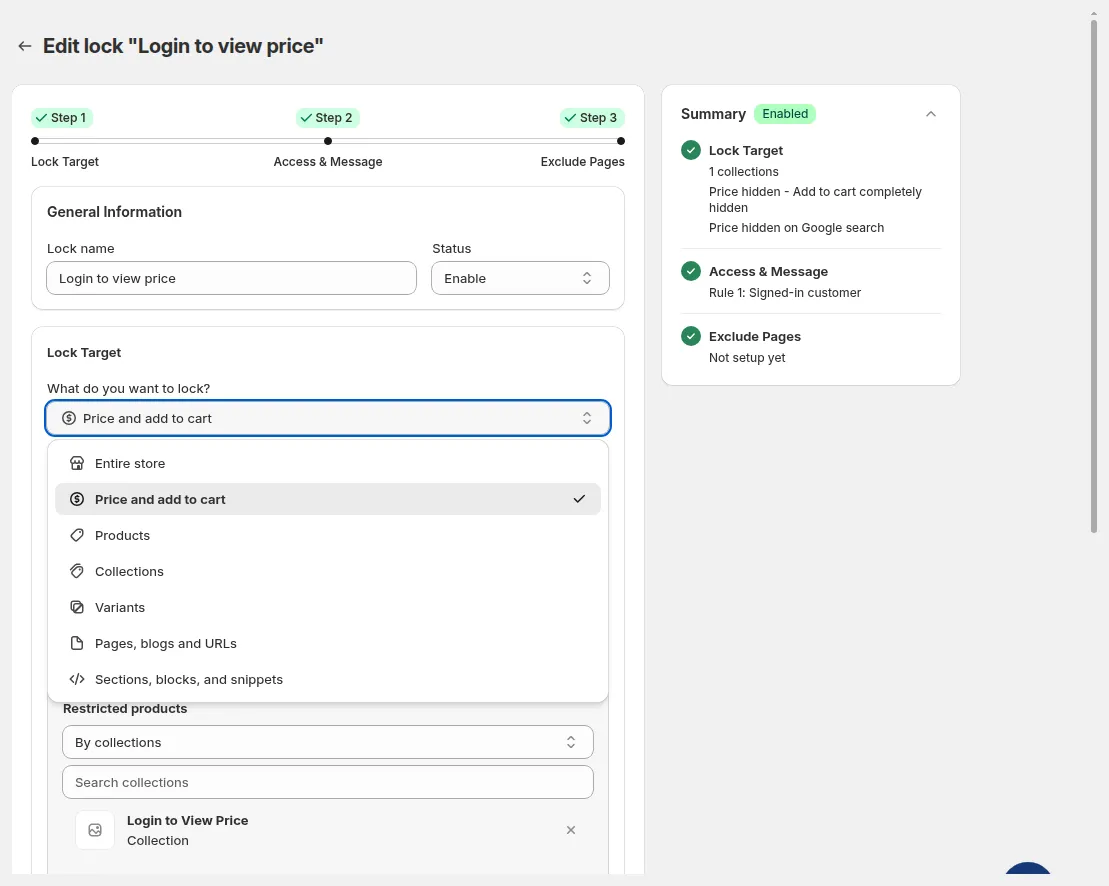
Step 1 - Lock Target. Select Sections, blocks, and snippets
Then choose how to target the element in Select target to lock → Target selection mode.
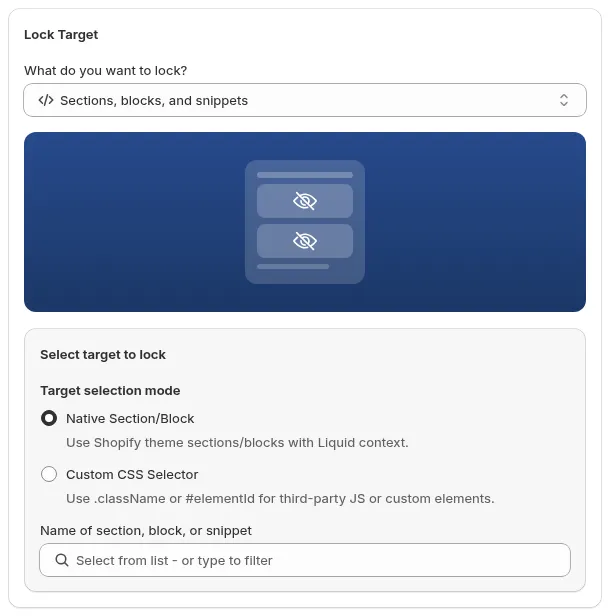
Choose Native Section/Block or Custom CSS Selector, then pick the section in Name of section, block, or snippet.
Option A: Native Section/Block (Recommended for standard themes)
Section titled “Option A: Native Section/Block (Recommended for standard themes)”- Select Native Section/Block (“Use Shopify theme sections/blocks with Liquid context.”).
- Click Name of section, block, or snippet (Select from list - or type to filter) to view all sections auto-detected from your active theme.
- Tick the target section or block you wish to hide (e.g. Section apps.liquid). It appears as a tag below the field, and the Summary card shows e.g. “1 sections locked”.
Option B: Custom CSS Selector (For custom themes & app widgets)
Section titled “Option B: Custom CSS Selector (For custom themes & app widgets)”- Select Custom CSS Selector (“Use .className or #elementId for third-party JS or custom elements.”).
- Inspect the element on your live storefront (Right-click → Inspect).
- Copy the exact class (e.g.
.wholesale-announcement) or ID (e.g.#b2b-pricing-table). - Enter the selector into the CSS Selector field (e.g. .my-section, #my-block, div.product-list: “Supported: .className, #elementId or elementName”) and click Add. The Summary card shows e.g. “1 CSS selector(s) added”.
Click Next.
Step 2 - Access & Message: Set Access Conditions & Fallback Message
Section titled “Step 2 - Access & Message: Set Access Conditions & Fallback Message”- In Rule 1, click a condition chip (User type, Passcode, Date & time, or More) to define who can still see the section: e.g. User type → Tagged customers with the tag
wholesale, or User type → Signed-in customers. - To require several conditions at once, add them to the same rule (AND). To let another group in, click + Add rule (OR).
- Set what blocked visitors see in the Preview card on the right. For this target the card is edited inline. The dropdown has two options:
- Hide and show replacement text (default): edit Message content (e.g. “Private content, please log in with your customer account to continue.”), Text format (Bold / Italic / Underline), Text size and Text color, with a live Message preview below.
- Hide only (no replacement)
- Click Next.
Step 3 - Exclude Pages and Save
Section titled “Step 3 - Exclude Pages and Save”- Optionally check pages in Exclude from lock rules where the section should stay visible to everyone. Step 3 also shows SEO and Meta Tag Options and Hide content on locked page for this target.
- Click Save (the button next to Back, or Save in the Unsaved changes bar at the top of the page).
Third-Party App Element Support
Section titled “Third-Party App Element Support”You can hide blocks generated by page builders and review apps:
- Page Builders: PageFly, Shogun, GemPages, Zipify.
- Review & Widget Apps: Judge.me, Loox, Yotpo.
How to target:
- Open your storefront in Chrome/Safari.
- Right-click the widget → Inspect.
- Copy its container CSS class (e.g.
.pagefly-section-b2bor.judgeme-widget). - Paste it as a Custom CSS Selector in BSS B2B Lock.
Common Issues & Troubleshooting
Section titled “Common Issues & Troubleshooting”Section still visible after lock is active
Section titled “Section still visible after lock is active”- Verify the rule’s Status toggle is on in the Lock list.
- Clear your browser cache and test in a fresh Incognito window.
- For CSS selectors, confirm the selector matches the live HTML structure.
Section hidden for everyone, including approved buyers
Section titled “Section hidden for everyone, including approved buyers”- Check if the Reverse access rule condition was accidentally enabled.
- Verify the test customer account has the exact tag assigned in Shopify Admin.
Section not appearing in the Native list
Section titled “Section not appearing in the Native list”- The section may be inactive or conditionally loaded by the theme. Use Custom CSS Selector mode instead.
Still Need Help?
Section titled “Still Need Help?”If you have questions or need assistance configuring BSS B2B Lock, our dedicated support team is here to help.
- In-App Assistance: Click Need help? or use the in-app chat button within BSS B2B Lock.
- Email Support: Contact us at [email protected] with your store URL and specific rule details.