
Add, generate and import passcodes
Passcodes are added in Step 2 (Access & Message) of a lock, with the condition Passcode - Must enter the correct passcode.
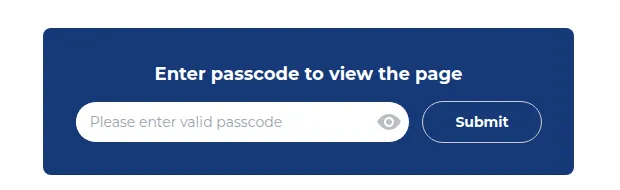
What your customers see on the storefront.
Add a passcode
Section titled “Add a passcode”- Type a passcode in the field Enter a passcode (multiple allowed) and click Add passcode.
- Repeat to add more. Every passcode in the list unlocks the content.
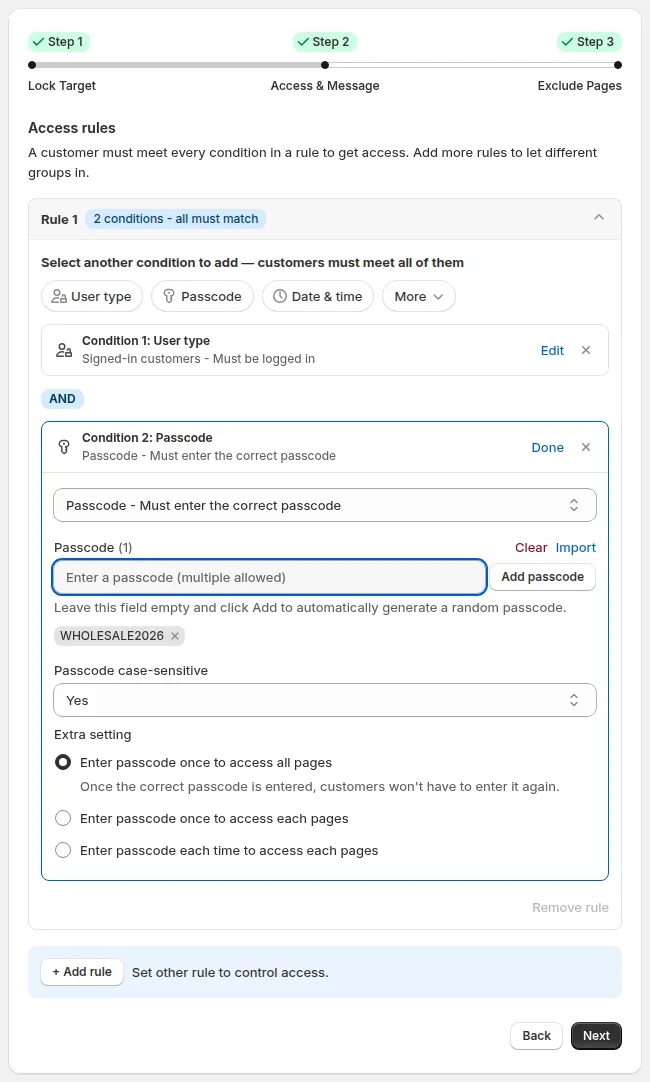
The Passcode condition. The preview on the right shows what visitors see.
The list shows the first 10 passcodes, then +N more. Clear removes all passcodes in this condition after a confirmation; this cannot be undone.
Settings
Section titled “Settings”| Setting | Options | Default |
|---|---|---|
| Passcode case-sensitive | Yes / No | Yes |
| Extra setting | Enter passcode once to access all …, Enter passcode once to access each …, Enter passcode each time to access each … | once for all |
The each time option is not available when the lock target is Price and add to cart or Variants.
Import passcodes from CSV
Section titled “Import passcodes from CSV”- Click Import. The Import passcodes by CSV window opens.
- Download the sample CSV template if you need the format: one passcode per line.
- Choose your
.csvfile and click Upload and preview. - Check the Passcode upload summary, then click Import passcode.
| Rule | Behavior |
|---|---|
| File type | .csv only |
| File size | Up to 2 MB (larger files show File too large) |
| Passcode length | Passcodes longer than 255 characters are skipped as invalid |
| Duplicates | Skipped, and counted under Duplicates skipped |
| Existing passcodes | Kept. Imported passcodes are added to the list. |
Let customers request a passcode
Section titled “Let customers request a passcode”Visitors can ask you for a passcode from the lock message. Requests appear in Access Management > Passcode Requests, where you pick a passcode and click Send email. See Access Management (Passcode Request).