
Hide specific products from certain users (product-level)
A step-by-step guide for merchants who need product-level visibility control. Hide selected products from specific visitors: guests, retail customers, or any group you define.
This guide walks you through every step: choosing which products to hide, who can still see them, and how to verify it works. On the app’s Pricing page, Lock Product is included in the paid plans (Basic Shopify, Grow Shopify, Advanced Shopify, Shopify Plus), not in Free.
On This Page
Section titled “On This Page”- Eligibility Requirements
- Understanding the Hide Products Feature
- Availability & Limitations
- Hide Products Steps
- Verify It Works on Your Storefront
- Common Issues & Troubleshooting
Eligibility Requirements
Section titled “Eligibility Requirements”Before setting up a Hide Products rule, confirm the following:
- You have an active Shopify store on any paid plan.
- BSS B2B Lock is installed from the Shopify App Store.
- You have Editor or Admin access in your Shopify store.
- Your store uses a compatible theme: Online Store 2.0 is recommended.
- For tag-based access: customer tags must already be set up on your Shopify customer records.
Understanding the Hide Products Feature
Section titled “Understanding the Hide Products Feature”Hide Products removes selected items from your storefront entirely for visitors who don’t meet your conditions: no product card, no search result, no product page. This is different from Hide Price, where the product stays visible but the price is hidden.
| Mode | What blocked visitors see | Best for |
|---|---|---|
| Fully Hide Product | No trace anywhere, not in collections, search, or direct URL | Wholesale-only items, secret catalogs |
| Only lock product page | Product visible everywhere, but product page shows ‘Access Denied’ | Items discoverable but purchasable by approved buyers only |
Availability & Limitations
Section titled “Availability & Limitations”| Item | Details |
|---|---|
| BSS B2B Lock plan | Lock Product is included in Basic Shopify, Grow Shopify, Advanced Shopify and Shopify Plus; not in Free (Pricing → Compare all features) |
| Theme | Online Store 2.0 recommended; legacy themes may show empty grid slots |
| Access conditions | Login, tags, passcode, secret link, email, date/time, location, and more |
| AND / OR logic | Supported: conditions in one rule = AND; separate rules = OR |
| Google Search | Hidden products may still appear on Google for up to 24 hours after saving |
Step 1 - Lock Target: Choose Products
Section titled “Step 1 - Lock Target: Choose Products”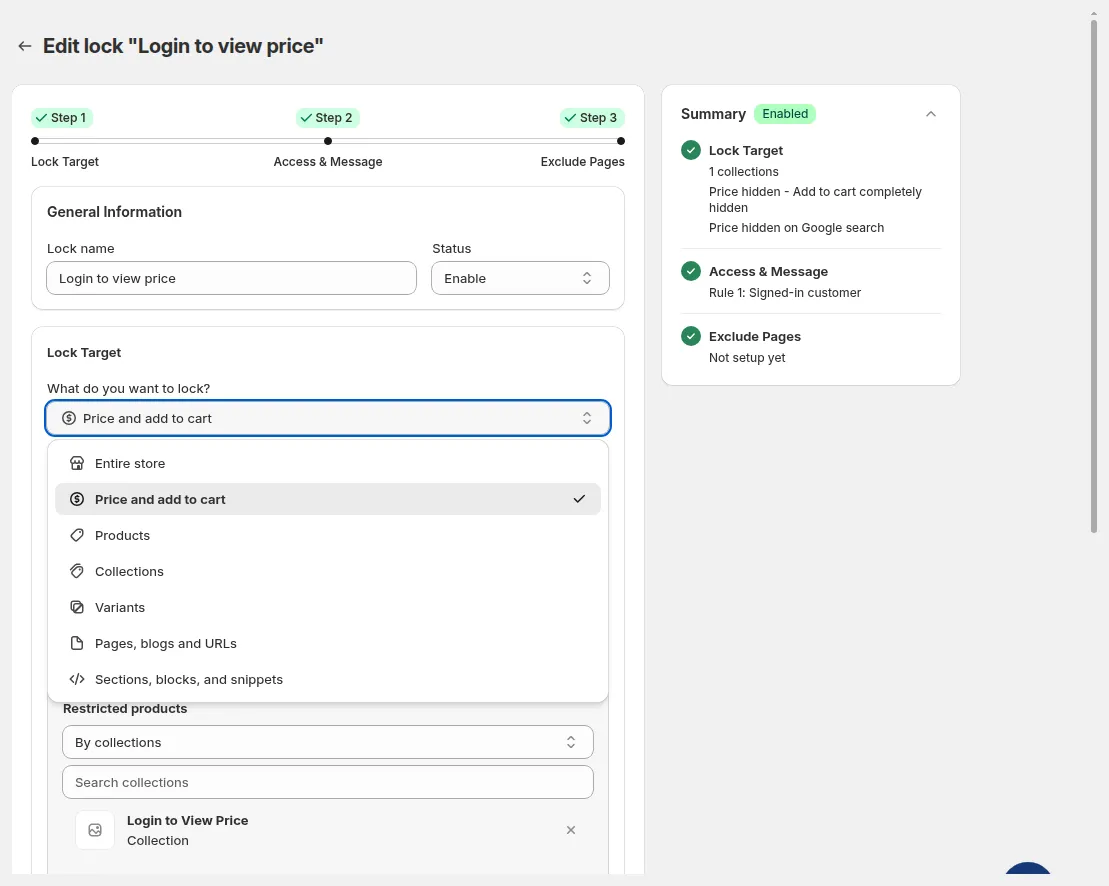
Step 1 - Lock Target. Select Products in the What do you want to lock? dropdown
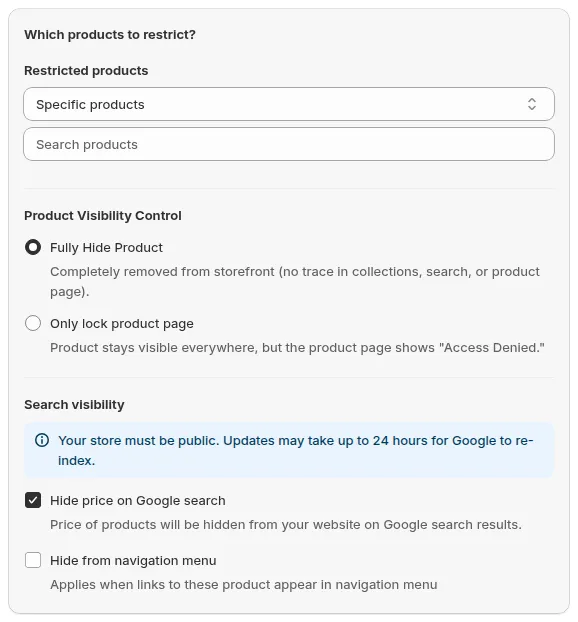
Restricted products: Specific products with the selected products listed and the Summary updated
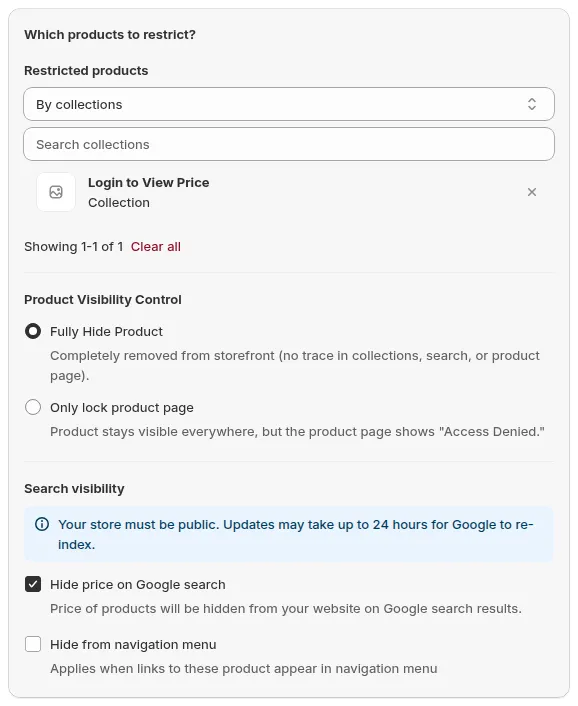
Product Visibility Control: Fully Hide Product or Only lock product page, plus Hide from navigation menu
Step 2 - Access & Message: Define Who Can Still See the Products
Section titled “Step 2 - Access & Message: Define Who Can Still See the Products”This is where you set the conditions that grant access. The order in which BSS B2B Lock evaluates rules is: Everyone → Secret Link → Passcode → Sign-In → Age Verification → Email Subscription → Date & Time → Market → Tag / Specific Customers → Custom Liquid → Specific IP → Specific Region.
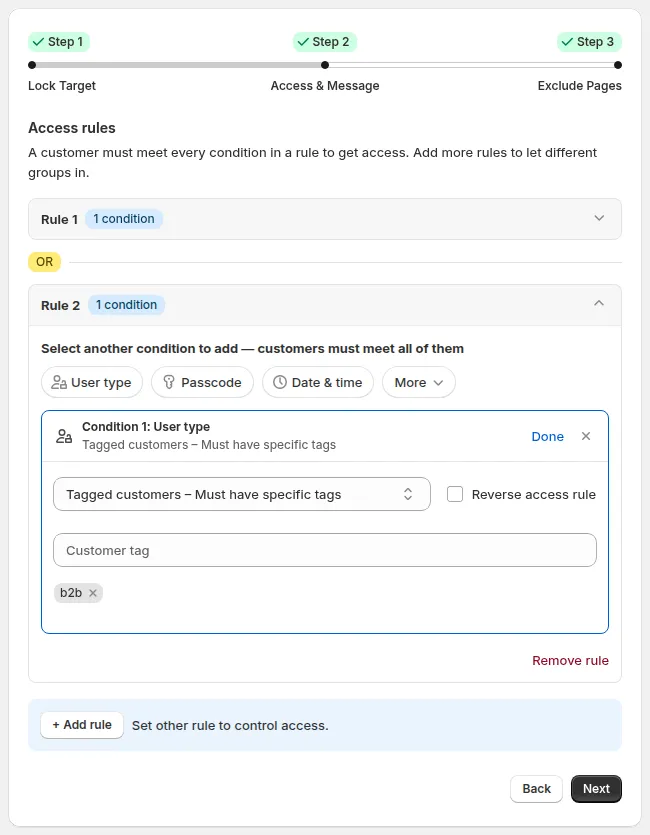
Step 2 - Access & Message. For example, choose Tagged customers – Must have specific tags under User type
Common access condition combinations
Section titled “Common access condition combinations”| Goal | Condition | Example tag / setting |
|---|---|---|
| Wholesale customers only | Tagged customers | wholesale or b2b-approved |
| Logged-in customers only | Signed-in customers | (no tag needed) |
| VIP segment only | Tagged customers | vip or gold-tier |
| Regional distributors | Tagged customers + Location | eu-distributor + EU region |
| Invited partners only | Secret link | (generate secret URL to share) |
| Logged-in wholesalers | Sign-in AND tagged customers | Must be logged in AND tagged wholesale |
Step 3 - Exclude Pages (Optional)
Section titled “Step 3 - Exclude Pages (Optional)”Use this step to add exceptions: pages or URLs that should bypass the lock even if they relate to hidden products.
Verify It Works on Your Storefront
Section titled “Verify It Works on Your Storefront”Test in Incognito mode after saving the rule. Use the checklist below.
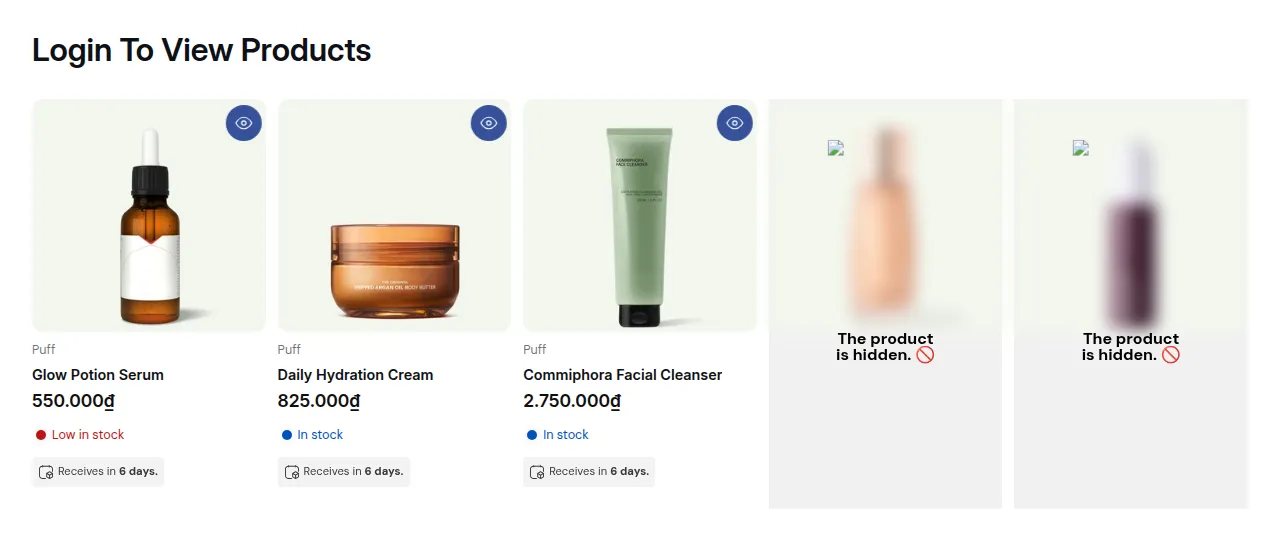
| Test as | Action | Expected result |
|---|---|---|
| Blocked visitor (guest) | Browse to a collection with hidden products | Hidden products do not appear in the grid |
| Blocked visitor (guest) | Visit the product URL directly | Lock message or Access Denied screen, not the product page |
| Approved visitor (tagged/logged-in) | Browse the same collection | Hidden products are now visible |
| Approved visitor (tagged/logged-in) | Click through to the product page | Page loads normally with price and Add to Cart |
Common Issues & Troubleshooting
Section titled “Common Issues & Troubleshooting”| Issue | What to check |
|---|---|
| Products still visible to blocked visitors | Rule Status must be Enable → correct products selected in picker → test in Incognito |
| Approved customers can’t see the products | Check customer tag in Shopify Admin → confirm tag name matches exactly (case-sensitive) → check Reverse access rule is not on |
| Empty slots in collection grid | Theme compatibility issue: switch to Online Store 2.0 or contact support |
| Products still showing on Google | Google takes up to 24 hours to re-index → enable Hide price on Google search under Search visibility → store must be public |
| Unintended products are being hidden | Go back to Step 1 → switch from All product to Specific products → check for other active rules overlapping |