
Hide / Lock Pages
BSS B2B Lock doesn’t only work on products and collections – it can also hide or lock pages across your storefront.
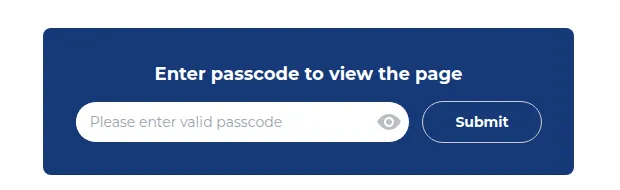
What your customers see on the storefront.
When you use page-related targets in Step 1 – Lock Target, you’re telling the app to protect:
- Your Entire store, or
- Pages, blogs and URLs (CMS pages, blog posts, landing pages, custom URLs, etc.)
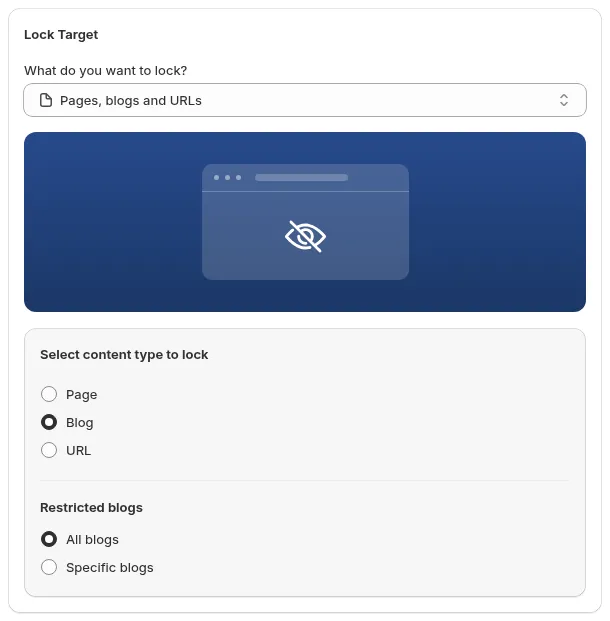
Pick Pages, blogs and URLs, then choose the content type to lock.
Then in Step 2 – Access & Message, you choose how visitors unlock them: via login, passcode, or secret link.
1. Entire store vs pages, blogs and URLs
Section titled “1. Entire store vs pages, blogs and URLs”Entire store
What it does
- Puts your whole storefront behind a gate.
- All pages (home, collections, products, CMS pages) are protected by the same rule.
Use when
- You run a private / wholesale-only store.
- You don’t want the general public to explore your catalog.
Typical setup
- Step 1: What do you want to lock? → Entire store
- Step 2: User type → Tagged customers (e.g.
wholesale) or Signed-in customers. Then show a clear lock screen (login + “request access” link) via Preview → Customize message. - Step 3: Tick the pages that stay public under Exclude from lock rules (e.g. Home page, Policy pages, or a “Contact” page under Specific pages).
For page locks, Step 3 also offers:
- SEO and Meta Tag Options → Add the “noindex” meta tag to any pages protected by this lock, so search engines don’t index the locked pages.
- Hide content on locked page → Hide store’s header and footer and Hide store’s navigation bar, for a clean, focused lock screen.
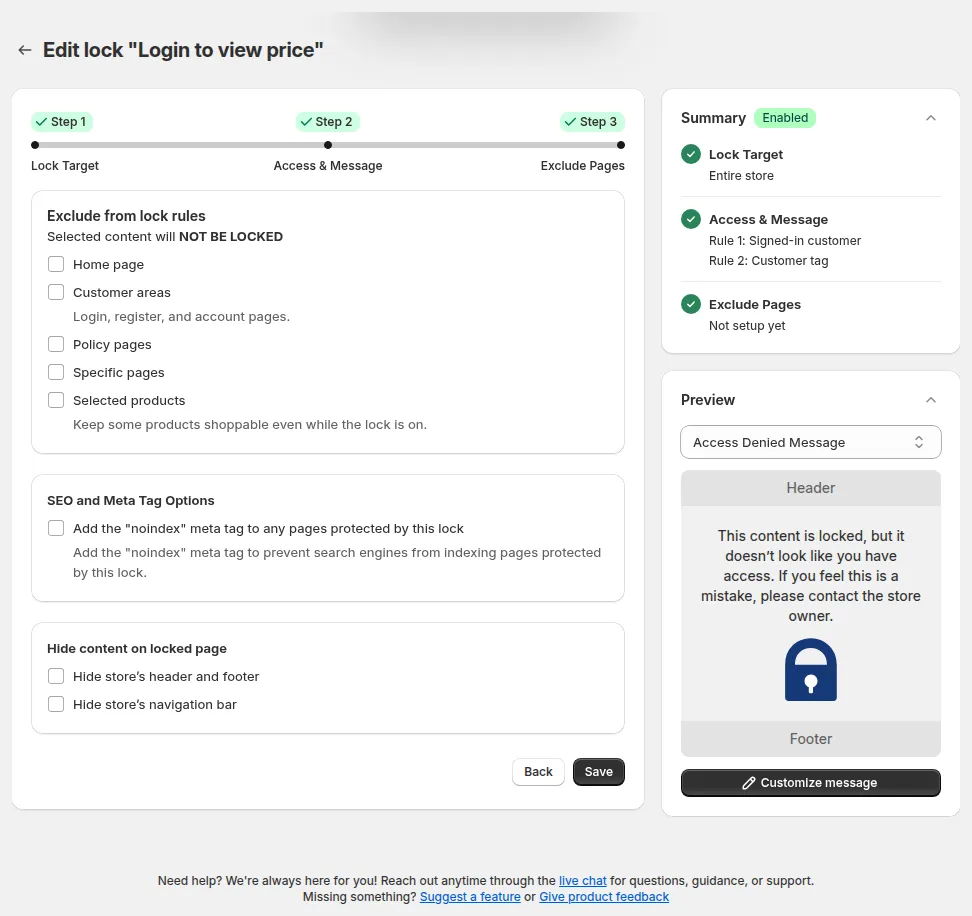
Step 3 for page locks: exclusions, noindex and hiding the store header, footer and navigation bar.
Pages, blogs and URLs
What it does
- Locks only selected pages: e.g.
/wholesale,/partners,/docs,/resources,/campaign-2025. - Any other pages remain public unless covered by other rules.
Use when
- You have wholesale info, partner resources, or VIP content that should not be public.
- You want the store mostly open, but certain content areas gated.
Typical setup
- Step 1: What do you want to lock? → Pages, blogs and URLs
- Step 1: Under Select content type to lock, choose Page, Blog or URL, then pick the pages or blogs (All or Specific), or type a URL path and click Add
- Step 2: Add a condition → User type (signed-in or tagged customers), Passcode, or secret link. Then customize the message + CTA for that specific audience via Preview → Customize message
- Step 3: Exclude any pages that must stay public, set noindex and Hide content on locked page if needed, and click Save
This approach is more granular and works well in hybrid B2B + B2C setups.
2. Locking with login (customer accounts)
Section titled “2. Locking with login (customer accounts)”How it works
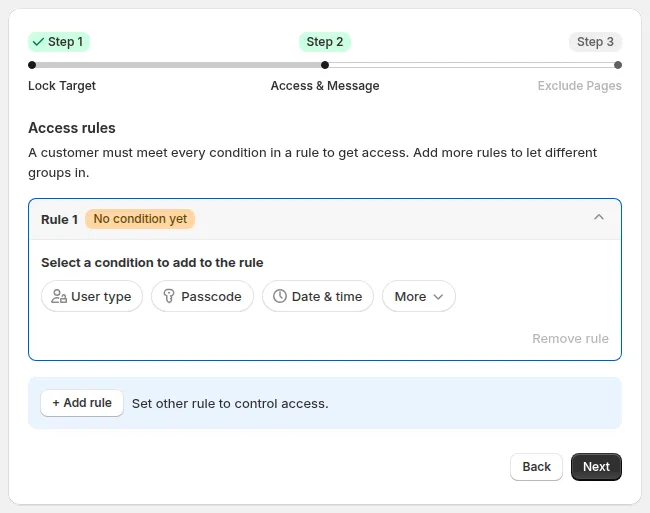
In Step 2, pick User type to lock by login state or customer tags.
- In Step 2, pick User type and choose a condition based on login state and/or customer tags:
- Signed-in customers - Must be logged in
- Tagged customers – Must have specific tags (e.g.
wholesale)
- To require both, add them as two conditions in the same rule (AND).
If the visitor:
- Meets the login/tag condition → page loads normally.
- Doesn’t meet it → sees your lock message.
Use login when
- You want a clean, account-based experience (customers log in and see their content).
- You already manage approval and tagging via B2B apps or manual workflows.
UX tips
- In Preview → Customize message, always add:
- A Login link
- A Create account / Request access link
- Explain clearly who the page is for (e.g., “for approved wholesale customers only”).
3. Locking with passcode
Section titled “3. Locking with passcode”How it works
- In Step 2, pick Passcode → Passcode - Must enter the correct passcode.
- Type a passcode (e.g.,
PARTNER2025) and click Add passcode. Leave the field empty and click Add passcode to generate a random one. - When visitors open the locked page/URL:
- A passcode prompt is shown.
- Correct passcode → access granted.
- Wrong passcode → error message.
Use passcode when
- You want invite-only access but don’t want to manage accounts/tags.
- You’re running a private campaign or beta test.
- You need a quick, low-friction way to gate content.
Passcode options (in the Passcode condition)
- Passcode case-sensitive: Yes or No.
- Several passcodes per rule, with Import and Clear.
- A correct passcode is remembered for the visitor’s session, so users aren’t constantly re-entering it.
- Preview the passcode form in the Preview card (message Passcode) and edit it with Customize message.
4. Locking with secret links
Section titled “4. Locking with secret links”How it works
- In Step 2, add More → Other condition → Secret link – Must access via a special link.
- The rule expects a special URL (often with a token parameter).
- Only visitors arriving via that URL can see the page; everyone else is blocked.
Use secret link when
- You want hidden content that:
- Doesn’t appear in navigation.
- Isn’t easily discoverable via search.
- You run VIP / early access campaigns.
- You want a “soft gate” where security is less strict than login/passcode, but still not public.
Behaviour
- Visitors using the secret URL → page loads normally.
- Visitors using a normal URL without token → see your lock message.
5. Choosing between login, passcode, and secret link
Section titled “5. Choosing between login, passcode, and secret link”Use this quick guide to pick the right method for locked pages:
Scenario
Best Method
Why
Private wholesale or partner pages, long-term
Login + tags
Strong control, tied to real customer accounts
One-off invite-only campaign or small partner group
Passcode
Easy to share, no account management
VIP early access, light gating, marketing-focused
Secret link
Frictionless for invited users, hidden from casual visitors
Full B2B / private store
Entire store + login/tags
The whole store behaves as a gated portal
In all cases, remember:
- Login is best for ongoing relationships and tight segmentation.
- Passcode is best for quick, manual gatekeeping.
- Secret link is best for hidden but convenient access.
Combined with the targets (Entire store vs Pages, blogs and URLs), you can design anything from a fully private wholesale store to a few softly gated partner pages inside a public site.
Still Need Help?
Section titled “Still Need Help?”If you have questions or need assistance configuring BSS B2B Lock, our dedicated support team is here to help.
- In-App Assistance: Click Need help? or use the in-app chat button within BSS B2B Lock.
- Email Support: Contact us at [email protected] with your store URL and specific rule details.