
Create a secret collection just for approved B2B customers (with B2B app)
Combine BSS B2B Lock with BSS B2B Solution (B2B app) so that only approved B2B customers can see a special collection.
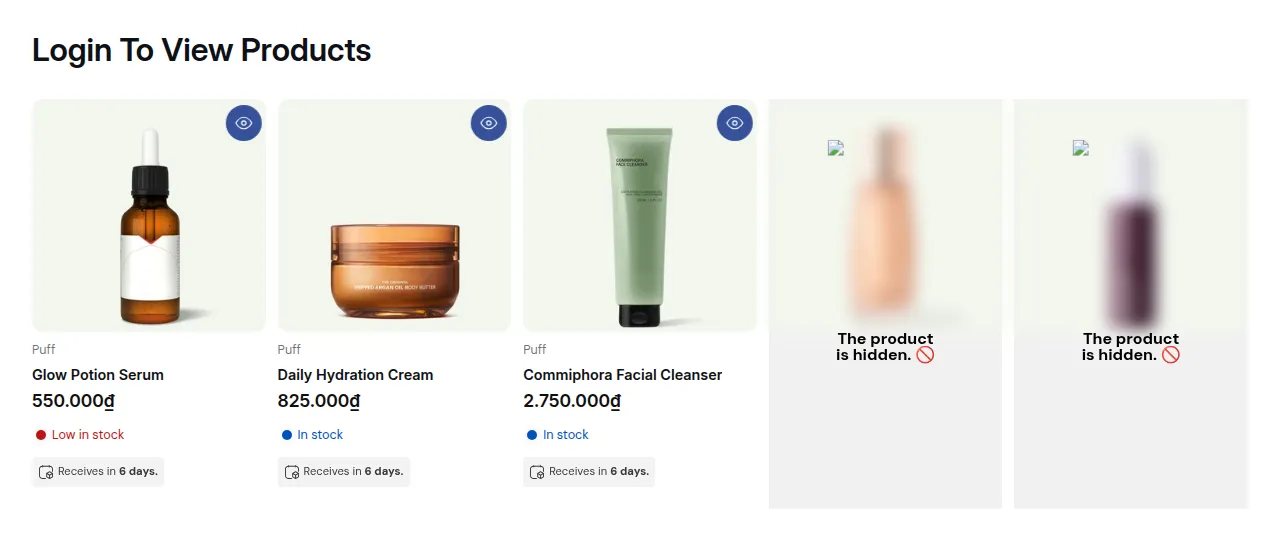
What your customers see on the storefront.
Goal
Combine BSS B2B Lock with BSS B2B Solution (B2B app) so that only approved B2B customers can see a special collection.
When to use this recipe
- You’re using BSS B2B Solution for registration + approval.
- Approved B2B customers are automatically tagged (e.g.,
b2b-approved). - You want a secret B2B-only collection that retail customers never see.
Step 0 – Before you start
Section titled “Step 0 – Before you start”- Confirm that BSS B2B Solution is set up so approved customers get a tag (e.g.
b2b-approvedorwholesale). - Create (or identify) the B2B-only collection in Shopify (e.g., “B2B Only”, “Wholesale Catalog”).
Step 1 – Lock Target
Section titled “Step 1 – Lock Target”- Go to Locks → Add lock rule, select Create my own lock in the Start with a preset modal, then click Continue.
- In Step 1 – Lock Target:
- Lock name:
Secret B2B collection. - In What do you want to lock?, select Collections.
- Under Which collections to restrict?, select Specific and pick the B2B-only collection in the Select collections picker.
- Keep all four Visibility settings ticked (Hide collection cards, Hide product cards, Hide product pages, Hide from navigation menu).
- Lock name:
- Click Next.
This ensures the collection is hidden from anyone who doesn’t match the access rules.
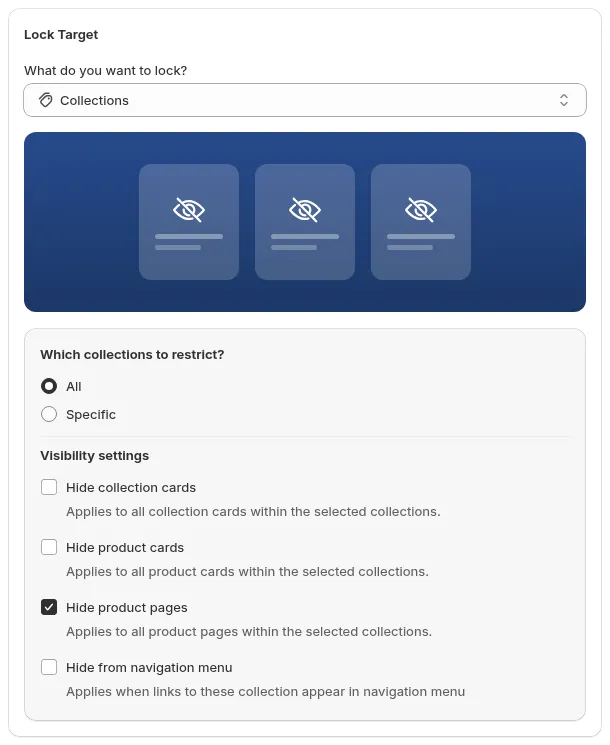
Step 1 - Lock Target. Collections scope and Visibility settings
Step 2 – Access & Message
Section titled “Step 2 – Access & Message”-
In Rule 1, click the User type condition chip and choose Tagged customers – Must have specific tags, then enter
b2b-approved(or whatever tag the B2B app uses) in the Customer tag field. -
Optional:
- Add a second condition to the same rule, User type → Signed-in customers - Must be logged in, if you want to enforce login as well. A customer must meet every condition in a rule.
-
Set the message for blocked users. In the Preview card, click Customize message. In Preview & customize message, open the Access Denied Message tab (“Shown when the customer doesn’t have access – even if they’re logged in.”) and edit its Text content (or click Edit with editor):
- “This collection is reserved for approved B2B customers. Please apply for a B2B account or log in with your approved email.”
- Add links:
- “Apply for B2B account” → registration form from BSS B2B Solution.
- “Log in” → Shopify login page.
For this setup, the modal also has Placeholder Product Card and Login View Pages tabs.
This makes your B2B registration/approval flow the gatekeeper to the secret collection.
Click Next.
Step 3 – Exclude Pages
Section titled “Step 3 – Exclude Pages”Optionally check pages in Exclude from lock rules that should stay open to everyone.
Click Save (the button next to Back, or Save in the Unsaved changes bar at the top of the page).
Check your storefront
Section titled “Check your storefront”- As a guest or normal retail customer → the B2B collection should be invisible in navigation, collection lists, and search.
- As an approved, tagged B2B customer → after logging in, the collection should appear and function normally.
This setup creates a clean, connected B2B flow across both apps.
Still Need Help?
Section titled “Still Need Help?”If you have questions or need assistance configuring BSS B2B Lock, our dedicated support team is here to help.
- In-App Assistance: Click Need help? or use the in-app chat button within BSS B2B Lock.
- Email Support: Contact us at [email protected] with your store URL and specific rule details.