
Hide Prices
When you choose Price and add to cart as your target in Step 1, extra options appear for which products to restrict, what to hide, and search visibility.\
When you choose Price and add to cart in What do you want to lock? in Step 1, extra options appear.
This is where you control which products lose their price, what is hidden, and whether you also hide prices from Google.
1. Price settings – what you can control
Section titled “1. Price settings – what you can control”Once Price and add to cart is selected in Step 1 – Lock Target, you’ll see:
- Which products to restrict? (Restricted products)
- All product – hide prices across your entire catalog.
- By tags – hide prices for products with specific product tags.
- By collections – hide prices only for chosen collections (e.g., “Wholesale”).
- Specific products – hide prices only for selected products.
- Specific variants – hide prices only for selected variants (e.g. a wholesale-only pack size). Use Search specific variants to pick them. The What do you want to hide? options are not shown for specific variants.
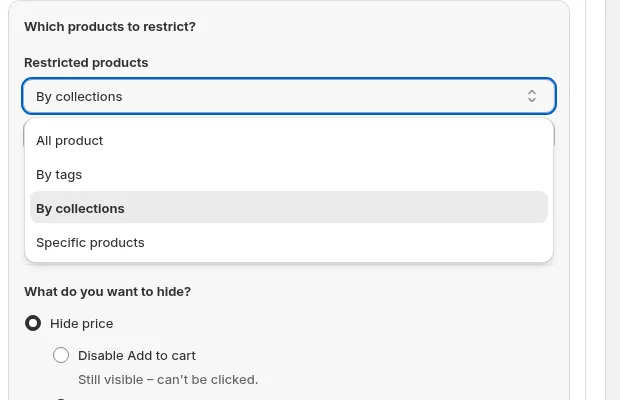
Choose which products the price rule applies to.
- What do you want to hide?
- Hide price: removes the price text. Then choose what happens to the button:
- Disable Add to cart: “Still visible – can’t be clicked.”
- Hide Add to cart: “Completely invisible.”
- Keep price visible, hide Add to cart: “Price stays visible; only the button is removed.”
- Hide price: removes the price text. Then choose what happens to the button:
- Search visibility
- Checkbox Hide price on Google search (covered next).
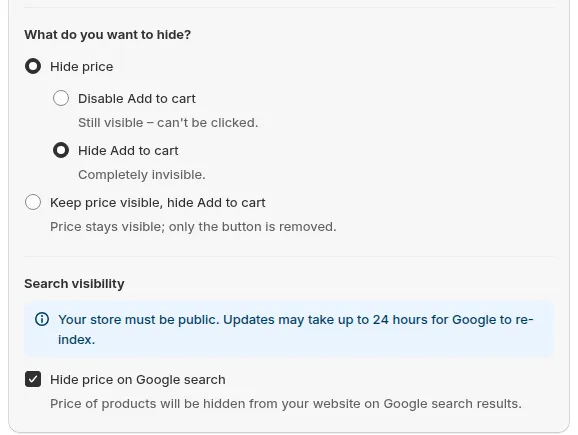
Choose what to hide, and optionally hide prices from Google search.
What to show instead: the text blocked visitors see in place of the price (e.g. “Login to see price”, with optional login / signup links) is edited from the Preview card → Customize message (message Message Hide Price). See Lock Page Settings.
In short, the Price and add to cart options determine which products lose visible prices and what visitors see in the UI before access is granted.
2. “Hide price on Google search” – how it works
Section titled “2. “Hide price on Google search” – how it works”The Hide price on Google search option is specifically about search engines, not human visitors.
When you tick Hide price on Google search under Search visibility:
- The app updates your theme so price information is removed or minimized in structured data (schema) and other spots Google uses for price snippets.
- It applies to the same products you picked under Restricted products. It does not apply to Specific variants.
What it does and doesn’t do
Section titled “What it does and doesn’t do”- ✅ Does:
- Make it harder for Google to show your product prices in search results or rich snippets.
- Help protect B2B/wholesale or contract pricing from being publicly exposed via search.
- ❌ Does not:
- Instantly erase all price info already cached in Google (you still need to wait for re-crawl).
- Remove the page itself from Google’s index – your product/page can still appear, just without price.
- Replace access rules for real visitors (that’s still handled by Step 2 conditions like login/tags).
You can even set up a Google-only rule whose only purpose is to hide price in Google:
- Step 1: Price and add to cart → choose your Restricted products → tick Hide price on Google search.
- Step 2: Every rule needs at least one condition, so add User type → Everyone - No restrictions. Visitors keep full access; only Google is affected.
- Step 3: Click Save and let the app install changes into your theme.
3. When to use “Hide price” vs “Hide price on Google search”
Section titled “3. When to use “Hide price” vs “Hide price on Google search””Use “Hide price” (with conditions in Step 2) when…
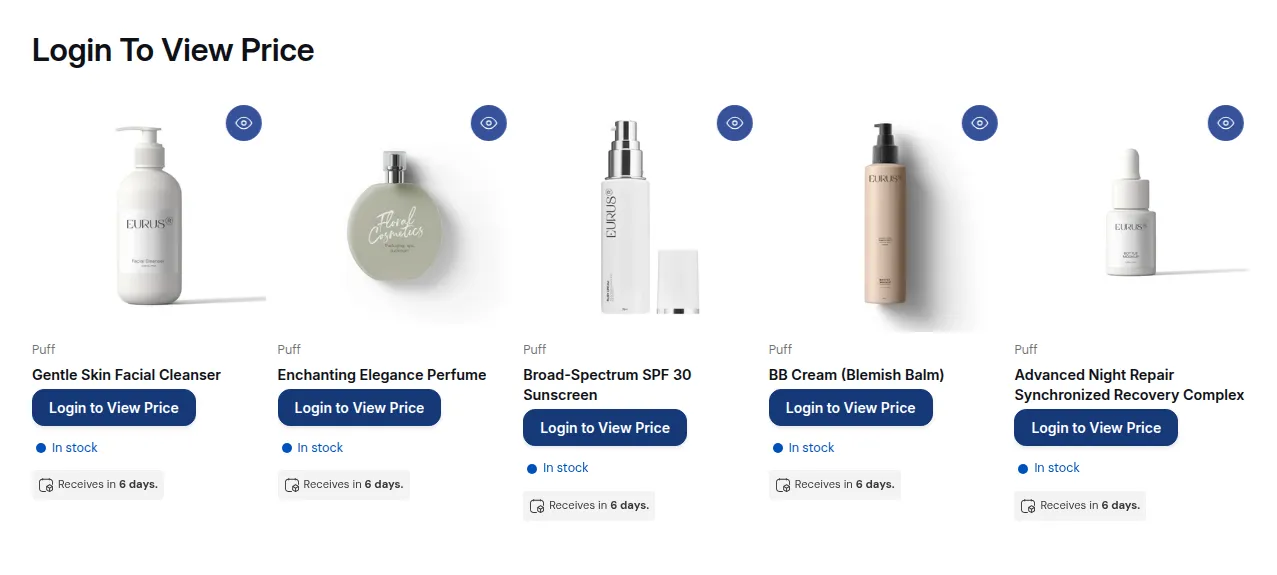
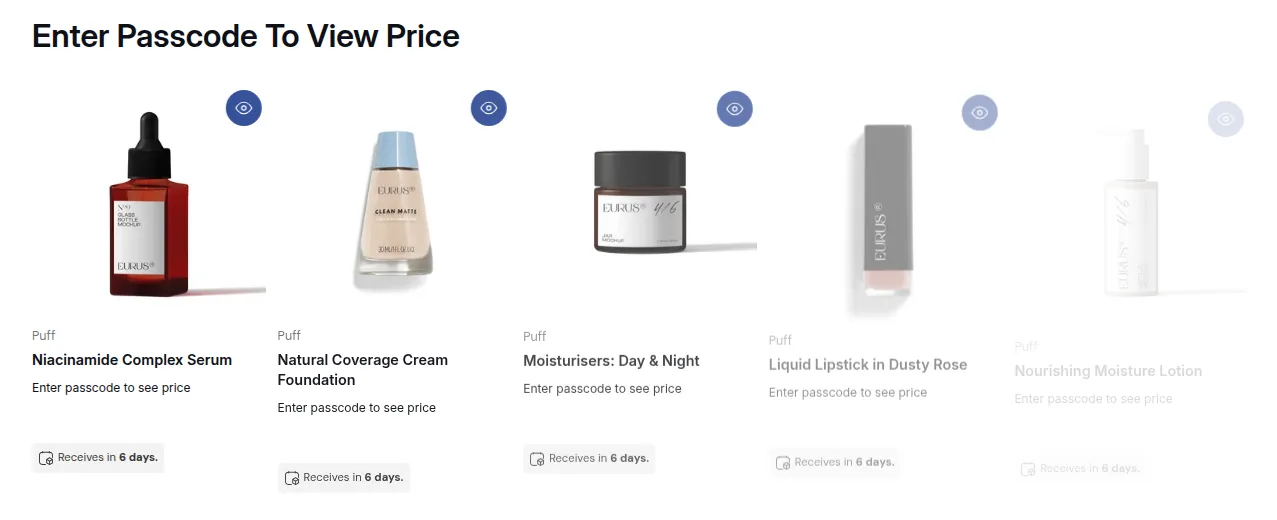
- You want real visitors to be gated:
- Guests shouldn’t see prices.
- Only logged-in or tagged B2B customers can see prices.
Use “Hide price on Google search” when…
- You’re okay with approved visitors seeing prices,
- But you don’t want search engines to display those prices in SERPs (e.g., wholesale, contract, or region-specific pricing).
You can also combine both:
- Hide price from guests
- Hide price on Google search for the same product set
→ Only logged-in / approved customers see prices in the store, and Google won’t show those prices publicly.
4. Best practices
Section titled “4. Best practices”- For hybrid B2B+B2C:
- Use Hide price + User type → Signed-in customers to gate prices.
- Turn on Hide price on Google search for any B2B or special contract products.
- For wholesale-only pricing:
- Apply Hide price to All product.
- Use User type → Tagged customers (e.g.
wholesale,b2b-approved) in Step 2. - Turn on Hide price on Google search for extra protection.
- After enabling Hide price on Google search:
- Give Google some time to re-crawl.
- Double-check how your pages render in testing tools and in search results over time.
This way, your storefront UX and your search visibility work together to keep B2B pricing under control.
Still Need Help?
Section titled “Still Need Help?”If you have questions or need assistance configuring BSS B2B Lock, our dedicated support team is here to help.
- In-App Assistance: Click Need help? or use the in-app chat button within BSS B2B Lock.
- Email Support: Contact us at [email protected] with your store URL and specific rule details.