
Hide Shipping Method
This feature lets you hide one or all shipping methods at checkout: based on customer type, tags, or products in the cart.
Applies to standard Shopify Checkout only. Availability may vary depending on your plan or store setup.
| • Always test in an incognito window before activating a rule on your live store | | • Check the Rule Summary panel on the right to confirm IF → THEN before saving |
On This Page
Section titled “On This Page”- Eligibility requirements
- What this feature does
- Availability & limitations
- Step 1 - Create a new rule
- Step 2 - Set conditions and actions
- Common issues & how to fix them
- Still need help?
Eligibility requirements
Section titled “Eligibility requirements”- Your store uses standard Shopify Checkout
- BSS B2B Lock is installed and active
- At least one shipping method is configured in Shopify Admin
⚠️ Draft Orders and manually created orders in Shopify Admin are NOT affected by rules.
What this feature does
Section titled “What this feature does”- Hide all shipping methods for all buyers or specific customer groups
- Hide specific methods based on conditions
- Combine multiple conditions using AND / ANY logic
- Apply rules based on customer tags, login status, or product tags
Availability & limitations
Section titled “Availability & limitations”| Store type | Supported | Notes |
|---|---|---|
| B2B-only / Hybrid B2B+B2C | Yes | Standard Shopify Checkout only |
| Draft Orders / Manual orders | No | Rules do not apply to draft orders |
| Headless / Custom checkout | Limited | Contact support to confirm compatibility |
- Methods not detected automatically must be added manually using ‘Add manual method’
- If a rule hides all methods → buyers see an empty checkout page → always test before activating
- Overlapping rule conditions may cause conflicts: review Rule Summary carefully
Step 1 - Create a new rule
Section titled “Step 1 - Create a new rule”- Go to the BSS B2B Lock > Checkout Lock
- Click Add rule in the top-right corner.
- Select Hide shipping methods.
- Click Select to confirm.
Select 'Hide shipping methods' in the Select rule type dialog
📝 The rule opens with the default name ‘New Shipping customization’. Rename it to something recognizable: up to 150 characters.
Step 2 - Set conditions and actions
Section titled “Step 2 - Set conditions and actions”Name your rule and turn it on
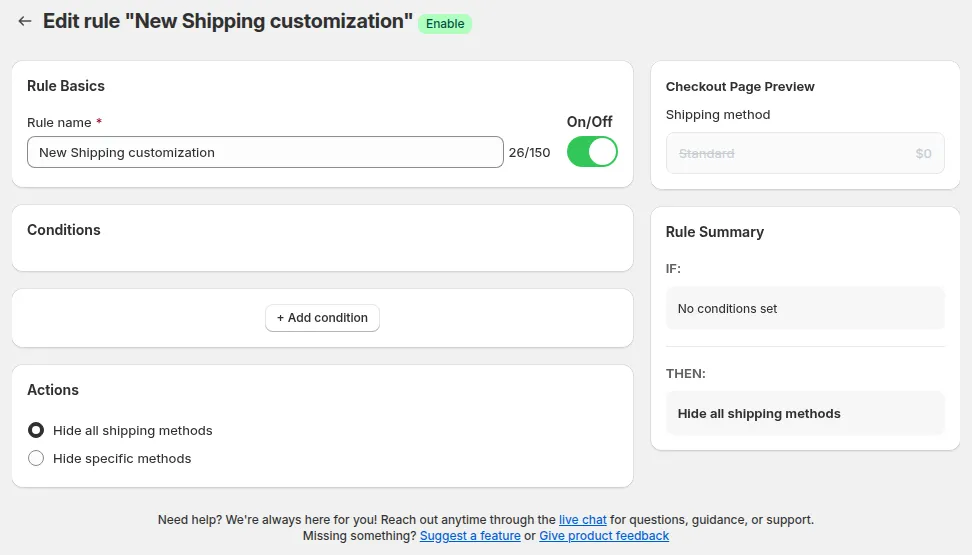
Section titled “Name your rule and turn it on”- Enter a name in the Rule name field.
- Keep the toggle Off while configuring.
- Switch On only after verifying the Rule Summary.
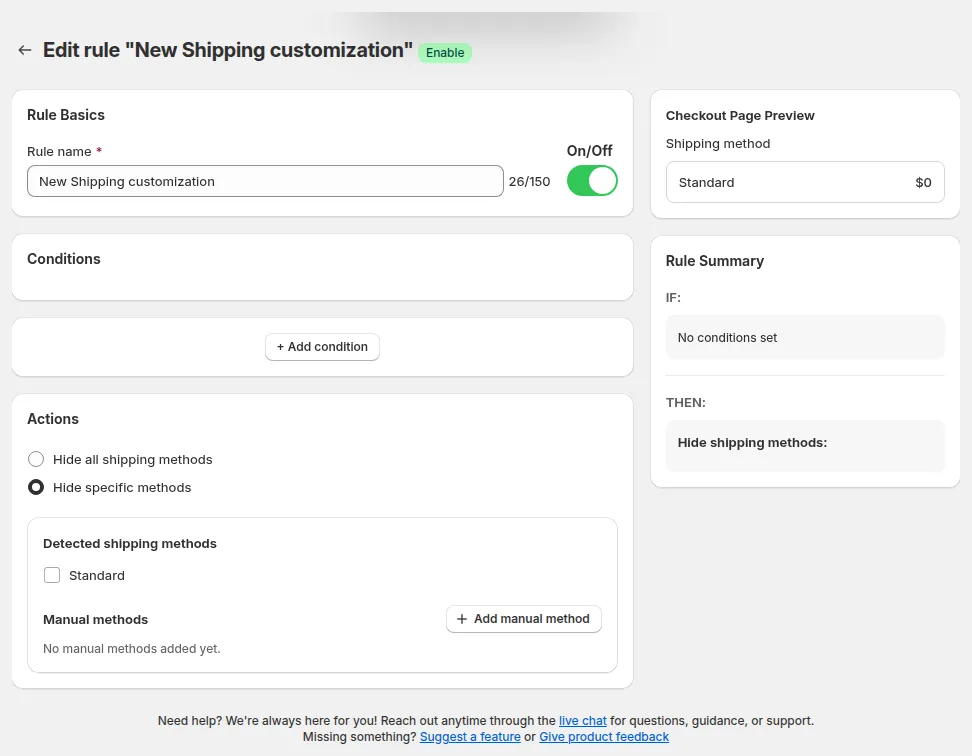
Rule editor: conditions, actions and Rule Summary
Add a condition
Section titled “Add a condition”Choose the condition type that matches your checkout restriction goal:
| Condition Category | Condition Type | What it checks | Example |
|---|---|---|---|
| General | Always | Always applies rule | Hide express shipping for everyone |
| Customer | Customer tag | Matches buyer customer tag(s) | Hide Standard shipping for wholesale |
| Customer logged in | Checks if buyer is signed into account | Hide COD/Local Delivery when guest | |
| Customer email | Matches buyer’s specific email address | Restrict shipping for specific partners | |
| Customer phone | Matches buyer’s contact phone number | Regional restriction based on phone | |
| Cart & Order | Cart total amount | Order total value (incl. tax/discounts) | Free freight over $1,000 |
| Cart subtotal amount | Order subtotal value | Hide courier when subtotal < $100 | |
| Cart line item count | Number of unique product line items | Enforce pallet shipping if > 10 items | |
| Specific products | Checks if designated items are in cart | Bulky product shipping restriction | |
| Product tag | Checks tags of items currently in cart | Hide same-day shipping for fragile |
- Click + Add condition.
- Select a category (Popular / Customer / Cart / Product) and pick your condition type.
- Set the Operator (e.g.
Equals,Contains,Greater than or equal to) and enter the Value. - Click Done.
- For complex logic: click + Add condition again to combine multiple rules using ALL (AND) or ANY (OR) logic.
Set the action
Section titled “Set the action”- Hide All shipping methods: Removes all shipping options at checkout (triggers Shopify checkout delivery error banner).
- Hide Specific methods: Removes only designated shipping rates.
If you choose Hide specific methods:
- Select methods from the Detected shipping methods list (auto-synced from Shopify Shipping Settings).
- If a method does not appear automatically → click + Add manual method.
- Enter the exact rate title (case-sensitive display name) and click Add.
Live Preview Sidebar Mockup
Section titled “Live Preview Sidebar Mockup”While configuring your rule, check the Live Preview block in the right sidebar:
- Displays a realistic Shopify Checkout mockup showing how shipping errors or available rates appear to customers.
- Automatically updates when you toggle between hiding specific methods or hiding all shipping methods.
- Allows you to verify rule logic before publishing to your live storefront.
Expired Trial & Plan Gate Handling
Section titled “Expired Trial & Plan Gate Handling”Save & verify
Section titled “Save & verify”- Review the Rule Summary on the right sidebar: verify IF (conditions) and THEN (actions).
- Switch the rule toggle to On.
- Click Save.
- Open an incognito browser window, add products matching your conditions to the cart, and proceed to the Checkout Shipping step to confirm.
Common issues & how to fix them
Section titled “Common issues & how to fix them”Rule is active but shipping method still appears
Section titled “Rule is active but shipping method still appears”- Verify customer tags, cart subtotal, or product tags match the rule conditions exactly.
- Ensure the rule toggle is set to On and the app subscription is active.
- Note that draft orders and backend manual orders bypass Shopify checkout functions.
“Only available on Paid plans” badge appears / Cannot save rule
Section titled ““Only available on Paid plans” badge appears / Cannot save rule”- Your free trial has expired. Upgrade to any paid plan to reactivate rule editing.
All methods are hidden for all buyers
Section titled “All methods are hidden for all buyers”- Check for an unintended rule set to
Always → Hide all shipping methods. - Narrow the condition scope to specific customer tags or order thresholds.
Still need help?
Section titled “Still need help?”• You can email: [email protected]
• Include: your store URL, the rule you configured, and expected vs actual result
• Our team can configure the rule directly for you if needed