
Prevent bot purchases, fraudulent orders & unauthorized checkout (Checkout Lock)
Block suspicious or unauthorized checkouts using rules at the checkout level (not just at the catalog level).
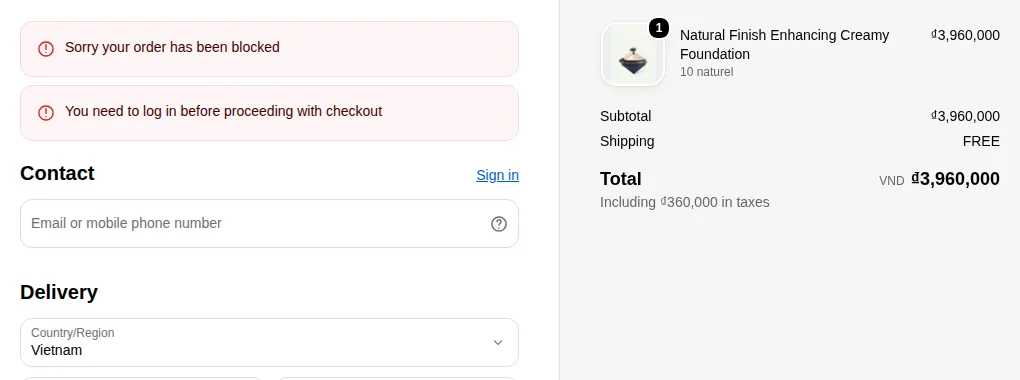
What your customers see on the storefront.
Goal
Block suspicious or unauthorized checkouts using rules at the checkout level (not just at the catalog level).
When to use this recipe
- You get many fake or risky orders.
- You want only approved customers to complete checkout.
- You need extra safeguards for certain products or customers.
Step 0 – Before you start
Section titled “Step 0 – Before you start”- Make sure Checkout locks is visible in the BSS B2B Lock app navigation (left sidebar). On the Pricing page, Checkout locks is listed for every plan, including Free.
Step 1 – Create a checkout lock rule
Section titled “Step 1 – Create a checkout lock rule”- In the app, click Checkout locks in the left sidebar.
- Click Add rule. In Select rule type, choose Checkout lock (“Validate checkout with custom conditions.”) and click Select.
- The other rule types are Hide Payment & Express Checkout Options and Hide shipping methods.
- In Rule name, name the rule:
Block unauthorized checkoutsorStop bot/fraud orders. - Keep On/Off switched on.
You’re now configuring checkout-level conditions, not just storefront visibility.
Step 2 – Define conditions for blocking checkout
Section titled “Step 2 – Define conditions for blocking checkout”Under Conditions to lock (“Define the conditions that must be met to lock checkout.”), click + Add condition and pick a condition in Choose condition (tabs Popular, Customer, Cart, Product and More views):
- Always: “Always block checkout”
- Customer: Customer logged in, Customer phone, Customer email, Customer tag
- Cart: Subtotal amount, Cart line item count, Cart total
- Product: Product tag, Specific product, Product quantity
Conditions marked Coming Soon can’t be used yet: Customer order count, Product vendor, Shipping country, Shipping province, Market, Date range, Time range and Discount code.
When a rule has more than one condition, choose Match conditions: All (“All specified conditions must be met”) or Any (“Any of the specified conditions must be met”).
Examples of useful patterns:
A. Only tagged customers can checkout
- Condition: Customer tag → Operator Does Not Contain → Value
wholesale(orapproved). - Result: Checkout is blocked for customers without the tag, so only approved customers can complete orders.
B. Block specific products from checkout
- Conditions: Specific product (“Check if specific products are in cart”) AND Customer tag → Does Not Contain your approval tag, with Match conditions set to All.
- Useful for restricted products or controlled items.
C. IP / location-based protection
- Checkout locks have no IP condition, and the location conditions (Shipping country, Shipping province, Market) are marked Coming Soon.
- To restrict by IP address or country today, use a storefront lock instead: Locks → Step 2 → More → Location (e.g. IP address – Only for specific IP addresses or Location – Only for selected countries).
For each rule, define:
- Which conditions to check.
- How they combine (Match conditions: All or Any) to mean “block this order”.
Step 3 – Customize the blocked checkout message
Section titled “Step 3 – Customize the blocked checkout message”When a checkout is blocked, the customer should see a clear explanation.
Under Error message:
- Pick the language (e.g. English) and edit the main message (default: “Sorry your order has been blocked”), e.g.:
- “We can’t complete this order”
- Below it, each condition type has its own message: e.g. Customer tag: “Your account has a tag that prevents checkout.”: which you can edit, e.g.:
- “This checkout is only available for approved wholesale customers. Please log in with your wholesale account or contact us.”
- The Preview card on the right shows how the messages appear at checkout.
Include:
- A link to contact support or request approval.
- Any necessary compliance text (if blocking for legal reasons).
Click Save in the Unsaved changes bar at the top of the page.
Test your checkout lock
Section titled “Test your checkout lock”- Attempt a checkout as a customer who should be blocked:
- Use a test customer or a normal retail profile.
- Confirm the checkout displays your error message and does not proceed.
- Attempt a checkout as an approved customer:
- Confirm the order flows normally.
When to combine with other locks
Section titled “When to combine with other locks”Checkout Lock works best when combined with:
- Catalog-level locks (hide products/collections from the wrong users).
- Price/visibility rules (hide prices from guests or unapproved users).
- Tag-based approval flows from your B2B apps.
Together, they give you a full stack of protection:
From who can see what → to who can actually place an order.
Still Need Help?
Section titled “Still Need Help?”If you have questions or need assistance configuring BSS B2B Lock, our dedicated support team is here to help.
- In-App Assistance: Click Need help? or use the in-app chat button within BSS B2B Lock.
- Email Support: Contact us at [email protected] with your store URL and specific rule details.