
Protect pages with a passcode
Protect one or more pages with a passcode (password) that you share manually with selected people.
Goal
Protect one or more pages with a passcode (password) that you share manually with selected people.
When to use this recipe
- Private campaign pages.
- Partner-only pages where you don’t want to manage tags or logins.
- Quick “invite-only” landing pages.
Step 0 – Before you start
Section titled “Step 0 – Before you start”- Decide which page(s) you want to protect.
- Decide on the passcode (and whether it should be case-sensitive).
Step 1 – Lock Target
Section titled “Step 1 – Lock Target”- Go to Locks → Add lock rule.
- In the Start with a preset modal, select Require passcode to view pages (or Create my own lock), then click Continue.
- In Step 1 – Lock Target:
- Lock name:
Passcode protect partner page. - In What do you want to lock?, select Pages, blogs and URLs.
- Select the actual page (Page → Specific pages), or choose URL and enter e.g.
/partner-offer, then click Add.
- Lock name:
- Click Next.
Step 2 – Access & Message
Section titled “Step 2 – Access & Message”- In Rule 1, click the Passcode condition chip (Passcode - Must enter the correct passcode).
- Enter your chosen passcode (e.g.,
PARTNER2025) and click Add passcode. You can add several passcodes:- Leave the field empty and click Add passcode to auto-generate a random passcode.
- Click Import to import passcodes, or Clear to remove them.
- Set Passcode case-sensitive to Yes or No.
- Choose the extra setting for how long a passcode unlocks content: e.g. enter the passcode once to access everything, or once for each item (the wording depends on the lock target).
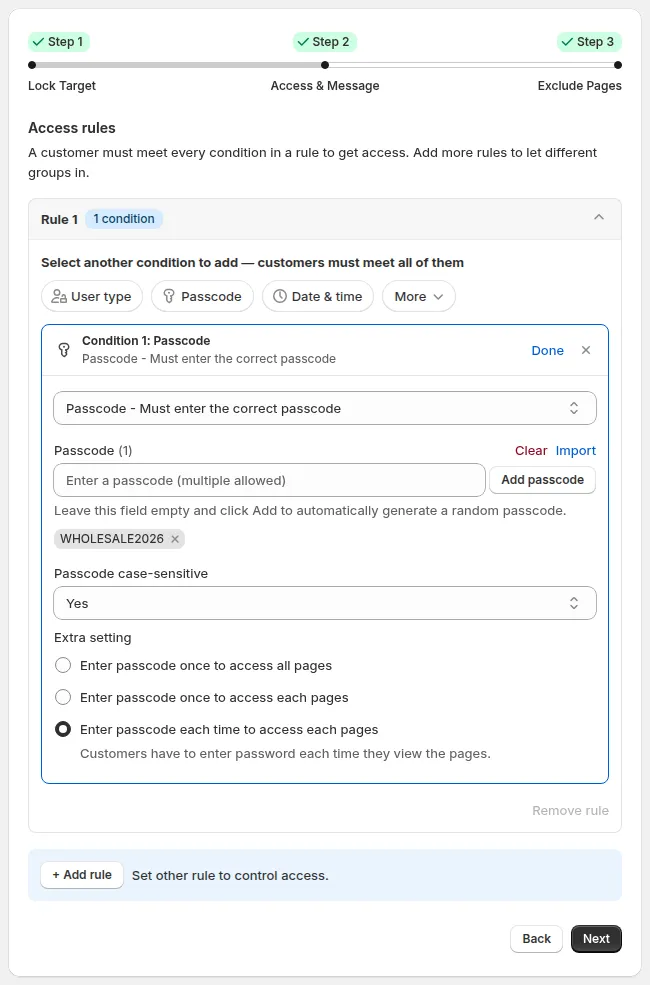
Step 2 - Access & Message. Passcode condition with the live passcode form preview
Message, form & Collection Page Passcode
- Message & Form:
- In the Preview card, select the passcode message and click Customize message to edit the lock title and description (e.g. “This page is protected. Please enter your passcode.”) and the invalid passcode error message.
- Passcode on Collection Page:
- If you lock product prices with a passcode, customers can enter the passcode directly on the Collection page product card without needing to open the Product Details Page (PDP) first. Select Passcode on collection page in the Preview card to customize it.
- Branding & Customization Support:
- Need custom banner images, logos, or advanced styling on your passcode modal? Use the Contact Us button inside Passcode Customization to connect with our design team via Crisp live chat.
Click Next.
Step 3 – Exclude Pages
Section titled “Step 3 – Exclude Pages”Optionally check pages in Exclude from lock rules that should stay open to everyone.
Click Save.
Check your page
Section titled “Check your page”- Visit the locked page or collection → enter the passcode in the prompt modal.
- Enter the correct passcode → content/prices unlock instantly.
- Enter a wrong passcode → error message appears.
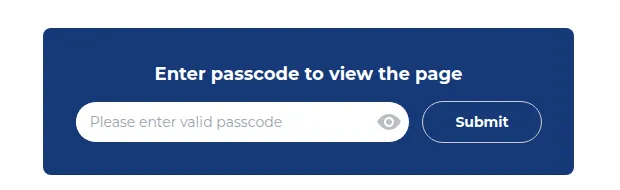
Share the passcode only with the intended partner or buyer audience.
Still Need Help?
Section titled “Still Need Help?”If you have questions or need assistance configuring BSS B2B Lock, our dedicated support team is here to help.
- In-App Assistance: Click Need help? or use the in-app chat button within BSS B2B Lock.
- Email Support: Contact us at [email protected] with your store URL and specific rule details.