
How access rules combine
Step 2 of the lock editor, Access & Message, decides who can get past a lock. It is built from rules, and each rule is built from conditions.

Conditions grant access
Section titled “Conditions grant access”A condition describes a visitor who is allowed in. For example, Signed-in customers - Must be logged in means “signed-in customers can see the locked content, everyone else sees the lock message”.
To turn a condition into a block instead, tick Reverse access rule on that condition.
AND inside a rule, OR between rules
Section titled “AND inside a rule, OR between rules”| Where | Logic | Example |
|---|---|---|
| Conditions inside one rule | All must match (AND). The rule summary shows “2 conditions - all must match”. | Tagged customers wholesale and Location United States |
| Separate rules in the same lock | Any rule is enough (OR). Rules are shown with an OR divider. | Rule 1: tag wholesale. Rule 2: Passcode. Either one unlocks. |
So “wholesale customers in the US, or anyone with the passcode” is two rules: rule 1 with two conditions, rule 2 with one.
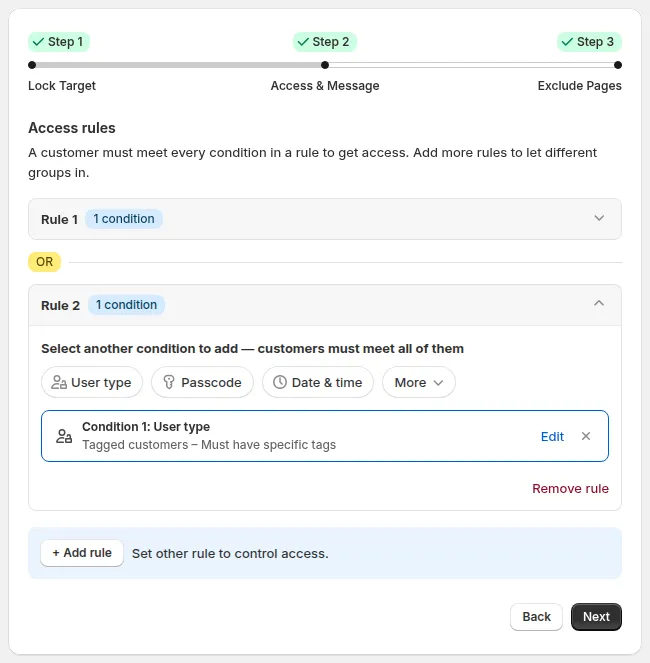
Rule 1 (tagged customers) and Rule 2 (passcode) are joined by an OR badge. The Summary on the right lists both rules.
Limits
Section titled “Limits”| Limit | Value |
|---|---|
| Rules per lock | 10 |
| Conditions per rule | 10 |
| Rule that must have a condition | Only the first rule. Empty extra rules are removed when you save. |
Conditions that cannot be reversed
Section titled “Conditions that cannot be reversed”Reverse access rule is not available for: Passcode, Email subscribers, Secret link, Age verified, After/Before date and time, URL parameter and Request access.
Conditions not available for some targets
Section titled “Conditions not available for some targets”When the lock target is Price and add to cart or Variants, these conditions are not offered: Secret link, Email subscribers and Age verified.
For these targets, the passcode option Enter passcode each time to access each … is saved as Enter passcode once to access all ….
Condition groups
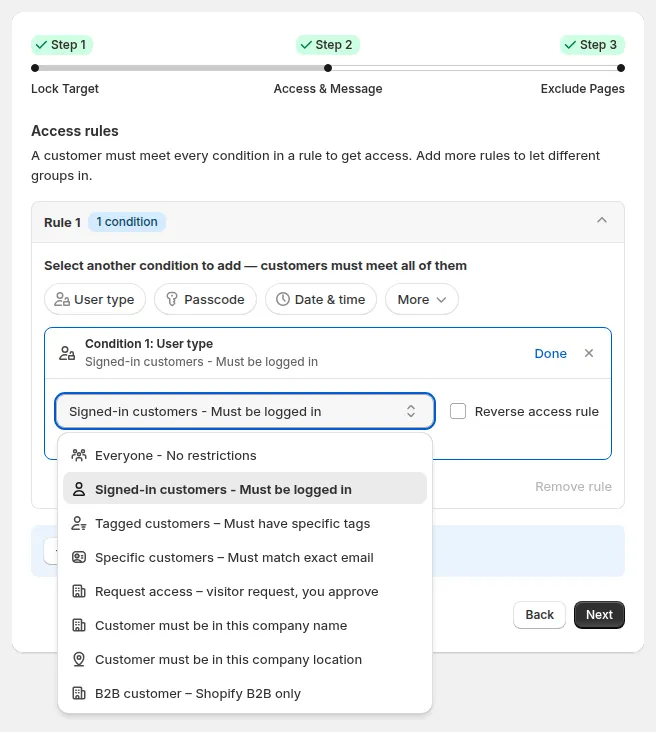
Section titled “Condition groups”Click User type (or another group) under Select a condition to add, then open Select access rule to pick the exact condition.
| Button | Conditions |
|---|---|
| User type | Everyone, Signed-in customers, Tagged customers, Specific customers, Request access, Customer must be in this company name, Customer must be in this company location, B2B customer (Shopify B2B only) |
| Passcode | Passcode - Must enter the correct passcode |
| Date & time | After date/time (Visible from), Before date/time (Visible until). After can show a clock countdown. |
| More > Email | Email domain, Email subscribers |
| More > Location | Specific market, IP address (IPv4 only), regions, countries |
| More > Other condition | URL parameter, Secret link, Age verified, Custom code (Liquid) |
Related: Control Access (Access & Message) · Rule Builder Deep Dive