
Hide prices from guest users
The Hide Prices feature in BSS B2B Lock lets you conceal product prices from visitors who are not logged in.
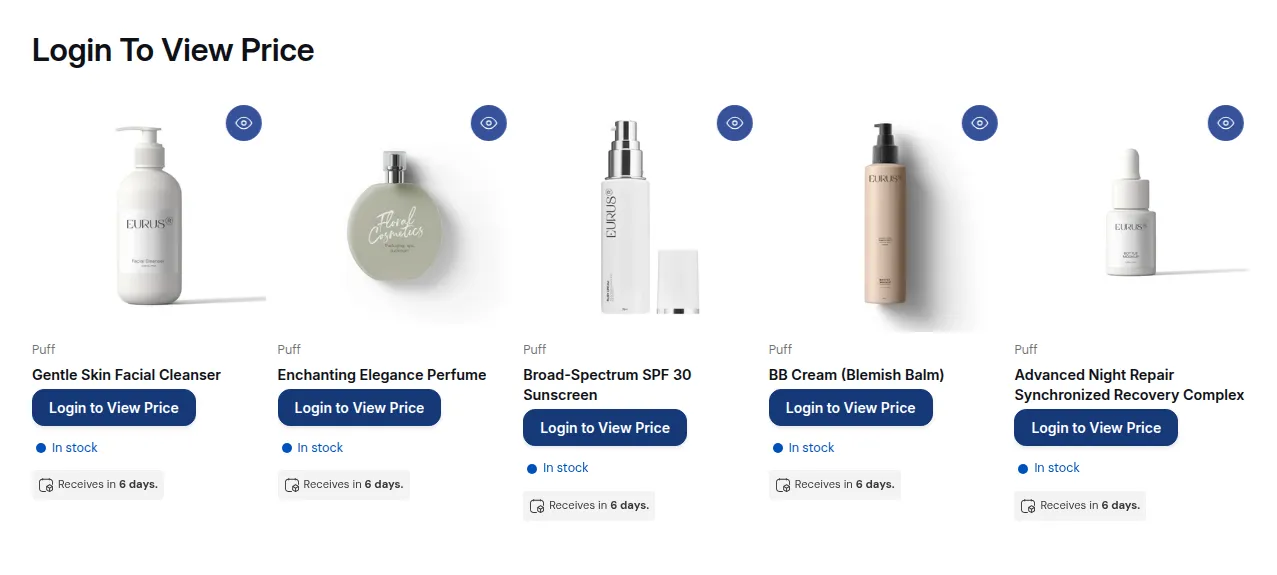
Shoppers will see your products and collections, but prices, and optionally the Add to Cart button, remain hidden until they sign in.
On the app’s Pricing page, Hide products, pages & prices is listed as a benefit of the paid plans (Basic Shopify, Grow Shopify, Advanced Shopify, Shopify Plus). The Free plan lists Lock the entire website with robust conditions.
On This Page
Section titled “On This Page”- Eligibility requirements
- Understanding Hide Prices
- Availability & limitations
- Lock Target and Content
- Troubleshooting common issues
Eligibility Requirements
Section titled “Eligibility Requirements”Before you start, make sure your setup meets these requirements:
- You have the BSS B2B Lock app installed on your Shopify store.
- Your Shopify store is published and accessible to visitors.
- Customer accounts are enabled in your Shopify settings (required for login-based access).
- You have at least one active Online Store sales channel.
Understanding Hide Prices
Section titled “Understanding Hide Prices”What it is
Section titled “What it is”Hide Prices is a lock rule that prevents guest (not logged-in) visitors from seeing product prices on your storefront. You choose whether to hide prices only, or also hide the Add to Cart button.
What you can do
Section titled “What you can do”- Hide prices across your entire store, or on selected products/collections only.
- Show a placeholder message or login prompt where the price used to appear.
- Disable or fully hide the Add to Cart button for guest users.
- Optionally hide prices from Google search result snippets.
Where it applies
Section titled “Where it applies”• Product pages
• Collection pages
• Search results on your storefront
• Featured product sections on your home page
Availability & Limitations
Section titled “Availability & Limitations”This table follows Compare all features on the app’s Pricing page (View Pricing Details):
| Feature | Free | Basic Shopify / Grow Shopify / Advanced Shopify / Shopify Plus |
|---|---|---|
| Lock Entire website | Yes | Yes |
| Lock Product / Lock Collection / Lock Blog / Lock Urls / Lock Page | No | Yes |
| Specific Variant / Variant option | No | Yes |
| Checkout locks | Yes | Yes |
| Passcode request | No | Yes |
The paid plans also list Hide products, pages & prices, Lock access by URL or customer tags, Custom message with login/sign-up form and Manage passcodes & track analytics. The paid plan that applies depends on your Shopify plan.
Checkout locks and cart-level restrictions are managed separately under Checkout Locks in the app sidebar.
Lock Target and Content
Section titled “Lock Target and Content”Step 1 - Lock Target: Choose What to Hide and Where
Section titled “Step 1 - Lock Target: Choose What to Hide and Where”This step tells the app what to hide and where, including how prices and the Add to Cart button behave for guests.
-
Go to your Shopify Admin and open the BSS B2B Lock app.
-
Click Locks in the left sidebar, then click Add lock rule.
-
In the Start with a preset modal, select Create my own lock (or Require login to view prices to start from a ready-made setup), then click Continue.
-
In General Information, enter a Lock name and confirm Status is set to Enable.
-
Under Lock Target, open the What do you want to lock? dropdown and select Price and add to cart.
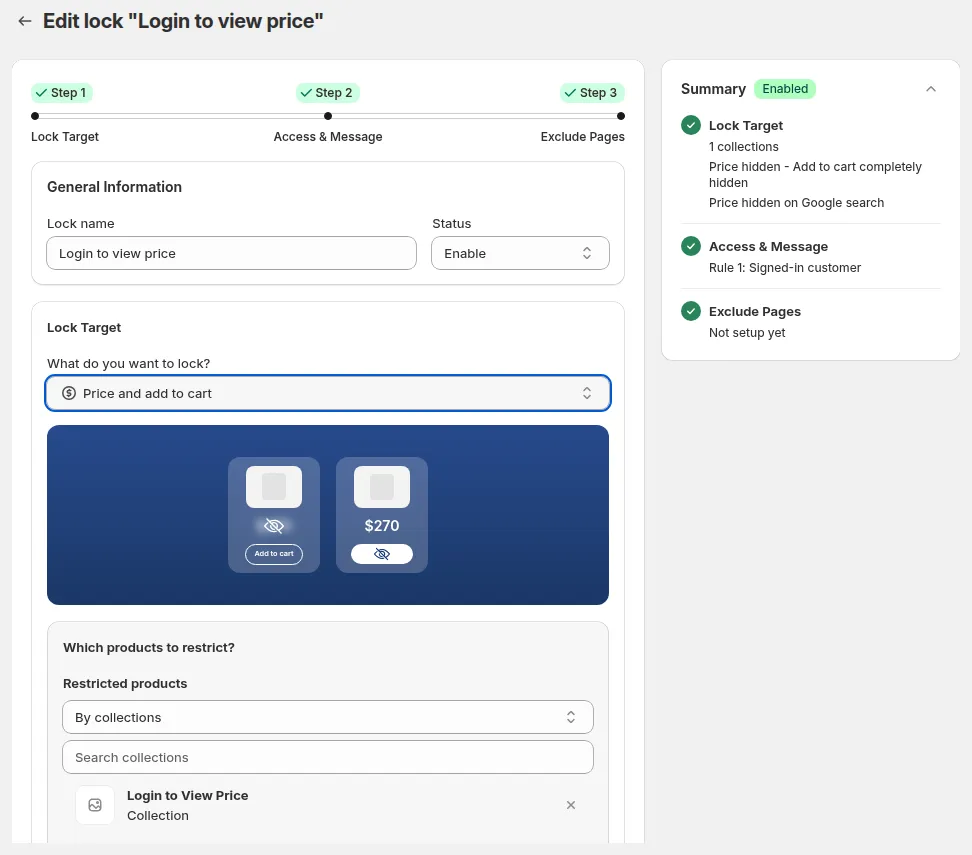
Image 1: Step 1 - Lock Target. Name the lock and select Price and add to cart
- Under Which products to restrict?, open Restricted products and choose:
• All product: hides prices across the entire store, or
• By tags, By collections, Specific products or Specific variants: select which items to restrict. With Specific variants, the What do you want to hide? and Search visibility options below are not shown.
- Under What do you want to hide?, choose:
- Hide price, then pick one sub-option:
- Disable Add to cart: “Still visible – can’t be clicked.”
- Hide Add to cart: “Completely invisible.”
- Keep price visible, hide Add to cart: “Price stays visible; only the button is removed.”
- Under Search visibility, decide whether to check Hide price on Google search.
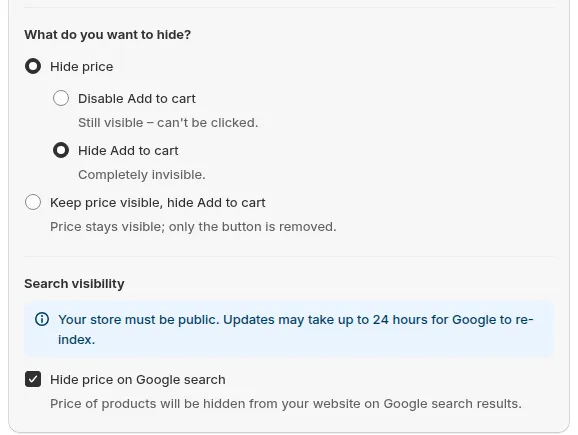
Image 2: What do you want to hide? : price and Add to cart options, plus Search visibility
- Click Next to continue.
Step 2 - Access & Message: Choose Who Can See Prices
Section titled “Step 2 - Access & Message: Choose Who Can See Prices”This step sets who is allowed to see prices after logging in.
-
In Rule 1, click the User type condition chip.
-
Open the Select access rule dropdown and choose one of the following:
| Access rule | What it means |
|---|---|
| Everyone - No restrictions | All visitors can see prices (lock is off for everyone). The app notes: “When this condition is selected, it will take the highest priority.” |
| Signed-in customers - Must be logged in | Any customer with a store account can see prices after logging in. |
| Tagged customers – Must have specific tags | Only customers with a specific Shopify tag (e.g. ‘wholesale’) can see prices. |
| Specific customers – Must match exact email | Only customers whose email matches your list can see prices. |
The dropdown also includes Request access – visitor request, you approve, Customer must be in this company name, Customer must be in this company location and B2B customer – Shopify B2B only.
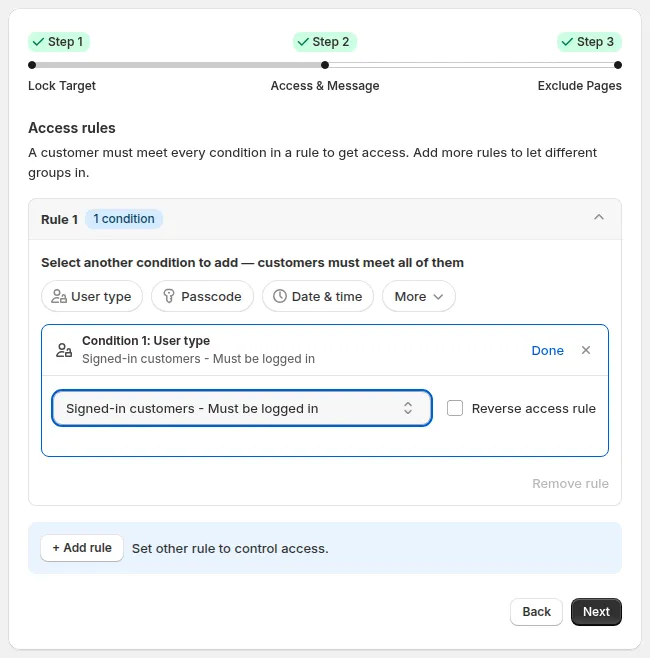
Image 3: Step 2 - Access & Message. Select **Signed-in customers - Must be logged in** under User type (recommended)
Recommended for most B2B stores: Select Signed-in customers so any approved account can view prices after login.
-
(Optional) Check Reverse access rule to invert the logic: e.g. block a specific tag instead of granting it.
-
(Optional) Combine conditions:
- To require several conditions at once (AND), add more conditions inside the same rule. A customer must meet every condition in a rule.
- To let a different group in (OR), click + Add rule and set up Rule 2. A customer who meets any one rule gets access.
If no rule has a condition yet, clicking Next shows “Add at least one condition to this rule before you continue.” An extra rule left empty next to rules that have conditions doesn’t block Next and isn’t listed in the Summary.
-
(Optional) Set the message guests see. In the Preview card on the right, pick the message from the dropdown (e.g. Message Hide Price), then click Customize message to edit the text and styling.
-
Click Next to continue.
Step 3 - Exclude Pages (Optional)
Section titled “Step 3 - Exclude Pages (Optional)”Use this step to let guests view prices on specific pages, even while the lock is active everywhere else.
- In the Exclude from lock rules section, check any pages that should remain visible to all visitors:
- Home page: guests can see prices on your homepage.
- Customer areas: login, register and account pages stay accessible.
- Policy pages: return, shipping, and legal pages are not affected.
- Specific pages: enter a page URL and click Add.
- Selected products: keep some products shoppable even while the lock is on.
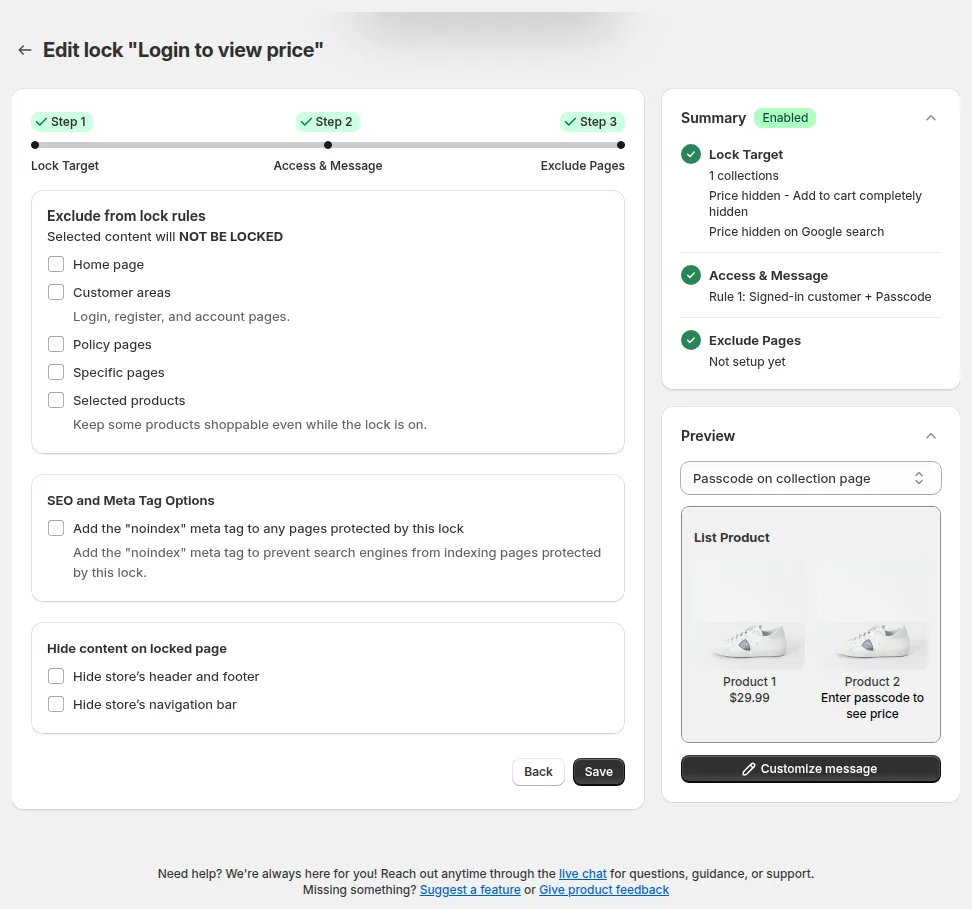
Image 4: Step 3 - Exclude Pages. Choose which pages remain accessible to all visitors
- Click Save. You can also click Save in the Contextual Save Bar at the top of the page. When you edit an existing lock, the bar appears as soon as you change anything; on a new lock, it appears once you reach Step 3.
Save and Verify
Section titled “Save and Verify”After saving, always test your lock from a guest perspective.
-
Confirm the “Saved lock settings” message appears.
-
Open your store in a private/incognito browser window (not logged in).
-
Navigate to a product page that should be restricted.
-
Confirm that prices are hidden and the lock message appears.
-
Log in with a test customer account that meets your access rule.
-
Confirm that prices become visible immediately after logging in.
Troubleshooting Common Issues
Section titled “Troubleshooting Common Issues”Prices are still visible to guest users
Section titled “Prices are still visible to guest users”- Check that the status badge in the Summary card shows Enabled.
- Make sure your theme is compatible. Some custom themes may override lock behavior.
- Check which theme the app is applied to: the Lock list header shows your live theme (e.g. Live theme: Dawn) with a Change theme link, and Settings → Installation lets you install the app code on your theme (Auto Installation / Manual Installation).
- Try re-saving the lock rule after confirming all steps are complete.
Logged-in customers still cannot see prices
Section titled “Logged-in customers still cannot see prices”- Check the access rule: make sure it is set to Signed-in customers, not Everyone - No restrictions.
- If using Tagged customers, verify the customer has the correct tag in their Shopify customer profile.
- Clear the browser cache or test in a different browser.
Add to Cart button behavior is not changing
Section titled “Add to Cart button behavior is not changing”• Go back to Step 1 (Lock Target) and confirm you selected the correct option under What do you want to hide?.
• Check that no other app or theme script is overriding the button element.
Google still shows prices in search results
Section titled “Google still shows prices in search results”• Wait up to 24 hours after enabling Hide price on Google search: Google re-indexing takes time.
• Ensure your store is publicly accessible (not password-protected) for Google to crawl it.
I can’t find the lock I just created
Section titled “I can’t find the lock I just created”• Go to Locks in the left sidebar. All active and inactive locks are listed there.
• Check that you clicked Save (not just Next) and saw the “Saved lock settings” message.
Still need help? Contact BSS B2B Lock support via Chat support in the app: responses within 12 hours.