
Common Problems & Fixes
This section covers the most common issues you may encounter with BSS B2B Lock and how to fix them quickly.
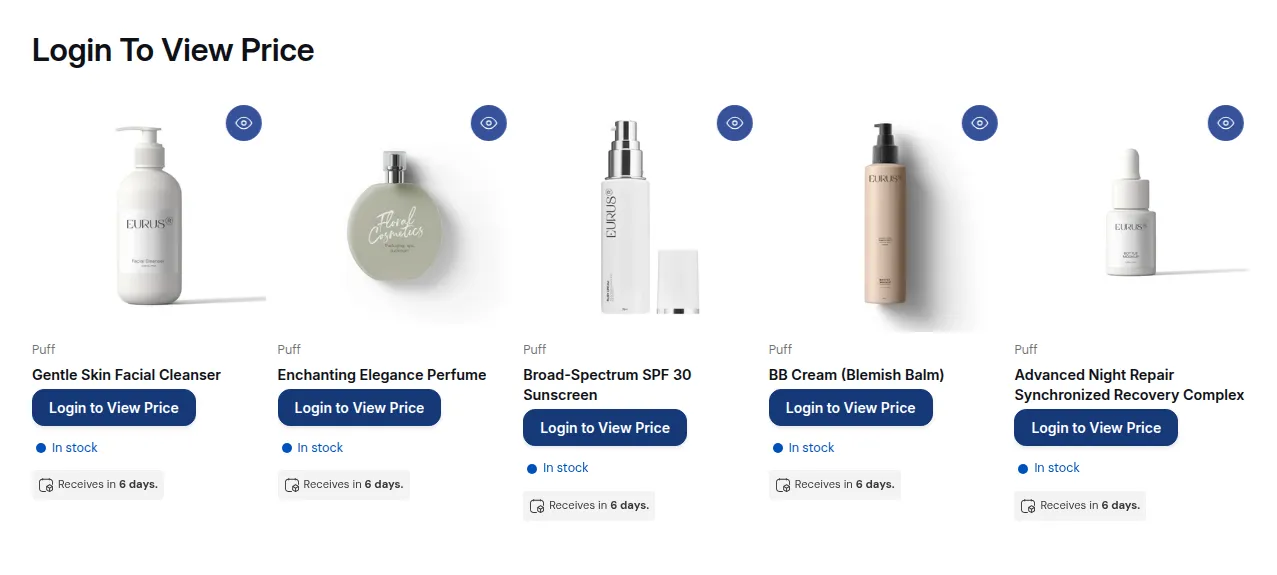
What your customers see on the storefront.
This section covers the most common issues you may encounter with BSS B2B Lock and how to fix them quickly.
1. “My lock doesn’t work / no effect on storefront”
Section titled “1. “My lock doesn’t work / no effect on storefront””Symptoms
- You created a lock, but nothing changes on the storefront.
- Prices are still visible, pages/collections are still accessible to everyone.
Checklist
- Is the lock enabled?
- Go to BSS B2B Lock → Locks.
- Check the Status toggle of the rule in the Lock list.
- If it’s off, turn it on and click Save in the Contextual Save Bar.
- Is the App Embed enabled?
- Go to Online Store → Themes → Customize.
- Open App embeds (or “Apps” section).
- Make sure BSS B2B Lock is toggled ON for the current theme.
- Save the theme.
- Are you editing the correct theme?
- If you’re using multiple themes (e.g., draft vs live), confirm that:
- App embed is enabled on the published theme.
- You’re testing on the same theme that BSS B2B Lock is installed into.
- If you’re using multiple themes (e.g., draft vs live), confirm that:
- Did you wait for the install to complete?
- After saving a new lock, BSS B2B Lock shows a banner “Updating lock, integrate themes and sync with Shopify…”.
- Wait until it confirms completion and then refresh your storefront.
- Are you testing with the right type of customer?
- If the rule says “Tagged customers
wholesale”, but you’re browsing as a guest or non-tagged account, you might see the expected behavior (no lock). - Always test:
- As a guest
- As a non-B2B customer
- As a tagged B2B customer
- If the rule says “Tagged customers
If it still has no effect after these checks, contact support with:
- Store URL
- Theme name
- Screenshot of your lock settings
- Description of what you expect vs what you see
2. “Some customers see content they shouldn’t”
Section titled “2. “Some customers see content they shouldn’t””Symptoms
- A customer reports they can still see B2B prices/collections.
- Certain visitors can access locked pages unexpectedly.
Checklist
- Check the customer’s tags
- In Shopify Admin → Customers, open that customer.
- Review their Tags:
- Do they have
wholesale,b2b-approved, or any tag your rules grant access to?
- Do they have
- Clean up old or incorrect tags if needed.
- Check rule conditions (Step 2)
- In BSS B2B Lock, open the relevant lock.
- Check Step 2 – Access & Message:
- Are you using OR when you meant AND? Conditions in separate Rules are OR (any rule lets the customer in). Conditions in the same Rule are AND (all must match).
- Do you have conditions like Signed-in customers that might allow too many users?
- Make sure the logic matches your intention:
- Example mistake:
- “Rule 1: Signed-in customers” OR “Rule 2: Tagged customers
wholesale” → gives access to every logged-in customer. - You may want a single rule with only “Tagged customers
wholesale” instead.
- “Rule 1: Signed-in customers” OR “Rule 2: Tagged customers
- Example mistake:
- Check overlapping rules
- Do you have another lock that gives access more broadly?
- Example:
- Rule A: “Hide prices for everyone except wholesale.”
- Rule B: “Show prices to all logged-in customers.”
- The second rule can override your intent.
- Temporarily disable other rules and test again.
- Check test accounts
- Confirm you’re testing with the correct email/account.
- Some merchants accidentally use an admin or staff account that has extra tags.
If a specific customer still sees something they shouldn’t:
- Send support:
- Customer email
- Screenshot of their tags
- Screenshot of related locks
3. App embed / theme issues
Section titled “3. App embed / theme issues”Symptoms
- Locks work on some pages but not others.
- Theme changes cause locks to stop working.
- A new theme ignores BSS B2B Lock.
Checklist
- Is the App Embed enabled in the current theme?
- Every time you change or switch themes:
- Re-enable BSS B2B Lock app embed in Online Store → Themes → Customize → App embeds.
- Every time you change or switch themes:
- New theme structure
- Some themes use custom templates or dynamic sections.
- If BSS B2B Lock was designed for a standard product template and you now use custom sections, the app may need to be rehooked.
- Recently installed apps or custom code
- Other apps that rewrite templates (e.g., page builders, translation apps, custom Liquid) can interfere.
- If the HTML structure changed heavily, BSS B2B Lock’s selectors may not match.
- Multiple languages / markets
- Check if the issues appear only in specific language versions or markets.
- You may need theme adjustments to ensure locks apply consistently across languages / storefront versions.
If you suspect a theme-level issue:
- Send support:
- Store URL
- Theme name and version
- URL(s) where the lock fails
- Mention any major page builder / theme customizations
4. Overlapping rules & rule conflicts
Section titled “4. Overlapping rules & rule conflicts”Symptoms
- Some locks seem to “cancel” others.
- Changes on one rule unexpectedly affect other content.
- You’re not sure which rule is controlling a particular page/product.
Checklist
- List all active locks
- In BSS B2B Lock, filter/search by:
- Content type (prices, products, collections, pages)
- Status (Active only)
- Note all rules that might target the same area.
- In BSS B2B Lock, filter/search by:
- Check targets for overlap
- Example:
- Rule A: hides prices on all products.
- Rule B: hides prices on collection X for a different group.
- The more general rule may override your expectations.
- Example:
- Check condition logic
- Two rules with different conditions can both apply to the same customer.
- Example conflict:
- Rule A: “Hide prices for everyone except wholesale.”
- Rule B: “Hide products for EU customers.”
- A wholesale EU customer might get unexpected behavior.
- Use a structured naming convention
- Rename rules to clearly describe:
- Target
- Audience
- Example:
PRICES – All products – Hide from guestsCOLLECTION – Wholesale EU – Only eu-wholesale tag
- Rename rules to clearly describe:
- Debug by disabling rules
- Temporarily deactivate one rule at a time and test:
- If the issue disappears when one rule is off, you’ve found a conflict.
- Adjust conditions and targets to reduce overlap.
- Temporarily deactivate one rule at a time and test:
5. “Leftover code or pages locked after pausing / uninstalling”
Section titled “5. “Leftover code or pages locked after pausing / uninstalling””Symptoms
- You uninstalled BSS B2B Lock or switched themes, but certain pages or prices on your storefront remain locked or show raw Liquid snippets.
Fix
- If the app is still installed:
- Go to Theme Cleanup in the app’s left navigation.
- Click Disable all rules and confirm. This immediately deactivates 100% of lock rules across all themes and clears injected snippets from non-target themes. See Theme Cleanup (Disable All Rules Before Uninstall).
- If the app is already uninstalled:
- Because Shopify apps cannot modify your theme after uninstallation, orphaned Liquid snippet includes in
layout/theme.liquidcan occasionally remain behind. - Simply email [email protected] with your store URL. Our technical team will inspect your theme files and clean up all remaining code completely free of charge.
- Because Shopify apps cannot modify your theme after uninstallation, orphaned Liquid snippet includes in
6. When to contact support
Section titled “6. When to contact support”Contact [email protected] or in-app chat if:
- You’ve checked app embed, theme, and conditions but locks still don’t apply.
- Specific users see content they shouldn’t and you can’t find any tag/logic cause.
- There are obvious layout or theme conflicts you’re not comfortable editing.
Including:
- Store URL
- Theme name
- Affected URLs
- Screenshots of the rule and the issue
…will help the support team solve it much faster.
Still Need Help?
Section titled “Still Need Help?”If you have questions or need assistance configuring BSS B2B Lock, our dedicated support team is here to help.
- In-App Assistance: Click Need help? or use the in-app chat button within BSS B2B Lock.
- Email Support: Contact us at [email protected] with your store URL and specific rule details.