
Lock Content (Targets)
BSS B2B Lock gives you full control over who sees your prices, products, variants, pages, or the entire store. This guide walks you through choosing the right content target in Step 1.
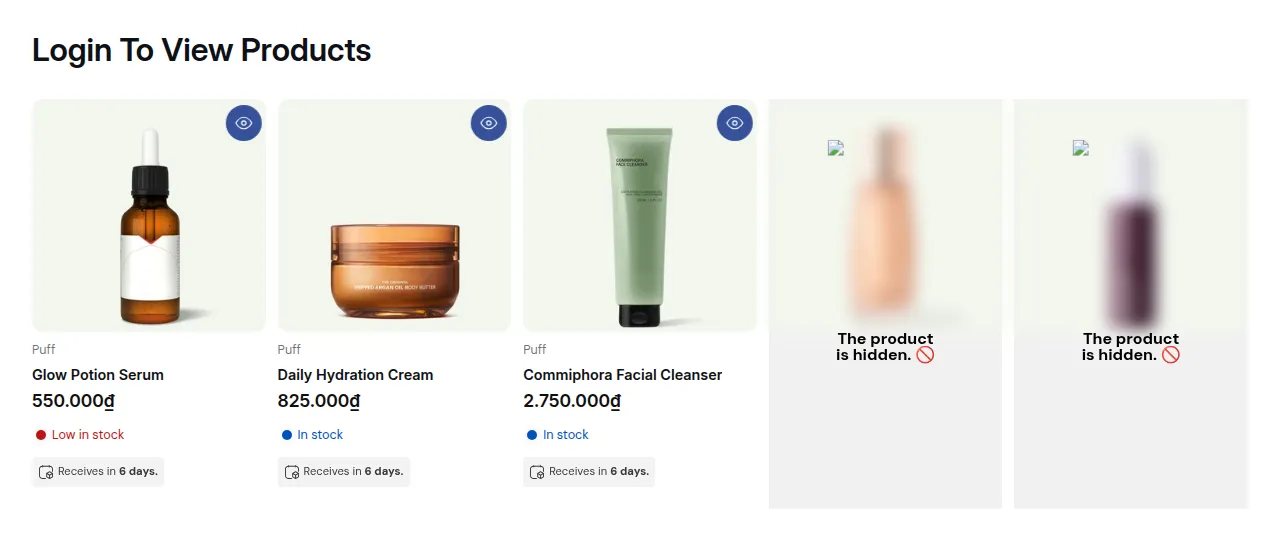
What your customers see on the storefront.
Step 1 - Lock Target is where you choose what to lock before defining who can access it in the next steps.
This guide covers all core content targets available in BSS B2B Lock, helps you pick the right one for your business model, and walks you through configuration.
On This Page
Section titled “On This Page”- Eligibility Requirements
- Understanding Step 1 - Lock Target
- Availability & Limitations Matrix
- The 7 Core Content Targets
- Additional Granular Controls (Buy It Now & Navigation Menu)
- How to Configure Step 1
- Common Issues & Troubleshooting
Eligibility Requirements
Section titled “Eligibility Requirements”Before setting up a lock rule, confirm the following:
- You have an active Shopify store on any paid plan.
- BSS B2B Lock is installed from the Shopify App Store.
- You have Editor or Admin access in your Shopify store.
- Your store uses a compatible theme (Online Store 2.0 recommended).
Understanding Step 1 - Lock Target
Section titled “Understanding Step 1 - Lock Target”BSS B2B Lock works in three simple steps:
- Step 1 - Lock Target: Choose what to protect (this guide).
- Step 2 - Access & Message: Define who can unlock the content (user type, passcode, date & time, email, location, URL parameter, and more). See Control Access.
- Step 3 - Exclude Pages: Keep selected pages or products unlocked, and set SEO and page-display options for page locks. See Exclude Pages & Lock Message.
In Step 1, you pick the target to restrict. Everything else (access rules, the lock message, exclusions) is configured in the next steps and in the Preview card on the right.
Availability & Limitations Matrix
Section titled “Availability & Limitations Matrix”| Content Target | All Plans | Notes |
|---|---|---|
| Entire store | ✅ Supported | Full storefront gating; exclusions configured in Step 3 |
| Price and add to cart | ✅ Supported | Hide price, Add to cart, or both; includes Hide price on Google search and specific variant scoping |
| Products | ✅ Supported | Fully Hide Product or Only lock product page; auto-cleans empty grid slots |
| Collections | ✅ Supported | 4 visibility settings for collection cards, product cards, product pages and the navigation menu |
| Variants | ✅ Supported | Variants matching an option value are hidden; product stays visible |
| Pages, blogs and URLs | ✅ Supported | CMS pages, blog posts and custom URLs |
| Sections, blocks, and snippets | ✅ Supported | Native theme sections/blocks or custom CSS selectors |
The 7 Core Content Targets
Section titled “The 7 Core Content Targets”In the Lock Target card, open the What do you want to lock? dropdown and pick one of the 7 targets. An illustration below the dropdown shows the target you selected.
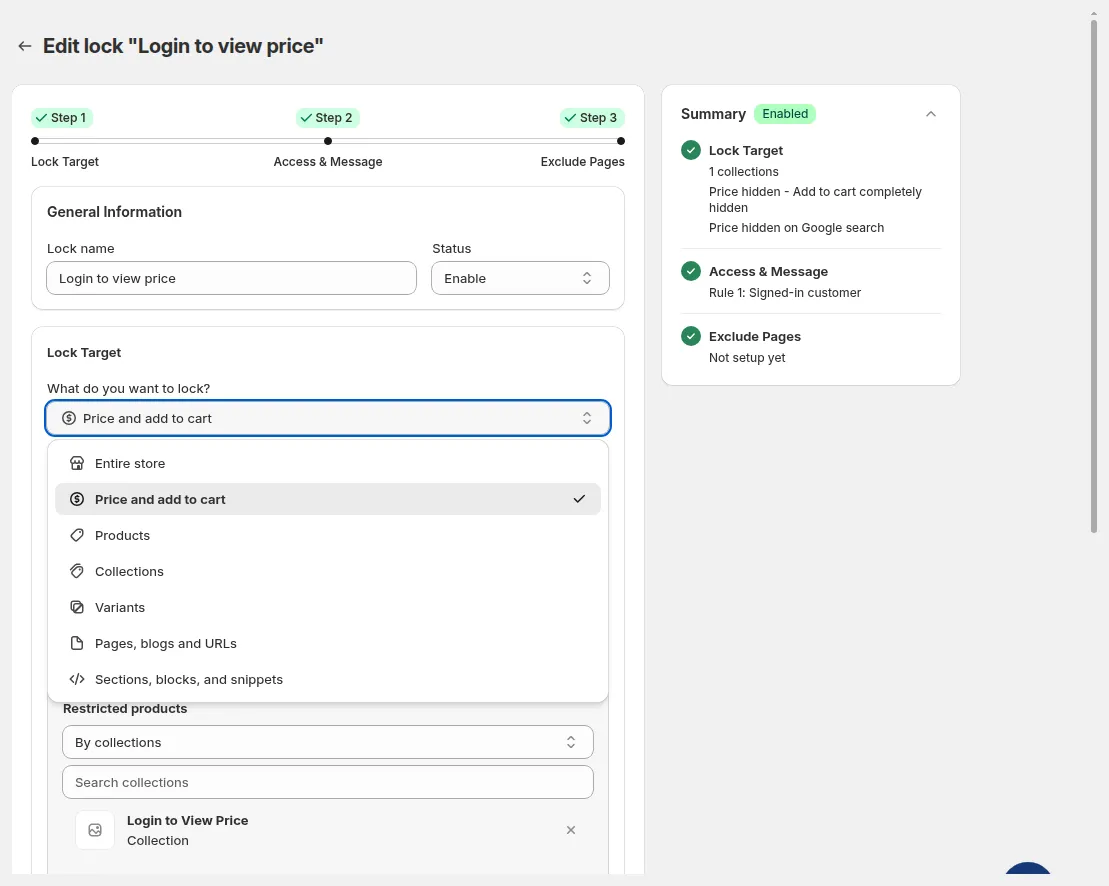
Pick one of the 7 lock targets from the What do you want to lock? dropdown.
1. Entire store
Section titled “1. Entire store”Full private storefront gating
- Best for:
- Wholesale-only or private B2B stores that should not be publicly accessible.
- Exclusive partner or distributor portals.
- Internal or staging stores restricted to staff only.
- How it works:
- All storefront pages are gated: homepage, collections, products, and standard CMS pages.
- Blocked visitors see your lock message instead of storefront content.
- Keep specific pages public (e.g. the home page, customer areas, policy pages, or pages such as Contact Us) in Step 3 - Exclude Pages.
2. Price and add to cart
Section titled “2. Price and add to cart”Browse catalog freely, buy only if approved
- Best for:
- Hybrid B2B/B2C stores where anyone can browse catalog items, but only approved buyers see wholesale pricing.
- Contract or wholesale pricing that must not appear publicly.
- Compliance scenarios where prices should only be visible to specific regions or tagged customer segments.
- Which products to restrict? Under Restricted products, choose All product, By tags, By collections, Specific products, or Specific variants.
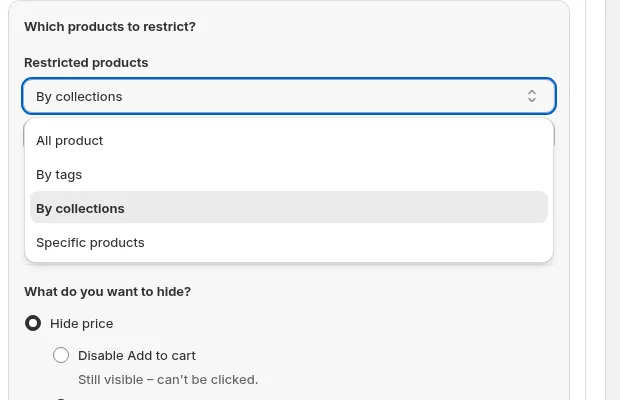
Choose which products the price rule applies to.
- What do you want to hide?
- Hide price: hides the price across collection grids and product pages. Then choose what happens to the button:
- Disable Add to cart: “Still visible – can’t be clicked.”
- Hide Add to cart: “Completely invisible.”
- Keep price visible, hide Add to cart: “Price stays visible; only the button is removed.”
- Hide price: hides the price across collection grids and product pages. Then choose what happens to the button:
- Search visibility: Tick Hide price on Google search to keep prices out of Google results. Your store must be public, and Google can take up to 24 hours to re-index.
- Specific variants: Select Specific variants to hide the price of individual SKUs, then use Search specific variants to pick them. The What do you want to hide? options are not shown for specific variants.
- Lock message: The text shown in place of the price (e.g. “Login to see wholesale price”) is edited from the Preview card → Customize message. See Customizing the lock message.
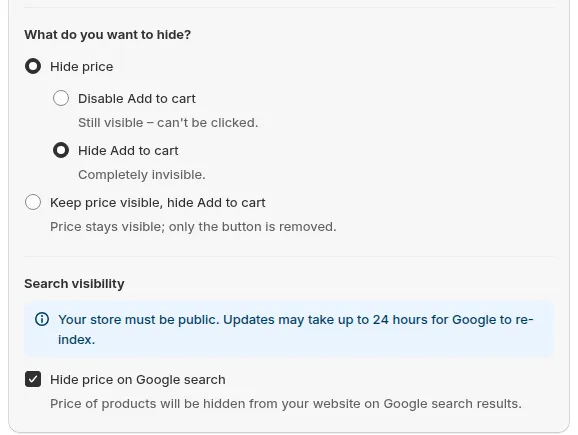
Choose what to hide, and optionally hide prices from Google search.
3. Products
Section titled “3. Products”Hide specific products or lock their product pages
- Best for:
- Wholesale-only products that should never appear to retail shoppers.
- Items in a VIP or exclusive catalog reserved for specific customer tag tiers.
- Which products to restrict? Under Restricted products, choose All product, By tags, By collections, or Specific products. With Specific products, search or open the Select products picker; selected products are listed with a × button to remove each one, or Clear all.
- Product Visibility Control:
- Fully Hide Product: “Completely removed from storefront (no trace in collections, search, or product page).” BSS B2B Lock auto-cleans empty grid slots so your collection layout stays seamless without gaps.
- Only lock product page: “Product stays visible everywhere, but the product page shows “Access Denied.””
- Search visibility: Tick Hide price on Google search to keep these products’ prices out of Google results.
- Hide from navigation menu (ticked by default): hides links to these products when they appear in your navigation menu. It applies to both visibility modes.
- In Step 2, define which customers (by user type, passcode, or other conditions) can view these items.
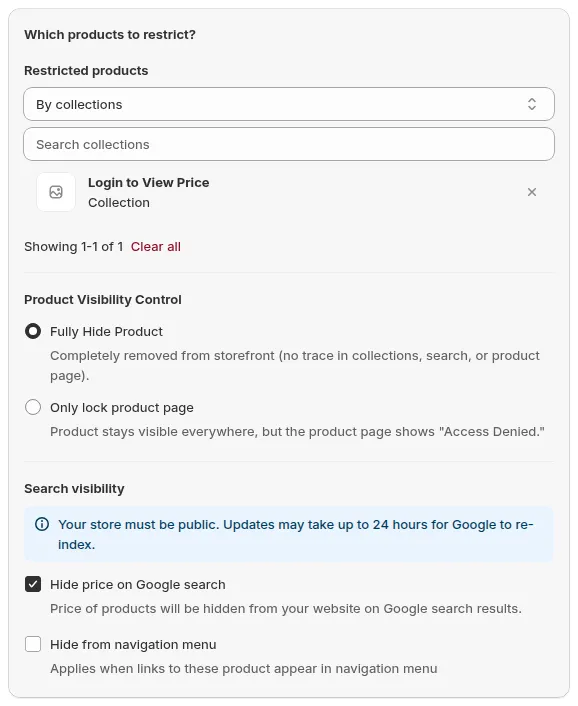
Choose Fully Hide Product or Only lock product page, and whether to hide the products from the navigation menu.
4. Collections
Section titled “4. Collections”Control how locked collections and their products appear to blocked visitors
- Best for:
- Channel-specific collections (e.g. Distributor Catalog, VIP Members Collection).
- Seasonal, trade-only, or regional product lines.
- Which collections to restrict? Choose All or Specific. With Specific, search or open the Select collections picker.
- Visibility settings (all 4 are ticked by default):
- Hide collection cards
- Hide product cards
- Hide product pages
- Hide from navigation menu
- Untick any setting to keep that part visible. Collections works independently from Products; you can stack both in the same store.
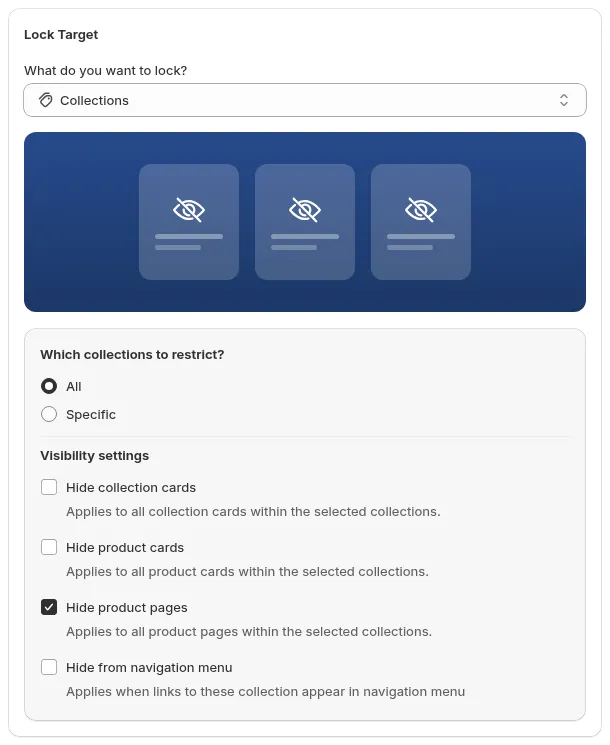
Choose the collections, then decide which parts to hide with the Visibility settings.
5. Variants
Section titled “5. Variants”Hide specific product options from certain customers
- Best for:
- Products with wholesale-only pack sizes (e.g. Bulk Case of 50 vs Single Unit) that retail buyers should not see.
- Regional variant configurations or trade-only finishes.
- How it works:
- The main product page remains visible to all visitors.
- Under Restricted variants, set the variant option to match, e.g. hide all variants where “Size” equals “XL”. Use Search variant options to find an option.
- Only the matching variant options are removed from the variant selector.
- Approved buyers see all variants and can purchase freely.
- To hide only the price of specific variants, use Price and add to cart → Specific variants instead.
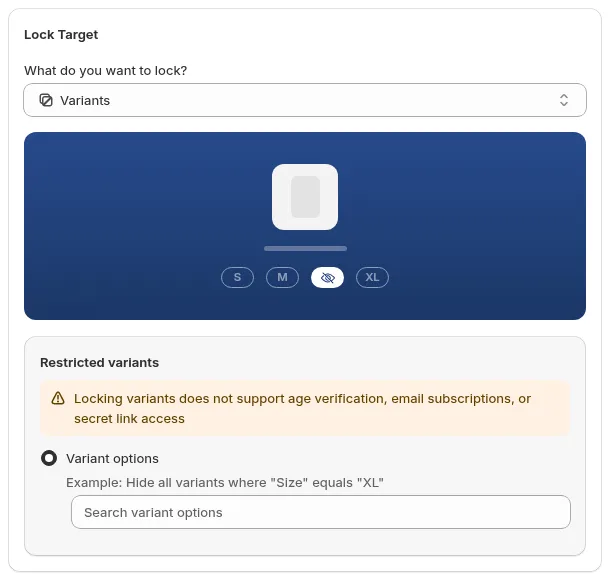
Hide all variants that match an option value.
6. Pages, blogs and URLs
Section titled “6. Pages, blogs and URLs”Gate specific non-product content
- Best for:
- Wholesale trade pages, distributor order forms, or PDF price sheets.
- Private partner libraries, technical manuals, or VIP marketing landing pages.
- How it works:
- Under Select content type to lock, choose Page, Blog, or URL.
- Page → Restricted pages: All pages or Specific pages.
- Blog → Restricted blogs: All blogs or Specific blogs.
- URL → Restricted URLs: type a path (e.g.
/collections/secret-sale-2025) and click Add. - Only the selected pages, blogs or URLs are locked: the rest of your storefront stays open.
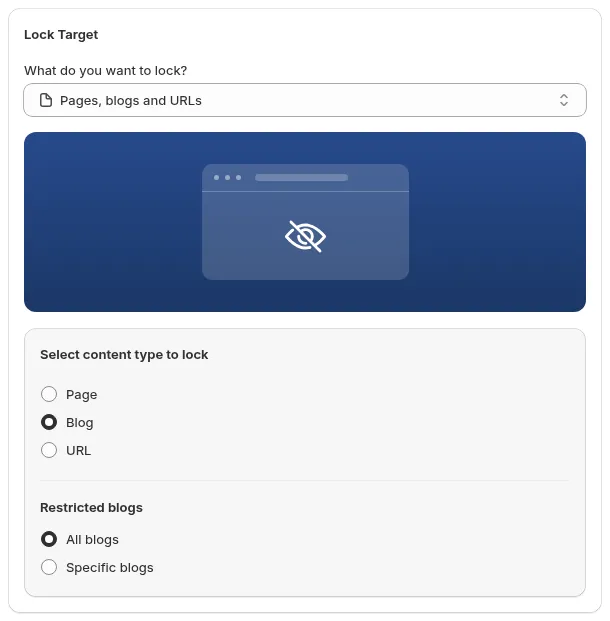
Choose the content type to lock: Page, Blog or URL.
7. Sections, blocks, and snippets
Section titled “7. Sections, blocks, and snippets”Element-level storefront gating
- Best for:
- Selectively hiding wholesale banners, tiered pricing tables, RFQ inquiry forms, or review widgets without locking the full page.
- How it works:
- Native Section/Block: Select theme sections or blocks identified directly from your active theme.
- Custom CSS Selector: Target any HTML element by class name (
.wholesale-banner) or element ID (#rfq-form). - Custom Fallback Message: Replace hidden elements with a custom notice to maintain visual balance.
- For full step-by-step instructions, see Hide Page Sections & Blocks Conditionally.
Additional Granular Controls (Buy It Now & Navigation Menu)
Section titled “Additional Granular Controls (Buy It Now & Navigation Menu)”- Hide Buy It Now (Dynamic Checkout): Removes 1-click accelerated checkout buttons from PDPs, ensuring wholesale customers proceed through the standard cart and checkout validation flow.
- Hide from navigation menu: On the Products and Collections targets, this checkbox (ticked by default) hides menu links to the locked products or collections from visitors who do not meet your access rules.
How to Configure Step 1
Section titled “How to Configure Step 1”- Go to Shopify Admin → Apps → BSS B2B Lock → Locks.
- Click Add lock rule, pick a preset in Start with a preset (or Create my own lock), and click Continue.
- In the General Information card, enter a Lock name (e.g., “Wholesale Pricing Gate”). The name is required.
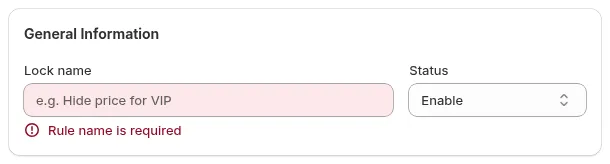
If Lock name is empty, Next shows “Rule name is required”.
- Set Status to Enable if you want the rule to go live as soon as you save it.
- In the Lock Target card, open What do you want to lock? and pick your target.
- Refine your scope:
- Price and add to cart: Choose the restricted products (all, by tags, by collections, specific products, or specific variants) and what to hide.
- Products: Choose the restricted products and the Product Visibility Control mode.
- Collections: Choose all or specific collections and the Visibility settings.
- Variants: Set the variant option to match.
- Pages, blogs and URLs: Choose the content type, then the pages, blogs or URL paths.
- Click Next to proceed to Step 2 - Access & Message.
The Summary card on the right shows your Lock Target choice (e.g. “Applies to all products”, “2 products”). Each step shows a ✓ in the stepper once it is done.
Common Issues & Troubleshooting
Section titled “Common Issues & Troubleshooting”Prices are still visible after setting up Hide price
Section titled “Prices are still visible after setting up Hide price”- Confirm the rule Status is Enabled in the Lock list.
- Verify the product is included in the rule scope in Step 1.
- Clear browser cache and test in a fresh Incognito window.
Products or collections are still appearing for blocked visitors
Section titled “Products or collections are still appearing for blocked visitors”- Verify the target is Products or Collections (not Price and add to cart).
- For Products, confirm Fully Hide Product is selected: Only lock product page keeps products visible in listings.
- For Collections, confirm Hide collection cards and Hide product cards are ticked in Visibility settings.
- Confirm the specific items are selected in the rule scope.
- Verify that the access rule in Step 2 is correctly configured.
A locked page is still accessible
Section titled “A locked page is still accessible”- Confirm the exact page or URL is selected in Step 1.
- Confirm the page is not ticked in Step 3 - Exclude Pages.
- Check if a Shopify Admin URL redirect is bypassing the locked handle.
- Test in an Incognito window to rule out an existing logged-in session.
Still Need Help?
Section titled “Still Need Help?”If you have questions or need assistance configuring BSS B2B Lock, our dedicated support team is here to help.
- In-App Assistance: Click Need help? or use the in-app chat button within BSS B2B Lock.
- Email Support: Contact us at [email protected] with your store URL and specific rule details.