
Access Condition Types
This page describes each condition you can add to an access rule in Step 2 - Access & Message. To learn how to add a condition and combine rules, see Control Access (Access & Message).
User type
Section titled “User type”What it is
Pick User type to decide which kind of customer gets access. The Select access rule dropdown offers:
- Everyone - No restrictions: rule applies to all visitors. Useful as a baseline rule.
- Signed-in customers - Must be logged in: visitors must be logged in with a Shopify customer account.
- Tagged customers – Must have specific tags: the customer record must have one of the selected tags.
- Specific customers – Must match exact email: only selected customer accounts can view the content.
- Request access – visitor request, you approve: visitors submit a request; you approve or reject it.
- Customer must be in this company name: the customer must belong to a selected Shopify B2B company.
- Customer must be in this company location: the customer must belong to a selected company location.
- B2B customer – Shopify B2B only: Shopify must identify the logged-in customer as a B2B customer.
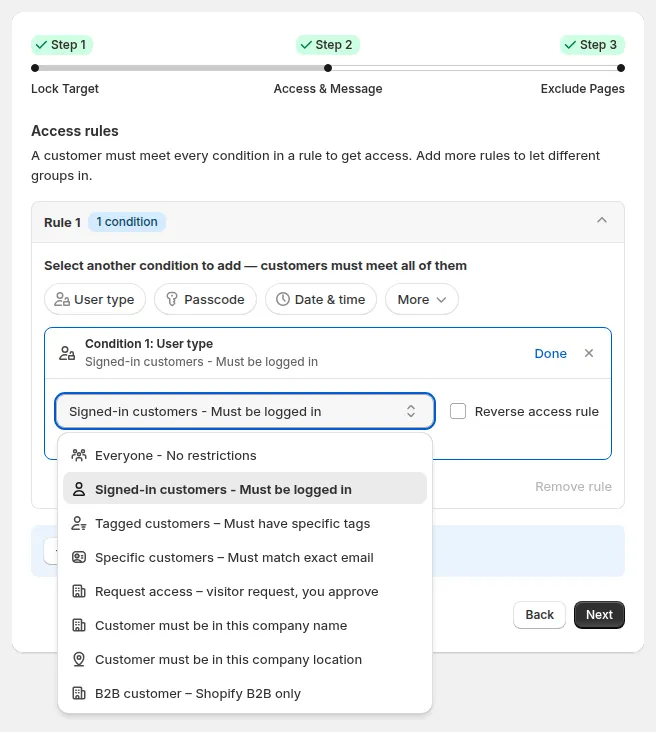
User type options, including the company and B2B customer options.
Typical uses
- Signed-in customers: hide prices from guest users; lock pages or the entire store behind a login screen. Tick Reverse access rule to target guests only.
- Tagged customers: wholesale-only products/collections (tag:
wholesale,b2b-approved); segment-based catalogs (e.g.,silvervsgoldcustomers see different product sets); regional or channel tags (e.g.,EU-distributor,JP-partner). - Company name / company location / B2B customer: grant exclusive pricing or product access to designated corporate buyer companies.
- Request access: review who gets in. Approve or reject requests in the admin; customers get automated email notifications.
Examples
- “Tagged customers:
wholesale” → show wholesale catalog. - “Tagged customers:
silver” → show only products taggedsilver.
Tagged customers is one of the most powerful conditions for B2B because it works perfectly with BSS B2B Solution registration/approval flows.
Passcode
Section titled “Passcode”What it is
Pick Passcode → Passcode - Must enter the correct passcode to require visitors to enter a passcode before they access the locked content.
- If they enter a correct passcode → grant access.
- If not → show the passcode prompt again.
Settings
- Passcode: type a passcode and click Add passcode. You can add several passcodes. Leave the field empty and click Add passcode to generate a random passcode. Use Import to add passcodes in bulk and Clear to remove them.
- Passcode case-sensitive: choose Yes or No.
- Extra setting: choose how often visitors enter the passcode: Enter passcode once to access all … (one entry unlocks all locked items), Enter passcode once to access each … (one entry per item), or Enter passcode each time to access each … (every time they view an item). The wording follows your Step 1 target. See Manage passcodes.
Typical uses
- Private landing pages for specific partners or campaigns.
- Temporary locked content shared only with certain groups.
- Simple “invite-only” areas without needing accounts or tags.
Date & time
Section titled “Date & time”What it is
Pick Date & time to open the content only inside a time window.
- After date/time → Visible from: access starts at the date and time you pick.
- Before date/time → Visible until: access ends at the date and time you pick.
Pick the date in the calendar and set the time. Time is based on your Shopify store’s time zone, which you can check in Store details.
Typical uses
- Pre-launch pages that are only accessible to partners before a public release.
- Time-limited campaigns where VIP customers get early access to collections.
URL Parameter (Query string)
Section titled “URL Parameter (Query string)”What it is
Pick More → Other condition → URL parameter – For UTM, affiliate to allow access based on specific URL query parameters (such as UTM campaign tags, affiliate tracking parameters, or promo tokens) without modifying theme code.
- Settings: choose the Parameter Name (Key) (a UTM, affiliate or promo parameter, or Custom), an Operator, and the Value.
- Operators supported (they compare the parameter’s value, not the whole URL):
Is exactly: the value must match exactly.Contains: the value includes your text (e.g.KOLmatchesKOL01).Starts with: the value begins with your text.Has any value: the parameter only needs to be present in the URL.
- Example: Key
utm_source, Operator Is exactly, Valuefacebook. - Options:
- Ignore Case: Case-insensitive comparison option.
Typical uses
- Create dedicated campaign landing pages accessible only from specific KOL, influencer, or affiliate links.
- Restrict catalog or pricing access to users arriving from a targeted email campaign (
utm_source=newsletter_b2b). - Personalize locked content for private promotional campaigns.
Location
Section titled “Location”What it is
Pick More → Location to restrict access based on the visitor’s detected country or region.
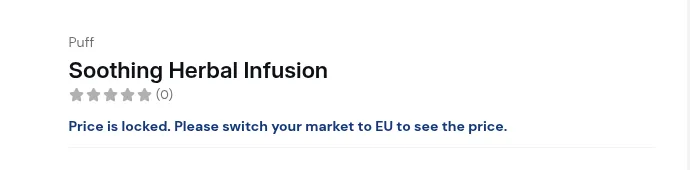
- Features a searchable dropdown with country flags and multi-select capability.
- Allows you to quickly select multiple allowed countries. Tick Reverse access rule to block them instead.
Typical uses
- Restrict wholesale catalogs to domestic or authorized export markets only.
- Block visitors from unsupported shipping regions.
Secret link
Section titled “Secret link”What it is
Pick More → Other condition, then choose Secret link – Must access via a special link in Select access rule. This condition only allows access if the visitor arrives via a special URL that includes a secret token.
- The rule generates (or expects) a URL like:
/collections/wholesale?token=123 - If the visitor uses this URL → grant access.
- If they come via any other link → deny access.
Typical uses
- Hidden collections or pages for VIP or early access campaigns.
- Secret sales where only people with the link can see products/prices.
- “Soft-gated” content you don’t want to show in navigation or search.
Other conditions supported
Section titled “Other conditions supported”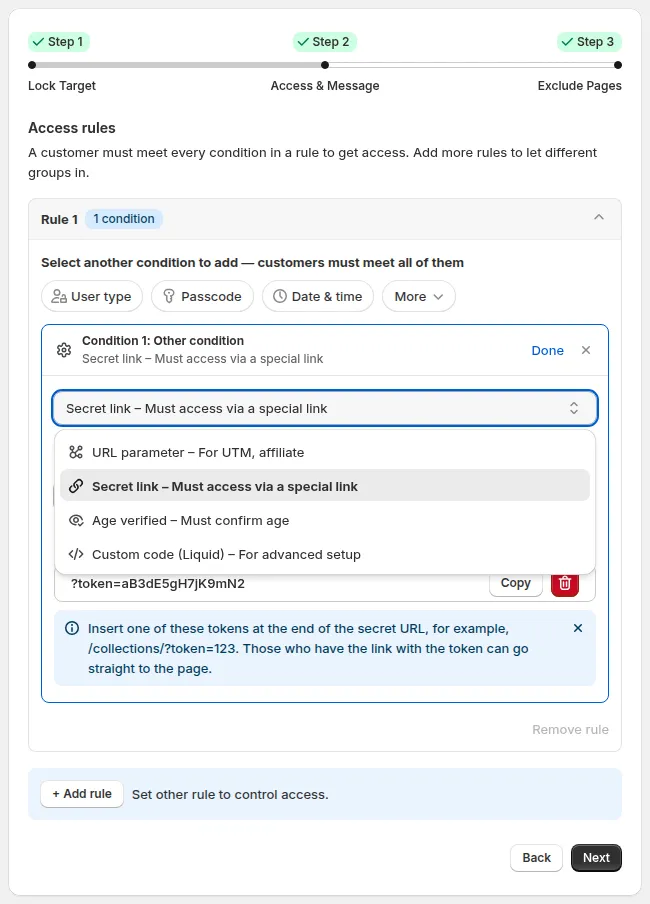
More → Other condition: URL parameter, Secret link, Age verified and Custom code (Liquid). Secret link and Age verified are not offered for the Price and add to cart and Variants targets.
Beyond user type, passcode, date & time, URL parameters, location and secret links, BSS B2B Lock supports several additional conditions for advanced workflows:
- Email (under More): Email domain – Must use an allowed email domain or Email subscribers – Must be subscribed to your emails
- Gate content by the visitor’s email, e.g. require visitors to subscribe with their email address before accessing gated content.
- Age verified – Must confirm age (under More → Other condition)
- Presents an age-gate verification popup (e.g. 18+ / 21+) before granting access to regulated items.
- Custom code (Liquid) – For advanced setup (under More → Other condition)
- Developers can evaluate custom Liquid conditions for highly tailored storefront gating logic.
Still Need Help?
Section titled “Still Need Help?”If you have questions or need assistance configuring BSS B2B Lock, our dedicated support team is here to help.
- In-App Assistance: Click Need help? or use the in-app chat button within BSS B2B Lock.
- Email Support: Contact us at [email protected] with your store URL and specific rule details.