
Rule Builder Access Rules Reference
This page covers Step 2 (Access & Message) of the Rule Builder in detail: the condition types, how rules combine, and how to edit the lock message. For the full Rule Builder flow, see Rule Builder Deep Dive.
Main condition types
Section titled “Main condition types”Pick a condition chip under Select a condition to add to the rule, then choose the option in Select access rule. Most conditions can be inverted with Reverse access rule. It is not available for Passcode, Email subscribers, Secret link, Age verified, date and time, URL parameter and Request access.
User type
- Everyone - No restrictions: the app notes: “When this condition is selected, it will take the highest priority.”
- Signed-in customers - Must be logged in: used for “Hide prices from guests” and “Lock page for logged-in users only”.
- Tagged customers – Must have specific tags: Shopify customer tags like
wholesale,b2b-approved,silver,gold. Core of most B2B & segmentation flows. - Specific customers – Must match exact email: grants access only to selected customer accounts.
- Request access – visitor request, you approve
- Customer must be in this company name / Customer must be in this company location / B2B customer – Shopify B2B only: Shopify B2B conditions.
Passcode
- Passcode - Must enter the correct passcode. Good for invite-only content without creating accounts.
- Add one or more passcodes (leave the field empty and click Add passcode to generate one, or use Import; Clear appears once a passcode is added), and set Passcode case-sensitive.
- Under Extra setting, choose Enter passcode once to access all pages, Enter passcode once to access each pages, or Enter passcode each time to access each pages.
Date & time
- After date/time → Visible from or Before date/time → Visible until. Time follows your Shopify store’s time zone.
More
- Email: Email domain - Must use an allowed email domain: choose a Condition (default Contains) and add Values. Or Email subscribers – Must be subscribed to your emails.
- Location: Specific market – Only for selected Shopify markets, IP address – Only for specific IP addresses, Location – Only for selected regions, or Location – Only for selected countries.
- Other condition: URL parameter – For UTM, affiliate, Secret link – Must access via a special link, Age verified – Must confirm age, and Custom code (Liquid) – For advanced setup (lets a developer write Liquid logic, e.g. on metafield values).
For every condition, see Access Condition Types.
Combining conditions with AND / OR
Section titled “Combining conditions with AND / OR”“A customer must meet every condition in a rule to get access. Add more rules to let different groups in.”
- AND = all conditions inside one rule must be true
- An AND pill joins the conditions, and the rule shows 2 conditions - all must match.
- Example: Signed-in customers AND Tagged customers
wholesale→ only logged-in wholesale customers get access.
- OR = any rule can be true
- Click + Add rule to add another rule. An OR pill joins the rules.
- Example: Rule 1 Tagged customers
wholesaleOR Rule 2 Passcode → either approved wholesale customers or passcode holders get access.
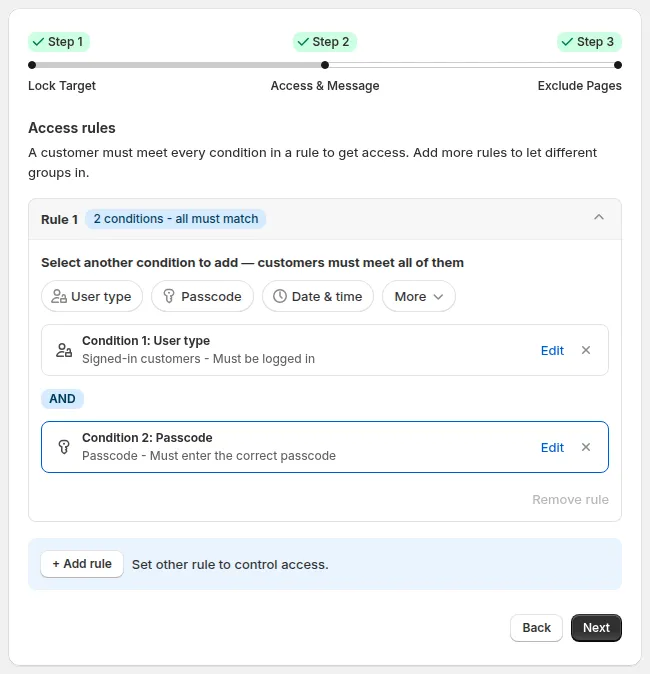
AND inside a rule, OR between rules.
You can stack several rules for a single lock, for instance:
- Rule 1: allow
wholesale - Rule 2: allow
partner - Rule 3: allow passcode holders
- Everyone else: blocked → sees lock message
If no rule has a condition yet, clicking Next shows “Add at least one condition to this rule before you continue.” An extra rule left empty next to rules that have conditions doesn’t block Next and isn’t listed in the Summary. To remove a rule, click Remove rule.
This flexibility removes the need for multiple overlapping locks that are hard to manage.
Lock message (Preview → Customize message)
Section titled “Lock message (Preview → Customize message)”When a visitor doesn’t meet your rules, BSS B2B Lock shows a lock message instead of the protected content. You edit it from the Preview card, not from a step:
-
In the Preview card, pick the message in the dropdown.
-
Click Customize message to open Preview & customize message.
-
Each message has its own tab at the top of the modal, and the editing options depend on the message. For example:
- A page lock message (e.g. Login View Pages) has Message type, Message content (Custom message, or click Edit with editor) and Custom CSS.
- Message Hide Price has Edit / Edit as HTML, Templates, Message (Text content, Text format, Text color), Redirect settings, Advanced customization and Custom CSS.
Use the desktop / mobile toggle in the Preview panel on the right to check both layouts.
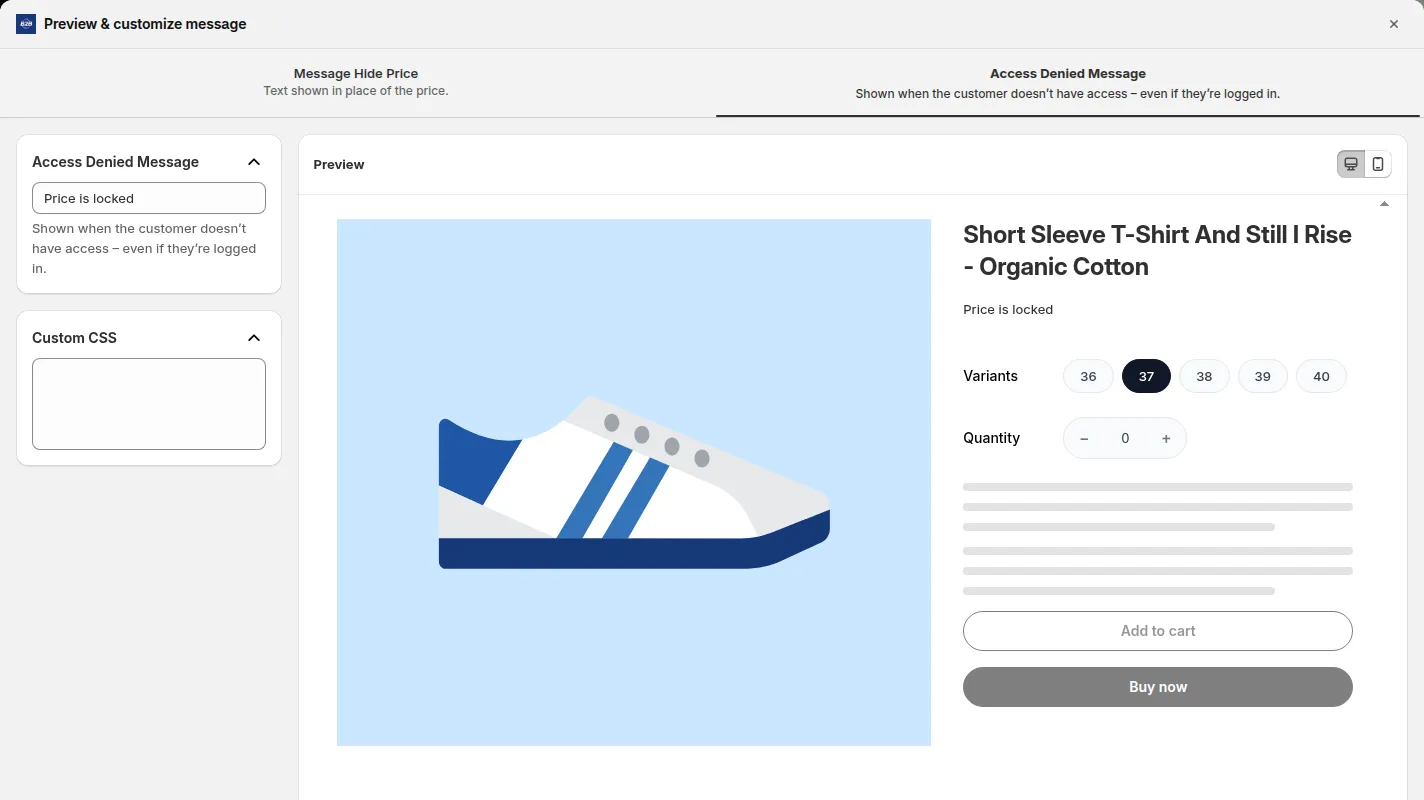
Edit the lock message in Preview & customize message.
Good lock messages guide the visitor; they don’t just block them:
- Headline: e.g. “Wholesale access only”, “Login to view prices”.
- Body text: e.g. “This section is reserved for approved B2B customers. Please log in or request an account.”
- Links: “Login”, “Create account”, “Request access”, “Contact us”, pointing to Shopify login, registration, or a contact/registration page.
For B2B-only stores, always make sure the lock screen gives a clear path to becoming an approved customer (even if it’s via manual contact).
Tips for designing clean rules
Section titled “Tips for designing clean rules”- Start with the simplest rule that meets your need (e.g. just login, or just one tag).
- Add complexity only when you really need it (e.g. combining regions or tags).
- Be consistent with tags (e.g., always use
wholesaleinstead of mixingwholesale,wholesale_customer, etc.). - Keep rule names aligned with conditions, so future you (or your colleague) can understand them at a glance.
Still Need Help?
Section titled “Still Need Help?”If you have questions or need assistance configuring BSS B2B Lock, our dedicated support team is here to help.
- In-App Assistance: Click Need help? or use the in-app chat button within BSS B2B Lock.
- Email Support: Contact us at [email protected] with your store URL and specific rule details.