
Rule Builder Lock Target Reference
This page covers Step 1 (Lock Target) of the Rule Builder in detail: what each target locks, how to set its scope, and the extra options some targets add. For the full Rule Builder flow, see Rule Builder Deep Dive.
Target: what you lock
Section titled “Target: what you lock”In the Lock Target card, open What do you want to lock? and pick a target:
- Entire store
- Locks the whole storefront behind your access rules.
- Use for B2B-only or private stores.
- Price and add to cart
- Keeps products visible but hides the price, the Add to cart button, or both, for blocked visitors.
- Products
- Hides selected products completely, or locks only their product pages.
- Collections
- Hides selected collections, their product cards and product pages, and their menu links, for blocked visitors.
- Variants
- Hides variants that match an option value (e.g. all variants where “Size” equals “XL”).
- Pages, blogs and URLs
- Targets pages, blogs, or custom URLs.
- Typically used for wholesale info pages, partner portals, documentation, or landing pages.
- Sections, blocks, and snippets
- Hides theme sections, blocks or snippets, picked by name (Native Section/Block) or matched by a Custom CSS Selector.
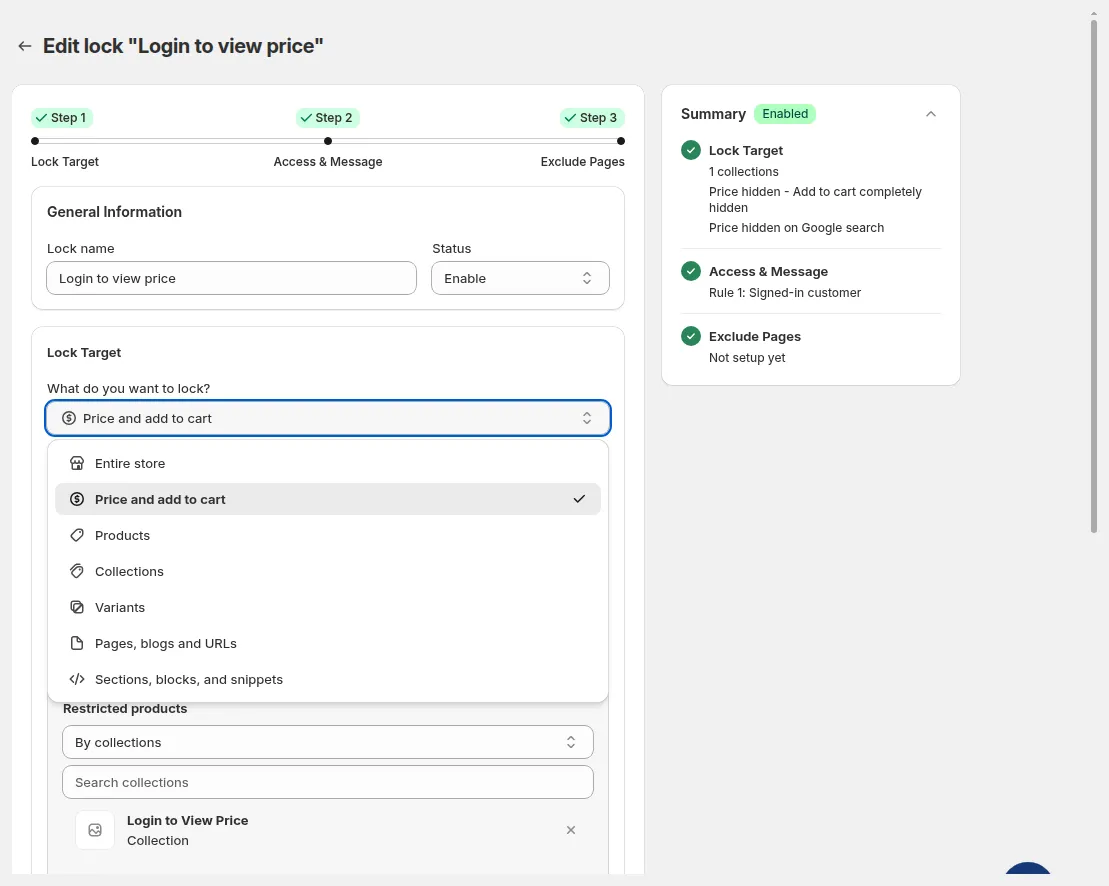
The 7 lock targets.
Scope selection
Section titled “Scope selection”After choosing a target, define its scope:
- Price and add to cart → Restricted products: All product, By tags, By collections, Specific products, or Specific variants.
- Products → Restricted products: All product, By tags, By collections, or Specific products (search, or pick in Select products).
- Collections → Which collections to restrict?: All or Specific (search, or pick in Select collections).
- Variants → Restricted variants → Variant options: the variant option and value to match (Search variant options). The card notes: “Locking variants does not support age verification, email subscriptions, or secret link access”.
- Pages, blogs and URLs → Select content type to lock: Page (All pages / Specific pages), Blog (All blogs / Specific blogs), or URL (type a path and click Add).
- Sections, blocks, and snippets → Select target to lock → Target selection mode:
- Native Section/Block: “Use Shopify theme sections/blocks with Liquid context.” Then pick in Name of section, block, or snippet.
- Custom CSS Selector: “Use .className or #elementId for third-party JS or custom elements.”
This ensures the lock is applied only where you intend.
Price-specific options (for Price and add to cart)
Section titled “Price-specific options (for Price and add to cart)”When the target is Price and add to cart, two extra groups appear:
- What do you want to hide?
- Hide price, then either Disable Add to cart (“Still visible – can’t be clicked.”) or Hide Add to cart (“Completely invisible.”).
- Keep price visible, hide Add to cart (“Price stays visible; only the button is removed.”).
- Search visibility → Hide price on Google search
- Keeps prices out of Google search results. Your store must be public, and Google can take up to 24 hours to re-index.
- Useful for protecting B2B or contract pricing.
With Specific variants selected, the What do you want to hide? and Search visibility options are not shown.
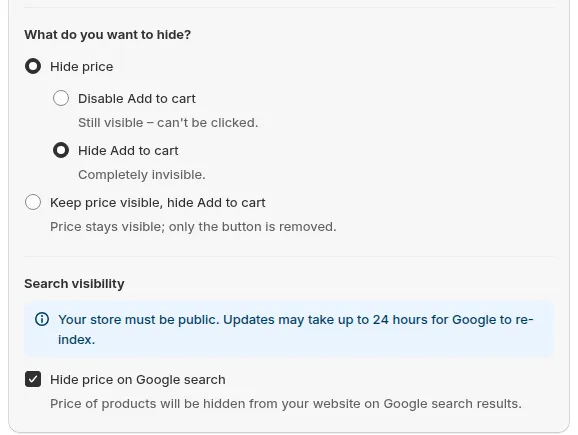
Price options for the Price and add to cart target.
Product and collection visibility options
Section titled “Product and collection visibility options”Products → Product Visibility Control:
- Fully Hide Product: “Completely removed from storefront (no trace in collections, search, or product page).”
- Only lock product page: “Product stays visible everywhere, but the product page shows “Access Denied.””
- Plus, under Search visibility, Hide price on Google search and Hide from navigation menu (ticked by default, for both modes).
Collections → Visibility settings (all ticked by default):
- Hide collection cards
- Hide product cards
- Hide product pages
- Hide from navigation menu
For details, see Hide Products & Collections.
Still Need Help?
Section titled “Still Need Help?”If you have questions or need assistance configuring BSS B2B Lock, our dedicated support team is here to help.
- In-App Assistance: Click Need help? or use the in-app chat button within BSS B2B Lock.
- Email Support: Contact us at [email protected] with your store URL and specific rule details.