
Help Center
The Help center brings guides, a storefront check and support into the app, so you can find answers without leaving your admin.
To open it, go to Settings and click Help and support, or click the Help button in the app. Full documentation at the top right opens this documentation site.
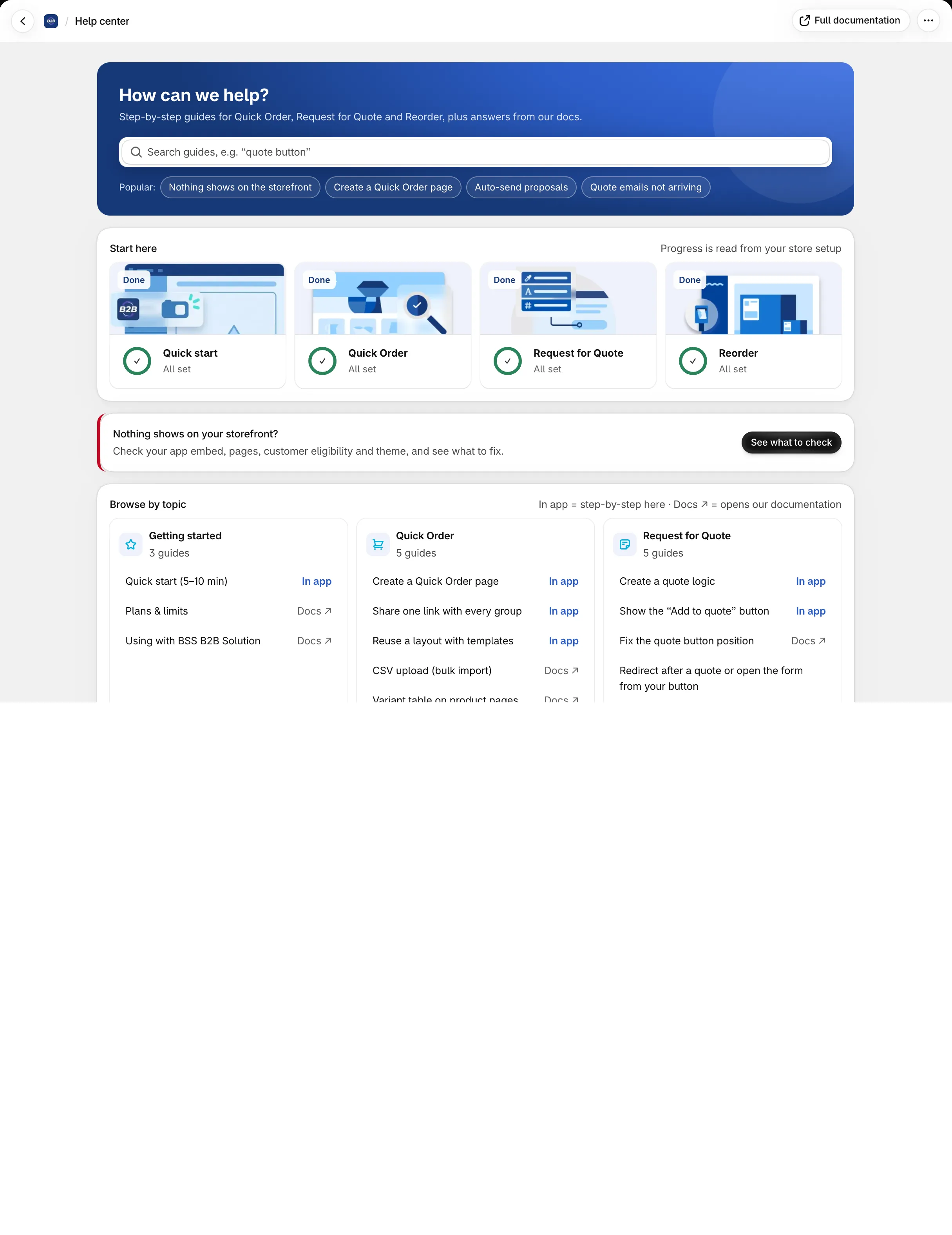
1. Search guides
Section titled “1. Search guides”Under How can we help?, type what you need, for example “quote button”. The results show:
- Step-by-step in app: guides you follow inside the app, with real screenshots.
- From docs.bss-b2b.solutions: articles from this documentation.
If nothing matches, try fewer words, pick a popular guide, or click Ask support to chat with our team.
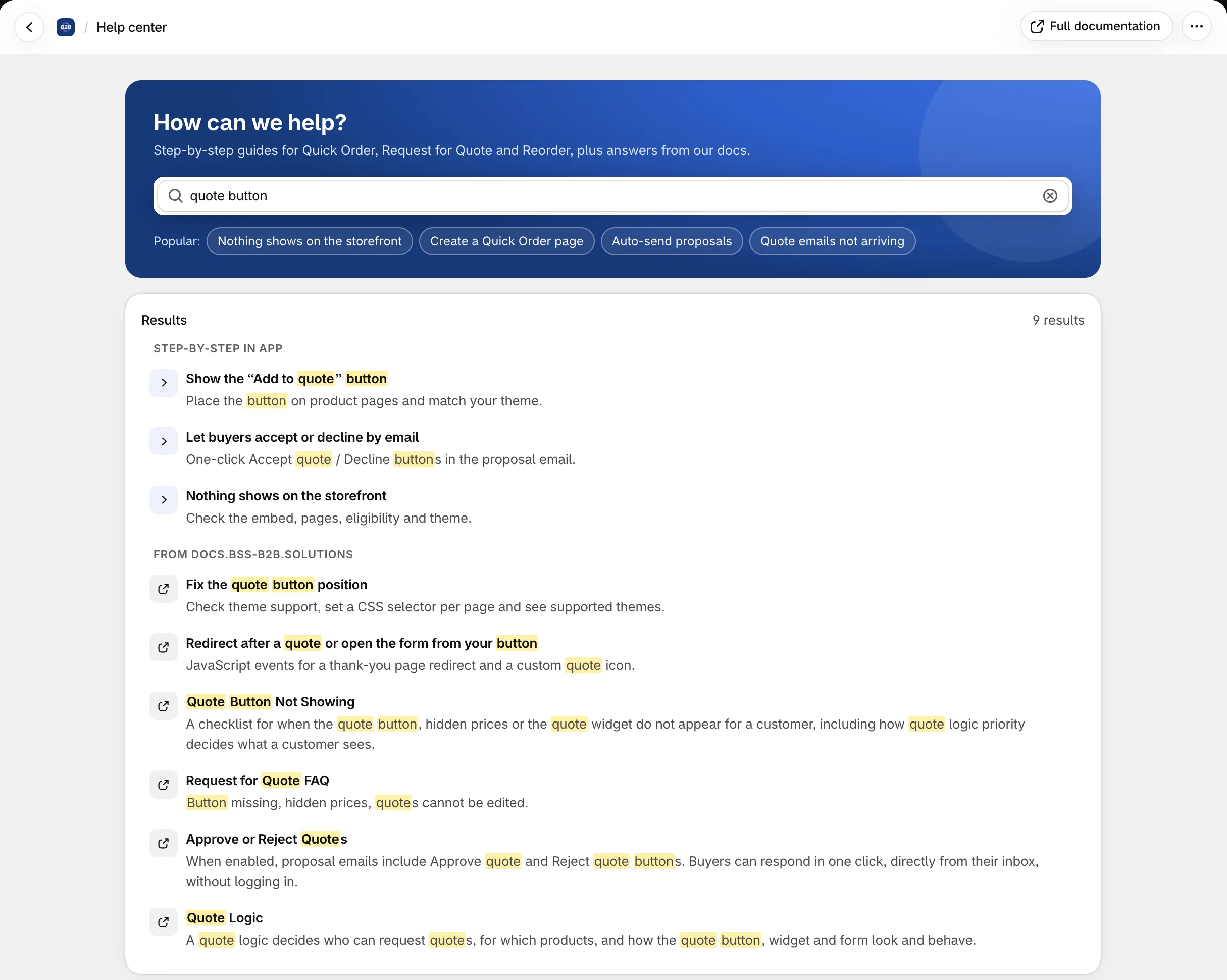
2. Start here
Section titled “2. Start here”Start here shows four journeys: Quick start, Quick Order, Request for Quote and Reorder. Your progress is read from your store setup, so each card shows the next step to do, or All set when the journey is done.
The Quick start journey covers the basics:
- Turn on the app embed.
- Create a Quick Order page.
- Turn on the Reorder page.
- Create a quote logic.
3. Follow a guide
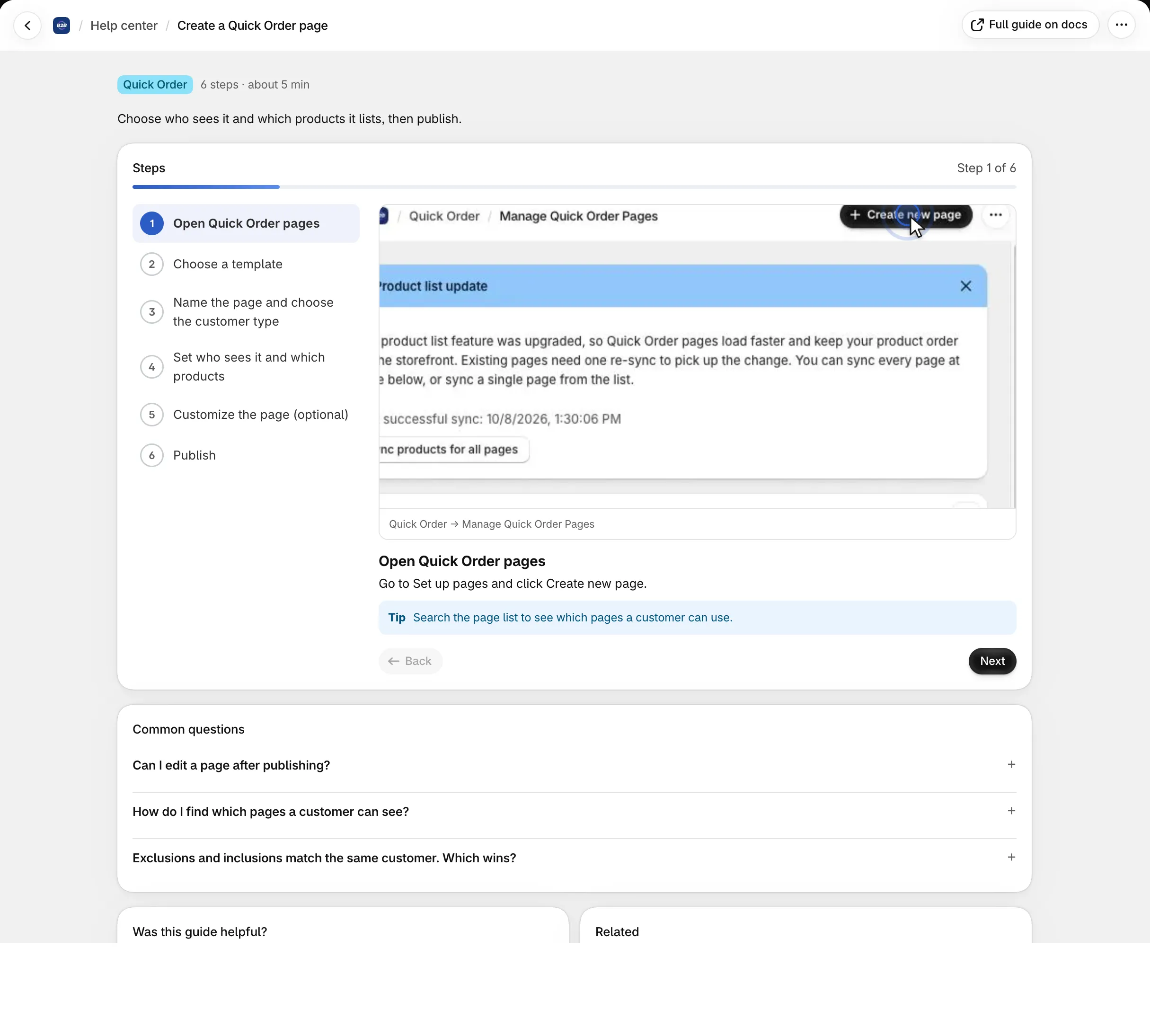
Section titled “3. Follow a guide”A guide walks you through one task, step by step, with screenshots you can click to enlarge. The Steps list on the left shows where you are, and Back takes you to the previous step.
- Show me highlights the setting the step talks about on the app page.
- At the end, tell us Was this guide helpful? If not, pick what was missing (for example “Steps don’t match my screen”) so we can improve the guide.
- Common questions under the guide answers related questions, and Full guide on docs opens the matching article here.
Many app pages also have a ? button (Help for this page) that opens the guides for that page.
4. Storefront check (Diagnose)
Section titled “4. Storefront check (Diagnose)”This is the fastest first step when a customer says they cannot see the quote button or the Quick Order page. It is also the Nothing shows on your storefront? topic, so searching for “diagnose” or “nothing shows” finds it.
When the app doesn’t show on your storefront, click See what to check under Nothing shows on your storefront?. The Storefront check looks at your store and answers Why isn’t Quote showing on my storefront?:
- App embed is on in your live theme
- A Quick Order page is published
- Your customers can see it
- “Add to quote” button fits your theme
- Your plan allows storefront features
Each check shows Passed, Check this or Needs a fix, with the reason and a button to fix it (for example Turn on the app embed or Add the block). Click Run again after you fix something.
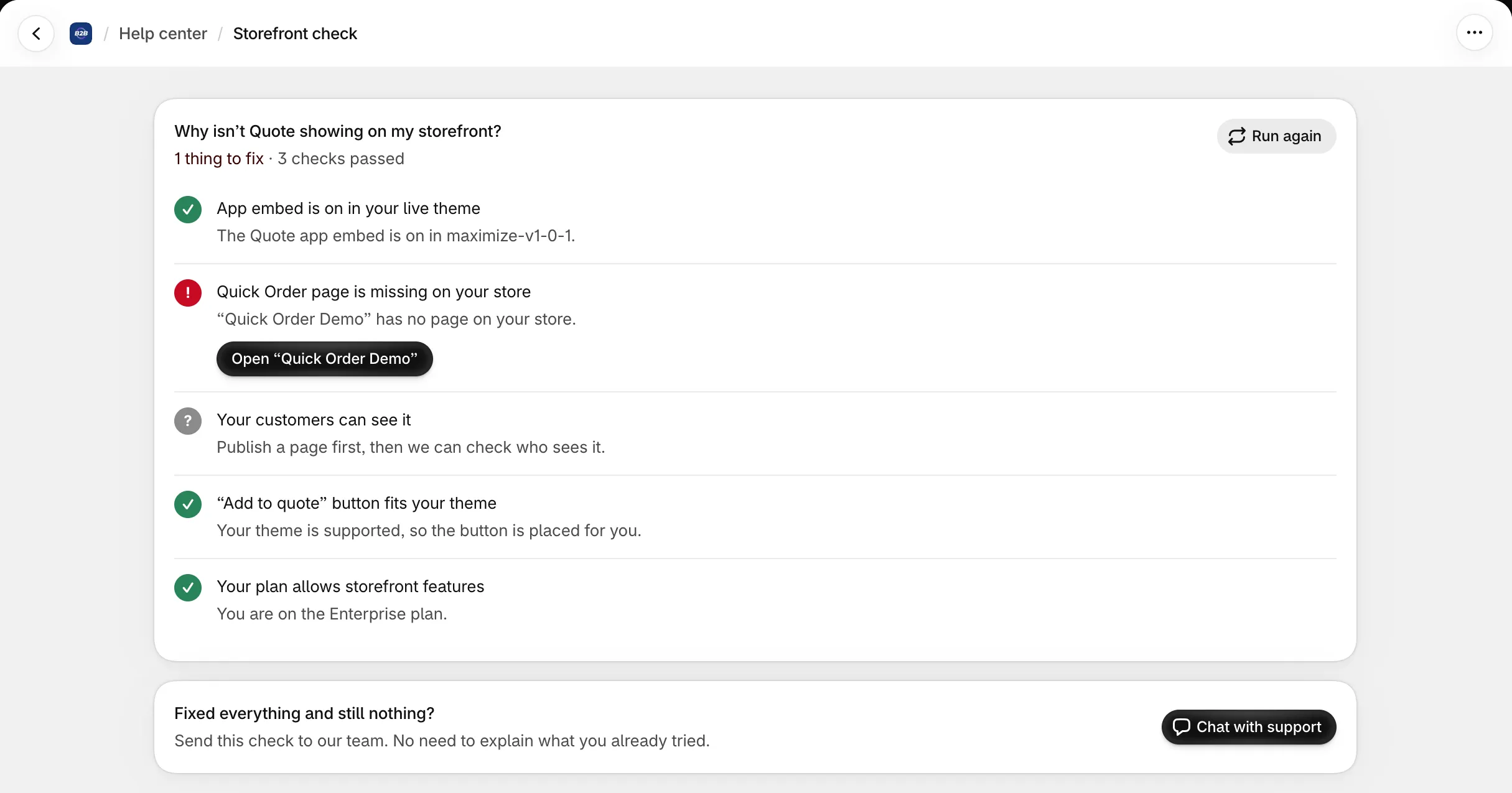
If you fixed everything and still see nothing, click Chat with support. Our team gets the check result, so you don’t need to explain what you already tried.
For more checks on the quote button, see Quote Button Not Showing.
5. More help
Section titled “5. More help”- Browse by topic: guides grouped by topic, such as Getting started, Quick Order and Request for Quote. In app guides open in the app; Docs ↗ opens this documentation.
- What’s new: the latest app version and a link to all release notes.
- Still stuck?: Live chat or Email us.