
Quote Emails and Reminders
The app sends up to five kinds of quote emails. Three are templates you can edit. Two are reminder digests that go only to your team.
Where to find the settings
Section titled “Where to find the settings”Go to Request for Quote > Advanced Settings > Manage settings. The Notifications tab lists the email templates. Click Edit template next to one to change its content and styles.
Email types at a glance
Section titled “Email types at a glance”| Recipient | When it is sent | Plan | |
|---|---|---|---|
| Admin Notification Email Template | Your store email, plus the BCC emails you add | A customer submits a quote request | Growth or higher |
| Quote Confirmation Email Template | The customer | A customer submits a quote request and no proposal is sent automatically | Business or higher |
| Quote Proposal Email Template | The customer | You send it from the quote page, or Auto Send Proposal sends it on submit | All plans |
| Unread quotes reminder | The reminder recipient, plus BCC | Daily, for quotes still Unread after your threshold | Business or higher |
| Under review quotes reminder | The reminder recipient, plus BCC | Daily, for quotes still Under review after your threshold | Business or higher |
A badge next to each template shows Active or Inactive for your current plan. A template that shows Inactive is not sent, even if you edited it.
What happens when a customer submits a quote
Section titled “What happens when a customer submits a quote”- The Admin Notification email goes to your store email.
- If the submitted form matches your Auto Send Proposal conditions, the customer gets the Quote Proposal email right away.
- Otherwise, the customer gets the Quote Confirmation email.
Sending a proposal by hand
Section titled “Sending a proposal by hand”- Open the quote from Quote Requests.
- Set the quoted prices, shipping and tax in the Products and Payment cards.
- Click Send proposal email.
- Check To and the subject. To include a PDF of the quote, tick Attach Quote PDF in Proposal email.
- Click Send.
The quote gets the Proposal sent badge. If the quote was Unread, it moves to Under review.
Approve and reject buttons in the proposal
Section titled “Approve and reject buttons in the proposal”The proposal email can include buttons that let the customer approve or reject the quote without contacting you. The button text is set in the Quote Proposal Email Template editor, section Quote Actions. The defaults are “Approve quote” and “Reject quote”.
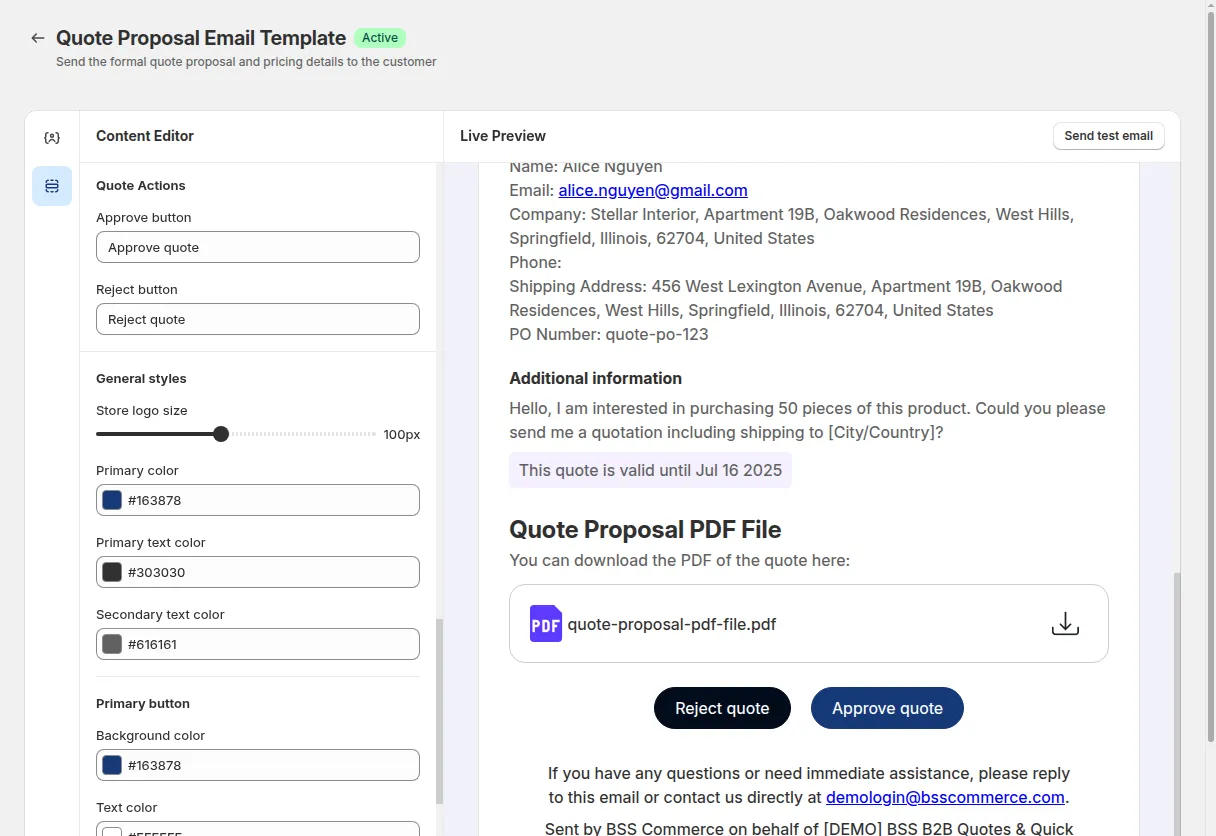
The buttons only appear when all of these are true:
- Quote Automation > Auto Convert to Draft Order is enabled. This page needs the Business plan or higher.
- At least one of Approve button or Reject button is ticked under Which button would you like to display ?.
- The Quote History Page is published and visible (Advanced Settings > Quote History Page). The buttons link to that page.
What each button does:
- Approve creates a Shopify draft order from the quote, marks the quote Converted, and emails the customer the Shopify invoice so they can pay.
- Reject marks the quote Rejected. The customer can add a reason.
Variables you can use in templates
Section titled “Variables you can use in templates”Use these placeholders in email text. The app replaces them with the quote’s data.
| Variable | Replaced with |
|---|---|
{{store_name}} |
Your store name |
{{store_email}} |
Your store email |
{{customer_first_name}} |
Customer first name |
{{customer_last_name}} |
Customer last name |
{{customer_name}} |
Customer full name |
{{customer_phone}} |
Customer phone |
{{company_information}} |
Company details, for B2B customers |
{{shipping_address}} |
Shipping address |
{{quote_id}} |
Quote number |
{{quote_po_number}} |
PO number from the quote form |
{{quote_created_date}} |
Date the quote was created |
{{quote_expiry_date}} |
Quote expiry date |
BCC for new quote notifications
Section titled “BCC for new quote notifications”Under Notifications for store admin, add team members in BCC emails. Type an address and press Enter to add another. Each address can be added once.
Sender name and address
Section titled “Sender name and address”Emails are sent from [email protected] by default. The Admin Notification email always uses this address.
You can send the Quote Proposal and Quote Confirmation emails from your own domain:
- On the Notifications tab, click the Email Sender link under the sender fields.
- Enter a Sender name and Sender email. If you leave the name blank, your store name is used.
- Click Send confirmation email, then confirm from your inbox.
- Add the DNS records shown in the table to your domain.
- Click Verify DNS record. When the records are found, the page shows “Email DNS is verified”.
Quote reminders
Section titled “Quote reminders”Quote reminders email your team a daily digest of quotes that have waited too long, and add a notification to the app’s bell icon. They need the Business plan or higher.
- Go to Request for Quote > Advanced Settings > Quote Reminder.
- Turn on Unread quotes, Under review quotes, or both.
- For each one, set Remind after (days), Recipient email, and optional BCC emails.
- Save.
Reminders run once a day at 00:00 UTC. The app shows this time in your own time zone when you turn a reminder on. A quote is included when its status has not changed for more days than your threshold.
Related pages
Section titled “Related pages”- Quote Statuses and Lifecycle
- Approve or Reject Quotes
- Auto-send Proposal