
Set Up Quote Visibility
This page explains how to define who can request a quote, which products display quote buttons, and how to manage rule activation status efficiently.
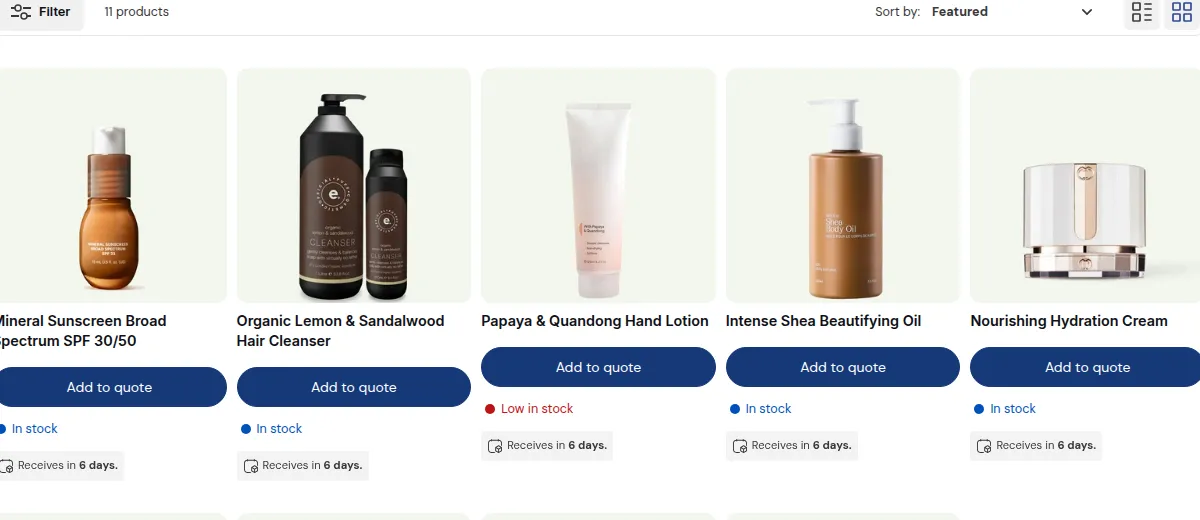
What your customers see on the storefront.
1. Overview
Section titled “1. Overview”The Set Up Quote Visibility tab controls the four core pillars of your Quote Logic:
- Store Type: Whether the rule applies to standard storefront buyers (Default Store) or Shopify B2B Companies (B2B Store).
- Identity & Priority: Internal naming and execution precedence.
- Targeting (Apply To) & Exclude Filters: Customer eligibility and granular exclusion rules.
- Product Scope: Which products, collections, or B2B catalogs display an “Add to Quote” button.
2. Fast Rule Management: Toggle Status Directly on List View
Section titled “2. Fast Rule Management: Toggle Status Directly on List View”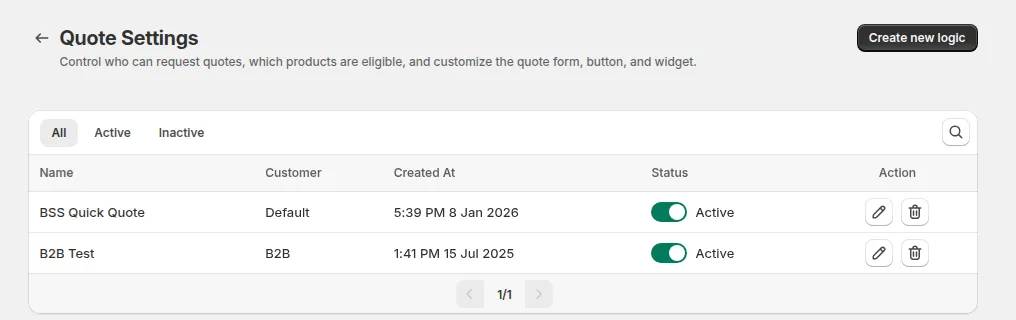
In the Quote Settings rule table:
- One-Click Inline Toggle: The Status column features an active toggle switch for each rule row.
- Instant Activation: Click the toggle directly to switch a rule between Active and Inactive immediately without opening the rule editor or navigating through multiple configuration tabs.
- Optimistic Updates: Changes take effect instantly with immediate toast confirmation.
3. Select Store Type
Section titled “3. Select Store Type”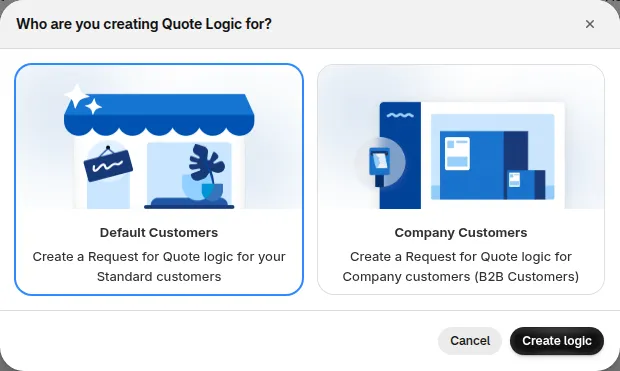
When creating a new quote logic, choose between two store modes:
| Store Type | Best For… | Key Differences |
|---|---|---|
| Default Store | Retail (DTC) or Standard Wholesale customers who log in with standard customer accounts. | Target by Customer Tags, Specific Customers, and Product Collections/Tags. |
| B2B Store | Shopify B2B Companies using Shopify’s native “Companies” and “Locations”. | Targets B2B Companies. Product scope automatically synchronizes with the assigned B2B Catalog. |
4. General Information & Priority
Section titled “4. General Information & Priority”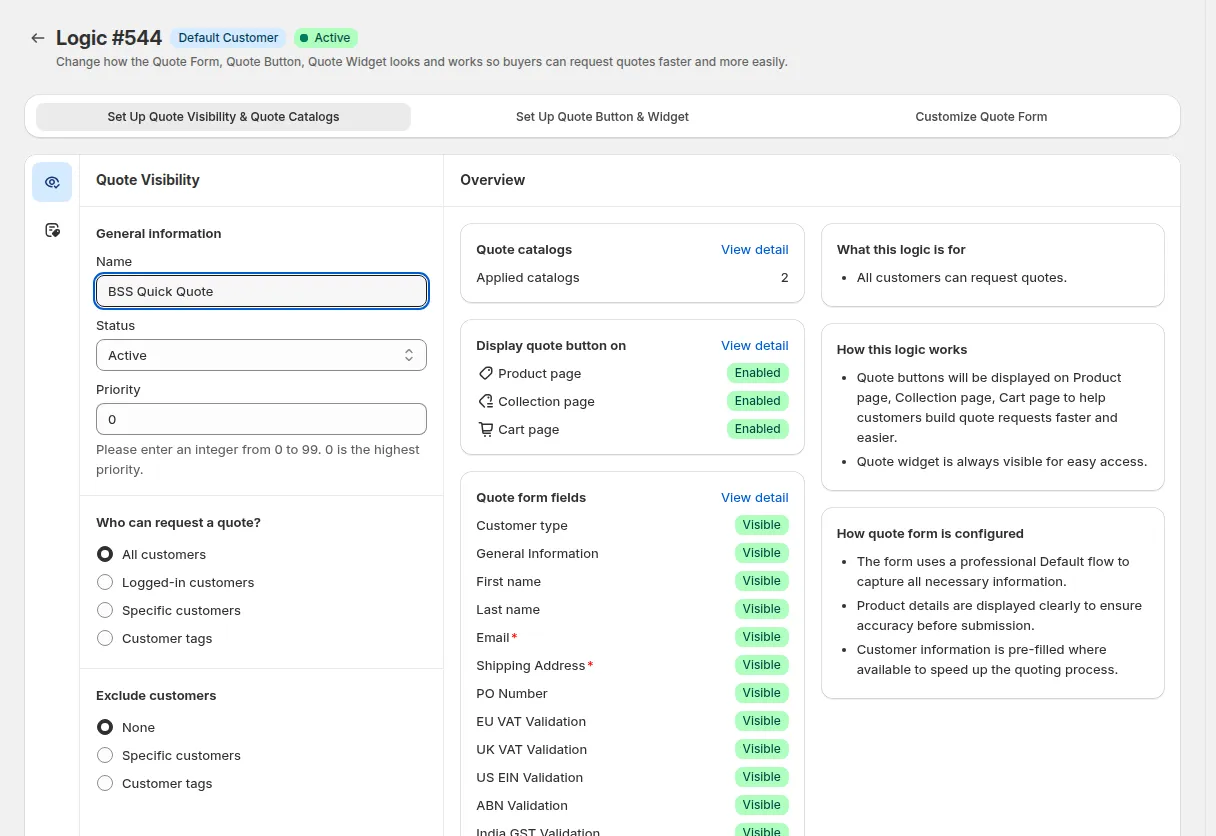
- Logic Name: Descriptive internal identifier (e.g., “Wholesale Tier 1 - Custom Quotes”).
- Priority (0–99): Determines rule evaluation order when a customer matches multiple rules.
- 0 = Highest Priority (Evaluated first).
- 99 = Lowest Priority.
5. Customer Eligibility & Exclude Filters
Section titled “5. Customer Eligibility & Exclude Filters”Define customer targeting rules with strict exclusion safeguards.
5.1 Apply to Customers (Eligibility)
Section titled “5.1 Apply to Customers (Eligibility)”- All Customers: Anyone (including guest visitors) can request quotes.
- Logged-in Customers: Restricted to authenticated storefront accounts.
- Customer Tags: Target buyers carrying specific tags (e.g.
wholesale,vip-buyer,trade-partner). - Specific Customers: Hand-pick individual customer profiles.
- B2B Companies / Locations: (B2B Store) Target specific company accounts or geographical branches.
5.2 Exclude Customers (Exclusion Rules)
Section titled “5.2 Exclude Customers (Exclusion Rules)”Prevent specific accounts from accessing quote buttons, even if they match eligibility rules:
- Exclude Customer Tags: Exclude any customer with designated tags (e.g.,
blacklisted,retail-only,no-rfq). - Exclude Specific Customers: Select individual accounts to exclude.
6. Product Scope & Exclude Filters
Section titled “6. Product Scope & Exclude Filters”Decide where the “Add to Quote” button appears across your store catalog.
In the current editor, product scope is set per Quote Catalog: open the second icon of the Set Up Quote Visibility & Quote Catalogs tab, then add or edit a catalog.
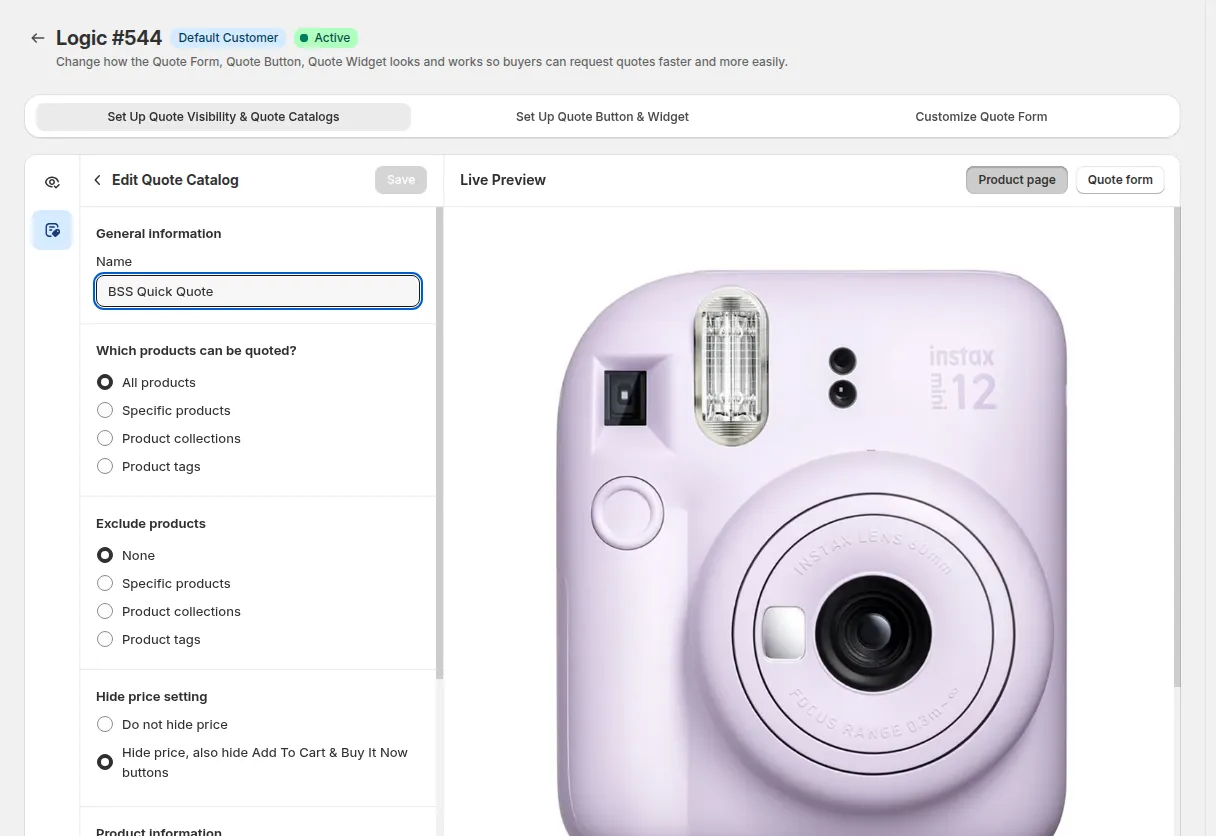
6.1 Product Inclusion
Section titled “6.1 Product Inclusion”- All Products: Every catalog item becomes quote-eligible.
- Product Collections: Apply the rule to selected collections (e.g. “Industrial Machinery”, “Custom Merch”).
- Product Tags: Target items dynamically using tags (e.g.
rfq-only,bulk-order). - Specific Products: Hand-pick individual items.
- Shopify B2B Catalogs (Enterprise Tier): For B2B Store rules, quote eligibility automatically synchronizes with the native Shopify B2B Catalog assigned to the buyer’s company location.
6.2 Product Exclusion
Section titled “6.2 Product Exclusion”- Exclude Collections: Keep standard retail collections excluded from quote logic.
- Exclude Product Tags: Exclude items with tags such as
clearance,no-discount,sample-item. - Exclude Specific Products: Prevent specific high-demand SKUs from being quoted.
7. Summary & Verification
Section titled “7. Summary & Verification”The summary sidebar on the right provides a real-time recap of your rule configuration:
- Store Type & Execution Priority
- Customer Eligibility & Exclusion criteria
- Product Scope & Excluded items
- Active/Inactive status