
Customer Quote History
The Customer Quote History portal provides logged-in buyers with a dedicated self-service area to view, track, and manage their quote requests directly inside their storefront customer account.
1. How to Enable & Publish
Section titled “1. How to Enable & Publish”You can embed Quote History into customer accounts or publish it as a standalone storefront page:
Option A: App Block in Customer Account
Section titled “Option A: App Block in Customer Account”- In Shopify Admin, navigate to Online Store → Themes → Customize.
- From the top template picker, select Customer accounts → Account.
- Under Apps / Page Blocks, add BSS Quote List.
- Position the block within your customer account layout and click Save.
Option B: Dedicated Standalone Page (/pages/quote-history)
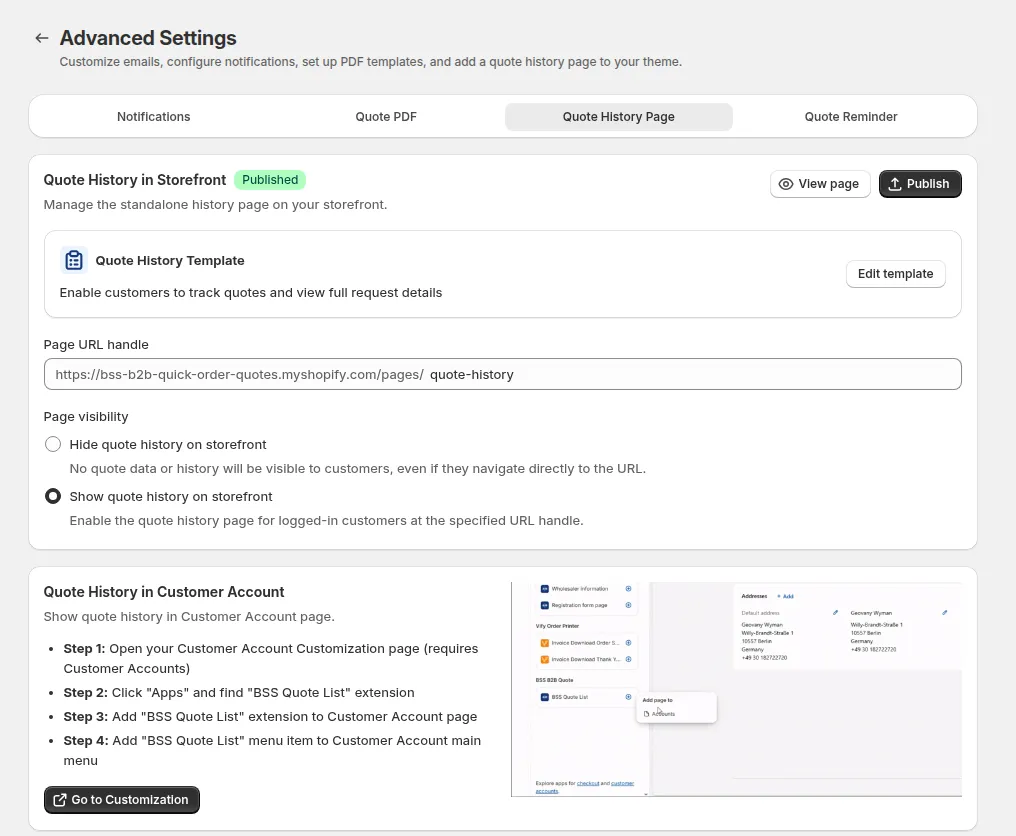
Section titled “Option B: Dedicated Standalone Page (/pages/quote-history)”Publish a dedicated URL path (e.g. https://yourstore.myshopify.com/pages/quote-history) directly from the app admin settings.
2. Quote History Customization Page (CMS)
Section titled “2. Quote History Customization Page (CMS)”Customize the visual appearance, typography, and table labels of the storefront Quote History page without writing theme liquid code:
- Navigate to Request for Quote → Advanced Settings → Quote History Page Customization.
- General Settings:
- Toggle storefront page status (Enable / Disable).
- Configure custom Page Path (e.g.
/pages/quote-historyor override an existing page handle).
- Labels & Content:
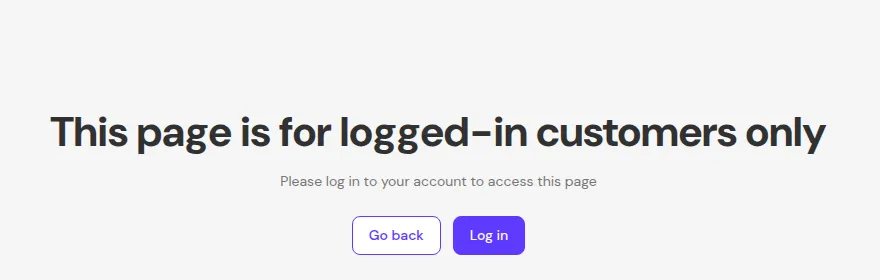
- Customize page title, subtitle, and section content across Restricted Access, Quote List, and Quote Detail views (Quote ID, Date, Email, Status, Action).
- Theme Styling & Colors:
- Set primary brand colors, surface/card background colors, border styles, and corner radius.
- Live Preview:
- Inspect desktop and mobile preview layouts populated with realistic mock quote data before publishing.
3. The Customer Experience
Section titled “3. The Customer Experience”3.1 The Quote List View
Section titled “3.1 The Quote List View”Logged-in buyers see a chronological table of all past quote submissions:
- Quote ID: Unique reference code (e.g.
#Q1042). - Date: Creation timestamp.
- Status:
Unread,Under review,ConvertedorRejected, with the Proposal sent badge once you sent a proposal. - Action: Click to open the detailed quote view.
3.2 Quote Details View
Section titled “3.2 Quote Details View”Clicking a quote opens the full summary:
- Product Table: Product photos, names, variants, SKUs, and requested quantities.
- Price Visibility Logic:
- Unread / Under Review: Quoted prices remain Hidden (displayed as Pending Review) while you are negotiating.
- Rejected: Quoted prices and checkout actions remain Hidden.
- Proposal sent / Converted: Itemized quoted unit prices, discounts, shipping, and taxes are clearly visible.
- Storefront Action CTAs:
- Checkout: shown for converted quotes once the draft order has an invoice, if you turned the checkout button on in the page settings. It opens the Shopify invoice checkout.
- Create Similar Quote: Automatically populates a new quote form with identical items to expedite repeat inquiries.
4. Best Practices
Section titled “4. Best Practices”- Promote Customer Account Logins: Remind B2B buyers to log in before submitting quotes so requests automatically link to their account history.
- Keep Statuses Updated: Moving quotes to
Under reviewreassures buyers that their request is being actively processed.