
Auto-send Proposal
You can now configure Auto Send rules that automatically send a proposal email to the buyer as soon as they submit a quote request, without any manual action from your team.
1. Prerequisites
Section titled “1. Prerequisites”Auto Send pulls pricing from your existing B2B pricing configuration. Before setting up rules, make sure product prices are already set up via Shopify B2B Native or any 3rd-party B2B apps
If pricing is not configured, the app cannot generate meaningful proposal content and the feature will not function correctly.
2. How to set it up?
Section titled “2. How to set it up?”Step 1 - Enable Auto workflow
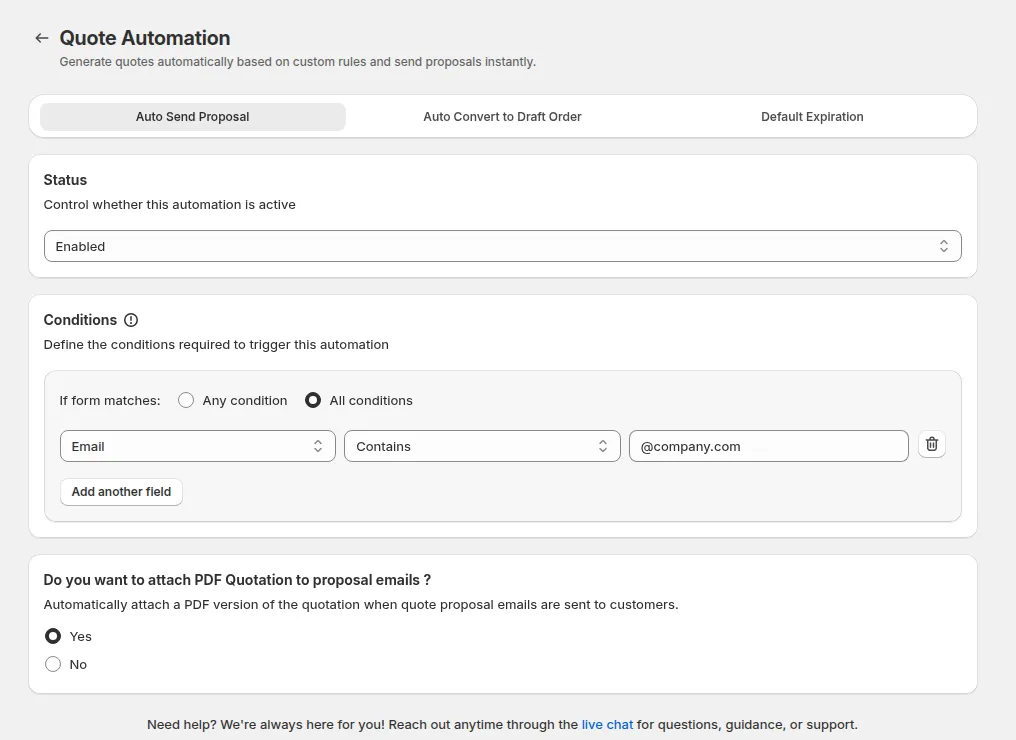
- Go to Request for Quote → Quote Automation → Auto Send Proposal tab
- Change Status from Disabled to Enabled
Step 2 - Define the trigger conditions
Click Set up conditions, then build one row per condition: a field, an operator and a value. Click Add another field for more rows.
| Field | Example |
|---|---|
contains @company |
|
| Customer tags | wholesale, vip, b2b |
| First name / Last name | ends with b2b |
Operators: Is, Is not, Contains, Does not contain, Starts with, Does not start with, Ends with, Does not end with.
Next to If form matches, choose how the rows are evaluated:
- Any condition - rule fires if at least one condition matches
- All conditions - rule fires only when every condition matches (stricter)
Step 3 - PDF attachment
Under Do you want to attach PDF Quotation to proposal emails?, choose Yes to automatically attach a PDF version of the quotation when quote proposal emails are sent to customers, then click Save. The PDF layout is set in Advanced Settings → Quote PDF.