
Draft Order Detail Page
Learn how your customers view, manage, and act on pending draft orders using the Draft Order Detail Page on your store.
This guide explains how customers find their pending orders in the Waiting for Checkout tab, review itemized details, start repeat orders, and complete payment.
1. Overview & How It Helps Your Store
Section titled “1. Overview & How It Helps Your Store”When a draft order is created for a customer, whether from a wholesale quote or a previous order request, customers can click on it in their account (/pages/reorder) to open a dedicated detail page.
The Draft Order Detail Page gives buyers full visibility over their pending order items, pricing, and status, with clear options to:
-
Repeat or Edit Order (
[🔄 Reorder]): Click the Reorder button to open the Review & Edit Modal, adjust quantities, or add new products. -
Complete Payment (Checkout): Access the direct checkout link or invoice email link to finish payment on Shopify.
-
The customer clicks an order in the Waiting for Checkout tab.
-
The Draft Order Detail page opens with items, quantities, prices and the status badge.
-
The customer either:
- clicks Reorder: the app checks the catalog and opens the Review & Edit modal, or
- clicks the checkout link to pay the draft order in Shopify checkout.
2. Before You Begin
Section titled “2. Before You Begin”To make sure your customers can view their pending draft orders, verify these settings in your Shopify store:
- Re-Order Page is Published: Set your Re-Order page status to Published under Reorder > Reorder Settings.
- App Embed is Active: Ensure the B2B Portal app embed is turned on in your Shopify theme editor.
- Customer Login: Customers must log into their store account. Pending draft orders are displayed strictly based on the logged-in customer.
3. How Customers Find Their Pending Orders
Section titled “3. How Customers Find Their Pending Orders”-
The customer opens
/pages/reorder. -
They click the Waiting for Checkout tab.
-
They click the view icon or the order row (for example
#D1001). -
The Draft Order Detail page opens with the full order details.
-
Visit Re-Order Page: The customer logs in and visits
/pages/reorder. -
Click Waiting for Checkout: On the Re-Order history page, the customer clicks the Waiting for Checkout tab.
-
Select an Order: The table lists pending orders formatted like
#D1001,#D1002. Clicking the View icon[👁]or order row opens its detail page.
4. Page Layout & Key Features
Section titled “4. Page Layout & Key Features”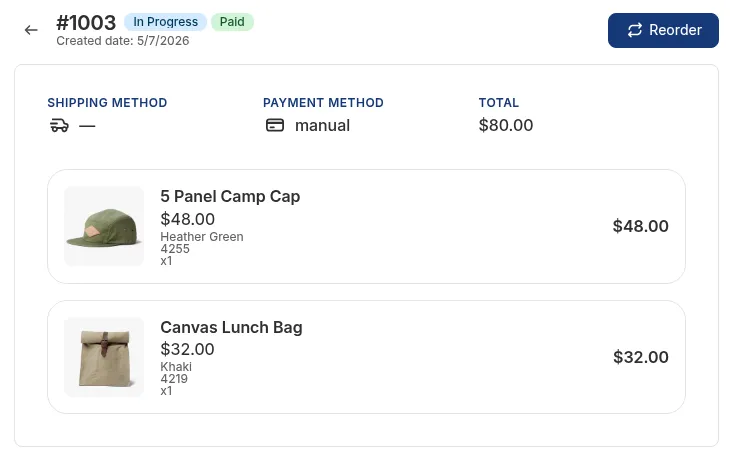
Preview from the template editor with sample data.
- Back to List Button: A
◀back icon button that lets customers exit the detail view and return to their pending order list with pagination memory. - Order Header & Status: Displays the order number (e.g.,
#D1001), creation date, and status badge (Open, Invoice Sent, or Completed). - Primary Reorder Button: The main
[🔄 Reorder]button on the page header to start a repeat order request. - Product Items Table: Shows product photos, names, selected variants (e.g., Color: Blue, Size: L), SKUs, unit prices, quantities, and line total prices (
Unit Price × Quantity). - Checkout / Payment Information: Displays payment summary, subtotal, shipping, taxes, and the direct Checkout link when an invoice URL is available.
5. Customer Actions & Options
Section titled “5. Customer Actions & Options”Action 1: Reorder (Customize & Repeat Order)
Section titled “Action 1: Reorder (Customize & Repeat Order)”The primary action button on the detail page header is [🔄 Reorder]. Clicking this button lets customers use the current draft order as a template for a new repeat purchase.
-
The customer clicks Reorder.
-
The app checks the catalog in real time:
- If some items are sold out or deleted, a warning lists them. Clicking Continue removes them and opens the Review & Edit modal.
- If all items are available, the Review & Edit modal opens directly.
-
Real-Time Catalog Check: The app checks if any items in the draft order have been deleted, archived, or marked out of stock in Shopify.
-
Unavailable Items Warning Modal: If unavailable items are detected, a warning notice lists the affected products. Clicking Continue removes unavailable items and opens the Review & Edit Modal pre-loaded with remaining active items.
-
Direct Review Modal Opening: If all items are active and in stock, the app opens the Review & Edit Modal directly so the buyer can adjust quantities or add new products before submitting.
Action 2: Complete Payment (Checkout Link)
Section titled “Action 2: Complete Payment (Checkout Link)”For draft orders with an active invoice URL (INVOICE SENT or OPEN), customers can complete payment using the Checkout link.
When the customer clicks the checkout link, the app checks the draft order status:
-
Open or Invoice sent: Shopify checkout opens so the customer can pay right away.
-
Completed (paid): the Shopify order status page opens, where the customer can follow the order.
-
Preserves Wholesale Contracts: Using the checkout link ensures all custom B2B wholesale prices, company location contracts, and volume discounts attached to the draft order remain 100% intact.
6. Status Badge Guide
Section titled “6. Status Badge Guide”The app displays three clear status badges to help customers track their draft order state:
| Status Badge | Color | What It Means | Available Actions |
|---|---|---|---|
OPEN |
🟡 Amber / Orange | Draft order has been created and is waiting for payment. | • Reorder ( |
INVOICE SENT |
🔵 Blue | Invoice email or payment link has been sent to the buyer. | • Reorder ( |
COMPLETED |
🟢 Green | Draft order has been paid and converted into a standard Shopify order. | • Reorder ( |
7. Key Rules & Summary
Section titled “7. Key Rules & Summary”| Customer Scenario | What Happens | How It Protects Your Store |
|---|---|---|
Draft Order Paid (COMPLETED) |
Clicking the checkout link opens native Shopify Order Status page for tracking. | Prevents double payment attempts |
| Catalog Item Sold Out or Deleted | Clicking Reorder displays warning modal listing unavailable items first. | Prevents ordering unavailable products |
| List Navigation Memory | Clicking Back (◀) returns the customer to their exact page position (e.g. Page 3). |
Saves time for buyers managing many draft orders |
| Multi-Currency Display | All prices and totals display in customer’s active storefront currency. | Accurate international pricing |
| Customer Privacy & Security | Customers can only view draft orders associated with their logged-in account. | Protects B2B contract pricing and order privacy |
8. Related Guides
Section titled “8. Related Guides”- Reorder Overview: High-level vision, target audience, and B2B/DTC reorder scenarios.
- Full Setup Guide: Admin configuration, customer eligibility, delivery mode selection, and publishing options.
- Reorder Page & Order Tabs: Storefront Order Tab, Waiting for Checkout Tab, and layout guide.
- Reorder Review & Edit Modal: Customizing quantities, adding products, and placing repeat orders.
- Template Customization: Customizing page colors, text, and element visibility.
- Storefront Translation: Translating storefront labels and status badge text.