Shipping Fee Validation
Shipping fees often depend on where the buyer is and how big the order is, so a quote should not become an order before you set one. Shipping Fee Validation makes sure of that.
1. Turn it on
Section titled “1. Turn it on”- Go to Quotes → Automations → Shipping fee validation.
- Set Status to Enabled, then click Save.

Shipping Fee Validation is available on every plan. It is enabled by default for stores that install the app from October 2026. Stores that installed earlier keep the previous behavior until they enable it.
When it is Disabled, quotes can be converted or sent without a shipping fee, even for shippable items.
2. What changes when it is enabled
Section titled “2. What changes when it is enabled”For a quote that contains items that need shipping:
-
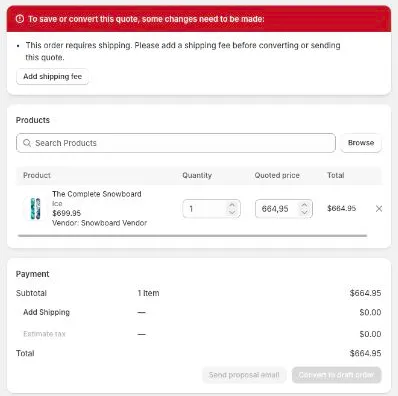
You cannot convert or send the quote until it has a shipping fee. The app shows “This order requires shipping. Please add a shipping fee before converting or sending this quote.” Click Add shipping fee on the quote to add one.
-
If your store has no shipping rate configured, the app tells you to set up a shipping zone in Shopify, or to mark the order as not requiring shipping.
-
Proposal emails sent while the quote has no shipping fee do not include the Approve quote button, so the buyer never approves a quote that cannot be converted. See Approve or Reject Quotes.
3. Orders that do not need shipping
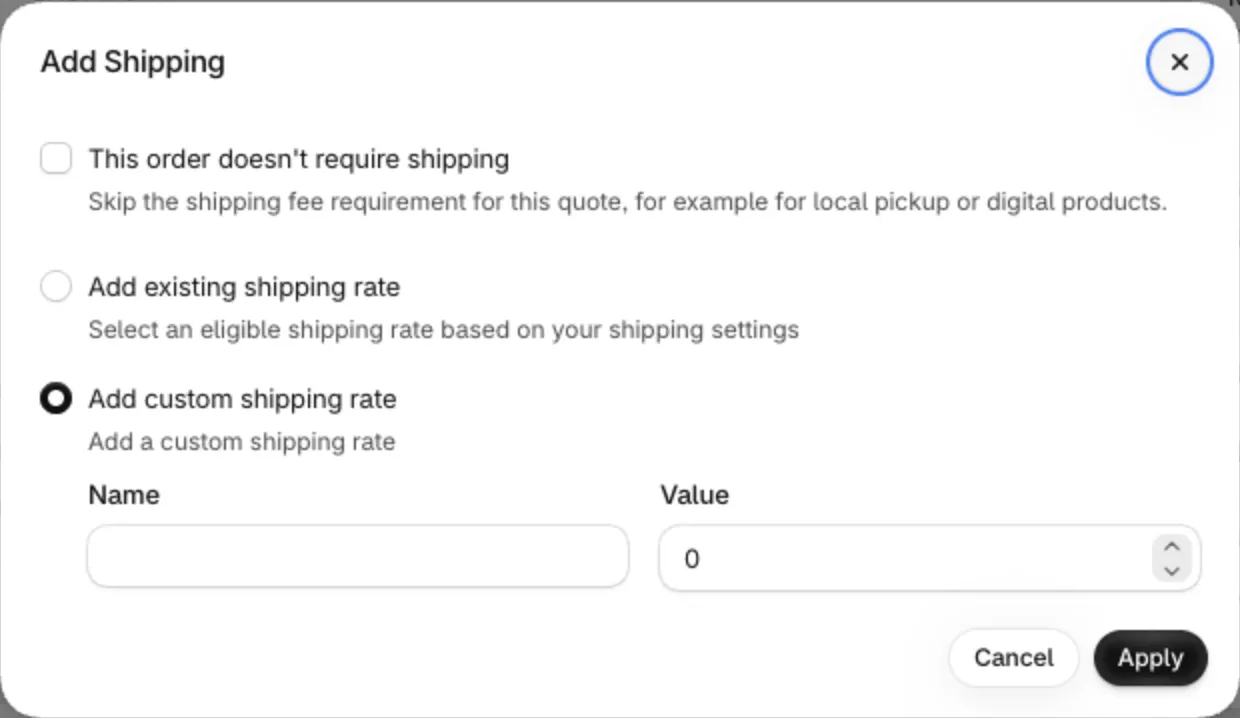
Section titled “3. Orders that do not need shipping”For local pickup, digital products or any other order without delivery, open the shipping fee on the quote and tick This order doesn’t require shipping. The quote can then be sent and converted without a shipping fee.