
Storefront Translation
Learn how to customize all customer-facing text and labels on your store’s Re-Order page using the Translation settings in your app admin.
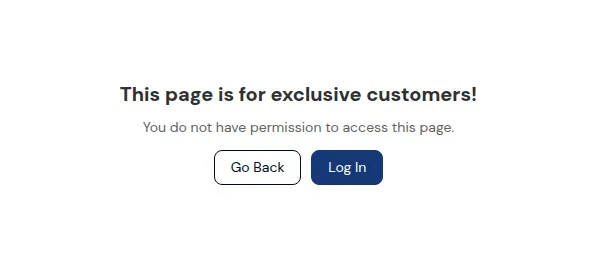
What your customers see on the storefront.
This guide explains how to translate text across all 6 storefront screens, customize button labels and warning alerts, use dynamic smart placeholders, and preview text changes in real time.
1. Overview & Where to Find Translation Settings
Section titled “1. Overview & Where to Find Translation Settings”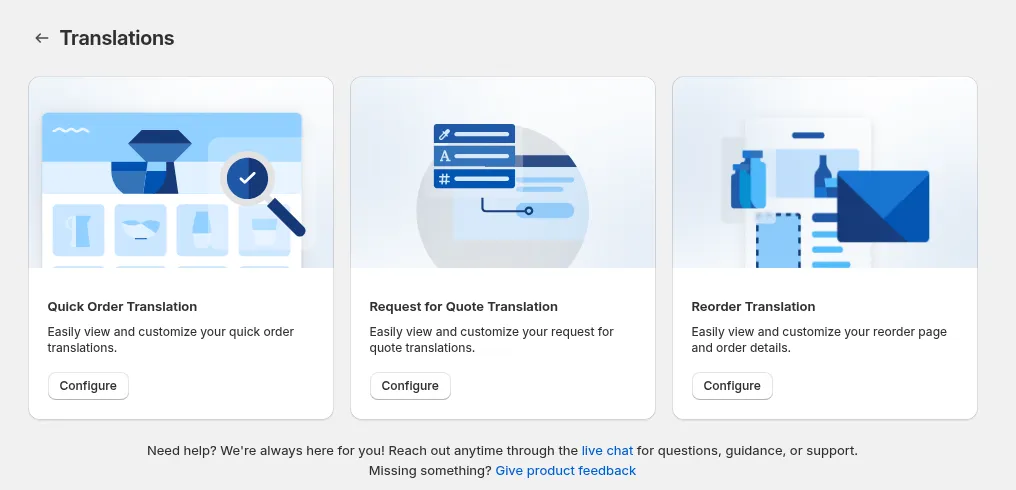
The Translation editor allows you to replace default English labels with your own customized brand copy or translate the storefront interface into your store’s primary language.
To access the Translation settings in your admin:
-
In Shopify Admin, open BSS B2B Quote.
-
In the left navigation, click Reorder.
-
Click the Translation tab at the top of the screen.
-
In the app, open Reorder > Translation.
-
Pick one of the 6 view tabs.
-
Edit the texts and placeholders.
-
Check the live preview on the right.
-
Click Save to publish the translations.
2. Before You Begin
Section titled “2. Before You Begin”- Live Preview: The right side of the Translation editor displays a live preview of the currently selected screen.
- Saving Changes: Always click Save in the top-right corner to publish your text changes to your live storefront.
- Language Fallbacks: If you leave any field blank, the system automatically uses the default text.
3. The 6 Translation View Tabs
Section titled “3. The 6 Translation View Tabs”The Translation editor organizes user-facing copy into 6 distinct view tabs matching the customer journey:
3.1 Restricted Access Tab
Section titled “3.1 Restricted Access Tab”Controls the copy displayed when an unauthenticated visitor or excluded customer visits /pages/reorder:
- Title: Heading explaining why access is restricted (Default: Access Restricted).
- Description: Detailed explanation prompting the user to sign in.
- Login Button: CTA button redirecting to Shopify customer login.
- Go Back Button: Link returning the customer to the homepage.
3.2 Order List Tab
Section titled “3.2 Order List Tab”Controls labels and table headers on the main Order tab (/pages/reorder):
- Tab Label: Text for the tab selector (Default: Orders).
- Table Headers: Column labels for Order ID, Date, Line Items, Total Qty, Fulfillment Status, Financial Status, Actions.
- Action Buttons: Text for the reorder button (Reorder), and view details tooltip.
- Empty State: Message shown when a customer has no completed orders.
3.3 Waiting for Checkout Tab
Section titled “3.3 Waiting for Checkout Tab”Controls labels on the pending draft order list:
- Tab Label: Text for the draft order tab (Default: Waiting for Checkout).
- Status Badges: Text for draft order statuses:
Open,Invoice Sent, andCompleted. - Action Buttons: Text for Reorder, Checkout, and View Details.
- Empty State: Message shown when no pending draft orders exist.
3.4 Draft Order Detail Tab
Section titled “3.4 Draft Order Detail Tab”Controls labels on the dedicated draft order detail page:
- Headers & Subtitles: Labels for order summary, creation timestamp, and invoice status.
- Product Table Headers: Column labels for Item, Variant, SKU, Price, Quantity, Subtotal.
- Checkout Card: Labels for Subtotal, Estimated Tax, Shipping, Total, Pay Now / Checkout.
- Back Button: Label for returning to the order list.
3.5 Reorder Review & Edit Modal Tab
Section titled “3.5 Reorder Review & Edit Modal Tab”Controls text inside the line-item editing popup:
- Modal Header & Subtitle: Heading and guidance copy.
- Action Buttons: Labels for Add New Items, Place Order, Cancel, Continue Shopping.
- Stock & Validation Banners: Error alerts for out-of-stock items, min/max quantity limits, and pack size increments.
3.6 Search & Add Item Modal Tab
Section titled “3.6 Search & Add Item Modal Tab”Controls the search drawer used to add new products to a reorder:
- Search Input Placeholder: Guidance text inside the search bar (Default: Search by product title or SKU…).
- Results Table Headers: Labels for product thumbnails, variant selectors, prices, and quantities.
- Add Button: CTA button to add selected items to the review modal.
4. Smart Dynamic Placeholders
Section titled “4. Smart Dynamic Placeholders”Several text fields support smart placeholders that automatically fill in real customer data when displayed on your storefront:
| Smart Placeholder | What It Displays | Supported Text Fields | Real Example Input & Customer Display |
|---|---|---|---|
{order} |
Order Number / Draft Name | • Reorder Review Modal Subtitle | You Type: |
{count} |
Total item count in review modal | • Reorder Item Count Header | You Type: |
{email} |
Buyer account email address | • Draft Order Email Confirmation Banner | You Type: |
{min} |
Minimum allowed order quantity | • Minimum Quantity Error Banner | You Type: |
{increment} |
Required pack size multiple | • Pack Size / Increment Error Banner | You Type: |
{stock} |
Available warehouse stock | • Inventory Stock Limit Warning Banner | You Type: |
5. Instant Live Preview
Section titled “5. Instant Live Preview”The admin editor includes a Live Preview Panel on the right side of the screen so you can inspect text edits instantly before publishing:
- Real-Time Updates: As you type in any text box, the live preview updates immediately.
- Syncs with View Tabs: Clicking any of the 6 view tabs on the left automatically switches the live preview to show that specific screen.
- Safe Previewing: Buttons and links inside the live preview are disabled so you can test formatting safely without triggering actual orders.
6. Related Guides
Section titled “6. Related Guides”- Reorder Overview: High-level vision, customer scenarios, and feature summary.
- Full Setup Guide: Setup walkthrough for customer eligibility, delivery modes, and theme embeds.
- Reorder Page & Order Tabs: Storefront Order Tab, Waiting for Checkout Tab, and layout guide.
- Draft Order Detail Page: Inspecting pending draft order itemization, wholesale pricing, and checkout links.
- Reorder Review & Edit Modal: Guide to line-item quantity adjustments, stock checks, and search/add options.
- Template Customization: Customize page layout, colors, typography, and element visibility.