
Quick Order – FAQ
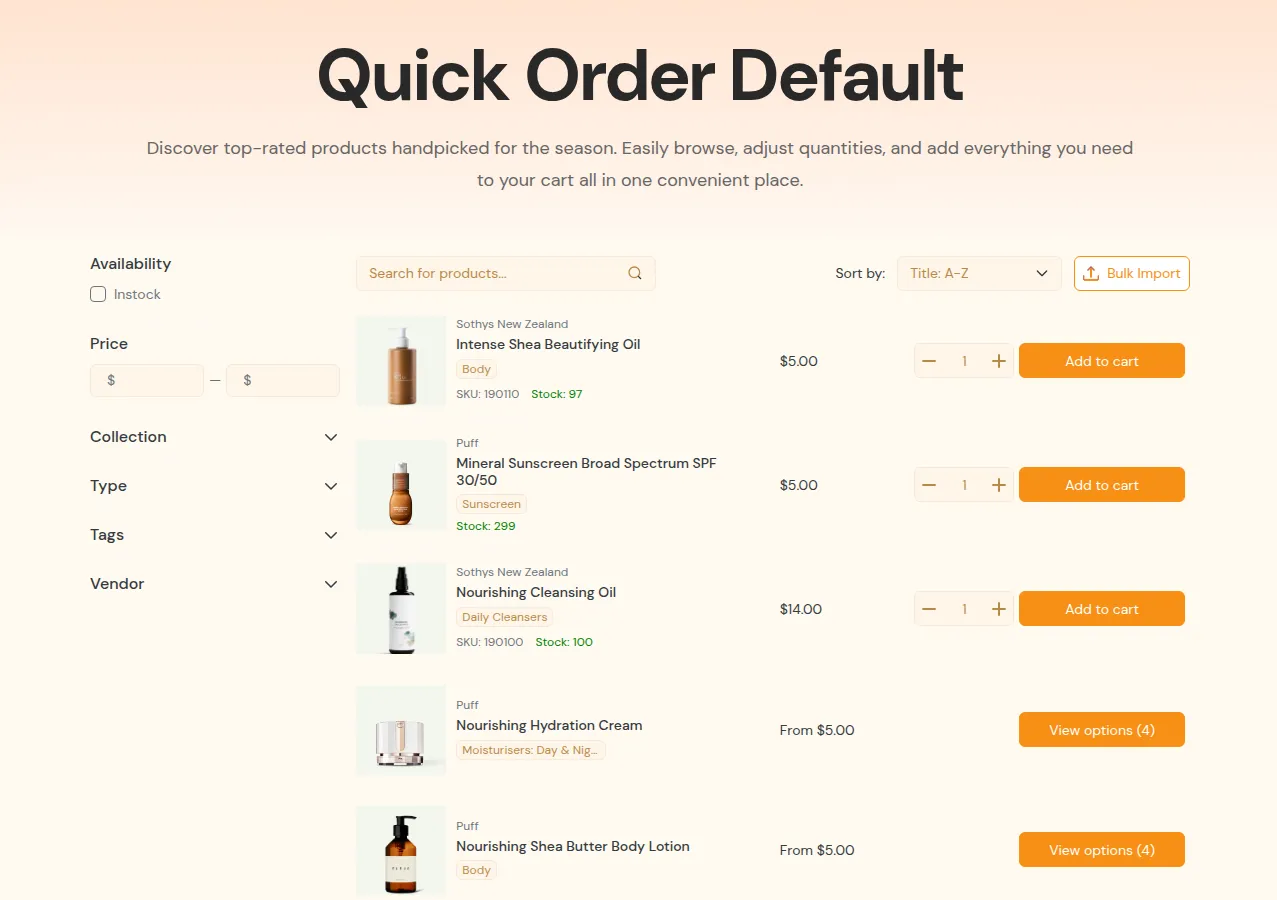
What your buyers see on the storefront.
This page covers Quick Order. For general questions, see the FAQ. For quotes, see the Quote FAQ.
Q1. My Quick Order page is created but I can’t find it on the storefront.
Section titled “Q1. My Quick Order page is created but I can’t find it on the storefront.”Quick Order pages are not added to your store navigation automatically.
Check:
- The page shows Published in the Quick Order list of the app. A page shows Unpublished if it was never published or if its Shopify page was deleted.
- You added a link to the page in Content > Menus in your Shopify admin, pointing to the Quick Order page URL. If you changed the page URL handle, update the link too.
- The app embed is on, and the Quick Order files are installed in your live theme (Quick Order > More > Quick Order settings > Theme installation).
- Any access rules (login or tags) are not blocking you.
- If you use a performance app or CDN, clear its cache after you change a URL.
See Quick Order Page Not Showing for the restricted message and the App Proxy check.
Q2. Quick Order page loads but shows no products.
Section titled “Q2. Quick Order page loads but shows no products.”Common causes:
- Which products are displayed is too narrow or misconfigured, or Exclude products removes them.
- The page uses Specific products, Product collections or Product tags, and its saved product list is out of date. Open the page and click Sync products.
- The products are not active (draft and archived products stay hidden), or a company buyer’s catalog does not include them.
- Filters or search match nothing.
Fix:
- Edit the Quick Order page and temporarily set Which products are displayed to All products to test.
- Check that the products are active and available to the buyer.
- Reintroduce filters step by step.
See New products or a new collection do not appear.
Q3. Search is not finding some products or SKUs.
Section titled “Q3. Search is not finding some products or SKUs.”Check:
- Search bar is on in the page’s Filter & search bar settings. It searches the product title, SKU and barcode.
- The SKU is actually set on the product or variant in Shopify.
- The product is inside the page’s product list. On a page with a saved product list, a product you added in Shopify only appears after you Sync products.
- Filters or access rules are not excluding those products.
If specific SKUs never show:
- Confirm they are within the product scope of that Quick Order page.
- Test by temporarily removing filters to see if they appear.
Q4. How does inventory display work on Quick Order?
Section titled “Q4. How does inventory display work on Quick Order?”Depending on your configuration:
- You can show or hide the Inventory column of the product list.
- In the page’s Customize panel, Hide out-of-stock products keeps out-of-stock products off the page. It is off by default.
- When a buyer imports a file with out-of-stock variants, they are left out of the cart list and shown in a Some items were removed pop-up. Out-of-stock variants can still be added to a quote.
If inventory looks incorrect:
- Confirm inventory is correct in Shopify first. Buyers see inventory changes after they reload the page.
- Check if any third-party inventory or pre-order apps are modifying stock behavior.
Q5. CSV upload fails or imports fewer items than expected.
Section titled “Q5. CSV upload fails or imports fewer items than expected.”Common issues:
- The file has no recognised SKU column or quantity column.
- The file is not a
.csv,.xlsxor.xlsfile, is larger than 2 MB, has more than 1,000 rows, or has more than 250 different SKUs. - Some SKUs do not exist or don’t belong to the product scope of the page.
- Quantities are invalid (negative, zero, or too large).
Fix:
- Make sure the file has a SKU column and a quantity column (see accepted header names in CSV Upload). Use Download Example File as a guide.
- For a CSV file, save it as UTF-8.
- Split a large file into smaller files.
- Correct invalid rows and re-upload. Rows that cannot be imported are skipped and listed, the other rows are kept.