
Quick Order Page Not Showing
Use this page when a Quick Order page does not load, shows the wrong customers a restricted message, or shows no products.
The page shows “This page is for exclusive customers!”
Section titled “The page shows “This page is for exclusive customers!””This message means the page loaded correctly, but the visitor is not allowed to see it. The visitor sees “Please login or contact store owner to access the page.” with the buttons Go back and Log in.
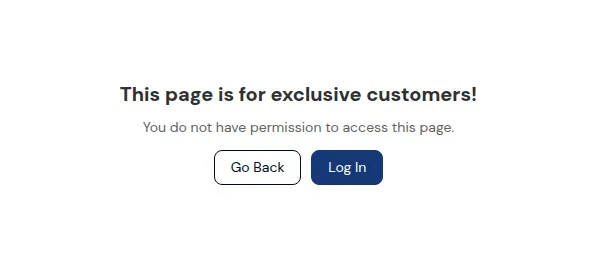
Check these in order:
- Customer type. A page created for Default Customers is never shown to a customer who is signed in and buying for a company (Shopify B2B). A page created for Company Customers is only shown to signed-in company customers. Test with the right kind of account.
- Who will see the page? Open the page, tab Set Up Quick Order Visibility > Visibility:
- All customers includes guests.
- Logged-in customers, Specific customers and Customer tags need the visitor to sign in first. Tags are not case-sensitive.
- Exclude customers. An exclusion always wins, even if the customer also matches the visibility rule.
You can change the message text in Translations > Quick Order Translation, section “When customer can’t view page:”.
The page URL shows an empty page
Section titled “The page URL shows an empty page”Quick Order pages need two things: the app embed, and the Quick Order files in your theme.
- App embed. In the app’s home page, App Status must show App Embed as Enabled. See Enable the App Embed.
- Theme files. When you publish a page, the app adds its files to the theme that is live at that moment. If you later switch to another theme, the new theme does not have them. Go to Quick Order > Advanced Settings > Manage settings > Theme installation, pick your live theme and click Install. See Install Quick Order on a Theme.
- Published. In Manage Quick Order Pages, the page must show Published. A page shows Unpublished if it was never published or if its Shopify page was deleted. Open it and publish it again.
The page shows “No product found” or products are missing
Section titled “The page shows “No product found” or products are missing”- Product scope. Check Which products will be displayed? and Exclude products on the Visibility sub-tab.
- Product list out of date. For pages that use Specific products, Product collections or Product tags, the app keeps a saved product list. After you add products to a collection or change tags in Shopify, open the page and click Sync products, or use Sync products for all pages on the page list (Business plan or higher). If the editor says “No products available. Please save or press Sync products button to update the latest product list.”, save the page or sync it.
- Filters and search. If the customer used a filter or search with no results, the page shows the “no products” message. The text is in Quick Order Translation, section “When there is no products that match filter and search conditions:”.
The universal link sends customers to the wrong page
Section titled “The universal link sends customers to the wrong page”With the universal link (Advanced Settings > Universal link):
- No, show only one eligible page to each customer shows the customer’s oldest eligible page at the universal URL.
- Yes, show all eligible pages to each customer shows a landing page with every page the customer can open. If only one page is eligible, the customer goes straight there. If none are eligible, the customer sees the No Page Found message.
Only published pages are considered. If a customer lands on a page and then sees the restricted message, check that page’s Exclude customers setting and the customer type rules above.
I cannot create another page
Section titled “I cannot create another page”The number of Quick Order pages depends on your plan: 5 on Growth, unlimited on Business and Enterprise. At the limit, Create new page and Duplicate are disabled, and the page list asks you to upgrade your plan to create more pages.
Company Customers pages need the Enterprise plan.
Related pages
Section titled “Related pages”- Create Quick Order Page
- Create Universal Page
- Install Quick Order on a Theme