
Add a Request a Quote Button to Your Shopify Store
A Request a Quote button lets buyers ask for a price instead of (or next to) adding to cart. Here is how to put it on your Shopify store with BSS B2B Quote. It takes about 10 minutes and needs no code.
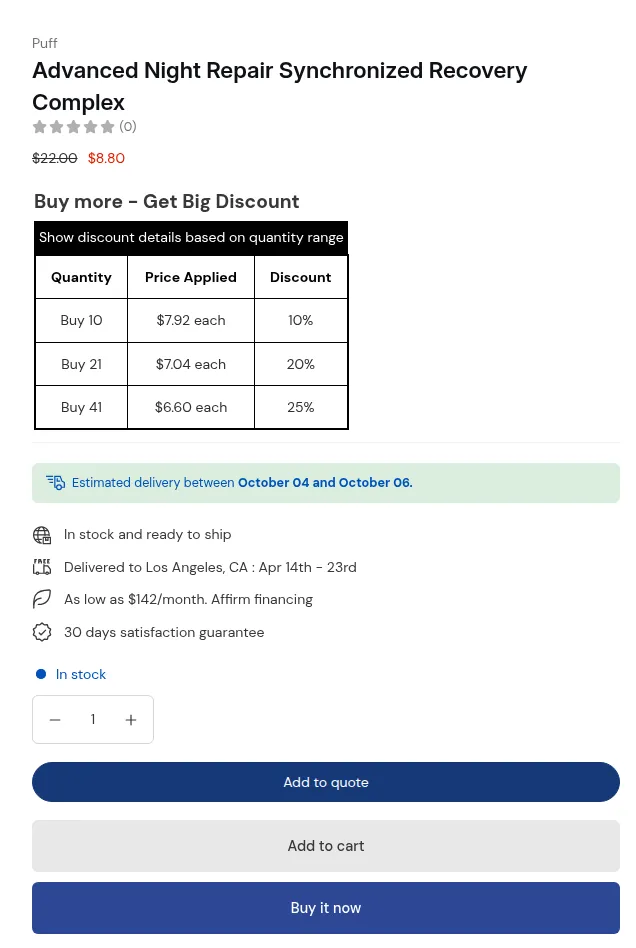
What your customers see on the storefront.
- Install the app from the Shopify App Store and open it.
- Turn on the app embed. On the app Home, the Needs your attention card shows when the app embed is off. Turn on the B2B Portal app embed in your theme editor, and save. See Install and enable app embeds.
- Create a quote logic. Go to Settings → Quote logic. The quickest way is Start from a template and Quote for all products. See Quote Logic.
- Choose who and what. In the logic, choose who can request a quote (all customers, logged-in customers, customer tags, B2B companies) and which products or collections it covers.
- Choose the pages. Show the button on product pages, and on collection and cart pages if you want. Some pages need the Business plan. See Pricing Plan & Details.
- Make the form yours. Change the button text and colour, the form fields and the confirmation text. See Customize Quote Form.
- Check the storefront. Open a product page in a private window. If the button is missing, run Help → Nothing shows on your storefront? → See what to check.
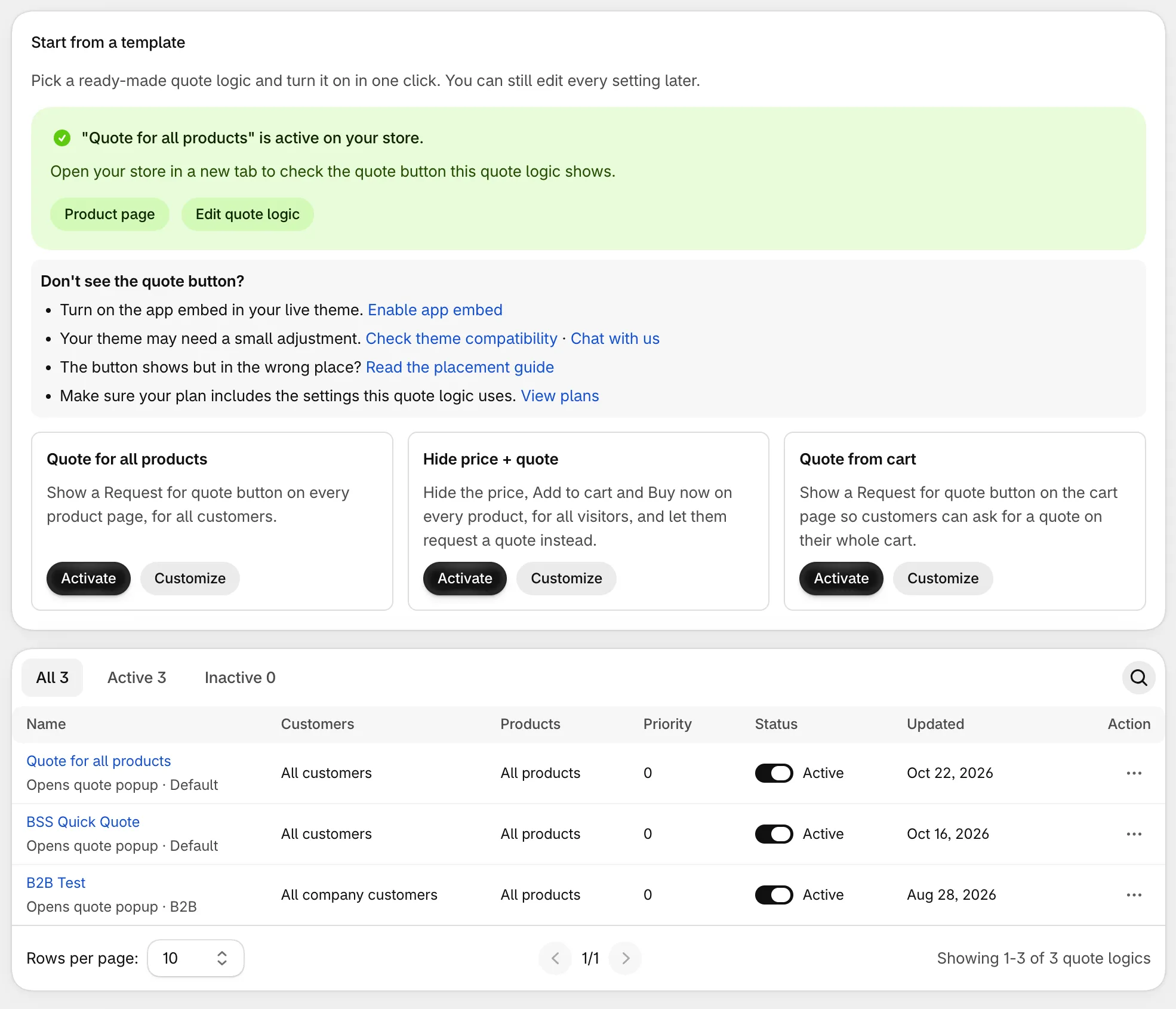
If the button is in the wrong place
Section titled “If the button is in the wrong place”Open Settings → Button placement and set a position for the page. See Button Placement and Themes.
Receive and answer the requests
Section titled “Receive and answer the requests”New requests appear under Quotes, and you get an email notification. Open a request, adjust prices, then send the quote. When the buyer approves it, convert it to a draft order. See Quote Request Management and Quote Emails: Sender and Deliverability.