
Key Concepts & Terminology
This page explains the words you see in the app and in this documentation. Once you know them, setting up quotes feels much more natural. The quote words come first. The ordering tools (Quick Order, Reorder, Sales agents) are at the end.
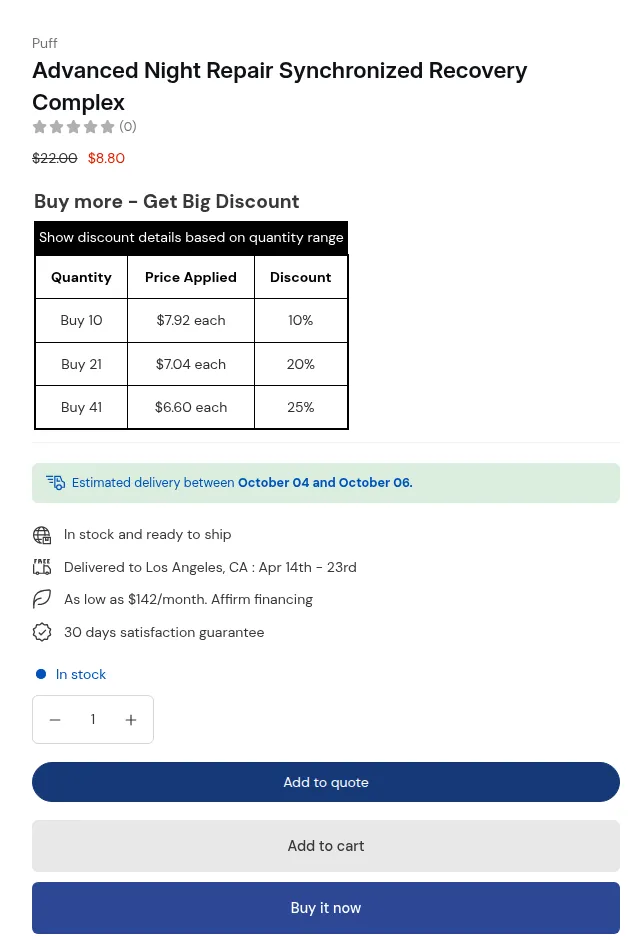
What your buyers see on the storefront.
1. Quote and Request a Quote
Section titled “1. Quote and Request a Quote”A quote is a request for a price from a buyer. The buyer clicks Request a Quote (or Add to quote) on your storefront, builds a list of products and quantities, and sends the quote form. You can also create a quote yourself in the admin.
Every quote appears in Quotes in the app. There you edit prices and items, send a proposal, and convert the quote to a Shopify draft order. See Quote request management.
2. Buyer
Section titled “2. Buyer”A buyer is the person who shops on your storefront and asks for a quote. A buyer can be a guest, a logged-in customer, or a contact of a company in Shopify B2B. The app uses the word customer only where Shopify or an app label does.
3. Quote logic
Section titled “3. Quote logic”A quote logic is the rule that controls where and how the quote option appears on your storefront. Instead of turning quotes on everywhere, you create one or more quote logics. Each one defines:
- Who can request a quote.
- Where (which products) they can request it.
- What happens to prices and buttons when the quote logic applies.
You find them in Settings > Quote logic.
3.1. Main elements of a quote logic
Section titled “3.1. Main elements of a quote logic”- Name, Status and Priority
- Name: an internal label so you recognize the quote logic (for example “All B2B quote” or “High-value products, hide price”).
- Priority: decides which quote logic wins when several match. Enter a number from 0 to 99. 0 is the highest priority.
- Quote visibility (who)
- Customer type: Default customers or Company customers (see section 6).
- Who can request a quote: all customers, logged-in customers, specific customers, customer tags, or companies. You can also exclude customers.
- Quote catalogs (where)
- A quote catalog is a set of products that can be quoted. You choose the products inside the quote logic.
- Price and button behavior (what)
- Keep the price visible and add a quote button next to Add to cart.
- Hide the price and show a quote button instead.
- Keep or hide the Add to cart button.
- Change the button text, for example “Get a quote” or “Request special pricing”.
- Quote form
- The fields buyers fill in: name, email, company, phone, address, notes and more. You choose which fields are visible and required.
3.2. How quote logics are applied
Section titled “3.2. How quote logics are applied”- When a buyer views a product, the app checks your active quote logics.
- It checks them in order of priority, matching the buyer and the product.
- The first quote logic that matches is applied.
Best practices:
- Use clear names and numbers, for example “01 - Global B2B quote” and “10 - VIP quote with special handling”.
- Start with one simple quote logic, check it on your store, then add more specific ones.
See Quote logic.
4. Quote status
Section titled “4. Quote status”Every quote has one status: Unread, Under review, Accepted, Converted or Rejected. Accepted only appears when you turn on Wait for payment before converting. Proposal sent and Expired are badges shown next to the status.
In the Quotes list, a stage (New, In review, Waiting on buyer, Accepted, Ordered, Lost, Expired) gives a plain-language view of where each deal is. See Quote statuses and lifecycle.
5. Proposal and counter-offer
Section titled “5. Proposal and counter-offer”A proposal is the quote you send back to the buyer with your prices, usually as an email with a PDF. The buyer can approve or decline it. When the buyer approves, the quote moves on to a Shopify draft order.
A counter-offer is a different price that the buyer proposes on your proposal. You see the buyer’s price on the quote, and you accept it or answer with your own. You and the buyer can also exchange messages on the quote. See Messages and counter-offers.
6. Default customers and company customers
Section titled “6. Default customers and company customers”When you create a quote logic, you choose a Customer type:
- Default customers: your standard storefront customers (B2C, or B2B through tags and logins). Prices are the ones you already have: regular prices, discounts and prices from other apps.
- Company customers: buyers who log in as a contact of a Shopify B2B company. Prices follow the catalogs and rules of their company and location.
The customer type can’t be changed after the quote logic is saved. Company customers needs the Enterprise plan of BSS B2B Quote. On other plans the option is greyed out with an upgrade link.
Because each quote logic has its own type, you can give general customers one quote experience and company buyers another.
7. Company and location (Shopify B2B)
Section titled “7. Company and location (Shopify B2B)”These words come from Shopify B2B. They matter when you want the app to follow your Shopify B2B setup.
- A company is one business customer, your B2B client. A company can have several locations and several contacts (the people who log in and place orders).
- A location is a branch or site of a company, for example “Head Office” or “Warehouse - East”. Each location can have its own shipping address, catalog and payment terms.
With company customers, you can aim a quote logic at specific companies or locations. For example, company A sees fixed catalog prices and no quote option, and one location of company B can request quotes for large orders. See Shopify B2B companies and locations.
8. Margin and price approval
Section titled “8. Margin and price approval”Margin is what is left of a quote line’s price after your product cost. On a quote, you see the cost and the margin of each line and the total margin. The cost comes from the product cost you entered in Shopify. Only your team sees margin. It is never sent to the buyer.
Price approval holds a proposal until an approver says yes. In Settings > Price approval you set a Minimum margin and a Maximum discount. A proposal below the minimum margin, or with a bigger discount than the maximum, waits in Waiting for approval, and nothing is sent to the buyer. Approvers are members of your team: add them in Settings > Team members first. See Price approval and View and edit a quote.
9. Test quote and storefront check
Section titled “9. Test quote and storefront check”A test quote is a quote you send from Preview on my store. It shows a Test badge in Quotes, it is not counted in Insights, and the buyer gets no email. The Storefront check looks at your live theme and tells you why the quote button does not show. See the Quick start and the Help center.
10. Ordering tools
Section titled “10. Ordering tools”BSS B2B Quote also has ordering tools for buyers who already know what they want.
10.1. Quick Order page
Section titled “10.1. Quick Order page”A Quick Order page is a dedicated bulk-order page with its own settings:
- Products: you decide which products appear: All products, Specific products, Product collections or Product tags.
- Audience: who can see the page: All customers, Logged-in customers, Specific customers or Customer tags. Pages for company customers target a Shopify B2B market or selected locations of one company.
- Layout: choose columns such as image, SKU, variant, price, stock, quantity and subtotal, and turn search, filters and pagination on or off.
You can create several Quick Order pages for different buyer groups or product lines, for example “Wholesale Essentials”, “Spare Parts” or “VIP Dealer Quick Order”. See Quick Order overview.
10.2. Universal page
Section titled “10.2. Universal page”A Universal page is one entry link for all your Quick Order pages. Instead of listing products, it sends each buyer to the Quick Order pages they are allowed to see. Depending on your setting, it lists every Quick Order page the buyer can use, or opens one of them right away. It gives you one permanent link, for example for your main menu, so you don’t share different links with different buyer groups.
Use several Quick Order pages when groups of buyers need different products or prices. Use a Universal page when you want one “Order now” link that works for every buyer. You can use both. See Create a Universal page.
10.3. Reorder
Section titled “10.3. Reorder”Reorder is a self-service page where logged-in buyers see their Past orders and buy them again in one click, and see draft orders Waiting for checkout. See Reorder.
10.4. Sales agent
Section titled “10.4. Sales agent”A sales agent is a member of your own sales team who orders on behalf of retailers. The agent opens the Quick Order page, picks a retailer and builds an order at that retailer’s prices. The order is created as a Shopify draft order. Sales agents are available on the Business and Enterprise plans. See Sales agents.
With these words you have the vocabulary for the rest of the setup. Continue with the Quick start or the Request for Quote Full Setup Guide.