
Using with Shopify Plus B2B (Companies & Locations)
This app works standalone, but it’s designed to fit into a bigger B2B setup:
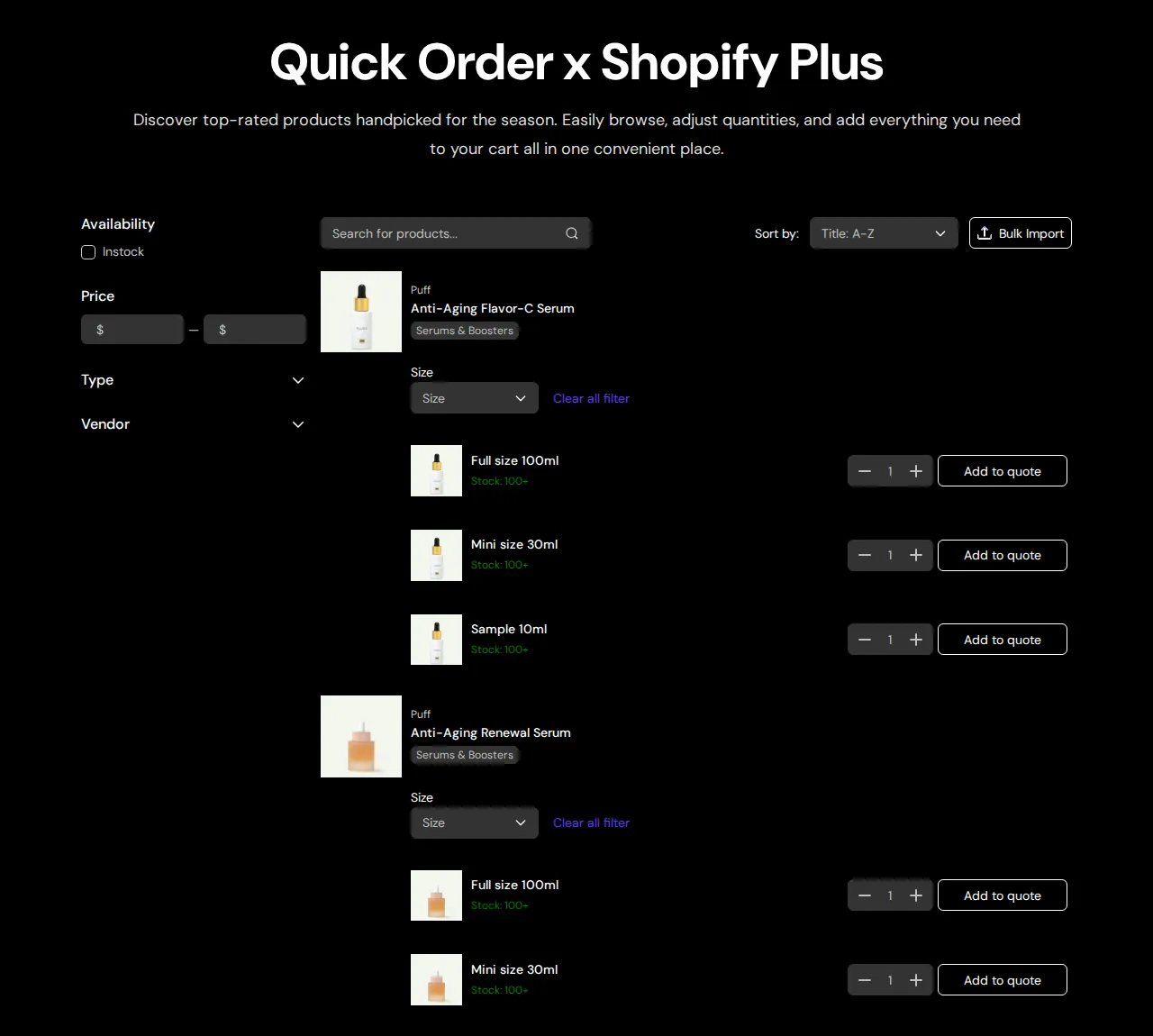
What your customers see on the storefront.
- Shopify Plus with Shopify B2B (Companies & Locations)
- BSS B2B Solution (custom pricing, volume pricing)
- BSS B2B Lock (access control, hide price, lock pages)
The goal is simple: one consistent B2B experience, from catalog pricing to Quick Order and Request for Quote (RFQ).
If you are on Shopify Plus and use Shopify B2B, you can run the app in two contexts:
- Default Store – your normal storefront
- B2B Store – your Shopify B2B store using Companies & Locations
You’ll see Store Type options in places like:
- Quick Order Page creation
- Quote Logic (Quote Rules)
1. Requirements
Section titled “1. Requirements”- Shopify Plus plan
- Shopify B2B enabled with:
- Companies (your B2B customers)
- Locations (branches, warehouses, stores)
- Catalogs (price lists assigned to Companies/Locations)
2. How it works with Company & Location
Section titled “2. How it works with Company & Location”When a Company contact logs in to your B2B Store:
- Shopify sets their Company and Location context.
- The app reads that context and:
- Pulls prices from the catalog assigned to that Location.
- Displays those prices in Quick Order pages.
- Uses the same prices as the base when generating quotes.
This means:
- One Company can have multiple Locations with different prices.
- The same Quick Order Page will show different prices depending on which Location the user is ordering for.
3. Separate setup by Store Type
Section titled “3. Separate setup by Store Type”You can keep configurations separate:
- Default Store
- Use tags, simple rules, and standard pricing.
- Good for hybrid B2C/B2B or pre-B2B setups.
- B2B Store
- Use Company/Location-based Quote Logic and Quick Order Pages.
- Rely on Shopify B2B catalogs for base prices.
This separation avoids conflicts and lets you evolve your B2B stack gradually.
4. Syncing Catalog Pricing into Quick Order & RFQ
Section titled “4. Syncing Catalog Pricing into Quick Order & RFQ”When integrated with Shopify Plus + Shopify B2B, the app can display catalog pricing in Quick Order and RFQ flows.
4.1 Catalog pricing in Quick Order
Section titled “4.1 Catalog pricing in Quick Order”For B2B Store sessions, Quick Order:
- Shows the unit price taken from the assigned Shopify catalog.
- Can reflect volume / quantity rules that come from your B2B pricing setup (e.g. different prices based on quantity breaks).
- Keeps prices consistent with what the buyer would see on normal product pages.
Result:
- Buyers always see the correct negotiated price per Company/Location.
- Sales and support teams don’t need to maintain separate price lists inside the app.
4.2 Catalog pricing in RFQ
Section titled “4.2 Catalog pricing in RFQ”When a customer requests a quote:
- The starting price for each item is taken from the catalog price.
- You can then override this per line in the Quote Details screen to offer:
- Extra discounts
- Special project pricing
- Custom bundles
This keeps:
- Shopify B2B catalogs as the baseline source of truth
- The app as the negotiation layer on top (Quick Order + RFQ + Draft Order)
4.3 Recommended workflow
Section titled “4.3 Recommended workflow”- Configure companies, locations and catalogs in Shopify B2B.
- Set Quick Order pages and Quote Logic in B2B Store mode.
- Test as a Company contact to confirm:
- Correct prices appear in Quick Order.
- RFQ uses those prices as the base.
- Use quote discounts only when you need to go beyond catalog pricing.