
Markets and Currencies
If your store sells in more than one currency through Shopify Markets, buyers can browse and request a quote while prices are shown in their local currency. This page explains which currency the quote ends up in.
How it works
Section titled “How it works”- A buyer browses your store in a market currency, for example EUR, and adds products to the quote request.
- The quote request is sent with the prices the buyer saw.
- The app saves the quote in the currency the buyer saw, when it is a currency your store sells in. Otherwise it saves the quote in your store’s base currency.
- The draft order created from the quote uses the same currency as the quote.
A quote is always in one currency only. Line items, shipping and totals are never mixed between two currencies.
When a quote falls back to the base currency
Section titled “When a quote falls back to the base currency”The app keeps the quote in your store’s base currency when it cannot confirm the buyer’s prices in the other currency. For example:
- The buyer’s currency is not enabled for your store in Shopify Markets.
- The line items of the request do not match the prices sent with it, or one of the prices is not valid.
- The currency of the request is missing or unknown.
In these cases the quote is still created, just in the base currency, so no request is lost.
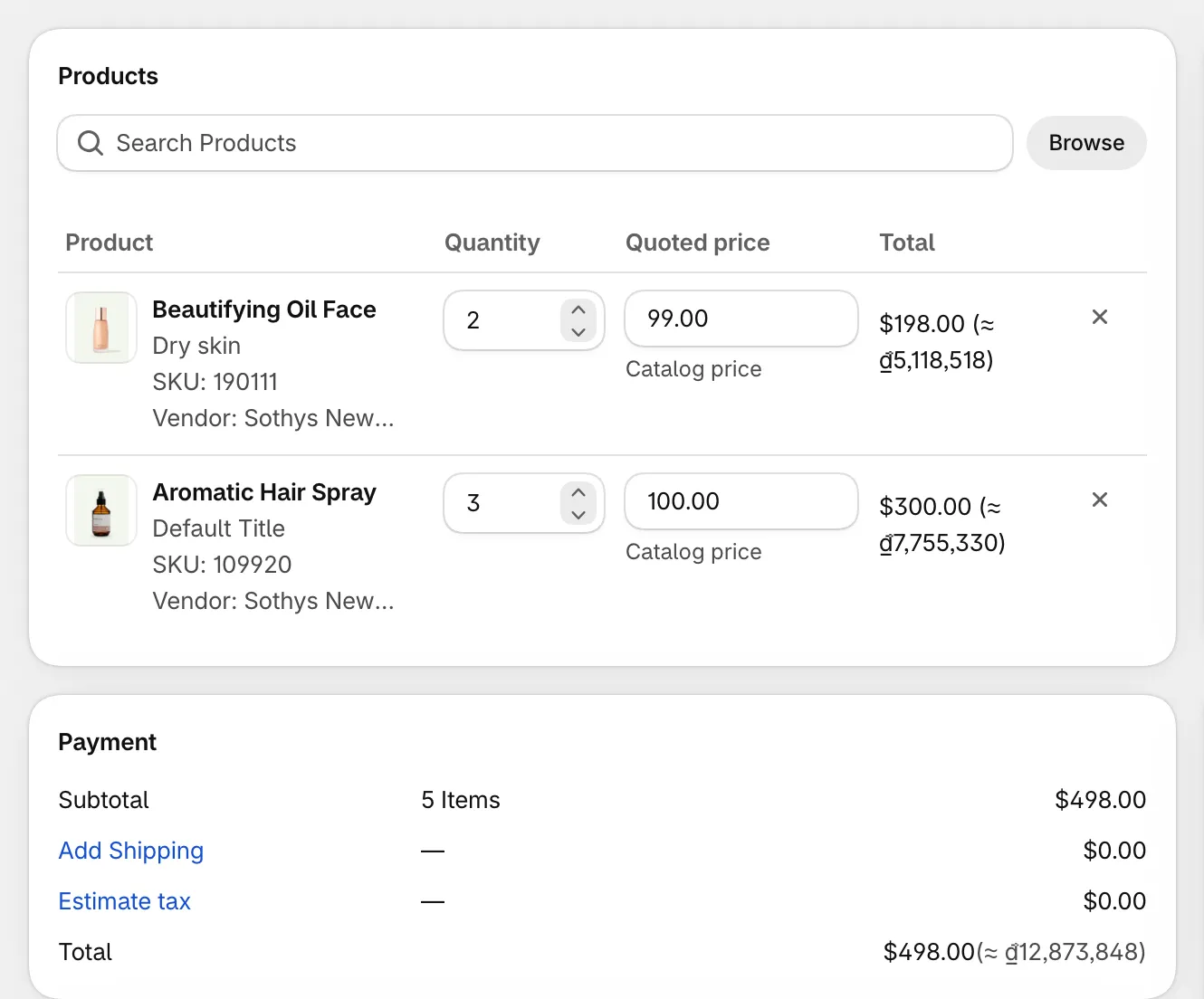
Where the currency shows up
Section titled “Where the currency shows up”| Place | What you see |
|---|---|
| Quote emails | Amounts in the quote’s currency, when it is not your base currency |
| Draft order in Shopify | Created in the quote’s currency |
| Quote CSV export | A Currency column, one value per quote |
| Metrics | Money totals are never added across currencies |
Set up
Section titled “Set up”- In Shopify admin, open Settings → Markets and enable the currencies you sell in.
- Send a test quote from the storefront with the market currency selected, then check the Currency column in the quote CSV export, or the draft order in Shopify.