
Reorder Review & Edit Modal
Learn how your customers review previous order items, change quantities, add new products, check stock, and place repeat orders using the Reorder Review & Edit Modal.
This guide explains the entire customer experience: from reviewing items and adding products to placing the order and receiving a checkout link or email invoice.
1. Overview & How It Helps Your Store
Section titled “1. Overview & How It Helps Your Store”The Reorder Review & Edit Modal is the popup window that opens when a customer clicks Reorder on your store (/pages/reorder).
Instead of making customers search for items again and rebuild their cart item by item, this window automatically opens with their previous order items pre-filled at your store’s current prices. Customers can easily change quantities, remove items they don’t need, or search and add new products before placing their order.
- The customer clicks Reorder and the Review & Edit modal opens.
- They change quantities, or search and add new products.
- They click Place Order. The app checks quantity rules and stock.
- If something is wrong, the modal shows the problem; the customer adjusts the quantity or removes the item and tries again.
- When everything is valid, the order is placed and the customer gets the checkout link or the invoice email.
2. Before You Begin
Section titled “2. Before You Begin”To make sure your customers can use the Reorder Review & Edit Modal, verify these settings in your Shopify store:
- Re-Order Page is Published: Make sure your Re-Order page status is set to Published under Reorder > Reorder Settings.
- App Embed is Active: Ensure the B2B Portal app embed is turned on in your Shopify theme editor.
- Checkout Link Visibility: Choose how customers complete payment (Instant checkout link, Email invoice, or Both) under Delivery Modes.
- Customer Login: Customers must log into their customer account on your store so the app can display their correct pricing and order history.
3. UI Layout & Callouts
Section titled “3. UI Layout & Callouts”Review and Reorder Modal Interface
Section titled “Review and Reorder Modal Interface”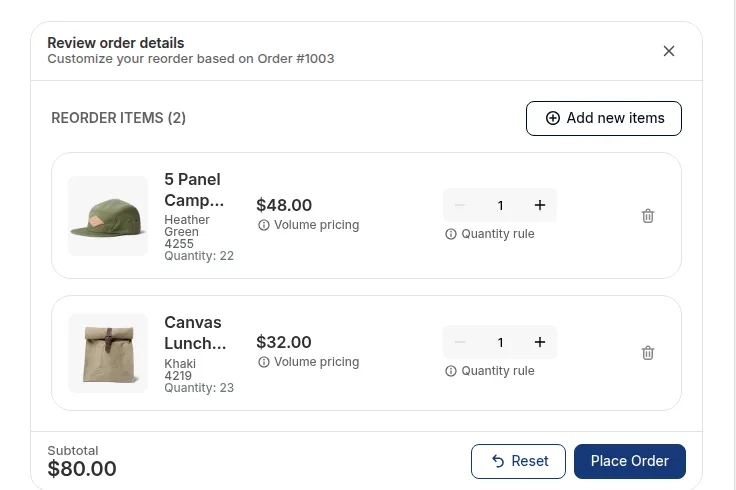
- Modal Header: Displays the order reference (e.g. Reorder Items from Order #1001).
- Add New Items Button: A
[+ Add new items]button that opens a product search bar so buyers can search your store catalog by product name, variant, or SKU. - Line Items List: Shows product photos, names, SKUs, line total prices (
Unit Price × Quantity), quantity adjusters (-/+), and trash icons to remove items. - Order Summary: Displays the recalculated subtotal in the customer’s active currency.
- Action Buttons: Includes the main Place Order button, a Reset button to restore original quantities, and a Cancel button.
Unavailable Items Notice (When Needed)
Section titled “Unavailable Items Notice (When Needed)”If a previous order contains products that you have deleted, archived, or marked out of stock, a gentle warning window appears first:
[Cancel]: Closes the window without changing anything.[Continue]: Automatically removes unavailable items and opens the main reorder window with the remaining available products.
4. Step-by-Step Customer Journey
Section titled “4. Step-by-Step Customer Journey”Step 1: Reviewing Line Items & Adjusting Quantities
Section titled “Step 1: Reviewing Line Items & Adjusting Quantities”When a customer clicks Reorder, the window opens with their previous order items already pre-loaded.
1. Price Display & Wholesale Pricing
Section titled “1. Price Display & Wholesale Pricing”- Line Total Price: Each product row clearly displays the total price for that line (
Unit Price × Quantity), updating instantly whenever the customer changes quantities. - B2B & Quantity Discounts: If you offer wholesale contract pricing or volume discounts, prices adjust automatically based on the quantity selected.
- Multi-Currency Support: Prices automatically display in the customer’s selected store currency.
2. Quantity Rules & Limits
Section titled “2. Quantity Rules & Limits”The quantity box automatically enforces your store limits:
- Minimum Quantity: Customers cannot lower quantities below your minimum order requirement (default is 1).
- Maximum Quantity: Quantities cannot exceed your maximum allowed order limit.
- Pack Size Multiples: If products are sold in specific pack sizes (e.g., packs of 10), quantity inputs only accept valid multiples (10, 20, 30).
3. Stock & Inventory Limits
Section titled “3. Stock & Inventory Limits”- If Backordering is Disabled: Quantity choices are capped at your actual warehouse stock so customers cannot order more than you have available.
- If Backordering is Enabled: Customers can order beyond on-hand inventory according to your Shopify settings.
4. Removing Unwanted Items
Section titled “4. Removing Unwanted Items”Customers can click the trash icon on any item row to remove products they don’t want to reorder. The order subtotal updates immediately.
5. Placing the Order & Error Protection
Section titled “5. Placing the Order & Error Protection”The Place Order button automatically prevents invalid submissions:
- It stays disabled if any quantity violates your minimum, maximum, or pack size rules, or if all items are removed.
- It re-enables as soon as errors are corrected and at least one item remains.
Optional Feature: Searching & Adding New Products
Section titled “Optional Feature: Searching & Adding New Products”Customers can easily add extra products to their repeat order by searching your store catalog directly inside the window.
-
Search by product title, variant or SKU.
-
Select a product from the results.
-
The item is added to the reorder list and a confirmation appears.
-
Search Bar: Customers type a product name, variant, or SKU number in the search box.
-
Instant Search Results: Matching products appear in a dropdown list with photos, titles, SKUs, and prices.
-
Add to Order: Clicking a product adds it to their reorder list with a confirmation message (“Product added successfully”).
Step 2: Stock Check When Placing Order
Section titled “Step 2: Stock Check When Placing Order”To protect your store from overselling, the app re-checks your inventory the moment the customer clicks Place Order.
-
The customer clicks Place Order and the app checks stock.
-
If an item is out of stock, a message shows how many are available; the customer lowers the quantity or removes the item and clicks Place Order again.
-
If stock is available, the order is created.
-
Live Stock Re-Check: Before creating the order in Shopify, the app verifies that all requested items are still in stock.
-
Out of Stock Warning: If an item sold out while the window was open, a clear error message appears at the top showing the available stock limit.
-
Easy Fix: The customer simply adjusts the quantity to match available stock or removes the item, then clicks Place Order again.
-
No Double Submissions: The button enters a loading state upon click to prevent accidental double-clicks.
Step 3: Creating the Shopify Order
Section titled “Step 3: Creating the Shopify Order”Once the order details are validated, the app automatically creates a new draft order in your Shopify admin:
- B2B Wholesale Accounts: Company location rules, tax exemptions, and wholesale contract pricing apply automatically.
- Retail Accounts: Standard retail pricing and active store promotions apply.
- Shopping Cart Safe: The order is created directly in Shopify without touching or clearing items in the customer’s regular shopping cart.
Step 4: Order Completion & Next Steps
Section titled “Step 4: Order Completion & Next Steps”After the order is created, a confirmation window guides your customer on how to finish payment based on your chosen Delivery Mode:
After the order is created, the Checkout Link Visibility setting decides what the customer gets:
- Display Checkout Link on storefront: a checkout link to pay right away.
- Send Checkout Link through email: an invoice email with payment instructions.
- Both: the link on screen and the invoice email.
Mode 1: Return Checkout Link
Section titled “Mode 1: Return Checkout Link”- Displays a direct link to Shopify Checkout.
- Includes a Copy Link button so customers can copy the link or click to complete payment immediately.
Mode 2: Email Invoice Sent
Section titled “Mode 2: Email Invoice Sent”- Sends an automated Shopify invoice email to the customer’s email address.
- Displays a friendly message: “Your order request has been received! An invoice with payment instructions has been sent to your email.”
Mode 3: Both Options
Section titled “Mode 3: Both Options”- Displays the direct Checkout Link while also sending the invoice email, giving customers total flexibility.
5. Key Rules & Summary
Section titled “5. Key Rules & Summary”| Customer Scenario | What Happens | How It Protects Your Store |
|---|---|---|
| Past Items Out of Stock or Deleted | Notice lists unavailable items; clicking Continue proceeds with active items. | Prevents ordering deleted or unavailable items |
| All Past Items Unavailable | Reorder window states “No items available to reorder from this order.” | Clear guidance when no items can be reordered |
| Line Total Price Display | Displays total price for each line (Unit Price × Quantity), updating live. |
Clear pricing visibility for buyers |
| Quantity Min/Max Limits | Invalid quantities show a warning and disable Place Order until fixed. | Enforces store’s order quantity rules |
| Inventory Limits | If backorders are off, quantities cannot exceed available warehouse stock. | Prevents overselling out-of-stock inventory |
| Searching & Adding Extra Items | Buyers can search catalog items by title, variant, or SKU and add them. | Helps buyers build larger repeat orders |
| Item Sells Out While Editing | Warning banner lists out-of-stock item and available quantity upon submit. | Guarantees real-time inventory accuracy |
| Shopping Cart Safety | Reordering creates a separate draft order without modifying storefront cart. | Keeps customer cart items completely safe |
| B2B Wholesale Accounts | Customer contract pricing and tax rules apply automatically. | Ensures accurate wholesale pricing |
| Accidental Double Clicks | Place Order button shows loading spinner to prevent duplicate submissions. | Prevents duplicate order creation |
6. Related Guides
Section titled “6. Related Guides”- Reorder Overview: High-level vision, target audience, and B2B/DTC reorder scenarios.
- Full Setup Guide: Admin configuration, customer eligibility, delivery mode selection, and publishing options.
- Reorder Page & Order Tabs: Storefront Order Tab, Waiting for Checkout Tab, and layout guide.
- Draft Order Detail Page: Pending order detail page view and checkout/reorder triggers.
- Template Customization: Customizing window colors, text, and element visibility.
- Storefront Translation: Translating text labels and customer warning messages.