
RFQ – FAQ
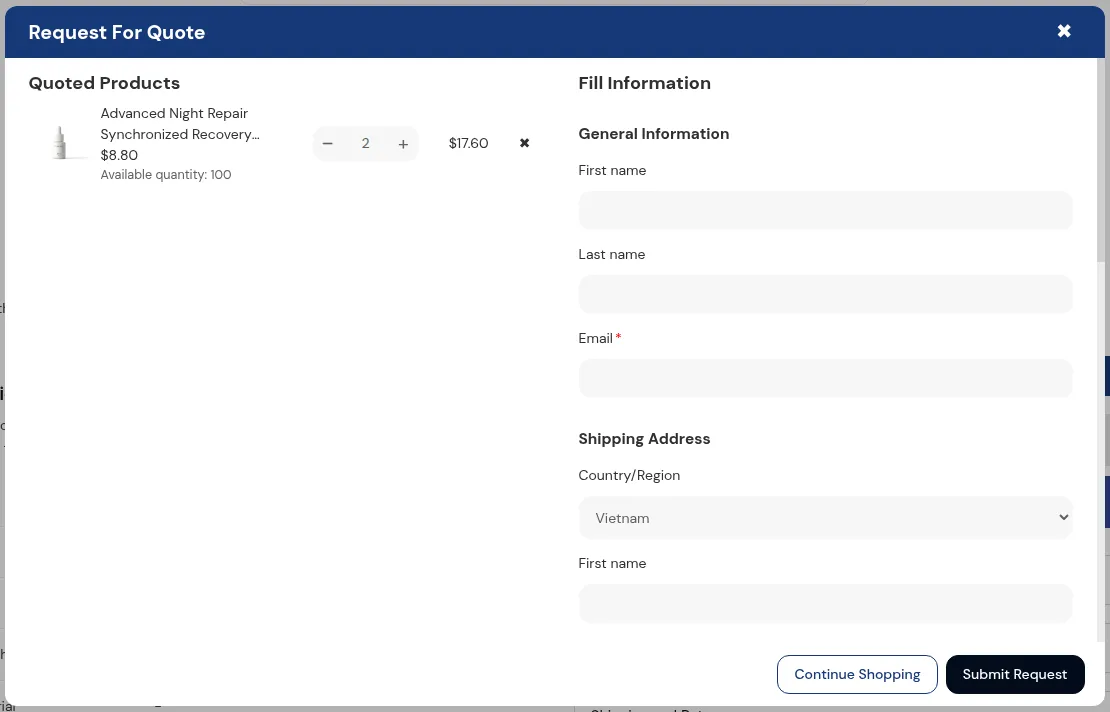
What your customers see on the storefront.
Q1. The Request a Quote button is not showing on my products.
Section titled “Q1. The Request a Quote button is not showing on my products.”Check:
- At least one Quote Logic rule is Active.
- The rule’s customer and product conditions actually match your test case.
- The quote button is enabled on product pages and/or collection pages in the rule’s settings.
- Installation is complete for your theme (some themes require manual placement of the button).
If it only fails on some templates:
- The product is likely using a different template that doesn’t contain the button’s block/snippet.
- Add the block/snippet to that template as well, or ask support for help.
Q2. Prices disappeared after creating a quote rule.
Section titled “Q2. Prices disappeared after creating a quote rule.”Most likely:
- Your quote rule is set to Hide price in the “Set Up Prices & Buttons” section.
Check:
- Edit the quote rule and confirm whether Hide price is enabled.
- If you want prices visible, switch to “Do not hide price” and save.
- Make sure a higher-priority rule isn’t overriding a more general one.
Q3. Customers are not receiving quote emails.
Section titled “Q3. Customers are not receiving quote emails.”Check:
- Quote notification settings under Quote Settings → Notifications.
- The sender email is correctly configured and uses a real address from your domain.
- The emails are not going to spam or blocked by the customer’s email filter.
If emails never arrive:
- Temporarily set the customer email to your own and resend to see if you receive it.
- Verify that the quote was actually sent (no errors during send).
Q4. Admin notification emails are not arriving.
Section titled “Q4. Admin notification emails are not arriving.”Check:
- Admin notifications are enabled in Quote Settings.
- BCC addresses are correctly added (and saved) in the admin email settings.
- Email filters or spam rules are not blocking them.
If still not working:
- Add a simple external address (e.g. personal Gmail) as a test BCC to see if the issue is domain-specific.
Q5. I cannot edit a quote anymore.
Section titled “Q5. I cannot edit a quote anymore.”Once a quote is converted to a draft order:
- Its status becomes Converted.
- The quote data is locked and cannot be edited.
If you need to make changes:
- Edit the resulting draft order directly in Shopify.
- Or create a new quote if the deal has changed significantly.
5.4 Common Issues & Fixes
Section titled “5.4 Common Issues & Fixes”This section lists common symptoms with quick checks and fixes.
Issue 1: “App installed but nothing appears.”
Section titled “Issue 1: “App installed but nothing appears.””Possible causes:
- App embed not enabled in the theme.
- No published Quick Order page.
- No active Quote Logic rules.
Quick fix:
- Enable the app embed in Theme Editor.
- Create and publish at least one Quick Order page.
- Create an active quote rule with simple conditions (e.g. all customers, all products) to test.
Issue 2: Quick Order or Quote button appears twice.
Section titled “Issue 2: Quick Order or Quote button appears twice.”Possible causes:
- Theme already includes a custom integration, and app block/snippet is added a second time.
- Multiple app blocks for the same function on one template.
Quick fix:
- Check your theme’s product template for duplicate app blocks or snippets.
- Remove one instance and keep only the correct/most recent integration.
Issue 3: Quick Order URL shows 404 or “page not found”.
Section titled “Issue 3: Quick Order URL shows 404 or “page not found”.”Possible causes:
- Quick Order page was never published.
- URL handle was changed or deleted.
- Navigation link points to an old or incorrect URL.
Quick fix:
- In the app, confirm the page is published.
- Copy the current URL from the app and update your navigation link.
- Clear any caches if you use a performance app or CDN cache.
Issue 4: CSV upload shows “something went wrong” or partial import.
Section titled “Issue 4: CSV upload shows “something went wrong” or partial import.”Possible causes:
- CSV format or encoding is incorrect.
- Required columns missing or misnamed.
- SKUs not found or outside the page’s product scope.
Quick fix:
- Use the sample CSV template from the app.
- Save the file as plain CSV (UTF-8).
- Ensure SKUs exist and belong to products that appear on that Quick Order page.
- Fix reported rows and re-upload.
Issue 5: Access denied / blank Quick Order page for some customers.
Section titled “Issue 5: Access denied / blank Quick Order page for some customers.”Possible causes:
- Access control set to logged-in or specific tags, and the customer doesn’t meet the condition.
- B2B Store vs Default Store setup is mismatched.
Quick fix:
- Check the Quick Order page’s access settings (login/tags/segments).
- Confirm the test customer is logged in and has the required tags.
- For Shopify B2B, ensure the user is logging in as a Company contact with the correct Location.
Issue 6: Quote does not appear in Quote Submission list.
Section titled “Issue 6: Quote does not appear in Quote Submission list.”Possible causes:
- Customer did not complete/submit the quote form.
- The quote form is blocked by a theme/script error.
- JavaScript conflicts with other apps.
Quick fix:
- Test the quote form yourself with a simple product and check if it creates a record.
- Check browser console for JavaScript errors on product pages.
- Temporarily disable conflicting scripts or test with an unmodified theme to confirm.
Issue 7: Prices on Quick Order or RFQ don’t match what I expect.
Section titled “Issue 7: Prices on Quick Order or RFQ don’t match what I expect.”Possible causes:
- Multiple pricing apps overlapping (e.g., discount app + B2B pricing app + native discounts).
- Wrong customer tag or catalog assignment.
- Old cached data or unsaved changes.
Quick fix:
- Simplify: temporarily disable other pricing apps and test again.
- Confirm pricing rules in your primary pricing source (BSS B2B Solution or Shopify B2B).
- Test with a clean customer profile that only has the intended tags or catalog.
If you still experience issues after trying these steps, gather:
- Storefront URL
- Example product URL
- Example customer email/tag
- Screenshots of the issue
…and then contact support so they can check your specific configuration.