Storefront Translation
Change or translate the texts customers see on your Quick Order pages: filters, search, sort, product table, bulk import, product options pop-up, cart messages and the restricted-access screen.
1. Where to find it
Section titled “1. Where to find it”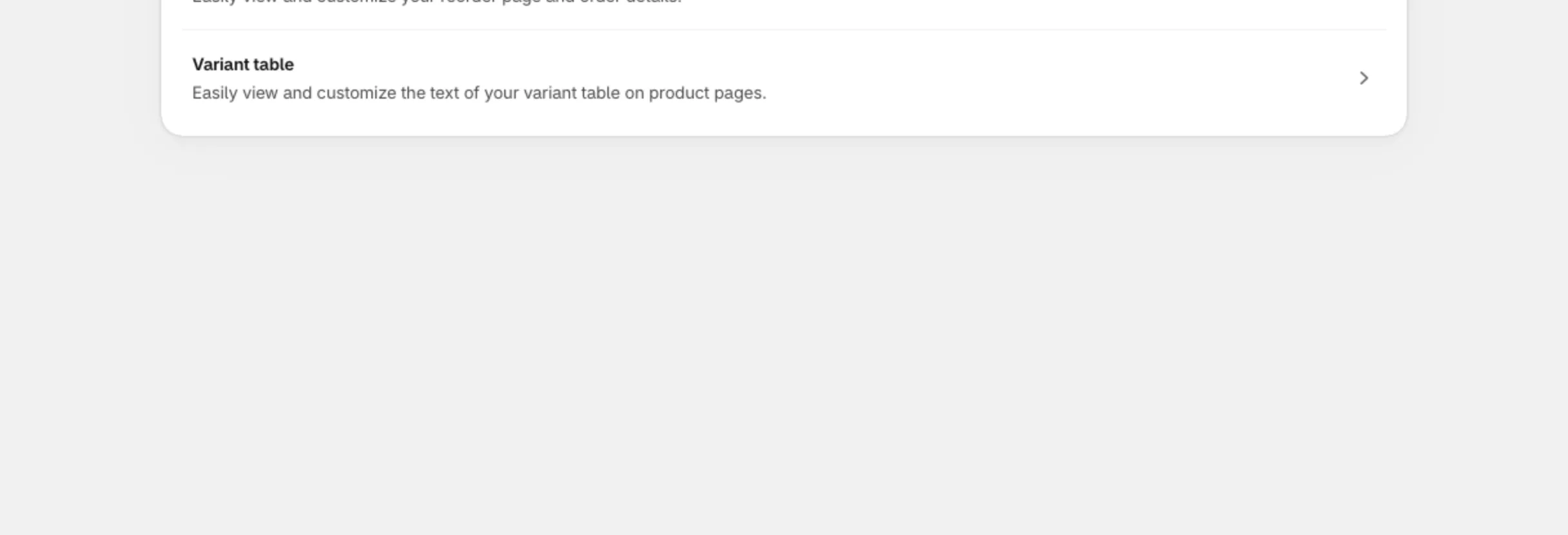
- In the app, go to Settings > Languages.
- Click Quick Order. (Texts of the product page variant table are on the Variant table row: see Product Page Variant Table.)
- At the top of the page, pick a language in the language selector.
- Edit the texts in the Translation Editor on the left. The Live preview on the right updates as you type.
- Click Save in the save bar.
2. Languages
Section titled “2. Languages”- The language selector lists the languages published in your store (Shopify Settings > Languages). To translate into a new language, publish it in Shopify first. On the Growth plan the selector stays on English.
- Each language is saved on its own. Switching language with unsaved changes asks you to save or discard them first.
- A field you leave blank uses the app’s default text for that language. The app ships default texts in 21 languages: Chinese (Simplified and Traditional), Czech, Danish, Dutch, English, Finnish, French, German, Hungarian, Italian, Japanese, Korean, Polish, Portuguese (Portugal), Romanian, Spanish, Swedish, Thai, Turkish and Vietnamese.
How the storefront picks a text
Section titled “How the storefront picks a text”When a customer opens a Quick Order page, each text is chosen in this order:
- Your translation for the customer’s current store language.
- The app’s default text for that language.
- Your English translation.
- The app’s default English text.
So a customer browsing in German sees your German texts, then the built-in German texts for anything you did not translate. A language the app has no defaults for falls back to English.
3. Translation Editor sections
Section titled “3. Translation Editor sections”The editor groups the texts by the part of the page they belong to:
| Section | What it covers |
|---|---|
| Filter | Filter labels and buttons |
| Search Bar | Search placeholder and search options |
| Sort | The sort dropdown and its options |
| Product Information | Table column labels, prices, quantity and stock texts |
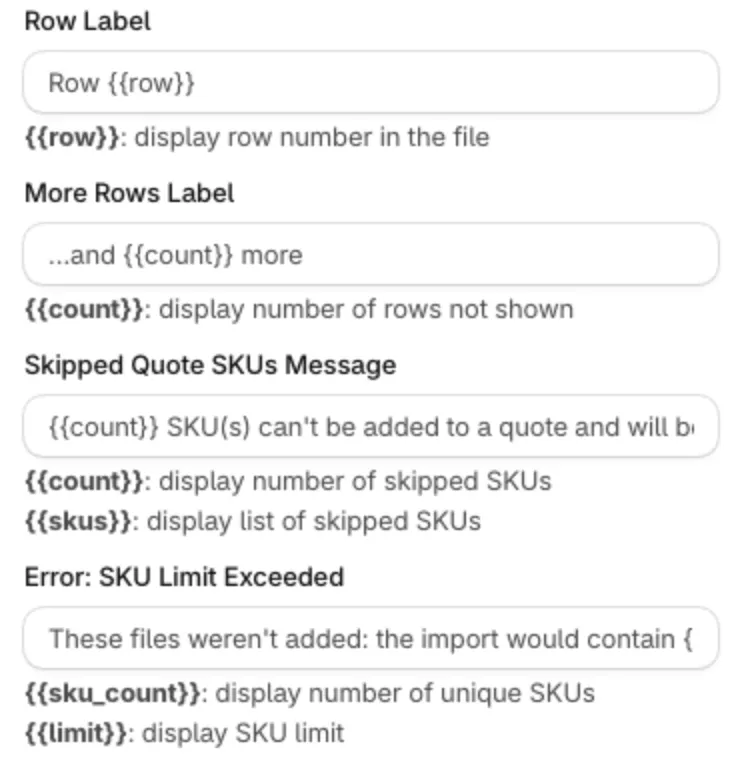
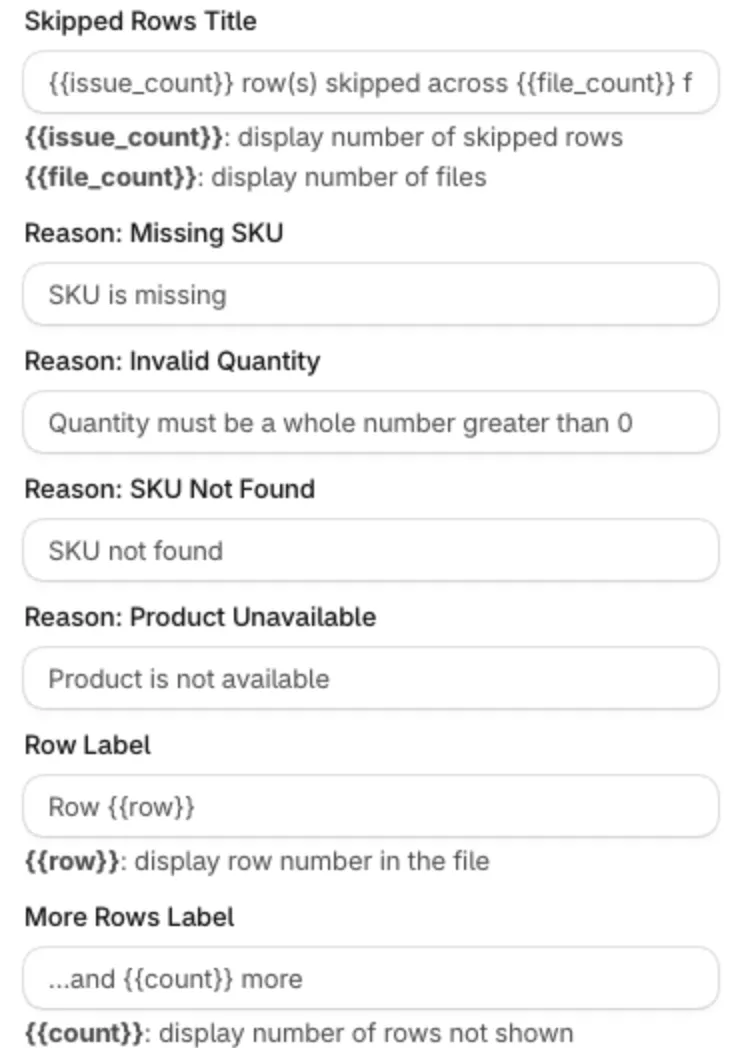
| Bulk Import Modal | The CSV upload pop-up: buttons (Cancel, Done, Download Example File), file errors, the skipped rows banner, the reason for each skipped row and the SKUs that Add all to quote skips. See Error messages |
| Choose Product Options Modal | The pop-up used when variants are shown in a pop-up |
| Adding items / Add successfully / Add fail | Messages while items are added to the cart, and the result |
| When customer can’t view page | The restricted screen (“This page is for exclusive customers!”) with Go back and Log in |
| When there is no products that match filter and search conditions | The empty result message |
| Universal Landing Page | The landing page of the universal link, including the No Page Found message |
| Total Variants | The variant counter |
| Out Of Stock Modal | The pop-up shown when an item is out of stock |
| Sales agent | Texts that only sales agents see on the storefront: ordering bar, retailer list, product list, order tray, switch retailer dialog, review order, order errors, order created and my orders. Open them with Show sales agent texts. The live preview does not show these texts; empty fields use the default text |
Placeholders
Section titled “Placeholders”Some texts contain placeholders in double curly braces, for example {{file_name}}, {{file_count}}, {{issue_count}}, {{row}}, {{limit}}, {{count}} or {{skus}} in the Bulk Import Modal. The app replaces them with real values on the storefront. Keep them exactly as they are when you translate. The placeholders a text supports are listed under its field.
The Add all to quote button in the Bulk Import pop-up uses the Variant Table texts, not this editor. The message about skipped SKUs is in the Bulk Import Modal section.