
Quote Emails: Sender and Deliverability
Quote emails are sent from a default address unless you set up your own. Using your own verified domain makes the emails look like they come from you and helps them avoid spam folders. Everything below is self-service: you do not need to contact support unless the page tells you to.
Which address is used
Section titled “Which address is used”| Sent from | |
|---|---|
| Admin Notification | Always the default address of the app |
| Quote Proposal and Quote Confirmation | Your sender email once it is Verified; the default address until then |
Until your sender is verified, customer replies go to your sender email.
Set up your sender
Section titled “Set up your sender”- In Settings → Email and notifications, click the Email Sender link under the sender fields.
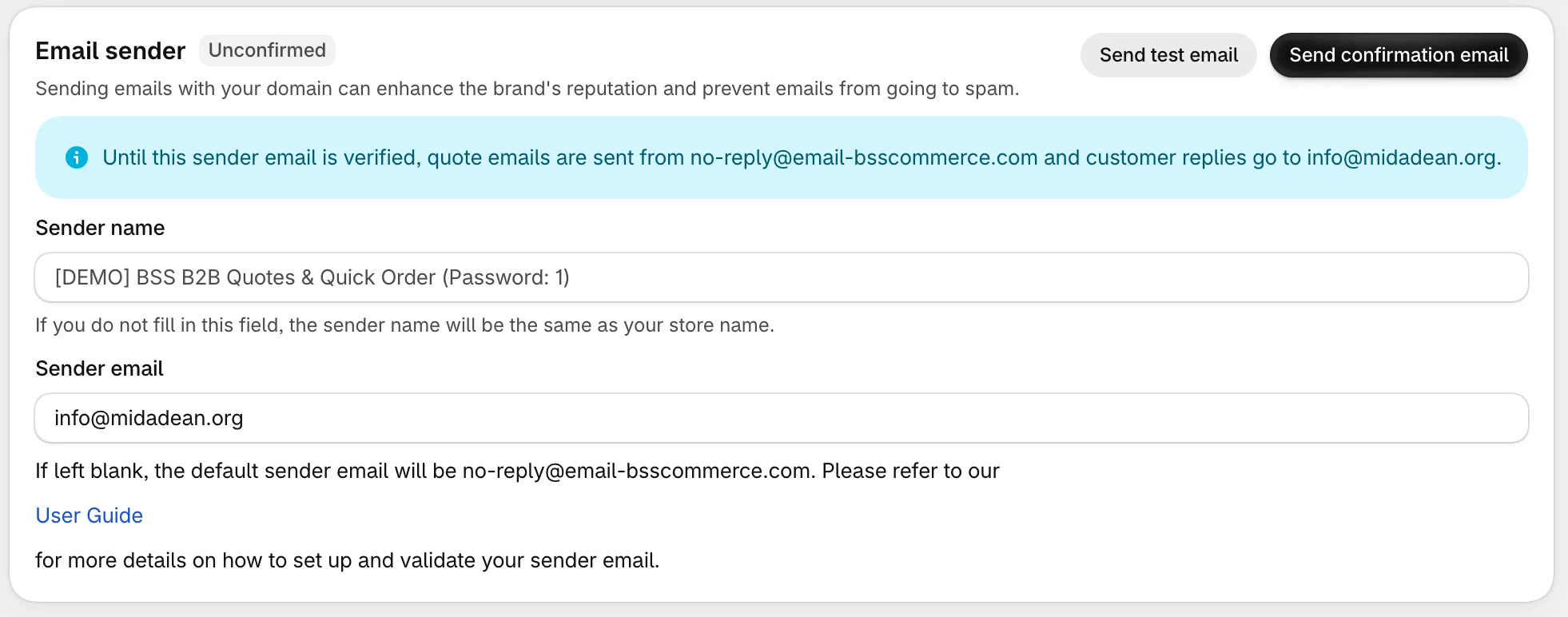
- Enter a Sender name and a Sender email, then save. The sender starts as Unconfirmed. If you leave the name blank, your store name is used.
- Click Send confirmation email and confirm from your inbox within 24 hours.
- If the address is on a public domain such as Gmail, Outlook or Yahoo, it becomes Verified now and you are done.
- If it is on your own company domain, copy the SPF and DKIM records shown on the page into the DNS settings of your domain provider.
- Click Verify DNS record. When the records are found, the page shows “Email DNS is verified”.
For a company domain, the page lists two DNS records, SPF and DKIM. Each row shows its Status, the Type (always TXT), the Host name and the Value, with a copy button next to the value. Add each one in your domain provider as a TXT record with exactly that host name and value.
DNS changes can take time to spread. If Verify DNS record says the records are not found, wait and try again later.
Send a test email
Section titled “Send a test email”On Settings → Email and notifications use Send test email with your own address. Check that the email arrives, how it looks, and that the reply goes to the right address.
Get a copy of new quote notifications
Section titled “Get a copy of new quote notifications”Under Notifications for store admin, add team members in BCC emails. Type an address and press Enter. You can add up to 5 addresses, each only once. Reminder emails have their own BCC emails field on Quotes → Automations → Quote reminders.
Checklist: quote emails are not arriving
Section titled “Checklist: quote emails are not arriving”- Is the sender Verified? If it shows Unconfirmed or Unverified, finish the steps above. The page notes that emails are sent from the default address until then.
- Did the DNS records copy exactly? Compare each record name and value with the ones shown in the app.
- Check the spam folder of the receiving mailbox, and ask the customer to mark the email as not spam.
- Did the page say “We couldn’t set up your sender domain yet”? The email provider could not add your domain. Our team is notified automatically. Open the confirmation link again later, or contact support if it stays.
- Did the quote email fail to send? Failed quote emails are retried automatically for up to 72 hours, depending on the type of failure.
- Still nothing? Contact support with the quote number, the recipient’s domain, and the time you sent the email.