Convert cart to quote
Convert cart to quote lets buyers turn their whole shopping cart into a quote request with one click. B2B and bulk buyers often fill the cart like any shopper. If they then need to negotiate the price or confirm stock, they can move the items into a quote without starting over.
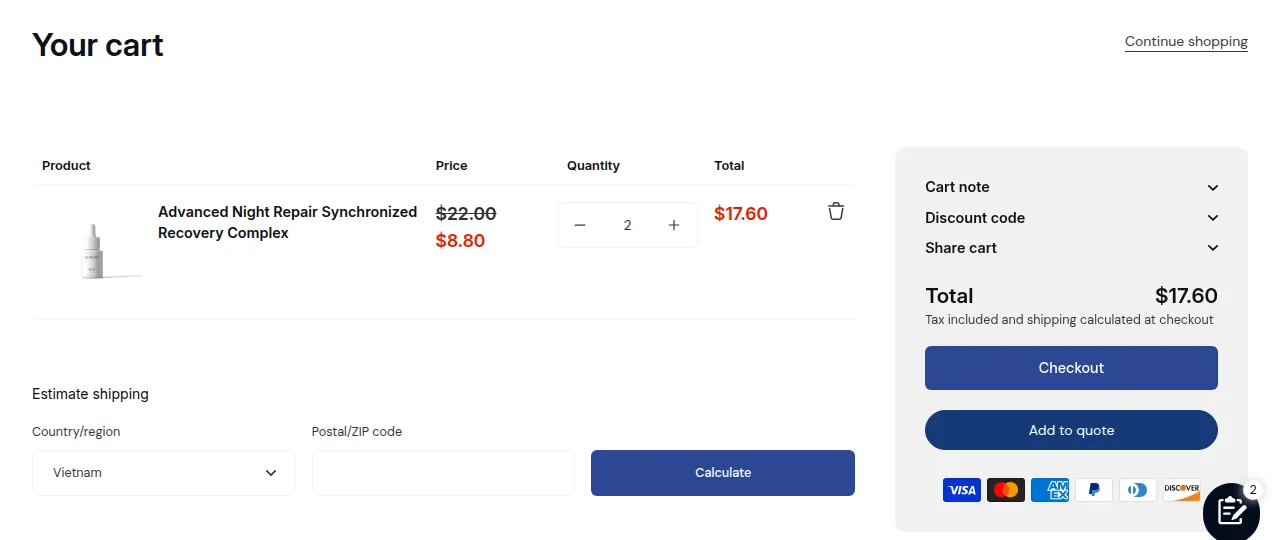
What your buyers see on the storefront.
Before you start: the cart page button needs the Business plan or higher, and the app embed turned on in your live theme. See Install and enable app embeds.
1. Turn it on
Section titled “1. Turn it on”The quickest way is the Quote from cart template: go to Settings > Quote logic, find Start from a template and click Activate. See Quote logic.
To add it to a quote logic you already have:
- Open the quote logic and click Customize under the Storefront preview.
- Open Quote button.
- Under Display quote button on, tick Cart page.
- Click Done, then save the quote logic.
- To check it, click Preview on store > Cart page. The cart needs at least one product for the button to show.
The cart page has no product of its own, so the button follows the first quote logic (in priority order) that has Cart page turned on and a quote catalog for at least one product in the cart. See Quote logic.
2. Choose what the button does with the cart
Section titled “2. Choose what the button does with the cart”Go to Settings > Cart button. Under When the buyer clicks the quote button on the cart page, choose one option:
- Add the cart to the quote list (the default): keeps what is already in the quote list and adds the cart on top. Clicking twice adds the quantities twice.
- Replace the quote list with the cart: the quote list becomes exactly the cart, with the same products and quantities. Clicking again does not add them twice, and products that are not in the cart are removed from the list.
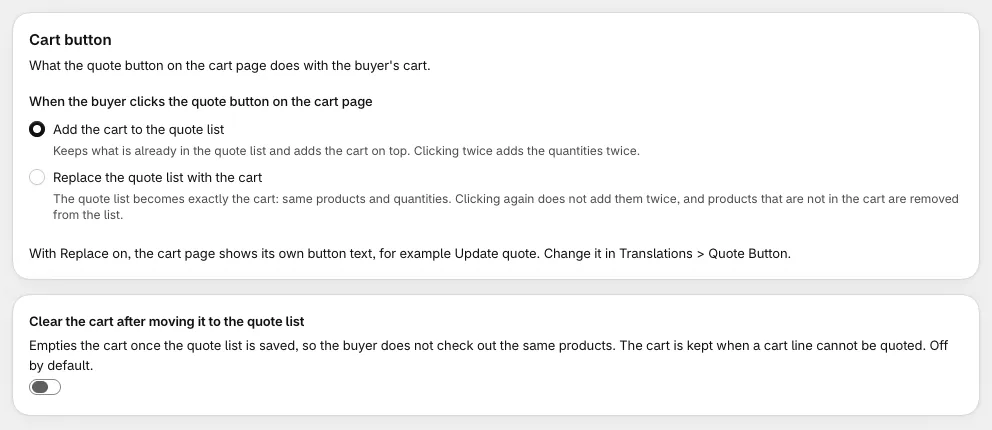
Turn on Clear the cart after moving it to the quote list to empty the cart once the quote list is saved, so the buyer does not check out the same products. It is off by default. The cart is kept when a cart line cannot be quoted.
With Replace on, the cart page shows its own button text, Update quote by default. Change it in Settings > Languages > Request for Quote, tab Quote Button.
What buyers see
Section titled “What buyers see”A button, Add to quote by default, shows on the cart page next to the checkout button. When the buyer clicks it, the app checks the items in the cart against your quote logic:
- All items are eligible: they move to the quote request form, and a success message appears.
- Some items are not eligible: a pop-up lists them. The buyer can click Continue to move only the eligible items, or Return to adjust the cart.
- No item is eligible: a message asks the buyer to add products that can be quoted.
To change these texts, go to Settings > Languages > Request for Quote, tab Eligibility Notification. See Languages.
If the button does not show or is in the wrong place, see Button placement and themes.
Typical use cases
Section titled “Typical use cases”| Scenario | Description |
|---|---|
| The hesitant wholesale buyer | A manager adds 50 high-value units to the cart but needs a discount or is over their credit limit. Instead of leaving, they click Add to quote to open a negotiation without losing their item list. |
| The mixed shopper | A buyer adds a made-to-order sofa (quote only) and a standard cleaning kit (direct buy). When they convert the cart, the app warns them. They click Continue, and only the sofa moves to the quote. |
| The inventory check | An event planner needs 200 chairs for next week but will not pay $10,000 without stock confirmation. They convert the cart to a quote with a note (“Can you ship by Friday?”), and you check your warehouse before they pay. |
| The corporate approval | An employee fills a cart for office supplies but has no company card. They convert it to a quote, submit it, and take the quote email or PDF to their manager for approval and payment. |
Convert cart to quote reduces cart abandonment on complex or high-value orders. Even when a buyer is not ready to pay, you receive their order intent and can close the deal offline.