Quote logic
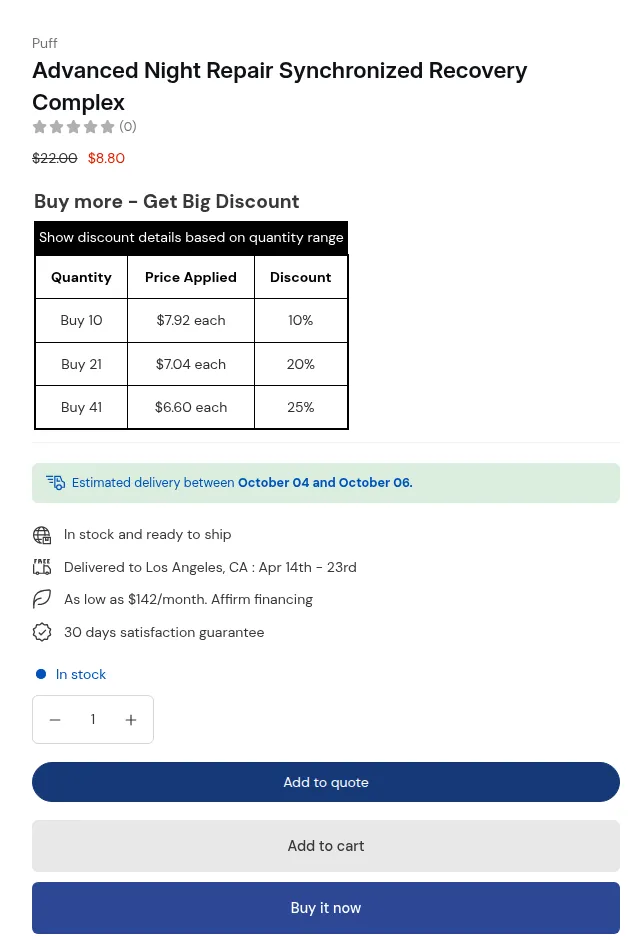
What your buyers see on the storefront.
A quote logic tells the app who can request a quote, which products can be quoted, and how the quote button, widget and form look. You need at least one quote logic for quoting to work on your storefront. This page covers creating and managing quote logics, and it is the start of the Set up quoting steps.
Set up quoting: the steps
Section titled “Set up quoting: the steps”Follow these pages in order. Each one covers one part of a quote logic or of the storefront.
- Create a quote logic (this page). Start from a template or create one from scratch.
- Set up quote visibility. Choose who can request a quote and which products can be quoted.
- Set up prices and buttons. Hide prices or buying buttons, and choose the pages where the quote button shows. To let buyers turn a whole cart into a quote, see Convert cart to quote.
- Customize the quote form. Choose the fields buyers fill in.
- Customize the quote widget. Choose when the floating quote list shows and how it looks.
- Button placement and themes. Fix the button position if it does not fit your theme.
When you are done, check the result with Preview on store in the logic, and see Quote button not showing if something is missing.
Before you start
Section titled “Before you start”- Turn on the app embed in your live theme. The button needs it on every page. See Install and enable app embeds.
- The number of quote logics and some settings depend on your plan. See Pricing Plan & Details. Before you choose a plan, you can build one quote logic and preview it on your store. Only you can see that preview.
- Company customers logics need the Enterprise plan.
Create a quote logic
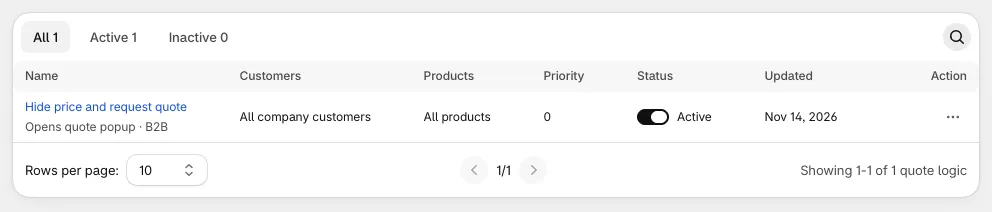
Section titled “Create a quote logic”- In Shopify admin, open the app and go to Settings > Quote logic.
- Click Create quote logic.
- In Quote visibility, choose the Customer type: Default customers or Company customers. If you sell to both standard customers and Shopify B2B company customers, create a separate quote logic for each.
- Set the Name, Status and Priority, then choose Who can request a quote?. See Set up quote visibility.
- In Quote catalogs, choose which products can be quoted and whether to hide the price. See Set up prices and buttons.
- Under Storefront preview, click Customize to open Customize quote button and form. It has the Quote button, Quote widget, Form fields, Form styles and Quantity rule sections, with a live preview. Click Done when you finish.
- Save the quote logic.
- Use Preview on store at the top of the logic to check the button on your store. It shows a button for each page the quote button is turned on for (Product page, Collection page, Cart page) and opens that page in a new tab. For the cart page, add a product to your cart first. If the button does not show, open Don’t see the quote button? for a short checklist (app embed, theme, plan and which customers see the button), or use the Help center.
Manage your quote logics
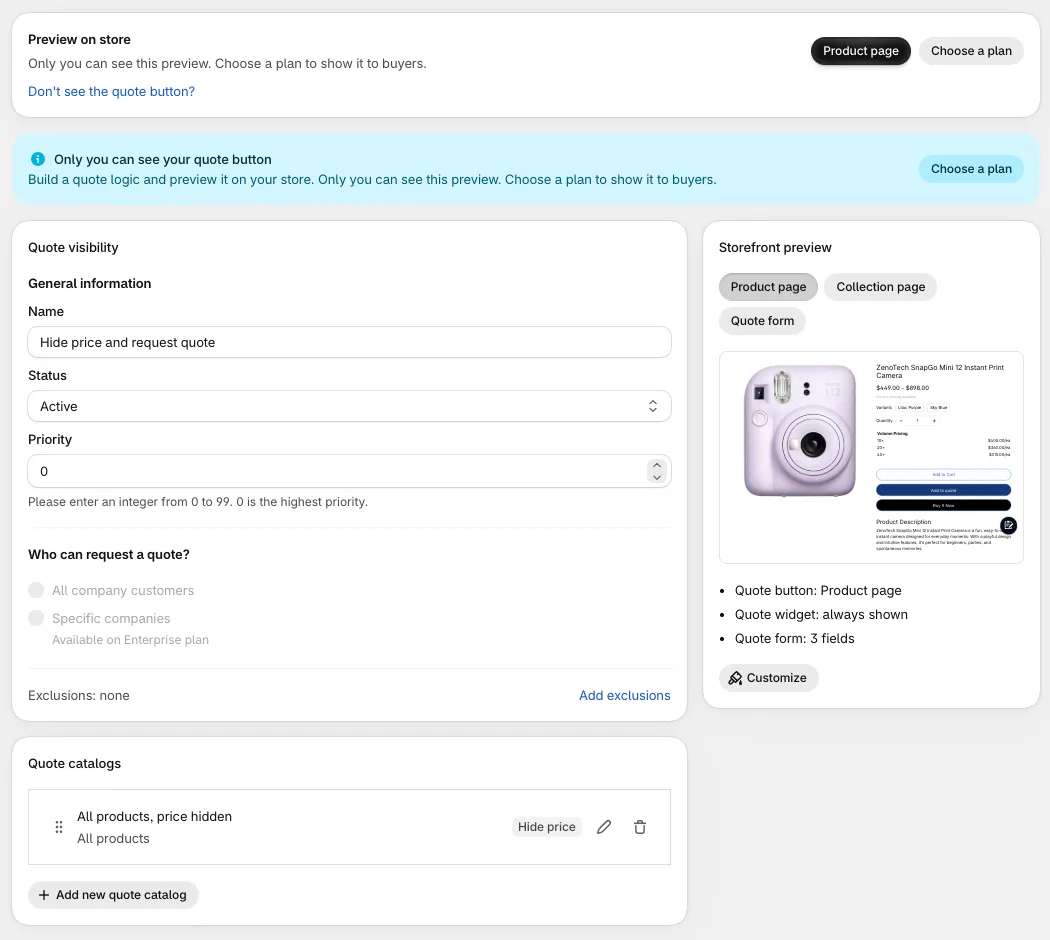
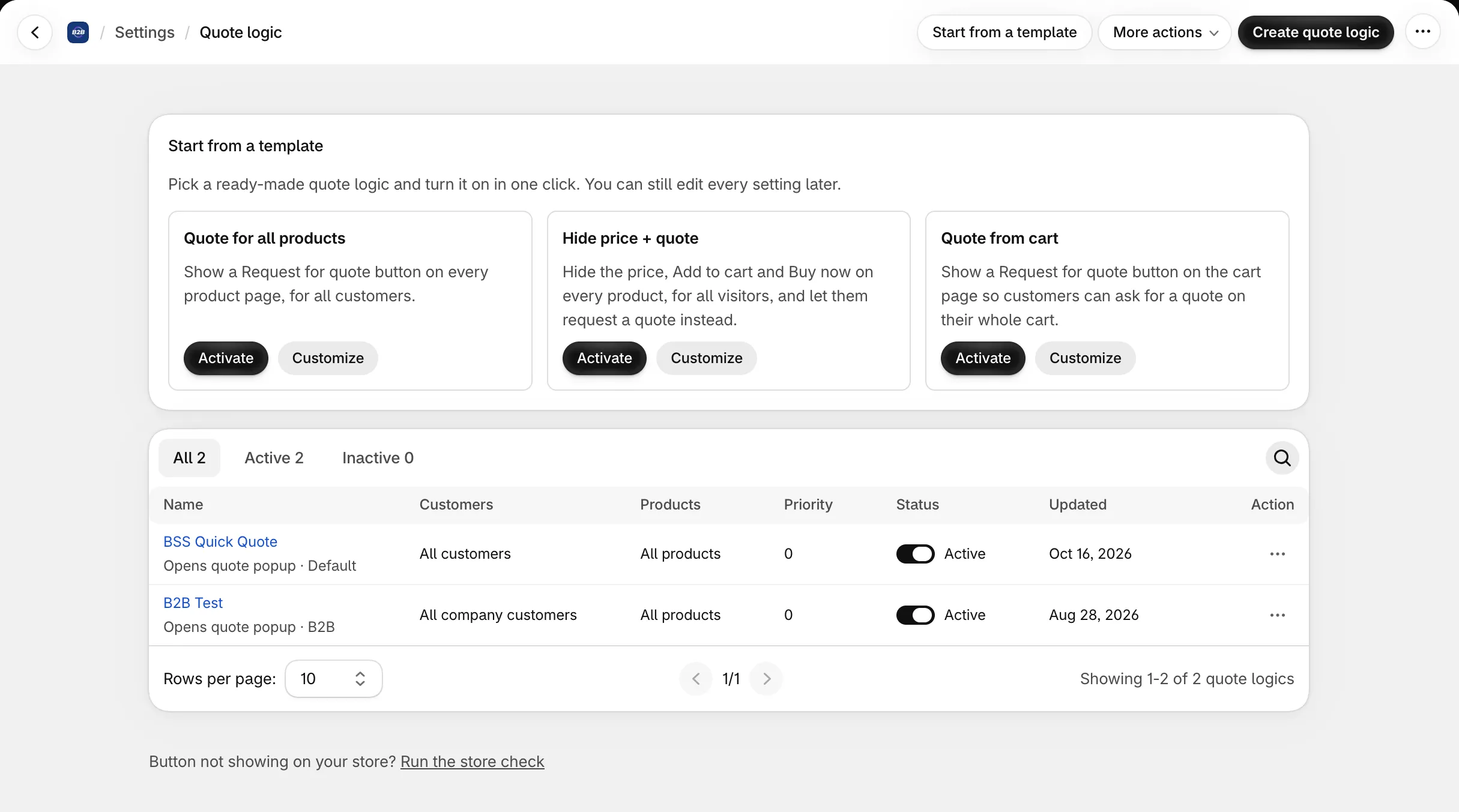
Section titled “Manage your quote logics”Settings > Quote logic lists your quote logics with the columns Name, Customers, Products, Priority, Status, Updated and Action.
- Search by name, or filter with the All, Active and Inactive tabs.
- Use the toggle in the Status column to switch a logic between active and inactive. The change applies to your storefront right away, without opening the logic.
- For each logic you can Edit, Duplicate or Delete it. A duplicate stays inactive until you turn it on.
- A badge above the list shows how many quote logics you use on your plan.
Start from a template
Section titled “Start from a template”For a fast start, use Start from a template. On an empty list the templates show first; on a list that already has logics, click Start from a template. Pick a ready-made quote logic and turn it on in one click. You can still edit every setting later.
| Template | What it does | Plan |
|---|---|---|
| Quote for all products | Shows a Request for quote button on every product page. | Any plan |
| Hide price + quote | Hides the price, Add to cart and Buy now on every product and lets buyers request a quote instead. | Growth or higher |
| Quote from cart | Shows a Request for quote button on the cart page so buyers can ask for a quote on their whole cart. | Business or higher |
- Click Activate to create the logic and turn it on. A message confirms that it is active and shows buttons to open the store pages to check, and Edit quote logic opens it.
- Click Customize to open the quote logic and change it before turning it on.
- A template creates a quote logic for Default customers that applies to all customers.
- If your plan cannot add another quote logic, or the template needs a higher plan (see the Plan column), the card shows Upgrade plan (or Choose a plan if you have no plan yet). Turn off or delete a logic you no longer need, or upgrade.
How a quote logic applies
Section titled “How a quote logic applies”A quote logic works with conditions: who can request a quote (in Quote visibility) and which products can be quoted (in Quote catalogs). The details of each condition are in Set up quote visibility.
When more than one quote logic matches the same buyer and product, the Priority value decides which one applies. The storefront applies one quote logic at a time: the matching logic with the lowest number.
- Priority is a whole number from 0 to 99. 0 is the highest priority.
- Make the most specific quote logic use the lowest number.
Example: a global logic and a VIP override
| Logic A | Logic B | |
|---|---|---|
| Name | Global wholesale quote | VIP quote with special conditions |
| Priority | 50 | 10 |
| Who can request a quote | Customer tags: wholesale |
Customer tags: vip |
| Products | All products | All products |
A buyer with the vip tag also matches logic A. Logic B has the lower number (10 against 50), so logic B applies.
Best practices
- Use clear names with the priority at the start, for example
05 - VIP quote,10 - Custom items quote,50 - Global B2B quote. - Start with one simple global quote logic, test it, then add more specific ones as overrides.
- Avoid two quote logics with the same priority that cover the same buyers and products, so the result stays predictable.
What buyers see
Section titled “What buyers see”Buyers who match a quote logic see the quote button on the pages you chose. They add products to the quote list, open the form from the button or the widget, and submit a request. Buyers who match no quote logic see no quote button.