
Customize Quote Form
This page explains how to control the content, form fields, and appearance of the quote form that customers see when they request a quote on your storefront.
1. Overview
Section titled “1. Overview”The Customize Quote Form tab in your Quote Logic allows you to configure:
- Which product and customer information appear in the quote pop-up
- Which form fields customers must fill in before submitting
- Automated field verifications (such as VAT / Tax Number format checking and live Shipping Method calculations)
- The look and feel of the form so it matches your store branding
You also have a real-time live preview of:
- The Quote Form (before submission)
- The After Submit state (confirmation state shown after sending a quote)
2. Product Information
Section titled “2. Product Information”This section controls which product details and item-level inputs are displayed inside the quote pop-up.
Product Detail Fields
Section titled “Product Detail Fields”- Variant: Shows the chosen variant (e.g., size, color).
- SKU: Displays the SKU of each quoted item. Highly recommended for B2B buyers working with SKU lists.
- Available Quantity: Shows current warehouse inventory for the variant.
- Vendor / Brand: Displays the vendor or brand of the product.
- Type: Displays the product type.
- Barcode: Shows the product barcode if available.
Item Note Box (Note per Item)
Section titled “Item Note Box (Note per Item)”- Note Box per Product Item: Enable a dedicated text area under each product item on the RFQ form (up to 500 characters, optional).
- Item-Specific Notes: Each item possesses an independent note box mapped directly to that product (e.g., specific customization instructions, cutting dimensions, packaging requirements).
- Traceability: Notes display across all downstream touchpoints: Quote Details in Admin, Admin Notification Email, Quote Proposal Email, Quote Confirmation Email, Quote PDF Template, and Storefront Quote History.
3. Form Fields
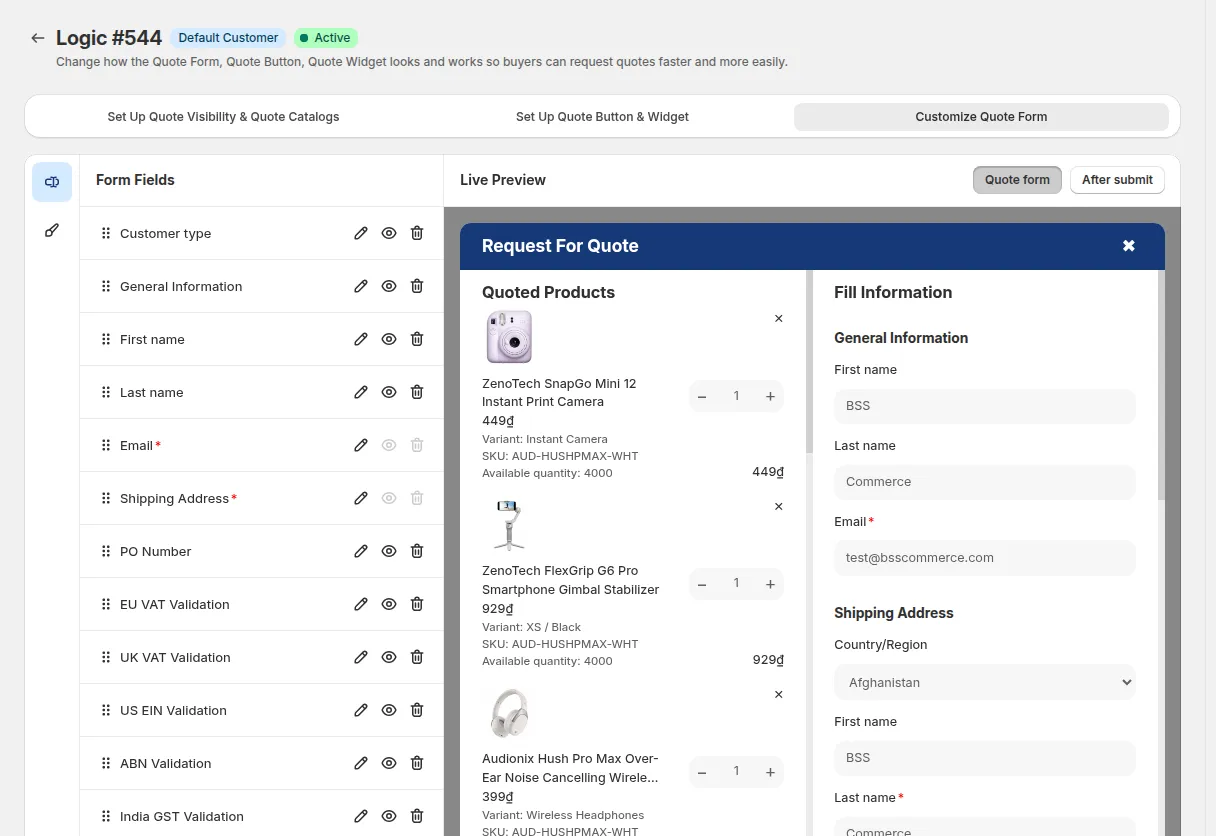
Section titled “3. Form Fields”This section controls the fields that the customer completes before submitting a quote.
3.1 Standard Information Fields
Section titled “3.1 Standard Information Fields”Default customer fields include:
- First Name & Last Name
- Email & Phone Number
- Shipping Address (Country, Street, City, State, ZIP)
Behavior: If the customer is logged in, these fields can be auto-filled using their Shopify customer profile.
3.2 Shipping Method Selection (Plan Business+)
Section titled “3.2 Shipping Method Selection (Plan Business+)”Allow B2B buyers to select their preferred shipping method directly when submitting their quote request:
- Live Rate Calculation: The dropdown retrieves real-time shipping methods and rates directly from your store’s active Shopify Shipping Zones based on the buyer’s shipping address.
- Configuration: Set the field to Required or Optional.
- Seamless Proposal Integration: When the merchant opens Manage Quote, the selected shipping method is pre-selected and its cost is automatically calculated into the proposal total without manual re-entry.
3.3 Tax Number Format Validation (Plan Growth+)
Section titled “3.3 Tax Number Format Validation (Plan Growth+)”Collect and validate tax identification numbers from corporate buyers before approving wholesale quotes:
- Format Validation: Client-side regex checking validates submitted numbers against international tax formats (e.g., EU VAT, UK VAT, US EIN, Australia ABN).
- Configuration: Toggle field on/off, set as Required or Optional, customize label text, and select which validation patterns to apply.
- Data Storage: Submitted tax numbers are saved alongside the quote request and recorded in customer notes for admin inspection.
3.4 Purchase Order (PO) Number (Plan Growth+)
Section titled “3.4 Purchase Order (PO) Number (Plan Growth+)”Allow corporate buyers to enter an internal Purchase Order (PO) Number:
- Links quote requests directly with the buyer’s internal ERP or accounting purchase order.
- Displays across CMS Quote Details, Storefront Quote History, Proposal Emails, and PDF Quotes.
3.5 Company Information (Shopify B2B)
Section titled “3.5 Company Information (Shopify B2B)”If you selected “B2B Store” as your store type, the form automatically displays synced Shopify B2B Company Information:
- Company Name
- Location
- Default Company Shipping Address
3.6 Custom Fields
Section titled “3.6 Custom Fields”Create tailored fields to collect specific information for your business:
- Single Line Text & Paragraph: For short notes, project titles, or detailed specifications.
- Number: For target budget figures or estimated order quantities.
- Email: For alternative accounting or purchasing contact emails.
- Dropdown & Radio Buttons: For industry classification, buyer tier, or delivery preferences.
- Checkbox List: For multi-option accessories or add-on requests.
- File Upload: Allow buyers to attach PDFs, technical drawings, or spec sheets.
3.7 Layout Elements & Field Management
Section titled “3.7 Layout Elements & Field Management”- Heading & Divider: Add visual section titles and dividing lines to organize long forms.
- Show/Hide Toggle: Toggle field visibility with the eye icon.
- Edit: Customize label text, placeholder text, and required/optional status.
- Drag-and-Drop Reorder: Reorder fields to create a natural submission flow.
4. Form Styles
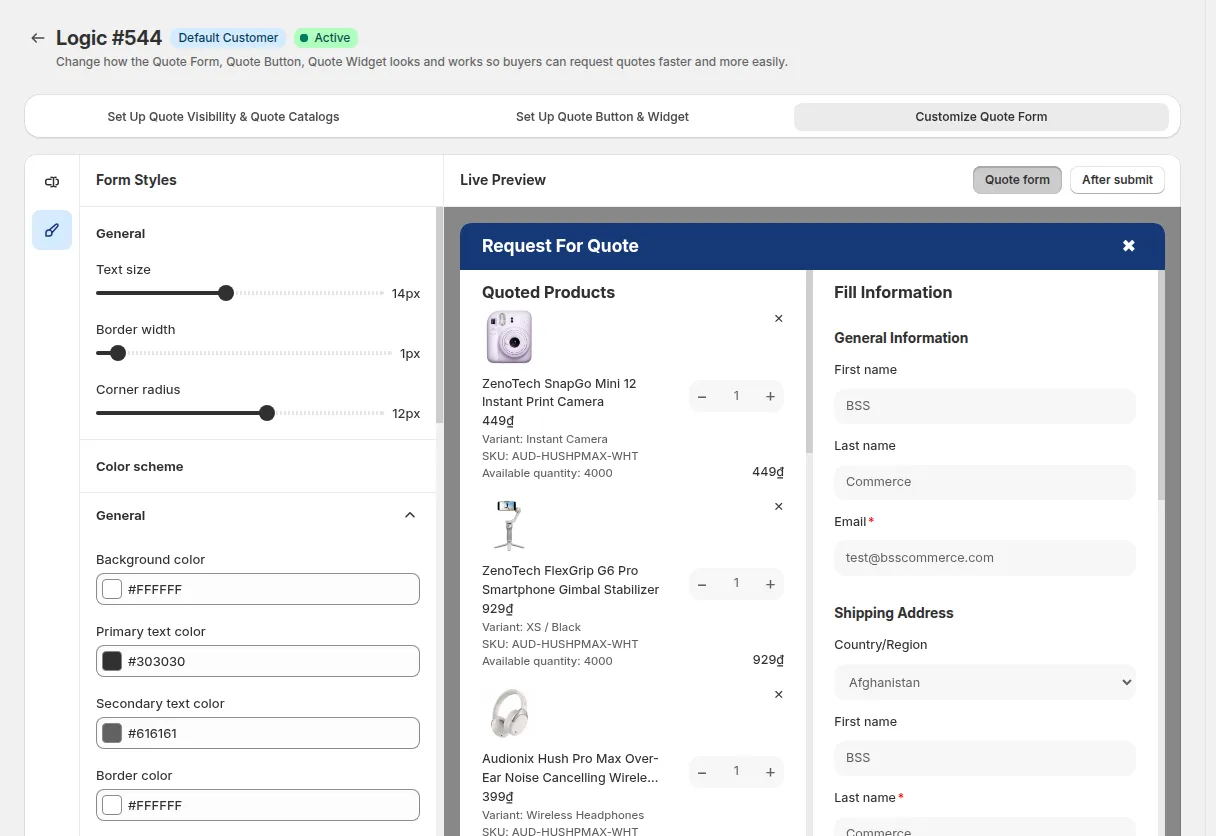
Section titled “4. Form Styles”Customize the look and feel to match your storefront branding:
General Layout
Section titled “General Layout”- Border width: Outline thickness of the form modal.
- Border radius: Corner rounding of the form container.
Color Scheme
Section titled “Color Scheme”- General: Background color, text colors, and scrollbar styling.
- Form Header: Background and title text colors.
- Primary Button: Normal and hover states for main CTA (e.g. “Submit Request”).
- Secondary Button: Buttons such as “Continue Shopping” or “Back”.
- Input Fields / Boxes: Background, border, and placeholder text colors.
5. Preview States
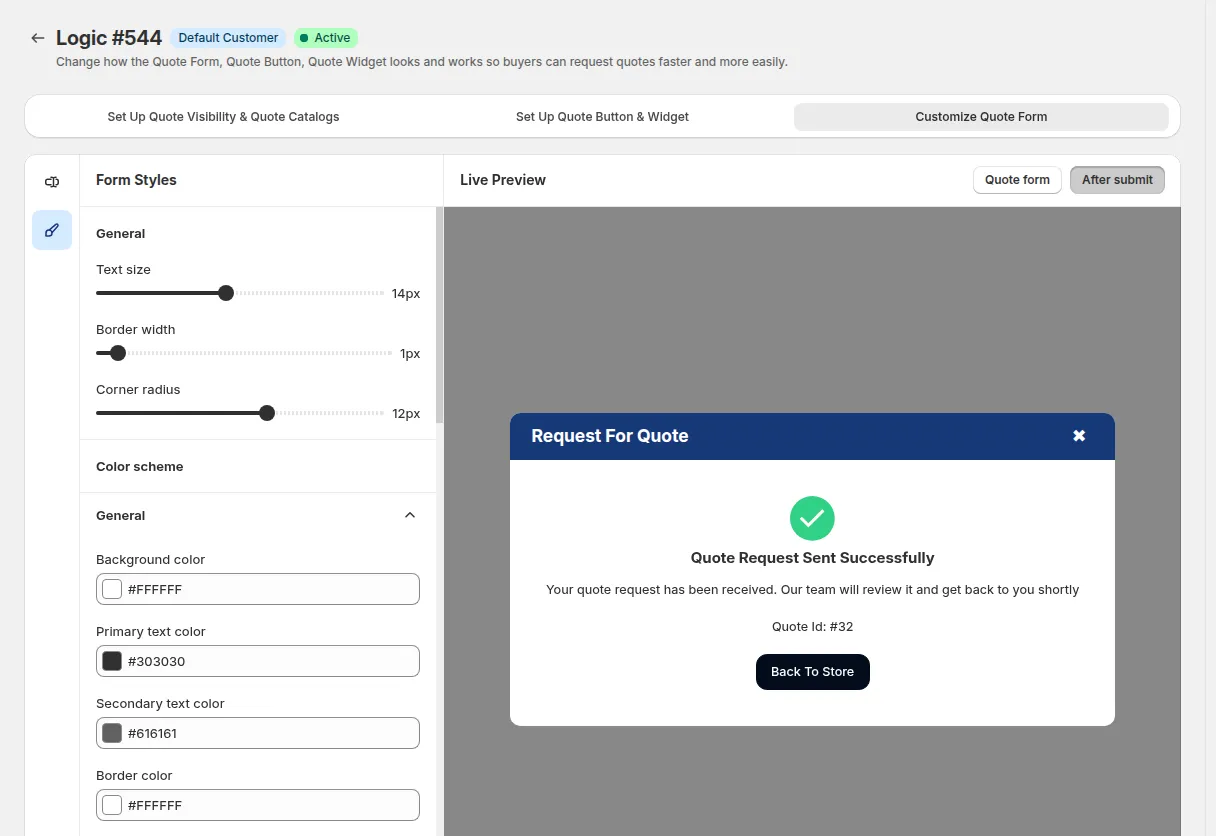
Section titled “5. Preview States”Switch between two preview states at the top of the editor:
- Quote Form: The live submission form shown to storefront buyers.
- After Submit: The confirmation modal and thank-you message shown post-submission.
6. Multi-Language Storefront Translations
Section titled “6. Multi-Language Storefront Translations”If your store sells to buyers across multiple countries using Shopify Markets, you can customize all form labels, field titles, placeholders, and error messages for each active language:
- Navigate to Translations > Request For Quote to manage copy per locale (e.g. English, German, French).
- The storefront automatically detects buyer language and renders the corresponding translation.
- For complete setup details, see the Storefront Translation Guide.
7. Advanced Custom Styling (CSS & JS)
Section titled “7. Advanced Custom Styling (CSS & JS)”For bespoke theme requirements that exceed standard color picker controls:
- Custom CSS: You can apply custom styling targets to the quote modal. Because the RFQ modal renders via encapsulated components, use standard component CSS classes or inject overrides into your theme’s custom CSS file.
- Custom JavaScript: You can listen for standardized storefront quote lifecycle events (such as quote modal open, item added, and quote submitted) to trigger custom third-party tracking or interactive behavior.