
Favourites
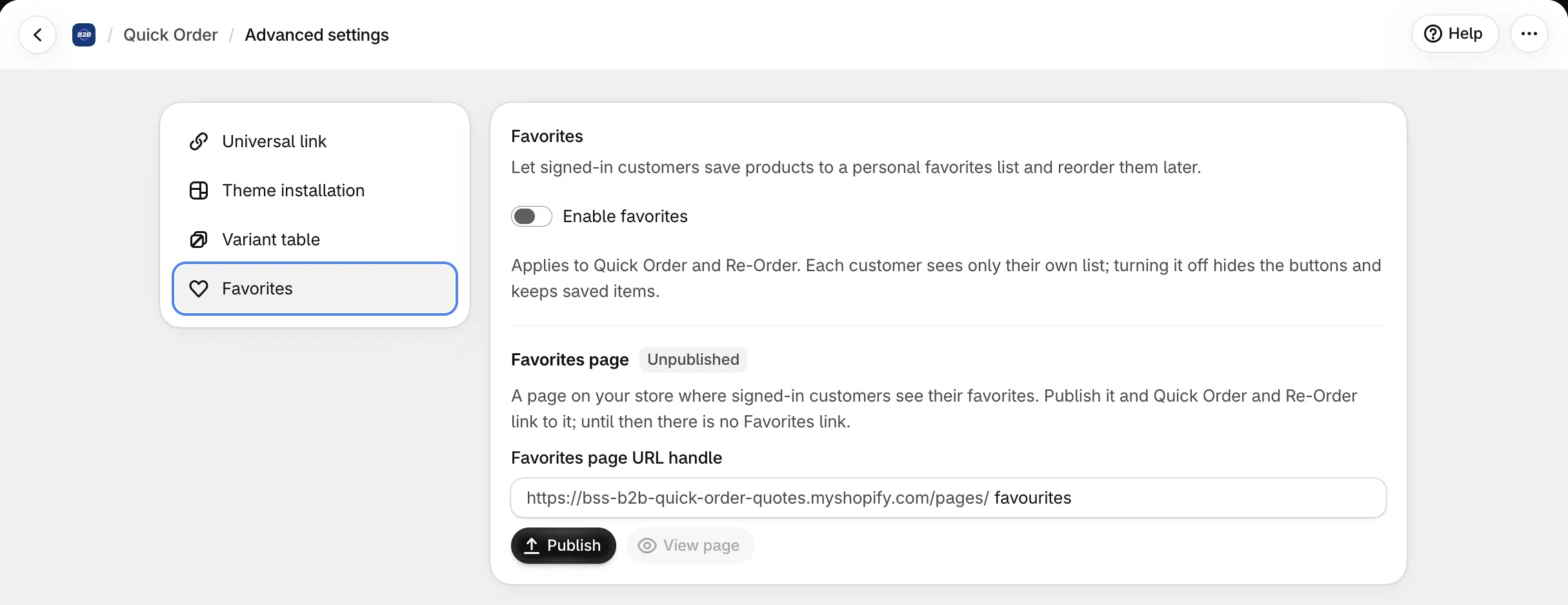
Favourites lets signed-in customers save products to a personal My Favourites list and reorder them later. It applies to Quick Order and Re-Order and is off by default.
Turn on Favourites
Section titled “Turn on Favourites”- Go to Quick Order > More > Quick Order settings > Favorites.
- Turn on Enable My Favourites.
Each customer sees only their own list. Turning the setting off hides the heart buttons and keeps the saved items.
Publish the Favourites page
Section titled “Publish the Favourites page”The Favourites page is a page on your store where signed-in customers see their favourites.
- Check the Favourites page URL handle (for example
/pages/favourites). - Click Publish. If a page with that handle already exists, the app asks you to confirm before it overwrites the page content.
- Click View page to open it on your storefront.
Until the page is published, Quick Order and Re-Order show no Favourites link.
What customers see
Section titled “What customers see”- A heart button on each Quick Order row and on Re-Order line items saves or removes the product.
- The My Favourites page lists the saved products, so the buyer can order them again.