
View & Edit Quote
View, manage, edit, filter, export, and convert quote requests submitted by your customers.
This section explains how to manage your central quote pipeline, filter requests, set expiration dates, export quote records, and convert quotes into official Shopify Draft Orders.
1. Quote Request List
Section titled “1. Quote Request List”The Quote Request List is the central management table where all submitted quotes are tracked.
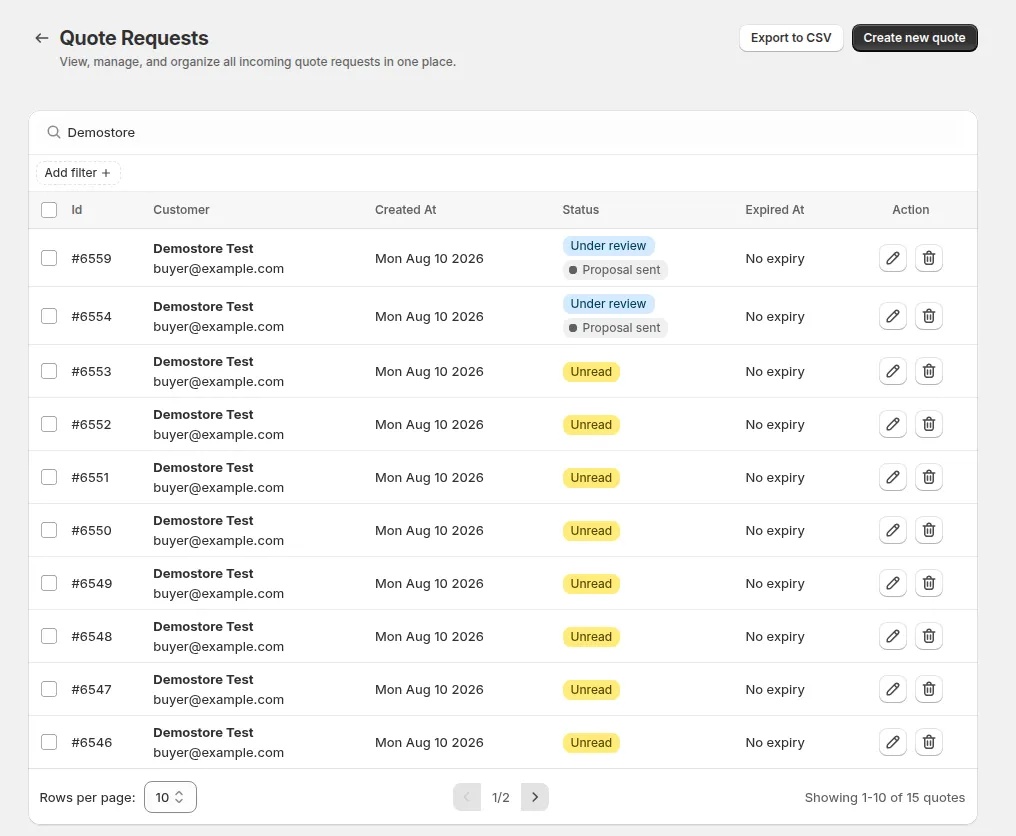
Key List Controls & Table Columns
Section titled “Key List Controls & Table Columns”| Column / Control | Description & Usage |
|---|---|
| Date Range Filter | Filter quotes by All Time (default), Last 7 Days, Last 30 Days, or This Month. |
| Rows per Page | Customize table pagination between 10 (default), 50, or 100 rows per page. |
| Export to CSV | Click Export to CSV to download quote records. Choose between Current page, Selected quotes, or All quotes. |
| Quote ID | Unique numerical identifier assigned to each quote request (e.g. #Q1001). |
| Customer | Customer name, company profile, and email address. |
| Status | Unread, Under review, Converted or Rejected, plus the Proposal sent and Expired badges when they apply. |
| Expired Date | Target date when the quote pricing expires. Overdue quotes show an Expired badge. |
| Created At | Exact submission timestamp. |
| Actions | Edit details, manually change status, or delete the quote. |
Manual Status Changes & Lifecycle Management
Section titled “Manual Status Changes & Lifecycle Management”- Change Status Manually: From Quote Details or the list view, merchants can update quote status manually (e.g. mark as
Rejected,Converted, or return toUnder review) to reflect offline phone negotiations. - Automated Rejection Status: Quotes declined by the buyer via proposal email are automatically transitioned to the status Rejected.
- Reverting to Unread: Reverting a quote’s status back to
Unreadis permitted only if a proposal email has not yet been dispatched.
2. Quote Details Screen
Section titled “2. Quote Details Screen”Clicking any row on the list opens the Quote Details screen for end-to-end processing.
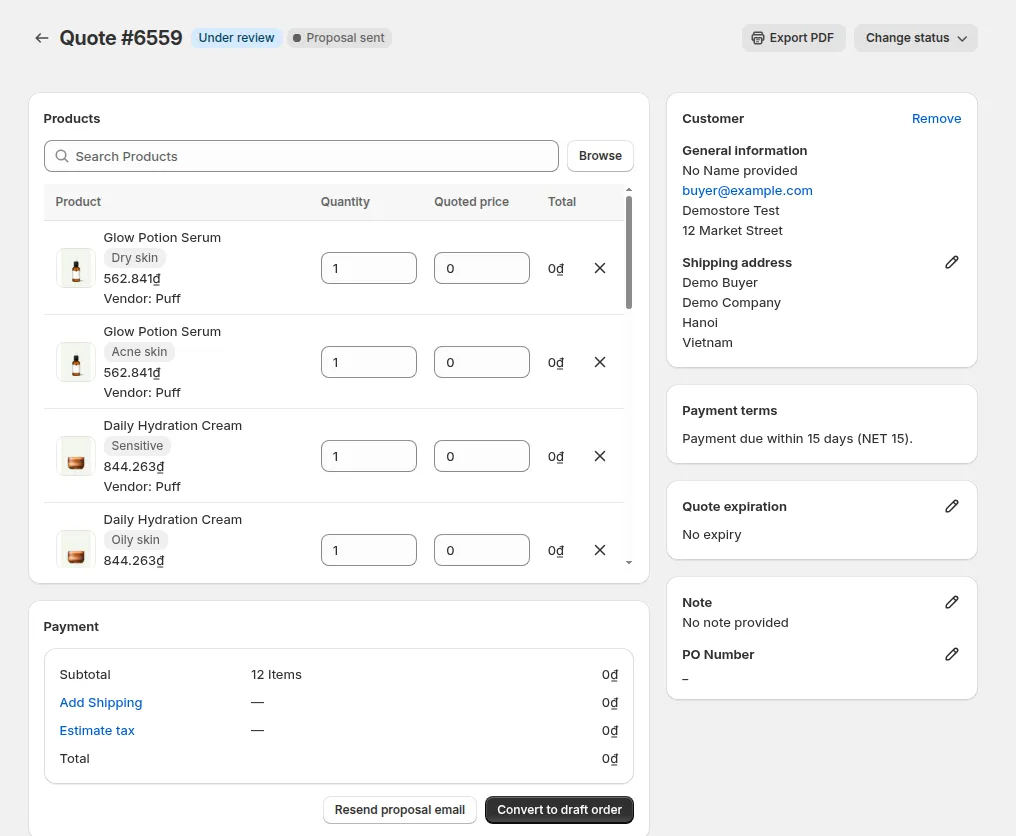
2.1 Products & Itemized Pricing
Section titled “2.1 Products & Itemized Pricing”- Line Items Table: Lists quoted items, variants, SKUs, and buyer-submitted item notes.
- Quoted Price Adjustment: Enter custom discounted unit prices for each line item.
- Add Products: Search store catalog by title or SKU to add complementary items to the quote.
2.2 Expiration Date (Expired Date)
Section titled “2.2 Expiration Date (Expired Date)”- Set a specific validity expiration date or enter a validity period in days (e.g., 30 days).
- The Expired Date automatically syncs to the proposal email, PDF export, and storefront Quote History.
- Protects your business from sudden raw material price increases when buyers respond late.
2.3 Customer & Tax Information
Section titled “2.3 Customer & Tax Information”- Displays customer contact information, shipping address, and linked Shopify B2B Company location.
- PO Number: Displays the buyer’s internal Purchase Order number if submitted.
- VAT / Tax Number: Displays the buyer’s tax registration number recorded during submission.
2.4 Shipping & Payment Summary
Section titled “2.4 Shipping & Payment Summary”- Buyer Selected Shipping Method: If the buyer selected a shipping method during submission, it is automatically displayed with live rates from Shopify Shipping Zones.
- Add Custom Shipping Rate: Add custom manual freight charges or flat rates.
- Tax Calculation: Taxes are calculated automatically by Shopify based on location and exemptions.
2.5 Export PDF & Send Proposal Email
Section titled “2.5 Export PDF & Send Proposal Email”- Export PDF: Generates a branded quote PDF document incorporating the configured layout, logo, and expiration date.
- Send Proposal Email: Triggers a proposal email to the customer containing itemized pricing, expiration notice, PDF attachment, and one-click Approve Quote / Reject Quote action buttons.
2.6 Convert to Draft Order
Section titled “2.6 Convert to Draft Order”When pricing is finalized, click Convert to Draft Order:
- Automatically generates a Shopify Draft Order pre-filled with custom prices, shipping, and taxes.