Sales Agents
Sales Agents let your own sales team order on behalf of retailers. An agent logs in to the store, opens the Quick Order page, picks one of their retailers and builds an order at that retailer’s prices. The order is created as a Shopify draft order, and the agent can email the invoice to the retailer.
Before you start
Section titled “Before you start”- A Quick Order page that your agents can open. See Create Quick Order Page.
- The agents and the retailers must exist as customers in your Shopify store. An agent is a customer who has a login.
- Prices come from the retailer’s own account (price lists, Shopify B2B catalogs, or BSS B2B Solution rules), so check those are set for each retailer.
Turn the feature on
Section titled “Turn the feature on”- In the app admin, open Sales agents.
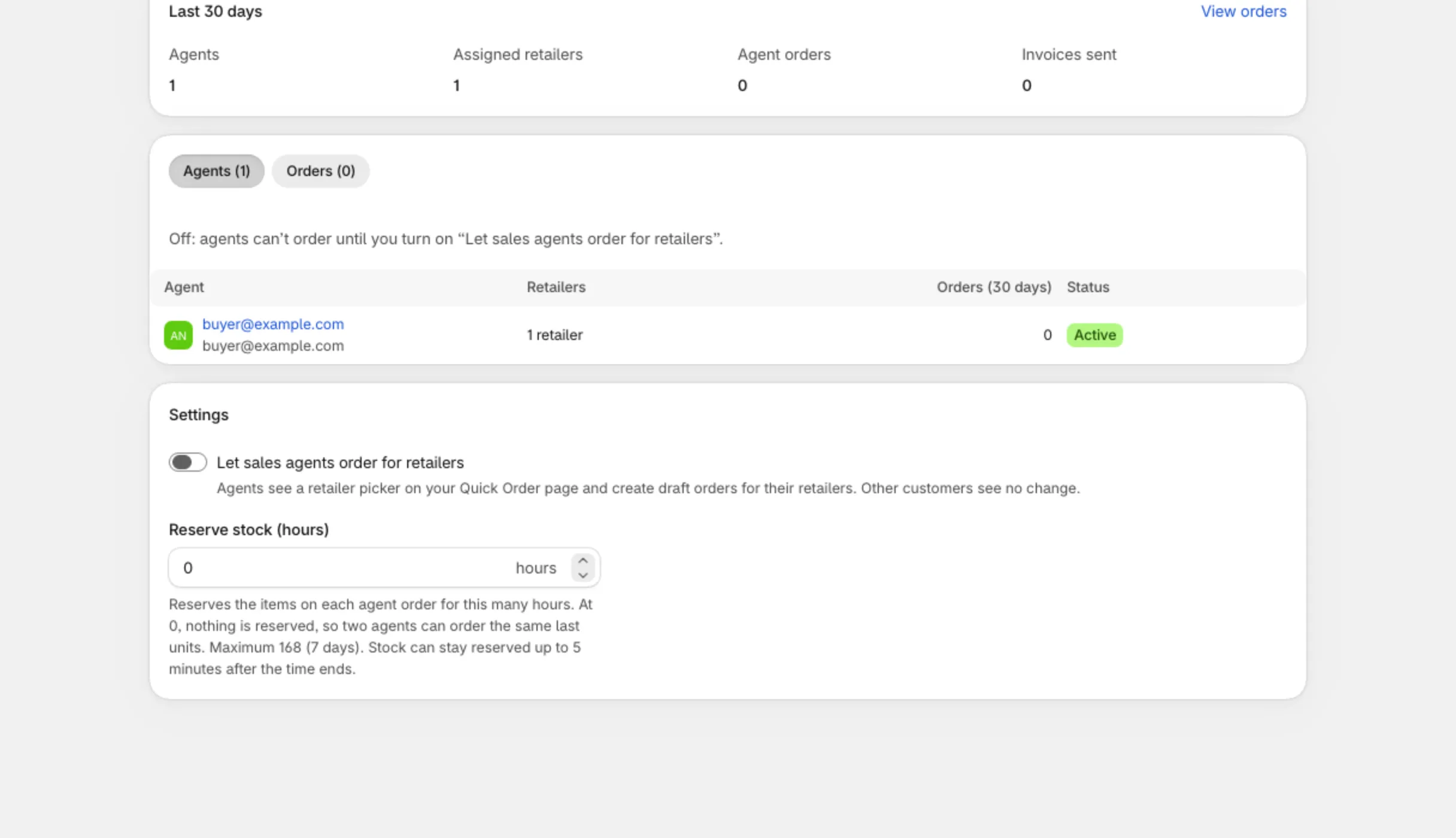
- Turn on Let sales agents order for retailers. Agents then see a retailer picker on your Quick Order page. Other customers see no change.
- Set Reserve stock (hours), from 0 to 168 whole hours. While an order is a draft, its stock stays reserved for this time. At 0 nothing is reserved. Stock may stay reserved for up to 5 minutes after the time ends.
Add an agent
Section titled “Add an agent”- On the Sales agents page, click Add agent.
- Pick the customer who will be the agent.
- The agent appears in the table with the columns Agent, Retailers and Status (Active or Paused).
Assign retailers
Section titled “Assign retailers”- Click an agent to open the agent page.
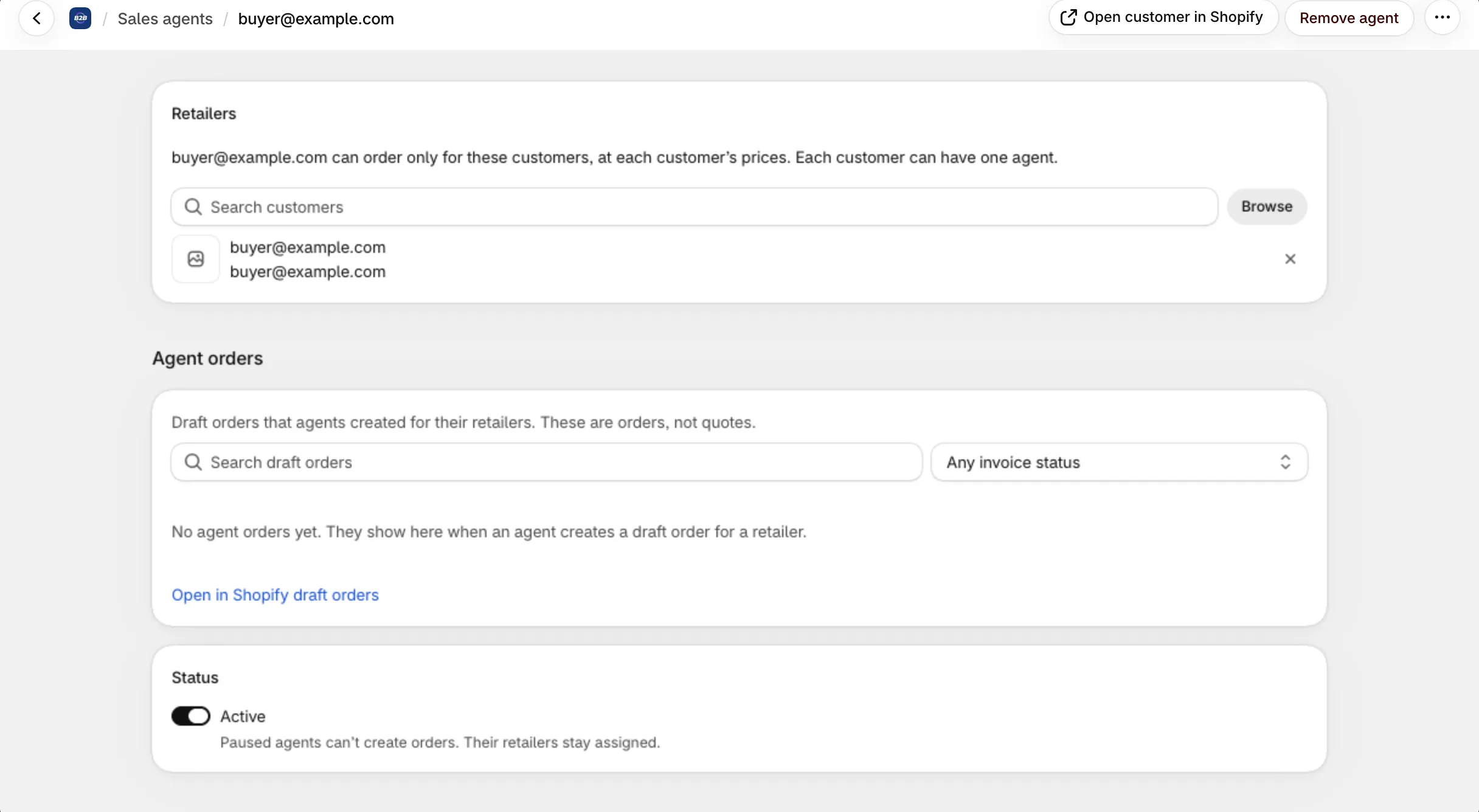
- In Retailers, pick the customers this agent can order for.
- Save.
Rules:
- The agent can order only for these customers, at each customer’s prices.
- Each customer can have one agent. If a customer already belongs to another agent, the page shows a conflict and you must remove them from the other agent first.
- An agent cannot be their own retailer.
Pause or remove an agent
Section titled “Pause or remove an agent”- Status: Active. Switch it off to pause the agent. Paused agents cannot create orders, and their retailers stay assigned.
- Remove agent. Draft orders the agent already created stay in Shopify, and the customer account is not changed.
What an agent sees on the storefront
Section titled “What an agent sees on the storefront”- The agent logs in and opens the Quick Order page. An agent bar shows Order for a retailer.
- Click Choose retailer and pick a retailer. The picker has search. You can switch with Change retailer at any time.
- The page now shows the retailer’s prices. The agent adds items with Add to order, or uses Add all to order after a CSV or bulk import.
- In the order tray the agent clicks Review order, writes an optional note (up to 500 characters), and can tick Email the invoice to the retailer.
- Create order makes a Shopify draft order. A confirmation screen follows.
- My orders lists the agent’s orders with Order, Date, Retailer, Total and Invoice.
If something blocks the order, the agent sees a message: not enough stock, a price that changed, the daily limit reached, the agent was paused, or the retailer was removed. Retrying a request does not create a second order.
Daily limits
Section titled “Daily limits”- Up to 50 orders per agent and retailer per day.
- Up to 20 invoice emails per agent per day.
Edit the texts agents see
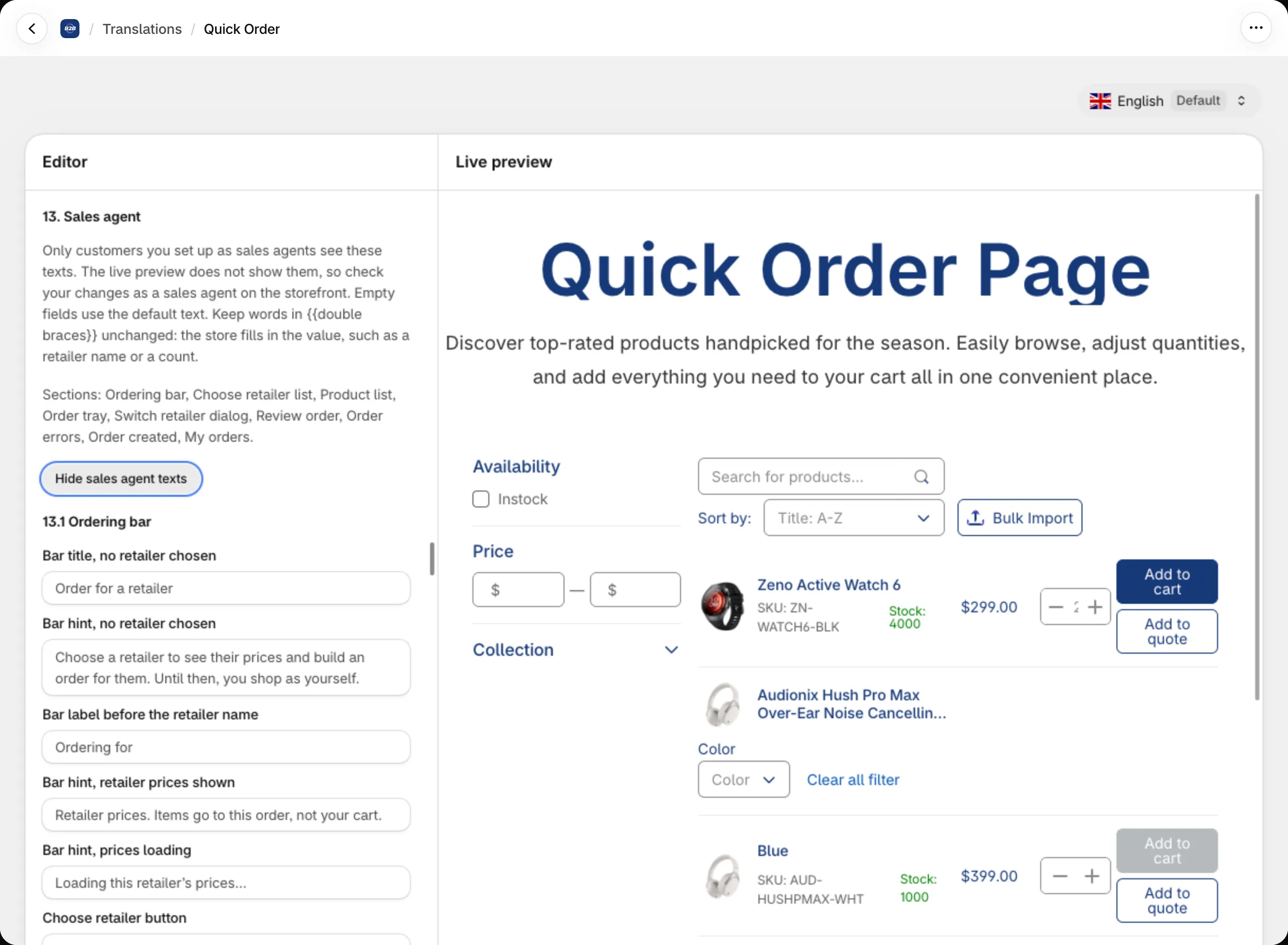
Section titled “Edit the texts agents see”The agent bar, picker and messages can be edited in Settings → Languages → Quick Order, in the Sales agent section. Turn on Show sales agent texts to see the fields. Only agents see these texts, and the live preview does not show them. Empty fields use the default text. Keep placeholders in {{double braces}} unchanged.