
Quote Button Not Showing
Work through these checks in order. Most problems are solved by the first three.
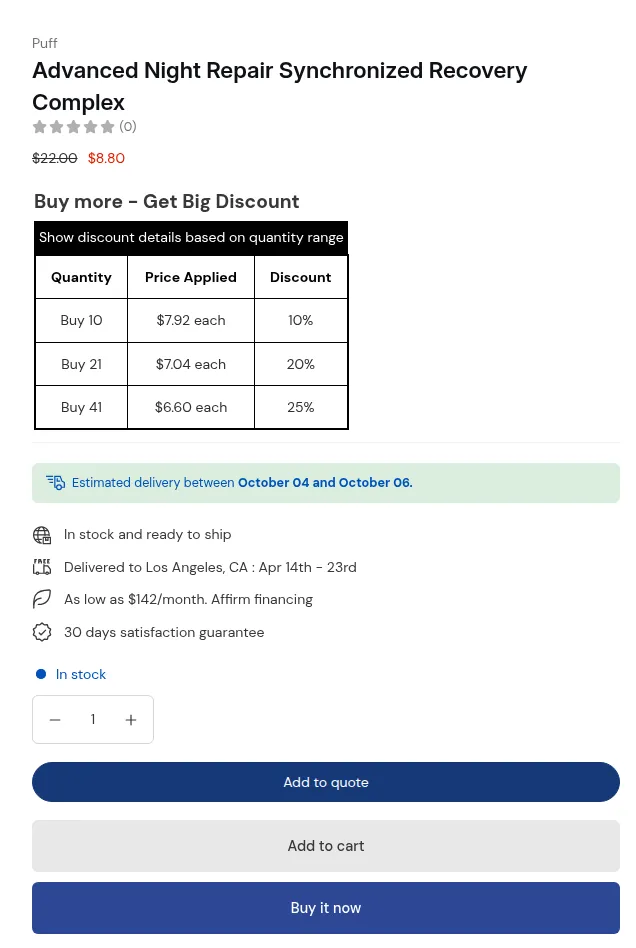
What your customers see on the storefront.
1. The app embed is on
Section titled “1. The app embed is on”Quote buttons, hidden prices and the quote widget are all loaded by the app embed. In the app’s home page, App Status must show App Embed as Enabled.
If it shows Disabled, turn on the B2B Portal app embed in your theme editor and save. See Enable the App Embed.
2. The logic is Active
Section titled “2. The logic is Active”Go to Request for Quote > Quote Settings > Set up logics. Only logics with the Active status are sent to your storefront. Use the Active filter to check.
3. The customer type matches the logic type
Section titled “3. The customer type matches the logic type”Each logic is created for Default Customers or Company Customers, and the two never overlap:
- A customer who is signed in and buying for a company (Shopify B2B) only matches Company Customers logics.
- Every other visitor, signed in or not, only matches Default Customers logics.
If you test with a company contact, a Default Customers logic will not apply to them.
4. The customer matches “Who can request a quote?”
Section titled “4. The customer matches “Who can request a quote?””Open the logic, tab Set Up Quote Visibility & Quote Catalogs, and check Who can request a quote?:
| Option | Who matches |
|---|---|
| All customers | Every visitor, including guests |
| Logged-in customers | Any signed-in customer |
| Specific customers | Only the customers you picked; they must be signed in |
| Customer tags | Signed-in customers with at least one of the tags (not case-sensitive) |
| All company customers | Any signed-in company customer |
| Specific companies | Signed-in customers buying for the companies you picked |
Then check Exclude customers. An exclusion always wins over a match.
5. The highest-priority matching logic covers the product
Section titled “5. The highest-priority matching logic covers the product”This is the most common surprise. When several logics match the same customer, the storefront uses only one: the one with the lowest Priority number (0 is the highest priority). If two logics have the same priority, the older one wins.
The app then looks for a quote catalog inside that logic that covers the product:
- If a catalog covers the product, the quote button and that catalog’s hide-price settings apply.
- If no catalog in that logic covers the product, no quote button appears, even if a lower-priority logic would cover it. The app does not fall back to the next logic.
Inside one logic, catalogs are checked in order and the first catalog that covers the product wins. Exclude products in a catalog always wins over a match.
6. The page type is turned on and allowed by your plan
Section titled “6. The page type is turned on and allowed by your plan”In tab Set Up Quote Button & Widget > Quote Button, check Display quote button on:
- Product page is available on all plans.
- Collection page and Cart page need the Business plan or higher.
7. The widget visibility setting
Section titled “7. The widget visibility setting”If the button works but the floating widget does not show, check Quote Widget > Visibility condition. With Show quote widget only when customers add at least one item to quote, the widget stays hidden until the quote list has an item.
8. Your theme layout
Section titled “8. Your theme layout”The app finds the price, Add to cart button and other elements using presets for many popular themes. On a heavily customized theme, the button may not find its position. See Enable the App Embed for how theme detection works, and contact support with your theme name and a product URL.
Still not working?
Section titled “Still not working?”Contact support and include:
- The product URL.
- The customer you tested with (guest, signed-in customer, or company customer).
- The names and priorities of your active logics.
Related pages
Section titled “Related pages”- Set Up Quote Visibility
- Set Up Prices & Buttons
- Enable the App Embed and Check Theme Compatibility