
Quote Button Placement and Supported Themes
The app places the Add to quote button using a preset for your theme. If the preset does not match your theme, you can set the position yourself in the app. You do not need a developer.
Step 1: Check whether your theme is supported
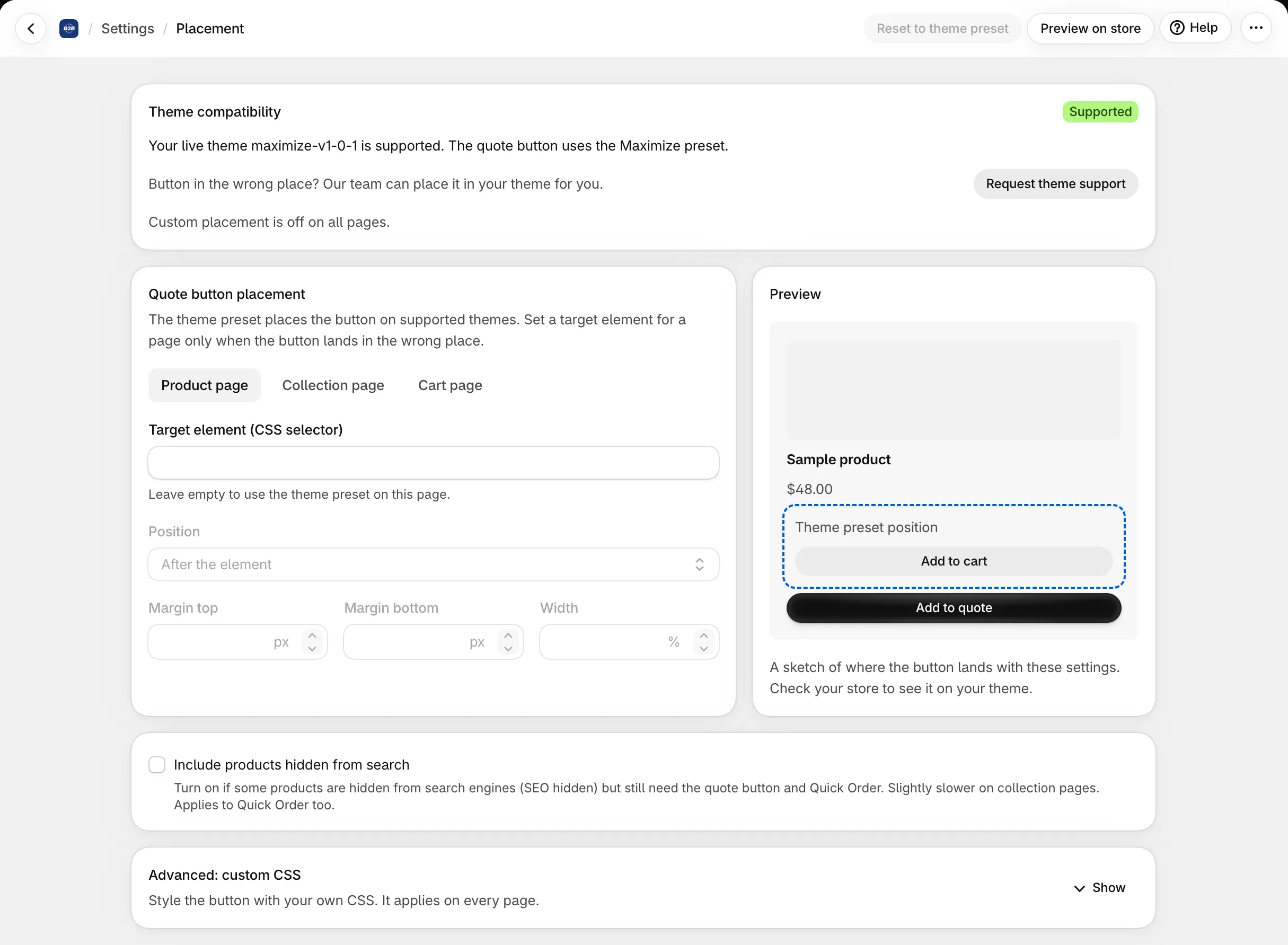
Section titled “Step 1: Check whether your theme is supported”- Open Settings > Button placement.
- Look at Theme compatibility at the top of the page:
- Supported: your live theme has a preset. The button uses it.
- Default placement: your theme has no preset yet. The button uses a default position and may be off.
- If the theme is Default placement, or the button is still off, go to Step 2. To ask us to add a preset for your theme, click Request theme support. The message is filled in with your theme name and theme ID.
Step 2: Set the button position for each page
Section titled “Step 2: Set the button position for each page”For each page (Product page, Collection page, Cart page) you can set:
| Field | What it does |
|---|---|
| Target element (CSS selector) | The theme element the button attaches to. Leave empty to use the preset for that page. |
| Position | Before the element, After the element or Inside the element. |
| Margins (top, bottom, left, right) | Whole numbers from -200 to 200 (px). |
| Width | Whole number from 1 to 100 (%). |
| Custom CSS (whole shop) | Extra CSS for the button, up to 5,000 characters, no <. |
To find a selector, open the page on your storefront, right-click the element next to where you want the button (for example the Add to cart button), choose Inspect, and copy its class or id (for example .product-form__submit or #checkout). A selector can be up to 500 characters and cannot contain <, {, } or ;.
Click Save, then reload the storefront page (clear the theme cache if it has one).
Cart page and cart drawer
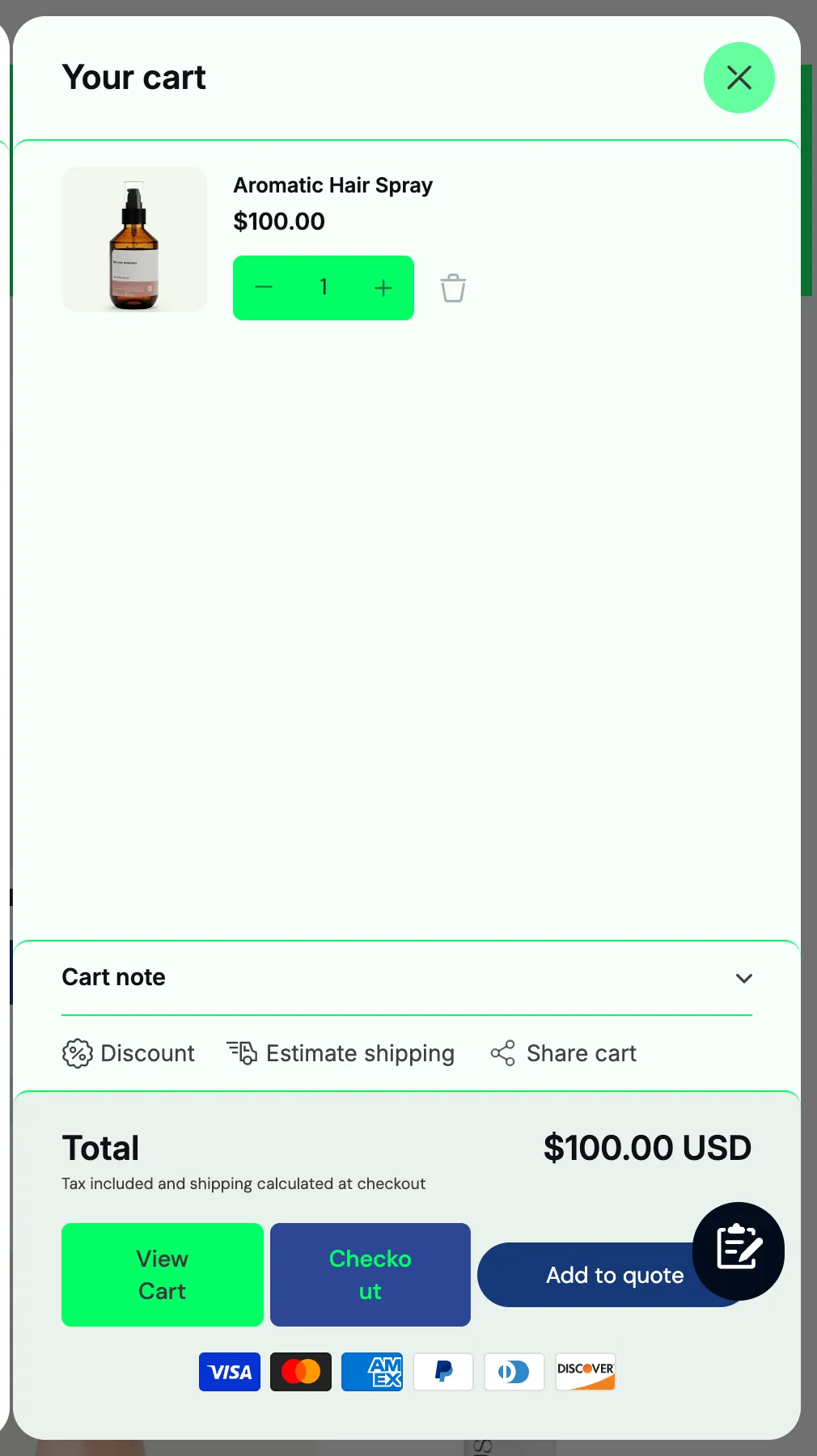
Section titled “Cart page and cart drawer”The cart button is placed next to the theme’s Checkout button, using the Cart page selector above. It works on the cart page and also inside a cart drawer or pop-up cart: the app looks for the checkout button in the drawer too, and adds the button when the drawer opens.
If the button does not show in your drawer, or is in the wrong place:
- Make sure a quote logic with the button turned on for the cart page exists. The Quote from cart template in Quote Logic does this.
- Check the cart page on your storefront (open
/cartdirectly) and open the drawer. Set the Cart page selector if the button is not where you want it; it applies to the drawer as well. - Make sure the App embed is on in your live theme, because the button needs it on every page. See Install and enable app embeds.
Products hidden from search
Section titled “Products hidden from search”If some products are hidden from search engines (SEO hidden) but still need the quote button, turn on Include products hidden from search at the bottom of the page. Collection pages load slightly slower with it on. The setting applies to Quick Order too.
Reset to the theme preset
Section titled “Reset to the theme preset”Click Reset to theme preset to remove all your customizations. To reset one page only, clear its selector and click Save.
Supported themes
Section titled “Supported themes”The app recognizes a theme by its schema name (not case-sensitive). Theme compatibility shows which group your live theme belongs to.
Official Shopify themes
- Dawn family (same markup as Dawn, one shared preset): Dawn, Refresh, Sense, Craft, Spotlight, Ride, Taste, Studio, Rise.
- Trade: its own preset.
- Horizon family: Horizon, Fabric, Savor, Vessel, Dwell, Tinker, Pitch, Atelier, Heritage, Ritual.
Other themes with a preset
Eurus, Debut, Empire, Enterprise, Impulse, Venture, November, Hyper, Kalles, Hongo, Alchemy, Vision, Warehouse, Turbo, Focal, Wonder, Space, Stretch, Cornerstone, Xtra, Gain, Concept, Essence, Zest, Maximize, Flex, Pipeline, Minion, Impact, Minimalista, Prestige, Local, Ignite, Krank, Palo Alto, Ultimate, Creative, Shapes, Alukas, Maker, ShowTime, Supply, Keystone, Symmetry, Expanse, Futurer, Ella, Chromex, Athens, Woodstock, Starlite, Xclusive, Atlas, Ascent, Be Yours, Avenue, Sleek, Satoshi, Broadcast, Flute, Shark.
No preset yet
Any theme not listed, including Pebble, Venue and themes built from scratch, uses a default selector in the style of Dawn. If the button is off, set a selector as in Step 2 or click Request theme support.
A customized version of an official theme usually reuses the preset of the original theme, as long as its schema name is unchanged.
Is my theme supported? See Theme compatibility in Settings > Button placement, or the list above.
The button is in the wrong place or missing.
- Check Theme compatibility.
- If it says Default placement, set a selector for that page or click Request theme support.
- If it says Supported but the button is still off, the theme markup may have been edited. Set your own selector for that page.
- If the button is missing entirely, follow Quote Button Not Showing.
I typed a selector but the button did not move.
- Check the selector with Inspect on your storefront: it should match exactly the element you want, with no syntax error.
- On the product page, a selector outside the product information block may be ignored, and the preset is used instead.
- Make sure you clicked Save and reloaded the page.
Can a wrong selector break my storefront?
No. If the selector matches nothing, the button goes back to the preset. The selector field blocks <, {, } and ;.
Do I lose my customizations when I change theme? No, they belong to your shop, not to the theme. A selector written for the old theme may not fit the new one, so check each page.
The quote button overlaps the theme’s Add to cart button or price. Try another Position (Before, After, Inside) and adjust the margins.